

Utility installments
Question about the manual? Ask Claude · Ask ChatGPT
Utilities for electricity, gas, water or heating charge monthly installments and send a bill once a year. In SMARTBRIX, you create the first installment as a vendor bill and turn it into a recurring invoice. Every month, the next installment is created from it, posted and with an expenditure for the service charge statement. You post the utility’s annual bill only as the difference. This works for accrual basis and cash basis accounting alike.
The example on this page: Stadtwerke Musterstadt (the municipal utility) supplies the common area electricity for Lindenweg 5. The installment is €100, and the contract year runs from 10/01/2025 to 09/30/2026.
Create the first installment
Section titled “Create the first installment”- Open Accounting › Vendors › Bills and click New.
- Select the utility as Vendor and enter something like “Installment common area electricity” and the contract number under Bill Reference.
- As the Bill Date, enter the day the installment is due, here 10/15/2025, and the same date as the Due Date. Always start the series with the first installment of a contract year, even if the installments lag behind the contract year, for example a contract from February with the first installment in March.
- As the Service Period, enter the utility’s whole contract year, here 10/01/2025 to 09/30/2026. Not the month of the installment. If the utility does not bill from the first of the month, for example from the 25th to the 24th, enter the contract year the same way, for example 09/25/2025 to 09/24/2026.
- In the Invoice Lines tab, add a line with the installment amount. Choose the Property (the building), the matching cost type under Cost Types, here “Allgemeinstrom” (common area electricity), and the Account. If the installment covers several cost types, for example fresh water and wastewater, add one line per cost type with its partial amount. A line with several cost types results in only one expenditure, for the first cost type.

With the contract year as service period, each installment becomes an expenditure covering the whole contract year, just like the utility’s annual bill later on. The service charge statement spreads each of them pro rata over the statement years the contract year touches. This delimits the contract year exactly, even if it does not match the calendar year.
Set it up as recurring
Section titled “Set it up as recurring”- In the invoice header, tick Recurring.
- Under Repeat Unit, choose “Months” and enter “1” under Repeat Every.
- Under Recurring Invoice Day (1-31) and Recurring Due Day (1-31), enter the debit day, here “15”.
- Tick Post Follow-up Invoices Automatically.
- Leave the End Date empty as long as the contract runs.
- Click Confirm.
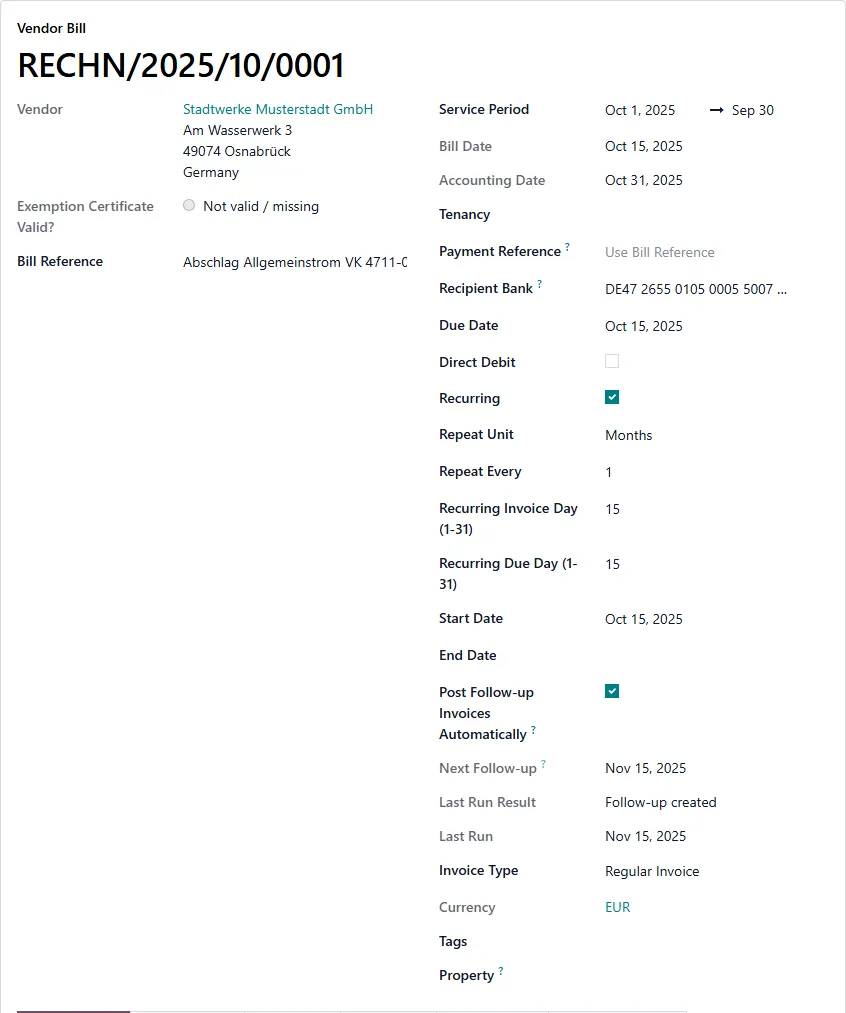
From now on, the daily run creates the next installment on the 15th of every month and posts it. Each installment keeps the contract year 10/01/2025 to 09/30/2026 as its service period. When posting each installment, SMARTBRIX creates the expenditure for the cost type.
Catch up on past installments
Section titled “Catch up on past installments”If you set up a series afterwards, create the first installment bill for the first installment of the oldest contract year that is still missing. The Create Recurring Invoices (Missed Period) wizard then creates the installments up to today. How this works is described under Catch up on missed follow-up invoices. Afterwards, match each debit with the installment of its month.
Match an installment with the bank
Section titled “Match an installment with the bank”In bank matching, match the utility’s debit with the installment bill of the same month. If the IBAN is stored on the utility, SMARTBRIX recognizes it from the transaction.
The installment changes
Section titled “The installment changes”If the utility announces a new installment, change the newest installment bill:
- Open the newest installment of the series.
- Click Reset to Draft.
- Enter the new amount in the invoice line.
- Click Confirm.
Resetting to draft removes the match with the bank transaction. Match the installment again after posting.
From the next month on, the series uses the new amount. Post the bill again before the next debit day if you can. If you post it later, the run catches up on the missed installment as long as the day is no more than 35 days in the past. A change to the first invoice of the series has no effect.
The utility’s annual bill
Section titled “The utility’s annual bill”The installments are already posted. From the annual bill, you therefore post only the difference between the annual amount and the sum of the installments, as a separate document:
- Additional payment: a new vendor bill under Accounting › Vendors › Bills for the additional amount.
- Credit: a credit note under Accounting › Vendors › Refunds for the credit amount.
Fill in the document like an installment: the Service Period is the same contract year, and the line carries Property and Cost Types. Do not tick Recurring. Click Confirm.
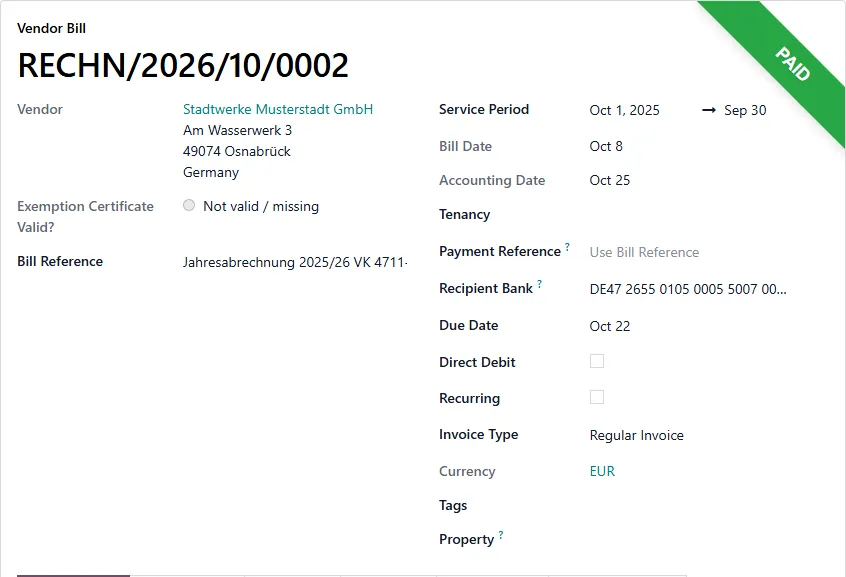
An additional payment becomes an additional expenditure, a credit a negative one. Together with the installments, the service charge statement shows the annual amount stated by the utility. In bank matching, match the document with the payment or the refund.
A bonus of the utility credited with the annual bill belongs in this credit. The expenditures of the year are then lower than the amount of services on the invoice, because the bonus is already deducted. That is correct if the bonus benefits the tenants.
Annual bill with a new installment plan
Section titled “Annual bill with a new installment plan”The annual bill often contains both: the additional payment or the credit for the past year and the installment plan for the new one. Record it as two separate documents:
- Difference: Post the additional payment or the credit as described under The utility’s annual bill, with the billed period as Service Period.
- New installments: Create a vendor bill for the first installment of the plan, with the new contract year as Service Period, and set it up as described under Set it up as recurring.
An example: The annual bill of 10/07/2026 asks for an additional payment of €103.15 for the period 09/23/2025 to 09/30/2026. For the new year, it sets 11 installments of €1,158.00, each due on the 15th, from 11/15/2026 to 09/15/2027. In October, the month of the bill, the utility does not collect an installment.
- Post the additional payment as a vendor bill for €103.15 with the invoice date 10/07/2026 and the service period 09/23/2025 to 09/30/2026.
- The series starts with the installment of 11/15/2026 for €1,158.00, service period 10/01/2026 to 09/30/2027.
If the plan sets fewer than twelve installments, enter the day of the last installment as End Date on the first installment, in the example 09/15/2027. The series then ends after the eleventh installment and does not create a twelfth one in October 2027. With the next annual bill, you start a new series.
If a series from the previous year is already running for the contract, enter the day of the last installment under the old plan as End Date on its newest installment. If the old series has already created an installment for a month without a debit, reset it to draft and take it out of the accounts with Cancel.
New contract year
Section titled “New contract year”You do not change anything on the series. Twelve months after the first installment of the series, the service period moves to the next contract year. In the example, the installment of 10/15/2026 automatically carries the service period 10/01/2026 to 09/30/2027, and the following installments keep it. If the installments lag one month behind the contract year, the period moves accordingly with the installment one month after the start of the contract.
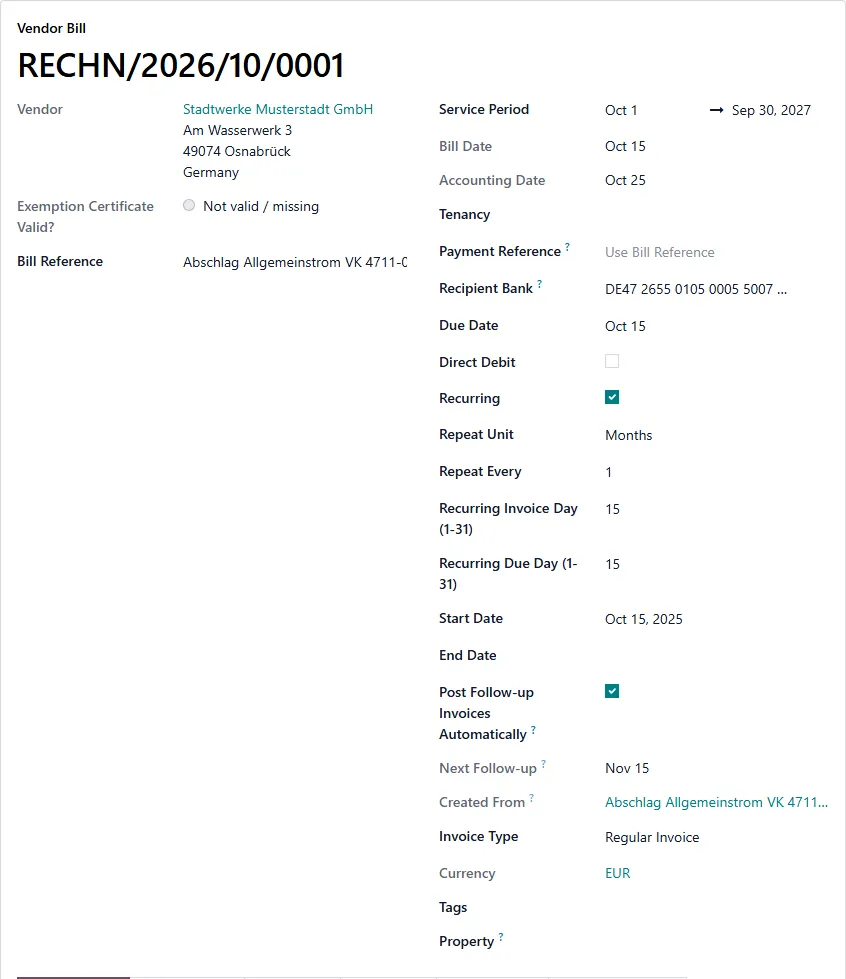
If the utility changes the installment for the new contract year, proceed as under The installment changes. If the contract ends, enter an End Date on the newest installment.
Installment plan as one invoice
Section titled “Installment plan as one invoice”Some utilities send the whole installment plan for a year as one invoice. In that case, you do not need a series:
- Post the invoice for the annual amount of the plan, with the contract year as Service Period, Property and Cost Types.
- Match each monthly debit with this invoice as a partial payment. You do this by hand, because the amount of a debit does not match the invoice amount.
- Post the annual bill as a difference document, as described above.
This way, the service charge statement receives the full costs over the contract year. With cash basis accounting, each debit counts in the year it was paid, provided it is matched. With accrual basis accounting, the whole annual amount counts on the invoice date.
Installments with an approval route
Section titled “Installments with an approval route”If your vendor bills go through an approval route, this also applies to every installment of the series. With Post Follow-up Invoices Automatically ticked, a new installment is first set to To Approve. It is posted only after the final approval.
SMARTBRIX creates the next installment only from a posted installment. Approve each installment before the next debit day. Once that day has passed, the installment for that month is not created. Then create it with the wizard, see Catch up on missed follow-up invoices.
The first installment of the series must also be approved before the series starts.
Accrual basis and cash basis accounting
Section titled “Accrual basis and cash basis accounting”SMARTBRIX posts the installments the same way in both cases. The reports read them differently:
- Accrual basis accounting: each installment counts as an expense on its invoice date.
- Cash basis accounting: each installment counts in the year it was paid. For that, it must be matched with the bank. See Set up the cash receipts statement.
For the service charge statement, the service period counts in both cases.
Frequently asked questions
Section titled “Frequently asked questions”The service period of the installments does not move to the new contract year. Check the service period of the first installment. It must consist of whole months: the end is one day before the same day on which the period starts, for example 10/01 to 09/30 or 09/25 to 09/24. A period that differs from this moves on every month.
The series does not create a new installment. Check the status of the newest installment. If it is To Approve or Draft, it is not posted, and the series does not continue. See Installments with an approval route. If the End Date has been reached, the series has ended as planned.
A posted installment bill cannot be deleted. An invoice that was posted once is kept for traceability, even if it is back in draft. It can no longer be deleted or archived. Take it out of the accounts with Cancel.
Didn't find an answer? Contact support