

Invoice for the service charge statement
Question about the manual? Ask Claude · Ask ChatGPT
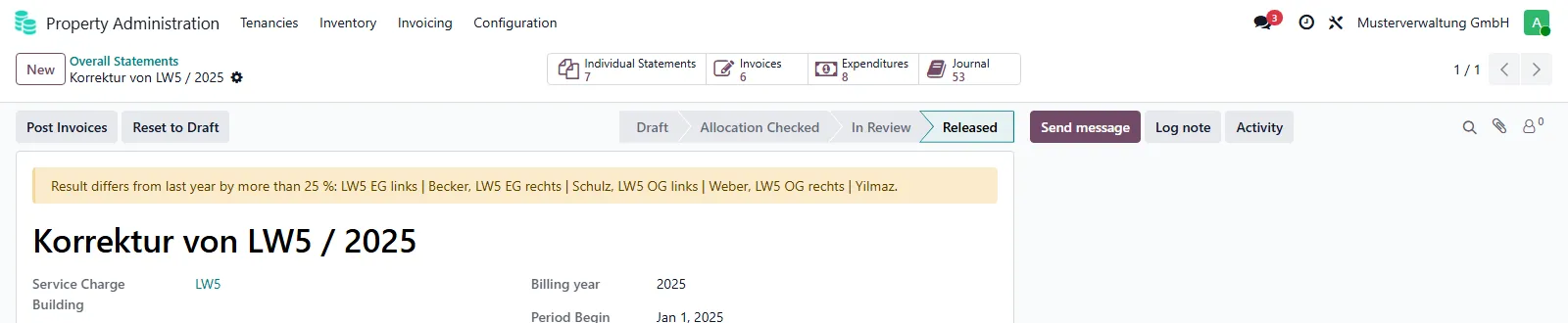
The invoices for the service charge statement are all created at once when you release the overall statement. There is no button for this on the individual statement.
Release
Section titled “Release”- Open the overall statement in the In Review stage and click Release. You need invoicing rights for this.
- The invoices are created in the background. The overall statement then shows Released.
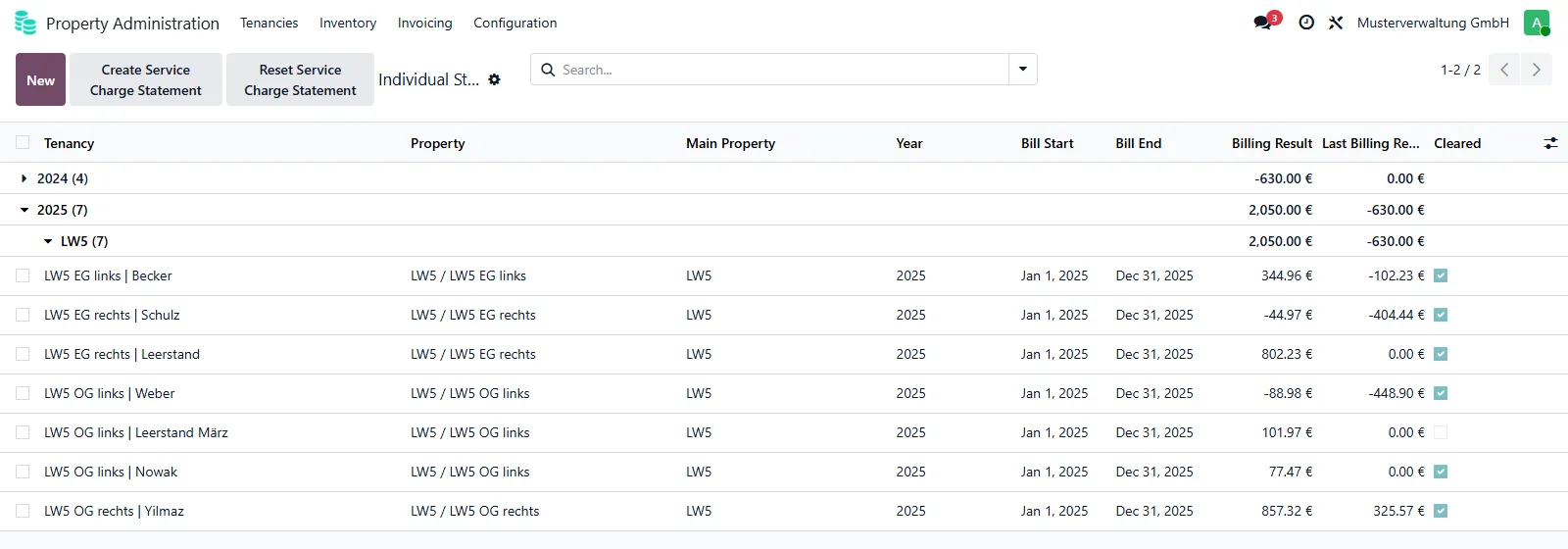
- Each statement is then Cleared. Under Customer invoice you find its invoice, a draft with the invoice type “Service Charge Statement”. For a refund, SMARTBRIX creates a credit note.
- If tenants have a changed prepayment, SMARTBRIX creates the new rent lines on their tenancies (see Adjust prepayments).
A vacancy gets an invoice to the owner if an invoice address is entered on the usage. Without an invoice address, its share only appears in the overall statement under Vacancy, and the statement stays without an invoice.
If an invoice is missing after the release, because creating it failed or someone deleted a draft, Create Missing Invoices appears. The button creates only the missing invoices.
Review, post and send
Section titled “Review, post and send”- Open the invoices with the Invoices smart button of the overall statement and review them.
- In the overall statement, click Post Invoices. SMARTBRIX posts all drafts of the overall statement at once. You can also post individual invoices as usual with Confirm.
- Send the invoices with Send or print them.
Open prepayments
Section titled “Open prepayments”If a tenant did not pay prepayments, they are part of the additional payment (see Paid prepayments). So that the tenant does not owe them twice, SMARTBRIX creates a credit note for the open prepayment on each affected rent invoice when you release, with the product, account and tax of the invoice item. It appears as a draft on the statement under Cleared Advance Payments.
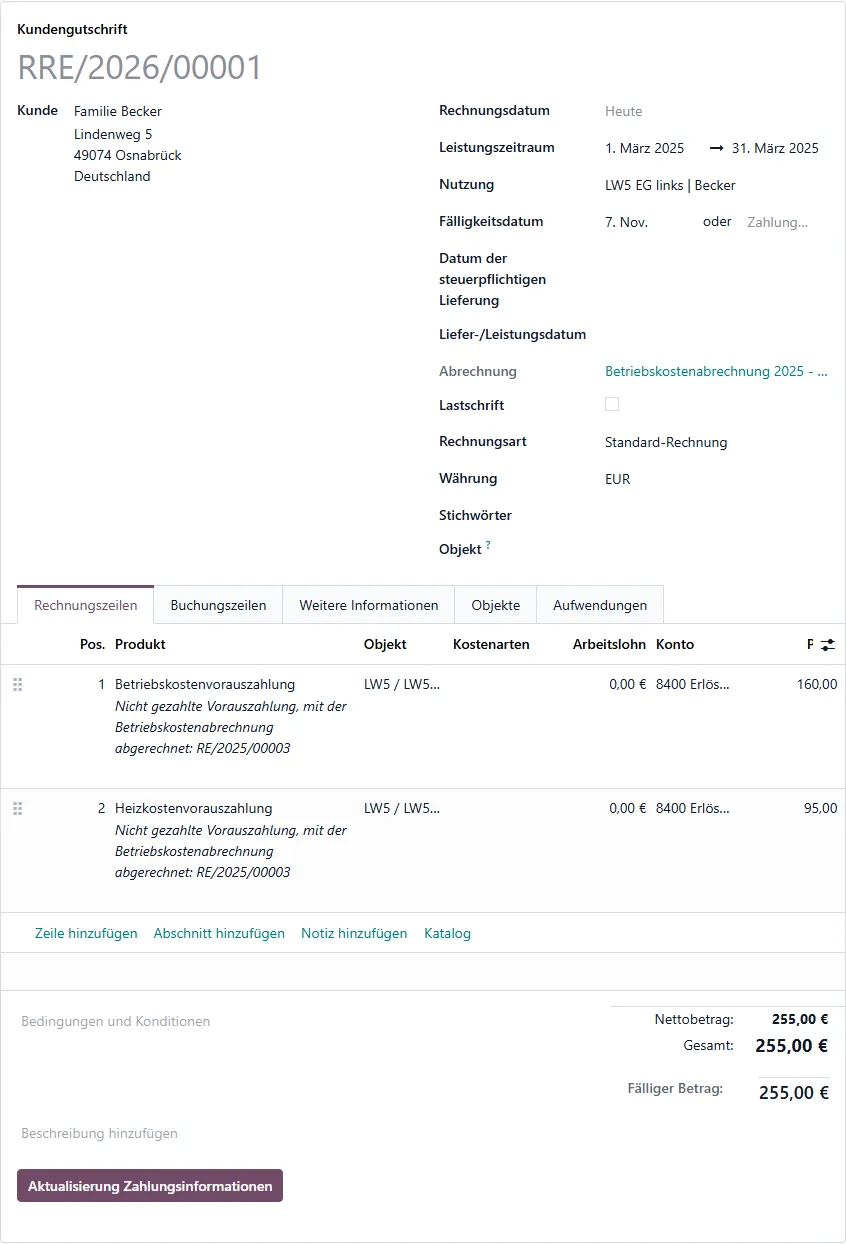
When you post the statement invoice, SMARTBRIX posts the credit notes as well and matches them with the rent invoices. Afterwards only the base rent stays open on the old rent invoices, and follow-up no longer reminds the tenant of the prepayments. If you reset the overall statement, SMARTBRIX deletes the drafts too.
On the tenant’s statement, the affected prepayment reads “Agreed …, of which not paid …, credited …”. A sentence below names the Payments Until day and the amount by which the open rent invoices are cleared. If the tenant paid everything, the statement looks as before.
The printout
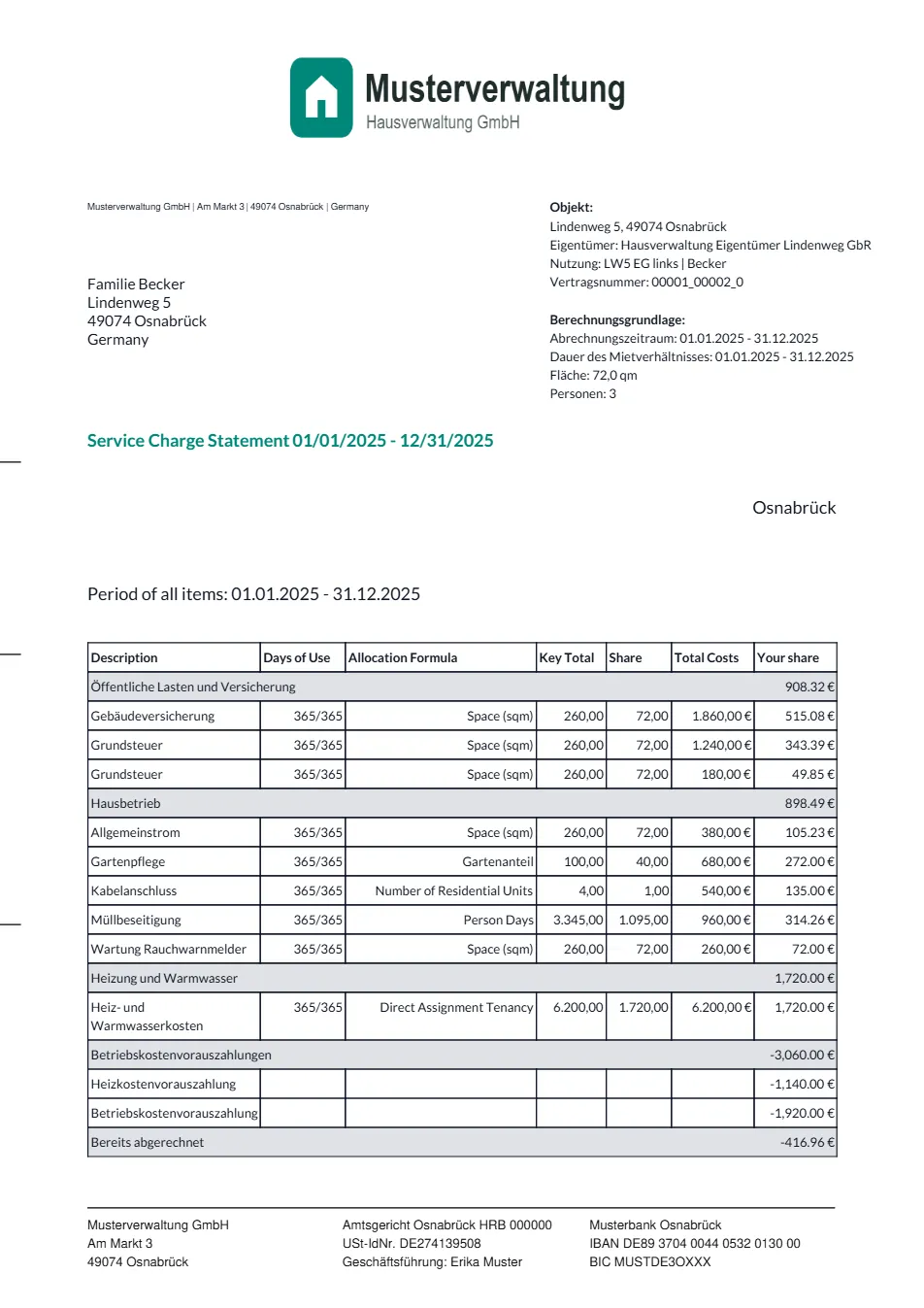
Section titled “The printout”Printing and sending automatically use the layout of the service charge statement. For each cost type it shows Days of Use, Allocation Formula, Key Total (the total of the key values of all usages involved), Share (the value of this usage), Total Costs and Your share. If a cost type is allocated by a property allocation key, its name appears in the Allocation Formula column. For person days, Key Total and Share show person days, so the amount can be checked: total costs times share divided by key total. In an English printout, the information block at the top right and a few lines still appear in German for now.
If SMARTBRIX settles the building’s heating costs itself, Print appends the usage’s heating cost statement, just as email and LetterXpress send it along.
If all items have the same period, it appears once above the table as “Period of all items:”. If a period differs, for example when the tenant changes during the year, the table gets the Duration column.
The result appears below the table:
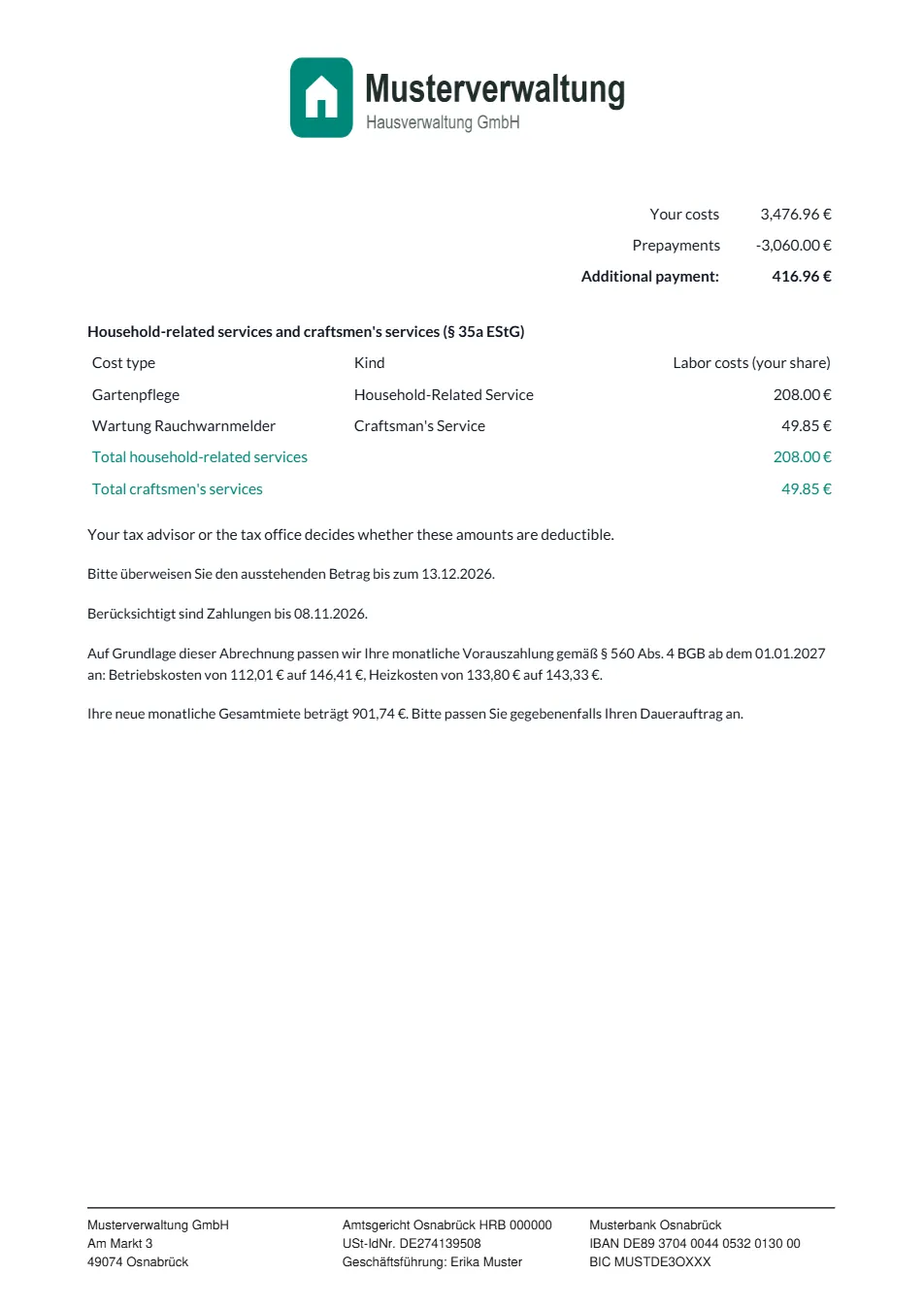
- Your costs: the total of the Your share column.
- Prepayments: the prepayments credited.
- Already settled: only for a correction statement, the total of the earlier documents.
- Other items: lines added by hand, for example a fee.
- VAT: only if the statement contains VAT.
- Additional payment: or, for a credit note, Credit:.
The result is the total of the invoice, not the amount still open. If you print the statement again after payment, it shows the same amount.
At the end of the statement are the meter readings of the usage: for each meter the reading date and the readings at the start and at the end, with unit and consumption. The day of the actual reading is printed.
For an additional payment, the request for payment names the bank details. SMARTBRIX looks them up on release as for the rent invoice, from the property of the usage upwards (see Bank account on the invoice). The same account is set as Recipient Bank on the invoice, so the text and the QR code name the same account. If SMARTBRIX finds no account, the statement shows no bank details.
Below the meter readings, the statement asks for payment, in the draft still without a date: “Please transfer the outstanding amount.” When the invoice is posted, SMARTBRIX adds its due date, for example “Please transfer the outstanding amount by 12/12/2026.” The sentence is in the tenant’s language. If you reworded it by hand, your text stays. SMARTBRIX prints the note of the payment terms only if the statement contains no such request for payment, and never on a credit note.
Labor costs under § 35a
Section titled “Labor costs under § 35a”If the expenditures carry labor costs, the table Household-related services and craftsmen’s services (§ 35a EStG) follows below the result. For each cost type it names the kind and the Labor costs (your share), followed by Total household-related services and Total craftsmen’s services. The tenant needs both totals separately, because the tax office applies its own maximum amount to each kind. A sentence below points out that the tax advisor or the tax office decides whether the amounts are deductible.
The kind comes from the cost type (see Tax deduction under § 35a). Labor costs of a cost type without a classification appear in the table as “Not assigned” and count toward no total. Cost types set to Not Eligible are left out of the table. Without labor costs, SMARTBRIX prints no table.
If cost types carry a cost group, each group appears on the statement with its own heading. The subtotal of a group stands on the right of its heading row, the prepayments included.
Didn't find an answer? Contact support