

Check the allocation
Question about the manual? Ask Claude · Ask ChatGPT
Before you settle, Check Allocation shows which values each usage brings into the allocation. Missing rent lines, gaps between two tenants, forgotten cost types or missing meter readings stand out before the statements reach the tenants. The check does not block anything. It only changes something if you have missing meter readings created.
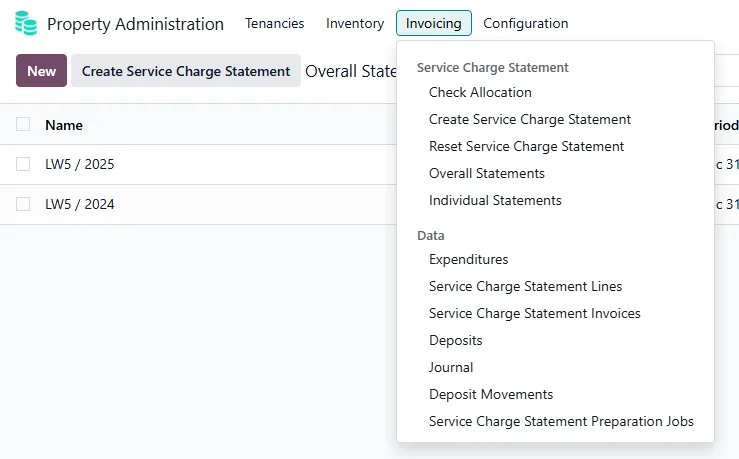
- Open the check in one of these ways:
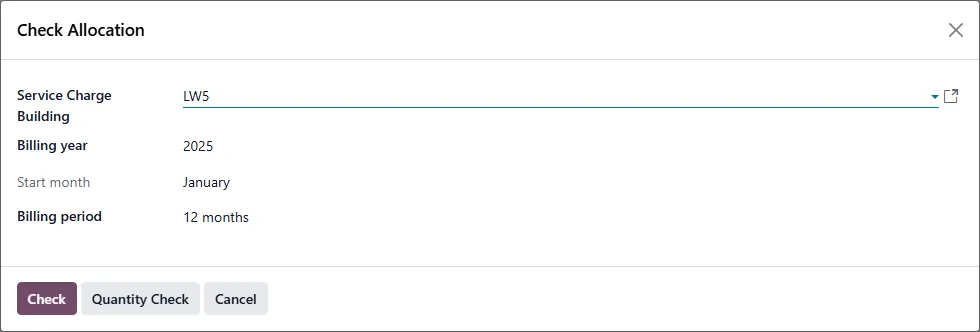
- In an overall statement in draft, click Check Allocation at the top. This is the usual way, because only from there does Create Service Charge Statement in the result list carry on with exactly this overall statement.
- In the menu Property Administration › Invoicing › Check Allocation, for example to take a look before the year ends.
- From the overall statement, the Service Charge Building, the Billing year and the period are fixed. From the menu, you choose the building yourself, the year is preset to the previous year, and the period follows from the start month on the building.
- Click Check.
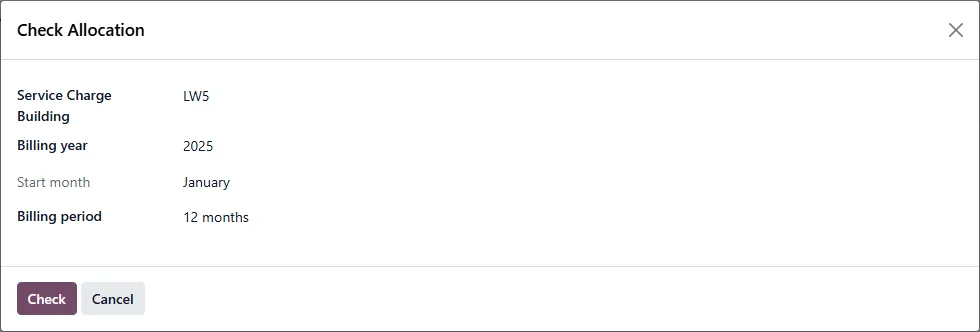
If expenditures in the period are not allocated at all, because their cost type has no allocation key or no usage carries a value for it, the dialog shows a yellow notice with the link Show expenses.
The dialog also shows yellow notices about the expenditures:
- Days without an expenditure: A cost type has expenditures in the period, but not for every day, for example “Frischwasser: no expense for 03/18/2024 to 12/31/2024”. Usually a utility invoice is missing. If the gap is intended, for example for a one-off maintenance, ignore the notice.
- May have been entered twice: Two expenditures of the same cost type on the same property overlap in time, and at least one was entered by hand: next to an expenditure from a vendor bill, or next to a second one entered by hand with the same amount. Delete the extra one. Several vendor bills over the same period, for example monthly instalments, get no notice.
- No property allocation key: The cost type is allocated by a property allocation key, but the building has none for it. Its expenditures stay with the owner. Create the key.
- Heating costs outside the heating cost block: The cost type is allocated by heating space or degree days, but its category belongs to another block, for example fuel in the service charge block. The costs are then set against the service charge prepayments. The category of the cost type decides the block.
- Consumption differs from the invoice: For an expenditure with Consumption per Invoice, the meters show more than 1 % more or less in the service period. Usually a meter reading is missing or a meter was entered incorrectly.
- Labor costs without a § 35a classification: expenditures of a cost type carry labor costs, but the cost type has no Tax Deduction § 35a. The statements show these labor costs as “Not assigned”. Classify the cost type before the release (see Tax deduction under § 35a).
- Archived cost type: An expenditure in the period is attached to an archived cost type and is allocated by its old allocation key, for example “Wartung Aufzug: its cost type Aufzug is archived and is still split the old way.” Usually the expenditure spans the effective date of a new version. If it should follow the new key, change its cost type.
If an expenditure is allocated by consumption, every meter with this cost type needs a meter reading at the edges of the period: on the day before the start and on the last day, and for a move-in or move-out within the period, on the day before the move-in and on the move-out day. If one is missing, the dialog shows a yellow notice with the meter and the day. SMARTBRIX calculates these readings as reference date readings when it splits the costs. With Create Qualifying Date Readings you have this done right away and can look at the values before the statement. If the day before the start falls in a period that is already settled, SMARTBRIX takes the first day of the period. How SMARTBRIX calculates is described under Calculate a reference date reading.
If a reading cannot be calculated, for example because the meter has only one reading, SMARTBRIX names the meter and the reason. When you split costs by hand, it then stops. With Create Service Charge Statement, the expenditure remains unallocated, the reason is in its history, and the summary of the run names it. In that case, enter the reading yourself.
Read the result
Section titled “Read the result”The list shows each segment of the year exactly once for each property: every usage with its rent line, days without a rent line and days without a usage.
- Space (m²) is the value from the rent line.
- Space pro rata is this value weighted by days. 72 m² on 59 of 365 days gives 11.64 m².
- The total under Space pro rata is the number that appears on every statement in the Total column, if the expenditure covers the whole year and all usages carry the cost type.
- Use the icon on the right of the table header to show heating space, person days, co-ownership share and residential units.
- The Property and Usage buttons in each line open the record directly so you can correct it. The bar at the top takes you back.
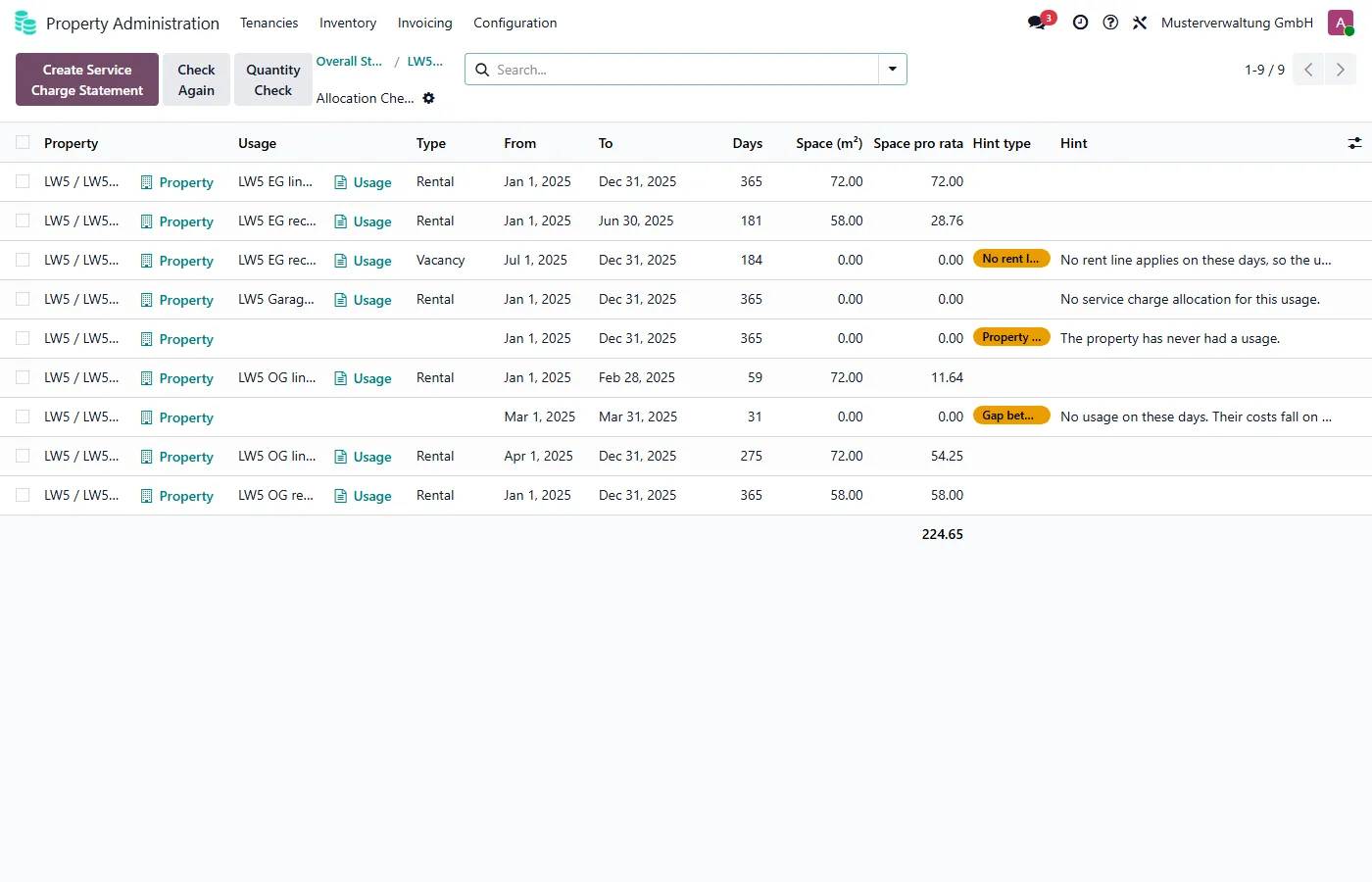
In the example, the vacancy in EG rechts has no rent line and counts as 0 m², and in March OG links had no usage at all. Without a correction, both shares would end up with the remaining tenants. Garage 2 was never rented out and therefore also has a notice.
The notices
Section titled “The notices”| Hint type | Meaning | What to do |
|---|---|---|
| No rent line | The usage is running, but no rent line applies on these days. All values are 0. | Create a rent line with area and persons in the usage. |
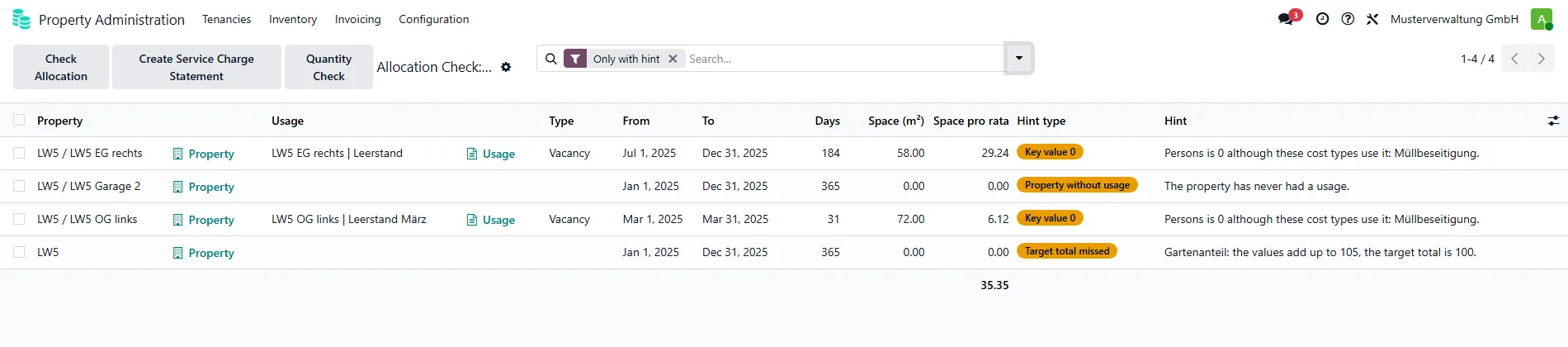
| Key value 0 | Area, heating space, persons or co-ownership share is 0, although a cost type of the usage is allocated by it. | Add the value in the rent line. This can be intended, for example 0 persons in a vacancy. |
| Cost type missing | The building has a cost type that the usage lacks, although the usage carries a value for it. | Add the cost type to the usage. This can be intended, for example an own waste bin instead of a container. |
| Cost type not on the property | The usage carries a cost type that neither its property nor a property above or below it has. Typically the cost type was removed from the building; the usages keep it and it is still allocated. | Remove the cost type from the usage or add it to the building again. |
| No cost types | The usage has no cost type at all and receives no statement. | Assign cost types or turn off Service Charge Allocation?. |
| Gap between usages | The property has no usage on these days. | Create a vacancy with a rent line for the gap. |
| Property without usage | The property never had a usage. | Create a vacancy or turn off Service Charge Allocation? on the property. |
| Property allocation key without value | The unit has values in a property allocation key, but not for every day, for example because the first value only applies after the start of the period. On these days the other units bear its share. | In the property allocation key, add a value from the start of the period. If the unit should no longer take part from a certain day, enter the value 0 from then on. |
| Target total missed | The values of a property allocation key in the period do not add up to its Target total, for example “Gartenanteil: the values add up to 105, the target total is 100.” The line sits on the settlement property of the key. Only days on which a participating usage runs count. | Check the values in the property allocation key. Usually a unit is missing or a value was entered wrongly. |
| Negative consumption | A difference meter of the usage runs backwards in the period, for example because the subtracted meter shows more than the main meter. | Check the readings of the source meters. You can still settle. |
Usages and properties with the service charge allocation turned off appear without a share and without a notice. The Only with hint filter shows only the lines that need attention; you can group by property and by hint type.
Quantity check
Section titled “Quantity check”The printout shows, per allocation key, which values each usage brings into the allocation. It helps when you look for errors and when a tenant or owner wants to retrace their share. It approves nothing and locks nothing.
- Open the check as described above.
- In the dialog, click Quantity Check instead of Check, or click Quantity Check at the top of the result list.
Each allocation key by which expenses of the period are split gets a section with its cost types:
- Space, heating space, co-ownership share, number of units: per usage the value from the rent line with Valid from, Valid until, Days and Weighted value, followed by the Key total.
- Person days: per usage the persons and the person days.
- Property allocation key: per unit the values from the key, on the days on which a participating usage runs. If the key has a Target total, Target total and Difference follow.
- Consumption and direct assignment: only the total and where the values per usage are listed.
If a cost type is booked on one building part only, it gets a section of its own with the name of the building part and only its usages. The printout is in the company language.
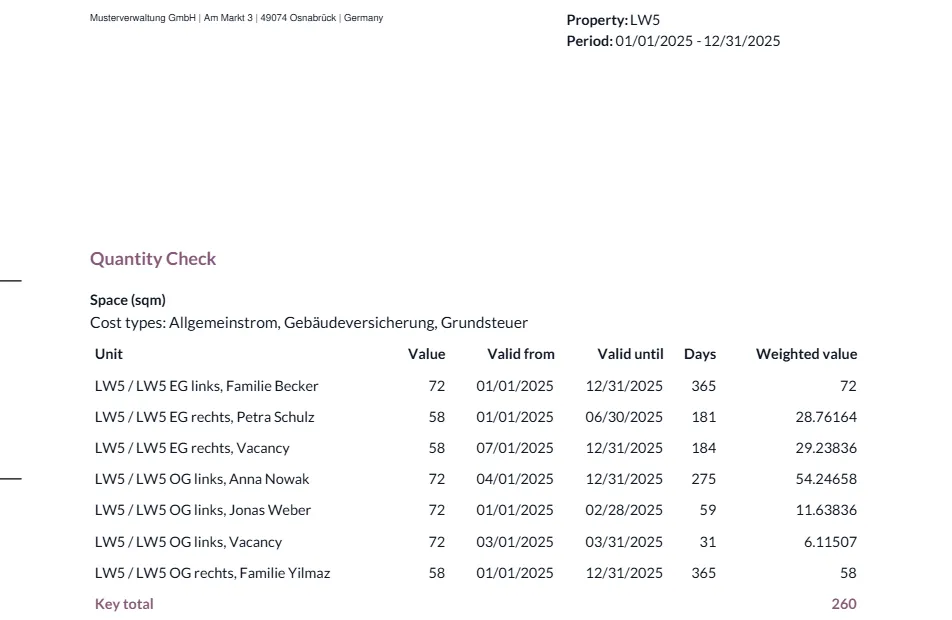
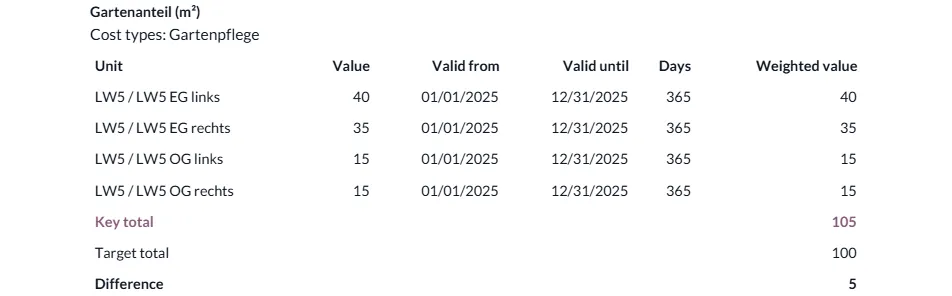
From the allocation check, SMARTBRIX prints the current state. In an overall statement from Allocation Checked onwards, the same button prints the values frozen when the allocation was approved.
Check again
Section titled “Check again”After the corrections, click Check Again at the top of the result list. The check runs again with the same settings.
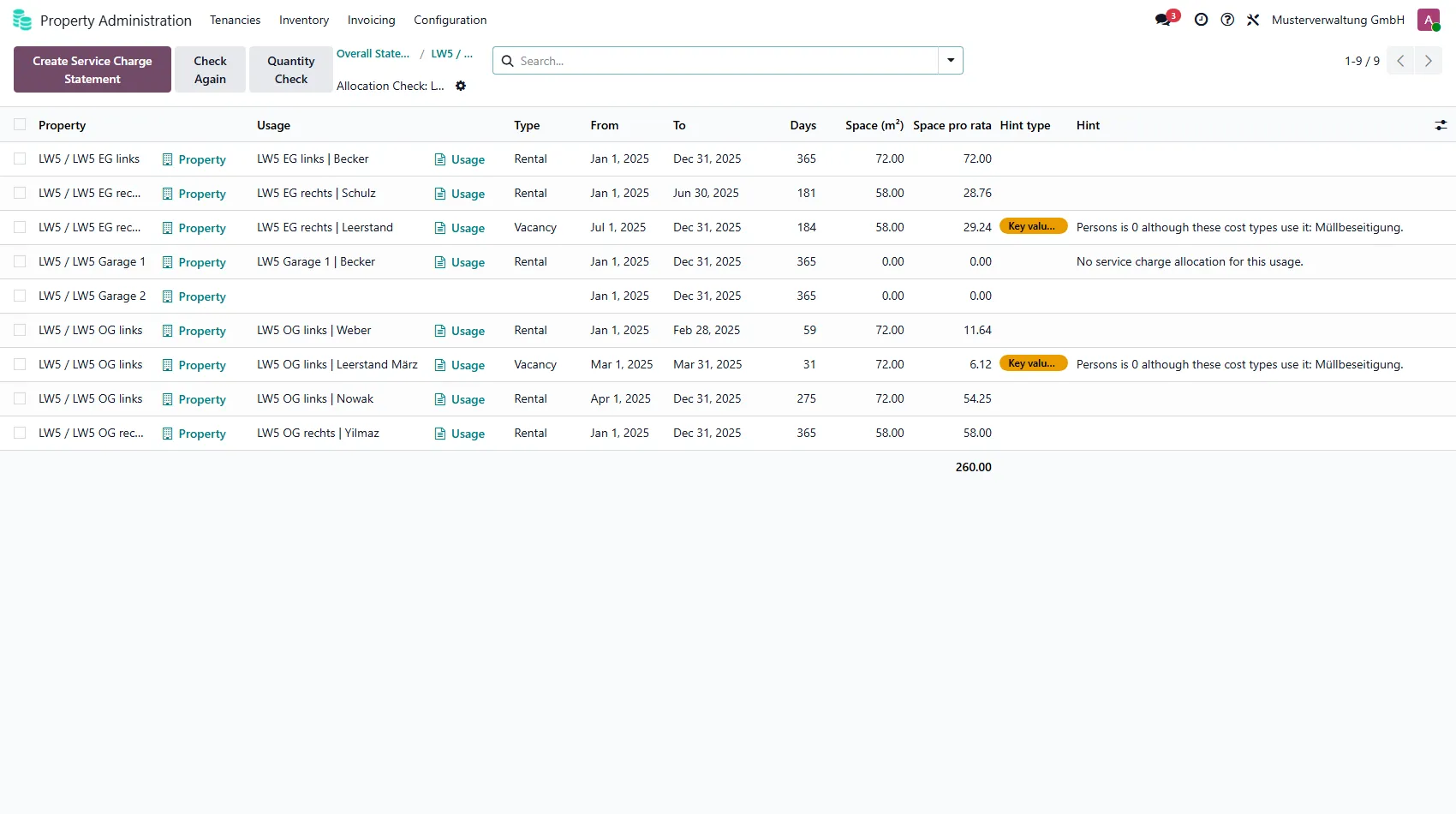
Once the allocation is in order, click Create Service Charge Statement at the top of the result list. If you came from an overall statement, SMARTBRIX freezes its allocation and starts the calculation. If you came from the menu, SMARTBRIX creates the overall statement in the same step. What happens next is described under Create the overall statement.
Didn't find an answer? Contact support