

Inspection duties and routine tasks
Question about the manual? Ask Claude · Ask ChatGPT
Each asset carries its own duties. SMARTBRIX knows two kinds:
| Inspection duty | Routine task | |
|---|---|---|
| Used for | Mandatory inspections and maintenance, for example heating maintenance, inspection of the electrical system | Routine work, for example an inspection round, mowing the lawn |
| Cycle | Interval and Period Unit, for example every 2 years | Calendar cycle, for example every 2 weeks on Friday |
| Next due date | last completed maintenance plus interval | next date in the calendar cycle |
| Ends | only with the decommissioning of the asset | optionally at the Series End |
If a heating maintenance is done two weeks late, the next deadline moves by those two weeks. A routine task, on the other hand, stays on its weekday.
Duties on the asset
Section titled “Duties on the asset”Open the asset, Duties tab. If the asset comes from an asset template, the duties are already there, with the Duty Source From Template. Add your own duties with Add a line. They get the duty source Manual.
At the top, the tab shows how many duties are started, for example Inspection Duties Started “2/2”. Below are the lists Inspection Duties, Routine Tasks and Component Duties.
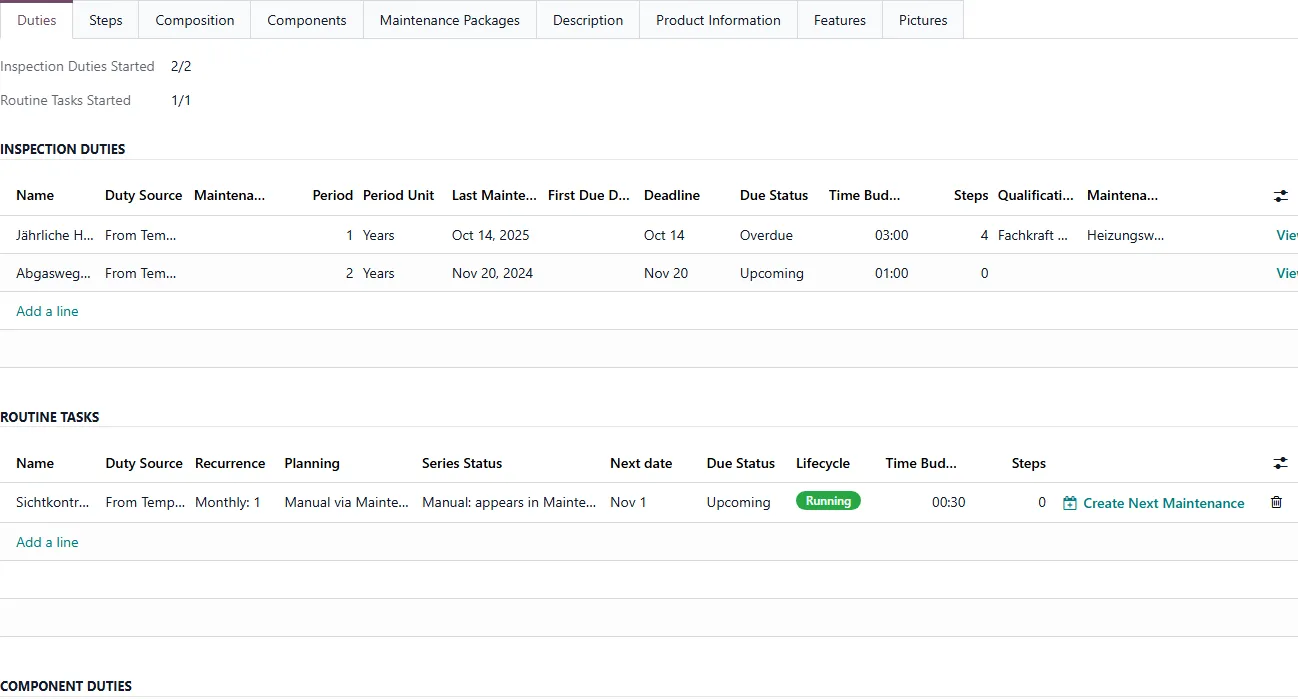
Columns of an inspection duty:
- Interval and Period Unit: for example “1” and Years.
- Last Maintenance: the date of the last completed maintenance. SMARTBRIX updates it when a maintenance is completed.
- First Due Date: the first deadline, as long as there is no last maintenance yet. After that, the field disappears.
- Deadline: the next due date.
- Due Status: see below.
- Time Budget: the planned effort in hours.
- Qualification and Maintenance Package.
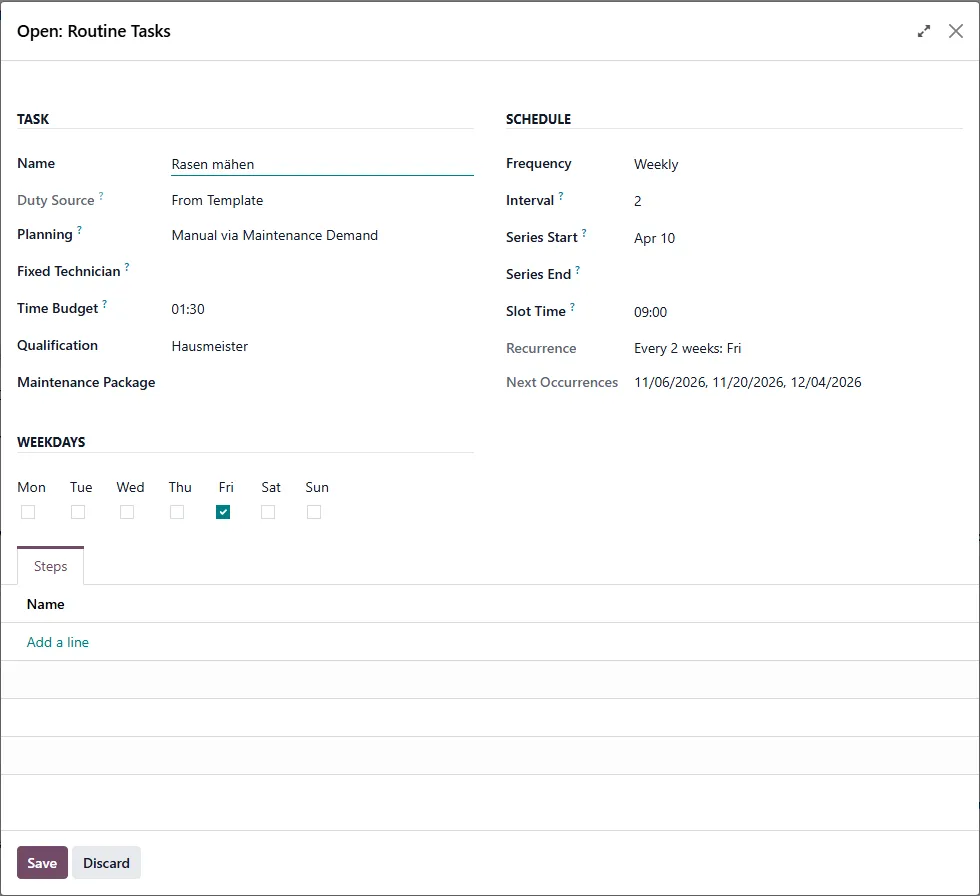
A routine task opens when you click its line:
- Planning: Automatic means SMARTBRIX creates the next maintenance itself. Manual via Maintenance Demand means the next maintenance appears in the maintenance demand and you schedule it yourself.
- Fixed Technician: who gets the automatically created maintenance requests.
- Frequency: Daily, Weekly, Monthly or Yearly.
- Interval: every how many weeks or months.
- Weekdays for a weekly cycle, Month Days for a monthly one, for example “1,15”.
- Series Start: from when the cycle runs.
- Series End: optional, the last possible day. A date on the series end itself still counts.
- Slot Time: the time of day for which the maintenance is created.
Schedule and Next Occurrences show what you have set, so you can check it.
Start duties
Section titled “Start duties”A new duty is Not Started. It has no due date and does not create a maintenance demand. Only starting it makes it effective.
All duties of an asset at once:
- Open the asset and click Start Inspection Cycles. The button appears as long as a duty of the asset or its components is not started.
- The window lists all duties that are not started. For each inspection duty, enter the First Due Date, for example the deadline from the last inspection report. For routine tasks, this is the series start, filled in with today.
- Or click Compute Due Dates. SMARTBRIX fills empty lines with the commissioning date plus the interval.
- If needed, clear the Start switch on a line that should wait.
- Click Start.
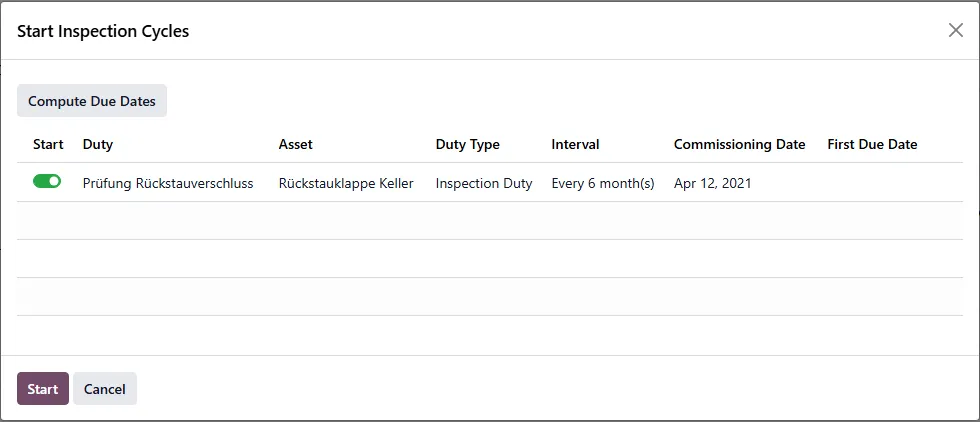
Starting does not create a maintenance. It only sets the due dates.
Single duty: On an inspection duty with a first due date or a last maintenance, click Start Duty. On a routine task, Start Series sets the series start to today.
From the list: In the list of all duties (see below), select several duties, also of different assets, and click Start. The same window opens.
Due status
Section titled “Due status”- Not Started: The duty has no due date.
- Upcoming: The deadline is in the future.
- Due: The deadline is today.
- Overdue: The deadline has passed.
SMARTBRIX recalculates the status every day.
Create the next maintenance now
Section titled “Create the next maintenance now”If you need the next date of a routine task right away, for example because the technician is going on vacation, click Create Next Maintenance in its line. SMARTBRIX creates the maintenance for the next date and opens it. If the routine task is already covered by an open maintenance or the series has ended, a message appears.
All duties at a glance
Section titled “All duties at a glance”Property Maintenance › Configuration › Inspection Duties lists all duties of all assets, both inspection duties and routine tasks. You do not create new duties here, but on the asset.
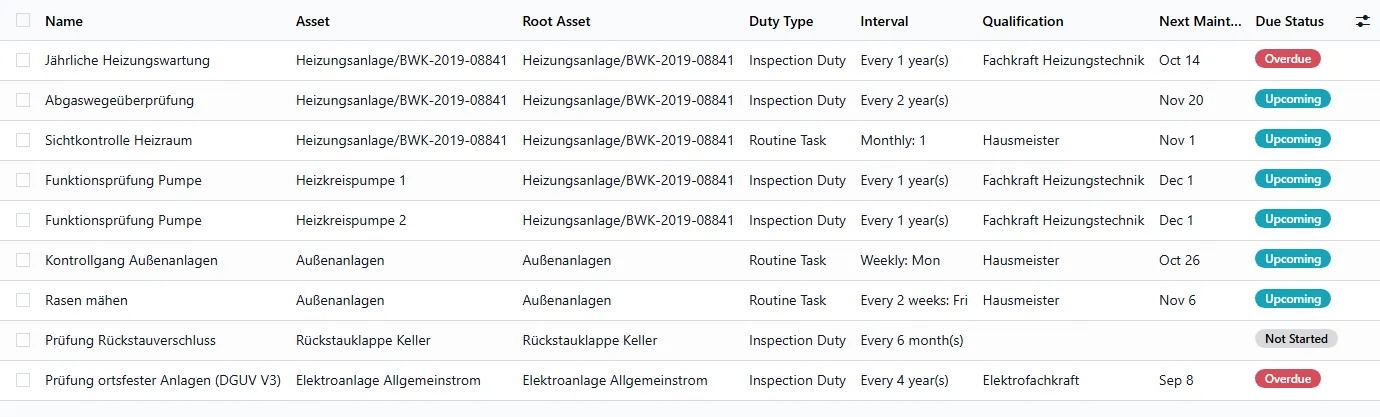
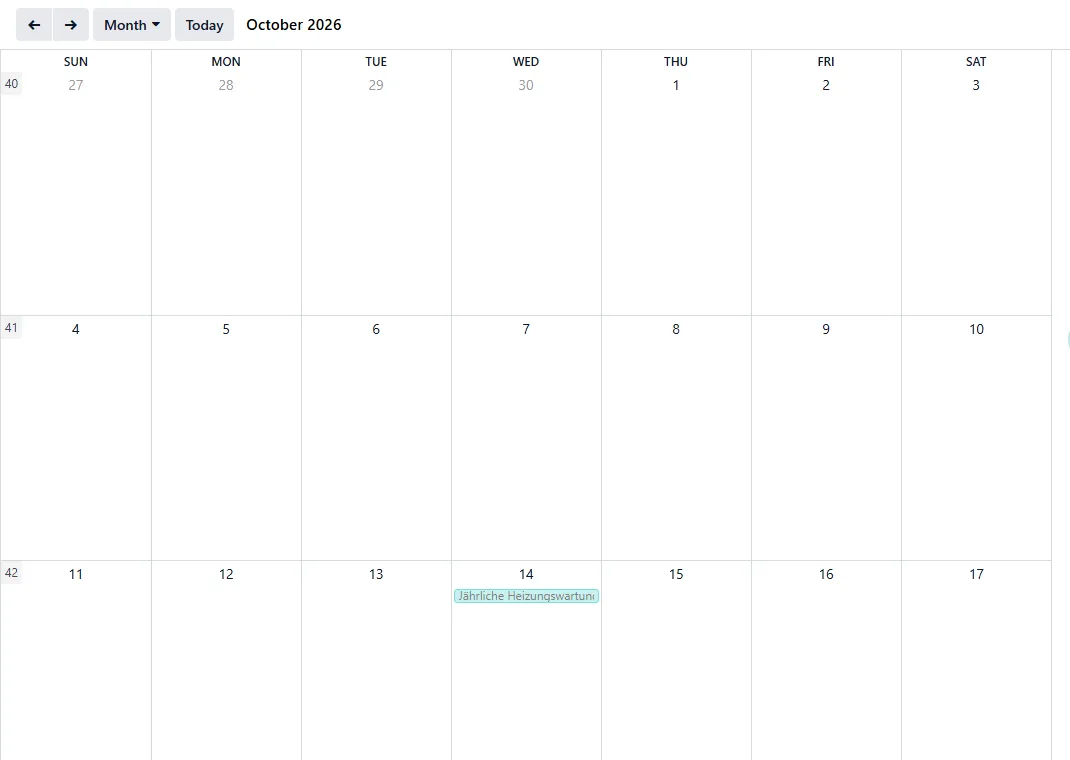
The calendar view shows the due dates by date, colored per asset. You cannot move dates there, because SMARTBRIX calculates them. Instead, change the first due date or the last maintenance in the form, which opens with a double-click.
In the list, you assign selected duties to a maintenance package with Assign to Maintenance Package, see Contracts and maintenance packages.
Maintenance steps
Section titled “Maintenance steps”A duty can consist of several maintenance steps, for example “Brenner reinigen”, “Abgaswerte messen”, “Sicherheitseinrichtungen prüfen”. In the maintenance, the technician checks off each step separately. The duty only counts as done when all steps are answered with Yes. The Steps tab exists on the asset and on the duty.
Frequently asked questions
Section titled “Frequently asked questions”Why does a duty not appear in the maintenance demand? It is not started, or an open maintenance already covers it. Routine tasks with the planning Automatic never appear in the maintenance demand, SMARTBRIX schedules them itself.
Why does an inspection duty have no deadline after completion? Check whether Period Unit is set. Without it, SMARTBRIX cannot calculate a next due date.
How do I end an inspection duty? A Series End only exists for routine tasks. An inspection duty ends with the decommissioning of the asset.
Didn't find an answer? Contact support