

Incoming payments and reminders
Question about the manual? Ask Claude · Ask ChatGPT
Every posted rent invoice is an open item for the invoice recipient. When the payment arrives in the bank account, you match it to the invoice. The item is then reconciled. Whatever stays open, you send a reminder for. How the rent invoices are created is shown on the Rent debits page.
Import the bank statement
Section titled “Import the bank statement”The transactions of your bank account come into the system as a bank statement, usually as a CAMT file.
- Automatic retrieval: If retrieval from the bank server by SFTP or by EBICS is set up for you, SMARTBRIX fetches the statements itself. You do not have to do anything.
- Manual import: Download the file from your online banking and import it:
- Open the Invoicing app, or in the Business plan the Accounting app.
- Choose Accounting > Import Bank Statement.
- Select the file and start the import.
SMARTBRIX assigns the statement to the correct bank account by the account number. The list of transactions then opens for matching.
Match payments to the open rent invoices
Section titled “Match payments to the open rent invoices”- In the Invoicing app, or in the Business plan the Accounting app, open the Dashboard.
- On the tile of your bank account, click to reconcile (preceded by the number) or Transactions.
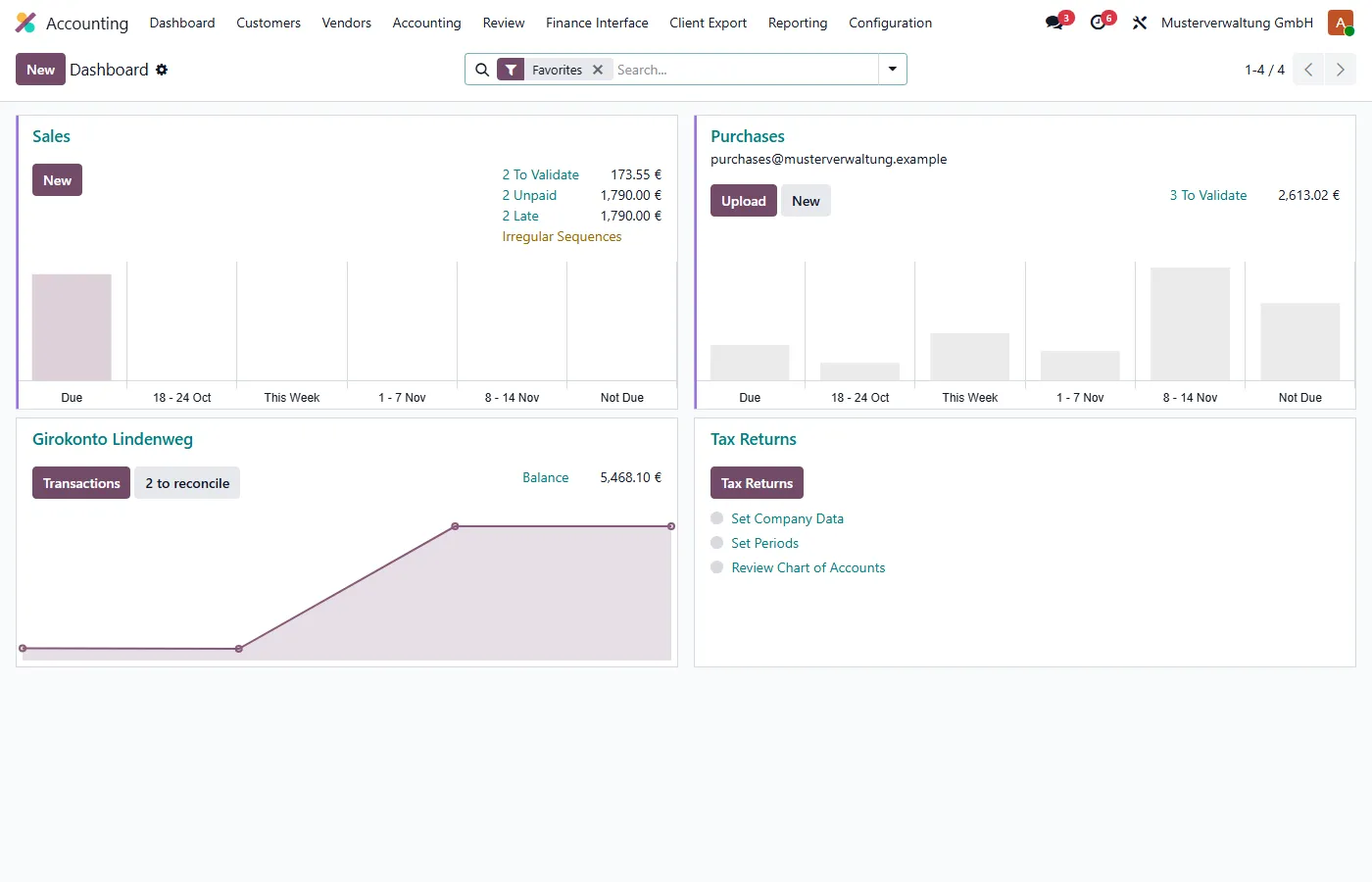
- Select a transaction. SMARTBRIX suggests matching open items if it recognizes the payer.
- Check the suggestion. If it does not fit, find the right invoice yourself.
- Complete the matching. The invoice then counts as paid or, for a partial amount, as partially paid.

SMARTBRIX recognizes the payer by their IBAN. So store the bank details on the contact of the invoice recipient.
All buttons of the matching screen are explained on the Bank matching page. More on matching: Bank reconciliation in the Odoo documentation.
Send reminders
Section titled “Send reminders”Whatever remains open after the due date is handled by the dunning run. It creates one reminder per invoice recipient as a draft. You check the drafts and release them; only then are the email or letter sent.
- Open Dunning › Dun › Start Dunning Run, in the Business plan in the Accounting app, in the Light and Pro plans in the Invoicing app.
- Choose the Company and the Cut-off Date and click Start.
- Check the drafts. Notes such as Check Payments show where a bank transaction is still open.
- Click Release All or release single reminders with Release.
The full process with blocks, letter printing and dunning fee is described under Dunning run. Follow-up levels, texts and senders are set up under Dunning. Companies that have not switched yet use the Previous dunning process.
Didn't find an answer? Contact support