

Smoke detectors
Question about the manual? Ask Claude · Ask ChatGPT
SMARTBRIX keeps the smoke detectors of every property with room, installation date and battery life. For each detector, you document the inspections with date, result and comment. You enter several detectors that were inspected on the same date in one step.
Where to find smoke detectors
Section titled “Where to find smoke detectors”The detectors are under Property Management › Inventory › Smoke Alarm Management:
- Smoke Alarm: all detectors, grouped by main property and property.
- Reviews: all recorded inspections.
The same entries are under Property Administration › Inventory › Smoke Alarm Management. On the property, the Smoke Alarm button shows the detectors of this property and its child properties.
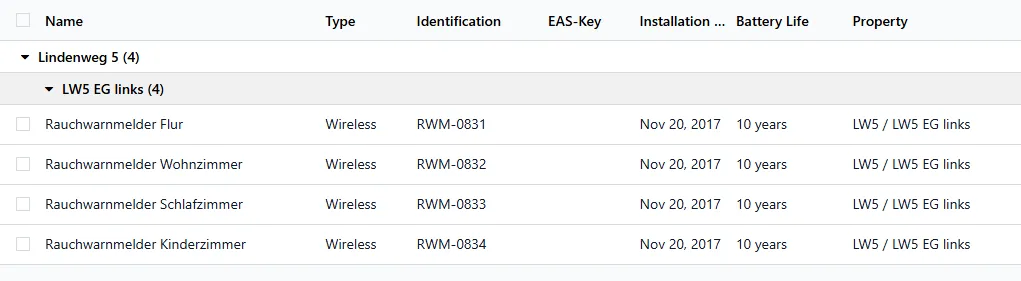
Create a smoke detector
Section titled “Create a smoke detector”- Open Property Management › Inventory › Smoke Alarm Management › Smoke Alarm.
- Click New.
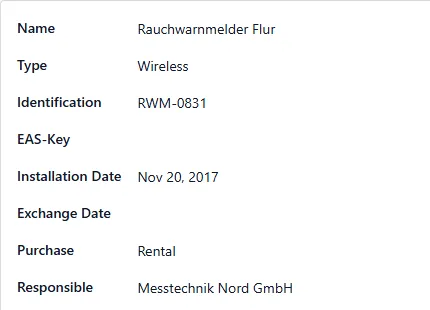
- Fill in the details:
- Name: for example “Rauchwarnmelder Flur”.
- Type: Wireless, or Stand Alone for a detector without a wireless connection.
- Identification: the number on the device.
- EAS-Key: for wireless detectors, the manufacturer’s key, if available.
- Installation Date: when the detector was installed. This field is required.
- Exchange Date: when the detector was or will be replaced.
- Purchase: Buy or Rental.
- Responsible: the contact who looks after the detectors, for example the metering service.
- Battery Life: 4 to 10 years, default 10 years.
- Property: the apartment or unit. The Main Property follows from it.
- Room: the room of the property where the detector is mounted. You can choose from the rooms created on the property. If you change the property, the room is cleared.
- Comment as needed.
- Save.
You create the rooms of a property on the property, on the Rooms and Features tab. They are the same rooms that the handover protocol goes through.
Record an inspection
Section titled “Record an inspection”For one detector: open the detector and click Add a line under Reviews. Enter the Review Date, tick OK? if the detector was in order, and write the finding or action taken in Comment.
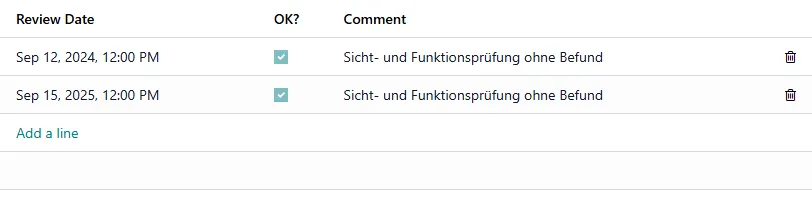
For several detectors at once:
- Open the Smoke Alarm list and select the inspected detectors.
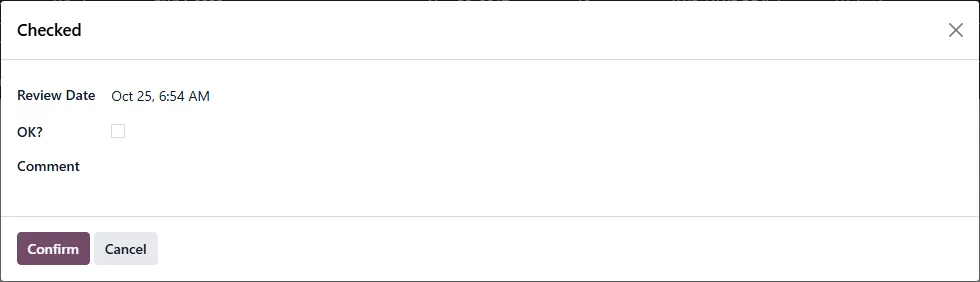
- In the Actions menu, choose Checked.
- Enter the Review Date, tick OK? and add a Comment if needed.
- Click Confirm.
SMARTBRIX then creates an inspection with these details for each selected detector. If a single detector was not in order, change its row on the detector afterwards.
Frequently asked questions
Section titled “Frequently asked questions”Which detector does a row under Reviews belong to? The Reviews list does not show the detector. To see the inspections of a detector, open the detector itself. Always create inspections on the detector or with Checked, not directly in this list.
Why is there no room to choose? No rooms have been created on the property yet, or the detector is on a different property than the rooms, for example on the building instead of the apartment.
Didn't find an answer? Contact support