

Calculate the annual budget
Section titled “Calculate the annual budget”- Open Condominium › Owner Contributions › Annual Budgets and click New. Select the community and enter the year.
- On the Positions tab, add one line per condominium cost type: Cost Type, Key and the Expected amount for the whole year.
- Click Compute Individual Plans.
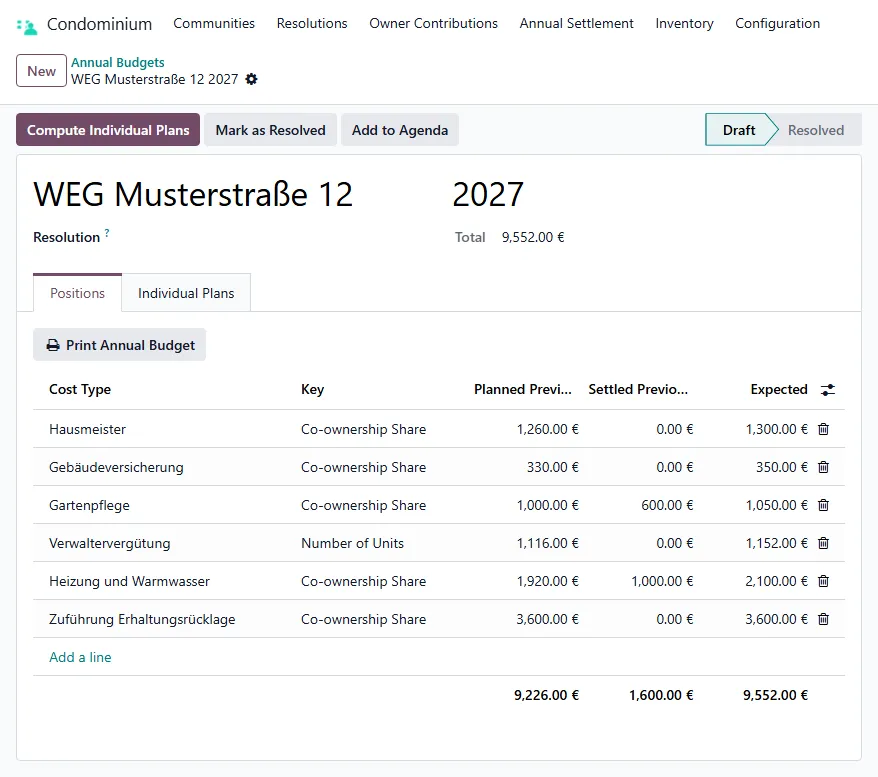
The Individual Plans tab shows the key value, the key total and the share for each ownership and condominium cost type. As long as the plan is a draft, calculate it again after every change.
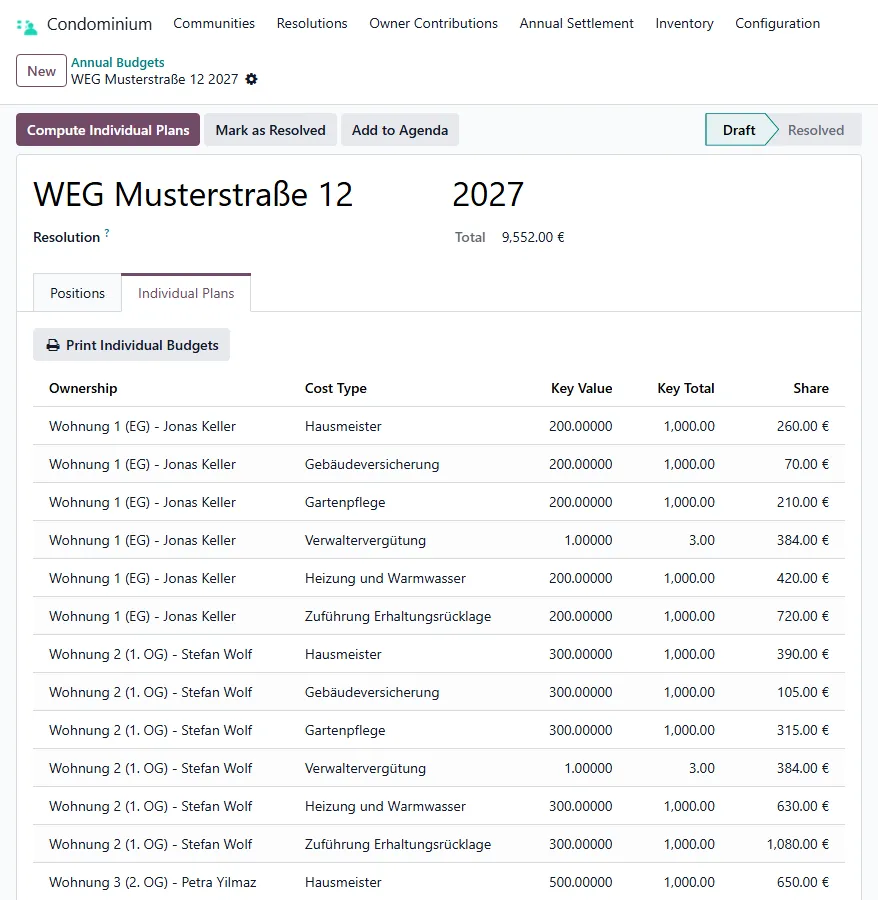
Previous year figures
Section titled “Previous year figures”To the left of Expected, the Positions tab shows two columns for comparison with the previous year:
- Planned Previous Year: the amount of this condominium cost type in the previous year’s annual budget.
- Settled Previous Year: the expenses of this condominium cost type in the previous year’s overall statement. It counts what the annual settlement last calculated, also as a draft.
SMARTBRIX reads both values again each time the plan is opened. If you later change the previous year’s plan or settlement, you see the new figures here. The reserve contribution shows €0.00 under Settled Previous Year because the overall statement does not list it as an expense. Use the icon at the right of the column header to hide the columns.
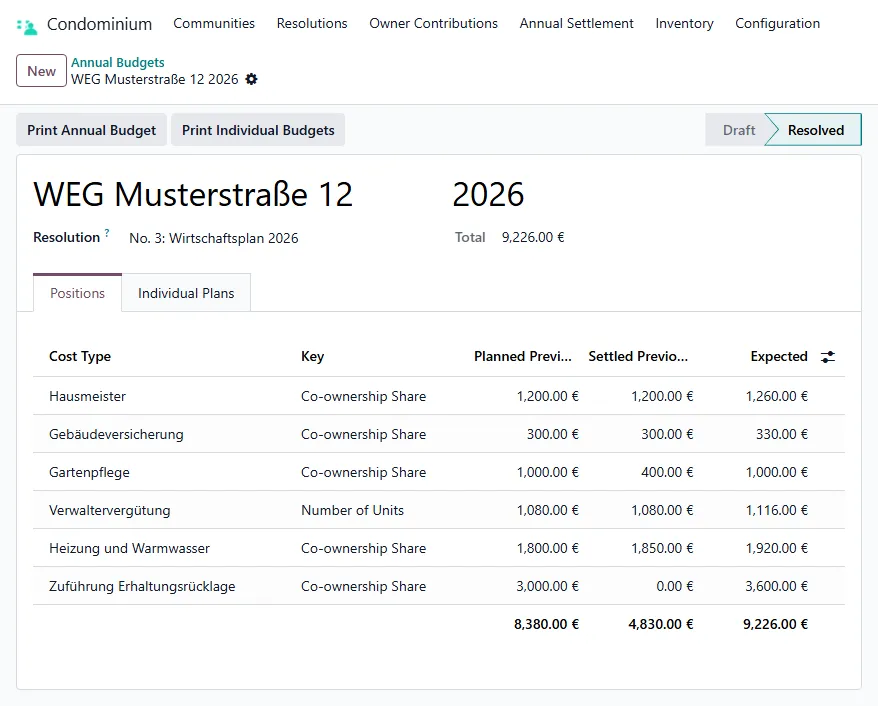
Find and create resolutions
Section titled “Find and create resolutions”Condominium › Resolutions › Register of Resolutions lists all resolutions, grouped by community. Rejected resolutions appear in gray with the result Rejected.
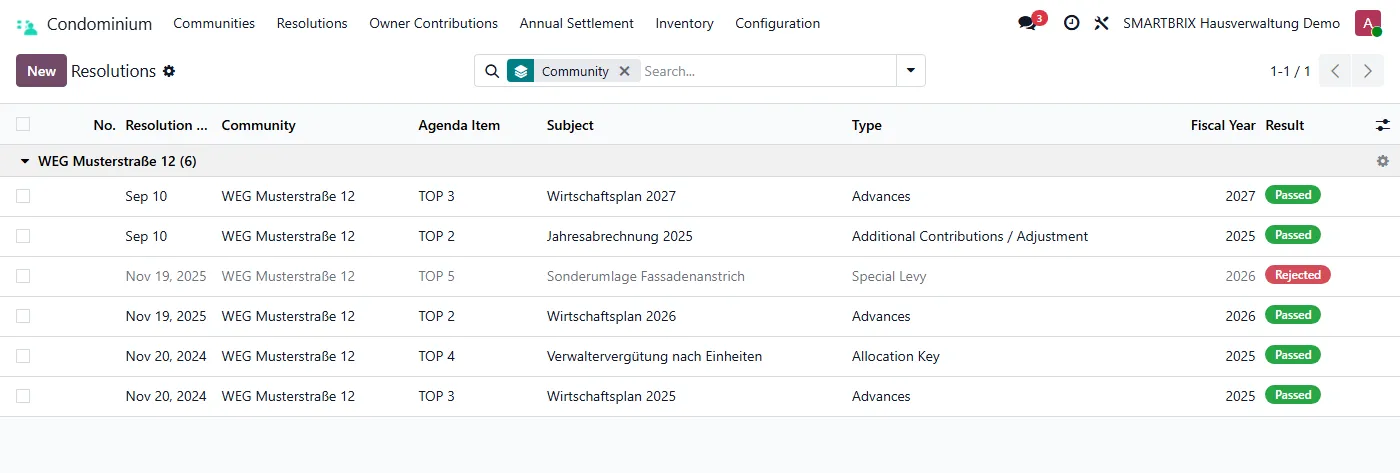
A resolution usually comes into being when an agenda item is announced (see Resolution procedures and register of resolutions). You only create resolutions by hand if they date from before, or if a court has replaced a resolution:
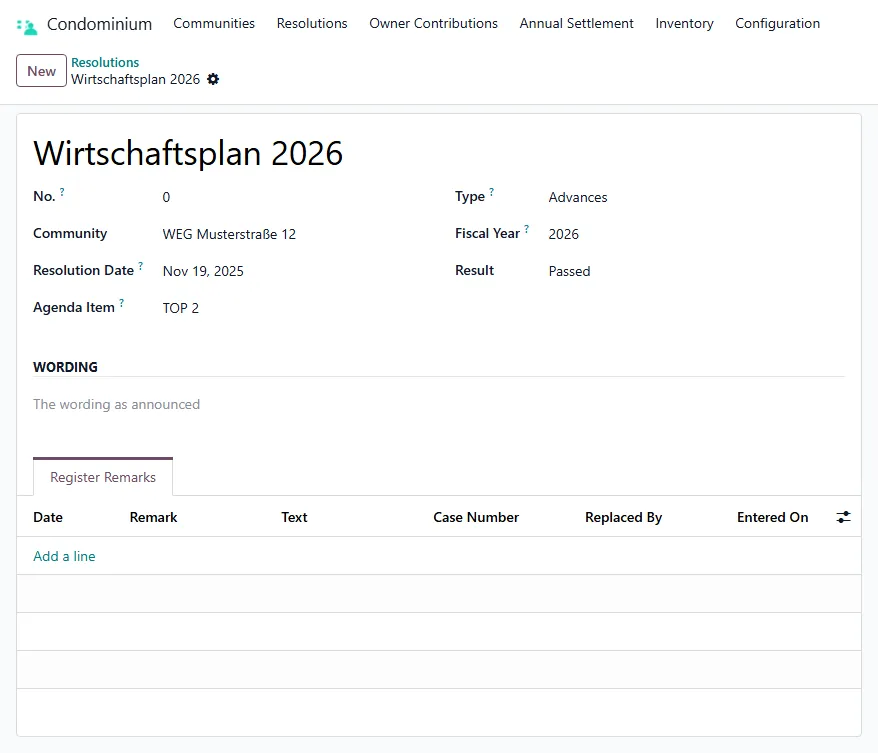
- Click New and enter the subject as the title, for example “Wirtschaftsplan 2027”.
- Select the community, the Resolution Date, Agenda Item, Type, Fiscal Year and Result.
- Enter the text from the minutes under Wording and save.
| Type | Used for |
|---|---|
| Advances | resolution on the owner contributions from the annual budget |
| Additional Contributions / Adjustment | resolution on the additional contributions from the annual settlement |
| Allocation Key | change to an allocation key |
| Due Dates | change to when claims fall due |
| Special Levy | for documentation only; SMARTBRIX does not invoice a special levy |
| Other | all other resolutions, with no effect on money |
Create charges from the resolution
Section titled “Create charges from the resolution”- Open the annual budget. If the resolution on the advances was announced from the agenda, it is already entered under Resolution; otherwise, select it there.
- Click Mark as Resolved. The status changes to Resolved.
- Click Create Charges.
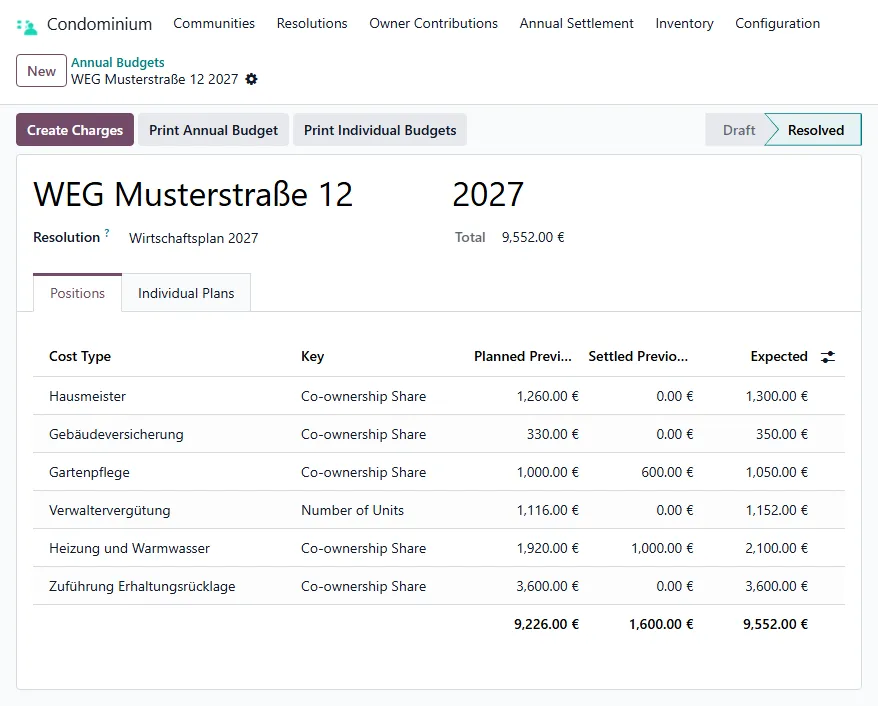
Each ownership gets a line on the Charges tab, starting January 1 of the budget year. The amount per period is the annual share divided by the number of periods, rounded as set on the community (see Round owner contributions). You also see all lines under Condominium › Owner Contributions › Charges.
Round owner contributions
Section titled “Round owner contributions”The owner contribution from the annual budget is exact to the cent. If you want round amounts, set this on the community before you create the charges:
- Open Condominium › Communities › Communities and the community.
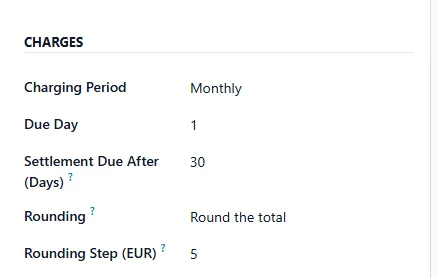
- In the Charges section, choose under Rounding how to round.
- Enter the step in whole euros under Rounding Step (EUR), for example “5”. The field appears once a rounding is chosen. “0” rounds to the cent.
| Rounding | Effect |
|---|---|
| No rounding | Each share (operating cost, reserve, heating cost) is rounded to the cent. This is the default for new communities. |
| Round the total | The owner contribution per period is rounded up to the step. The difference goes to the operating cost; reserve and heating cost stay as planned. |
| Round each share | Operating cost, reserve and heating cost are each rounded up to the step. |
SMARTBRIX always rounds up, never down. A large step raises the advances above the planned costs. The annual settlement balances what was paid in excess.
Example with step 5: unit MS12-W1 has an annual share of €2,064.00, so €172.00 per month. With Round the total the owner contribution is €175.00; the operating cost rises from €77.00 to €80.00 for this.
The rounding only applies to charges you create afterwards with Create Charges. It does not change existing charges.
Print the annual budget
Section titled “Print the annual budget”In draft, each print button sits above the list on its tab; once resolved, in the header:
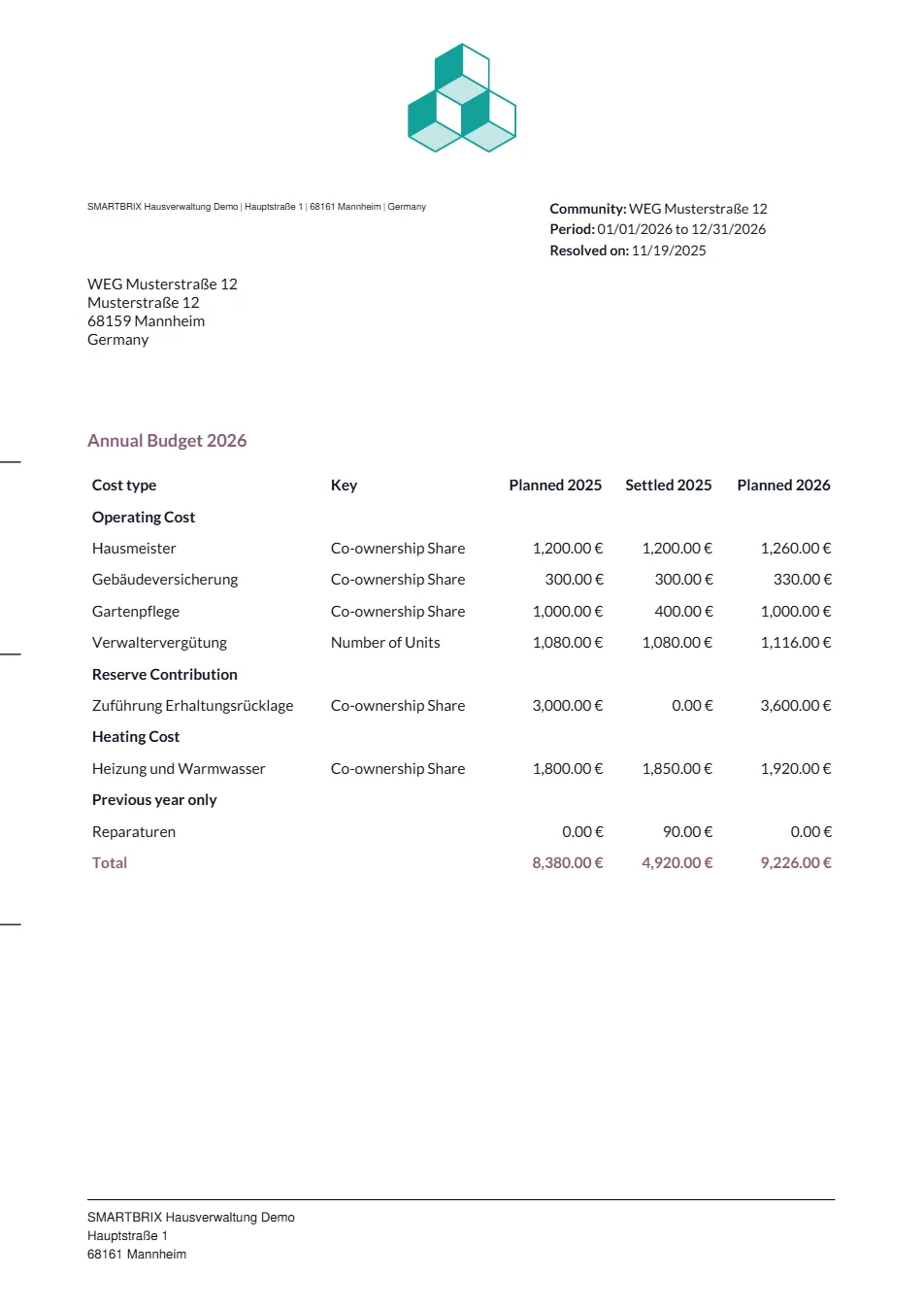
- Print Annual Budget on the Positions tab: the annual budget to the community, in the company language. It lists the positions by cost group (Operating Cost, Reserve Contribution, Heating Cost) with the key, the previous year’s plan and settlement, and this year’s plan. You find the same printout in the Actions gear menu next to the title under Annual Budget.
- Print Individual Budgets on the Individual Plans tab: one individual budget per condominium ownership, to its invoice address and in its language. The button appears only once the individual plans have been computed.
Condominium cost types that were planned or settled in the previous year but are missing from the new plan appear in the annual budget in the group “Previous year only”. This keeps the totals of the previous year columns correct. In the example, repairs of €90.00 were settled in 2025 that the 2026 plan no longer includes. The total “Settled 2025” is therefore €4,920.00, while the form shows €4,830.00 for the positions of the plan.
The individual budget names the unit and the co-ownership share in its header. For each position it shows the unit’s key value (“Your share”), the key total (“Total”), the planned costs and the unit’s amount (“Your amount”). Below are “Your annual share” and the “Advance per period”. The advance is rounded exactly like the advance lines SMARTBRIX creates from the plan, so the printout and the owner contributions match to the cent. If the community rounds, “Advances for the year” follows: the rounded advance times the number of periods. It can be higher than the annual share.
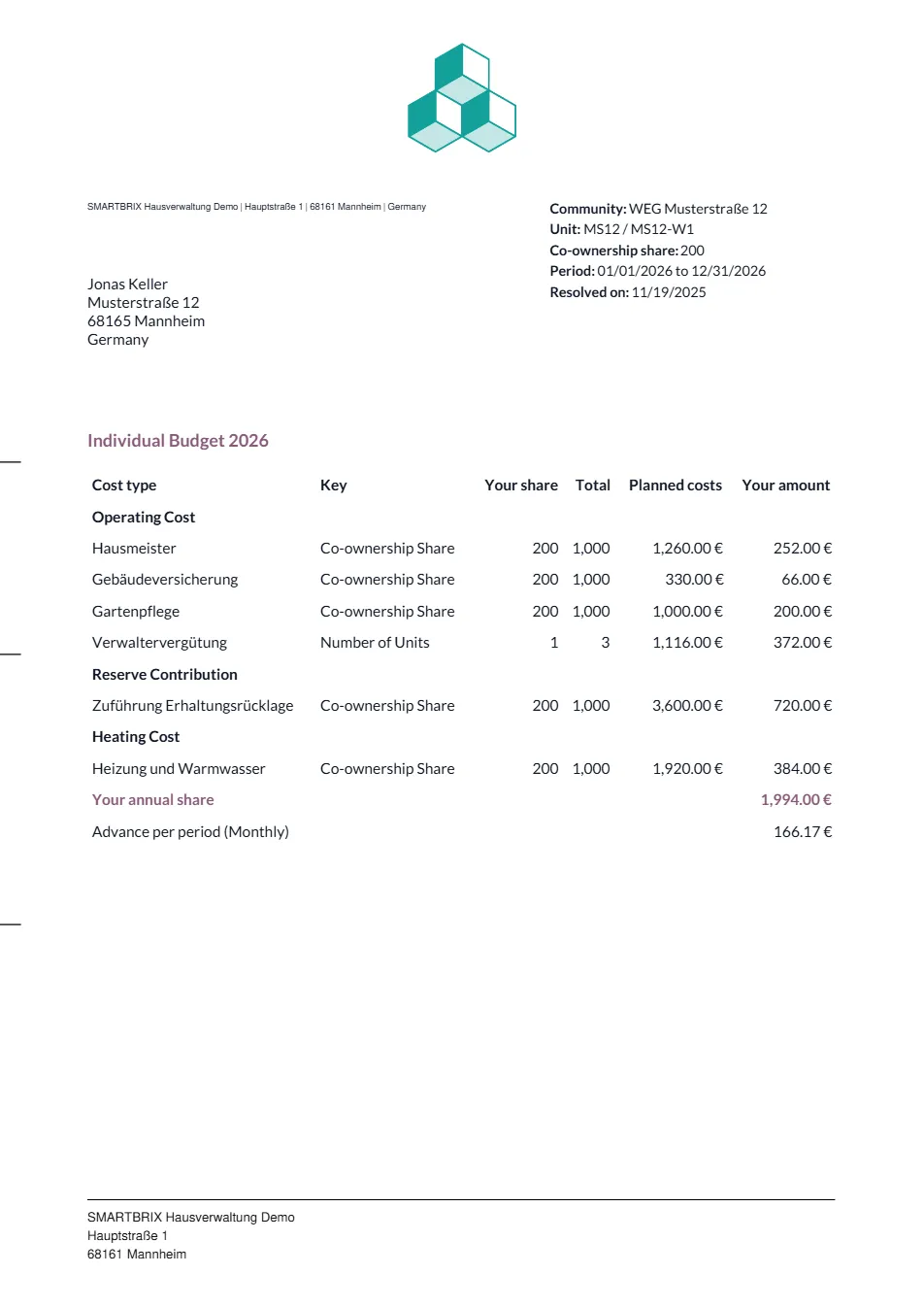
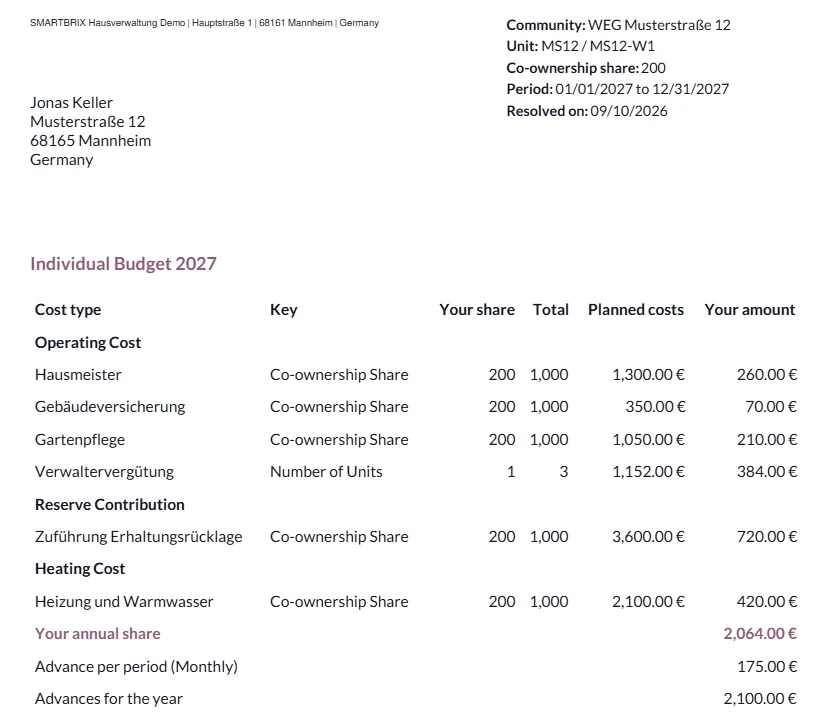
As long as the plan has not been resolved, both printouts carry the note “Draft, not yet resolved by the owners.” and “Status: Draft” in the header. After the resolution, the header shows “Resolved on” with the resolution date.
Didn't find an answer? Contact support