

Project card with key figures
Question about the manual? Ask Claude · Ask ChatGPT
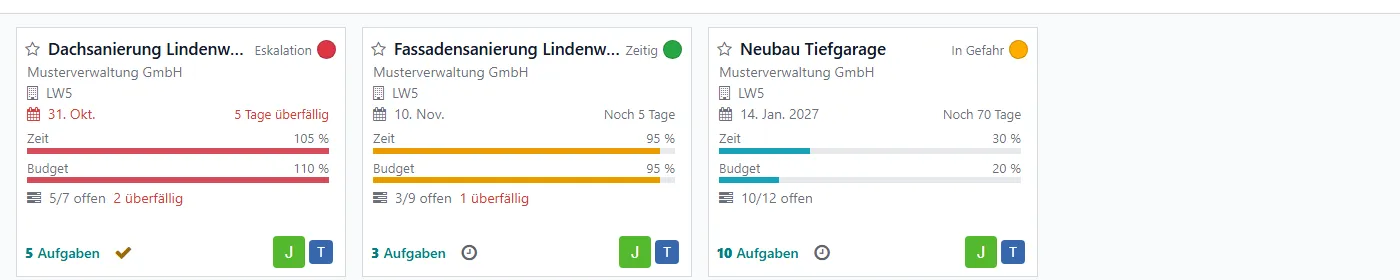
The project overview shows a card per project with the figures that matter for renovation and construction projects. You see at once which projects are critical in time or budget.
What the card shows
Section titled “What the card shows”- Header: project name, below it the company (only with several companies), top right the status with its label.
- Deadline: the planned completion with “X days left”. Once it has passed, date and “X days overdue” are red. Without a completion date the card shows the start date.
- Time: how much of the time between “ready to start” and completion is used. There is no bar before “ready to start”.
- Budget: committed budget against total budget.
- Tasks: open tasks out of all tasks, for example “4/12 open”, plus the overdue ones in red.
- People: project manager large, regional manager small.
- Last activity: a note when nothing has happened on the project and its tasks for 7 days.
The bars are blue, yellow from 90 % and red above 100 %.
Set up a project
Section titled “Set up a project”- Open the project via Project › Configuration › Projects.
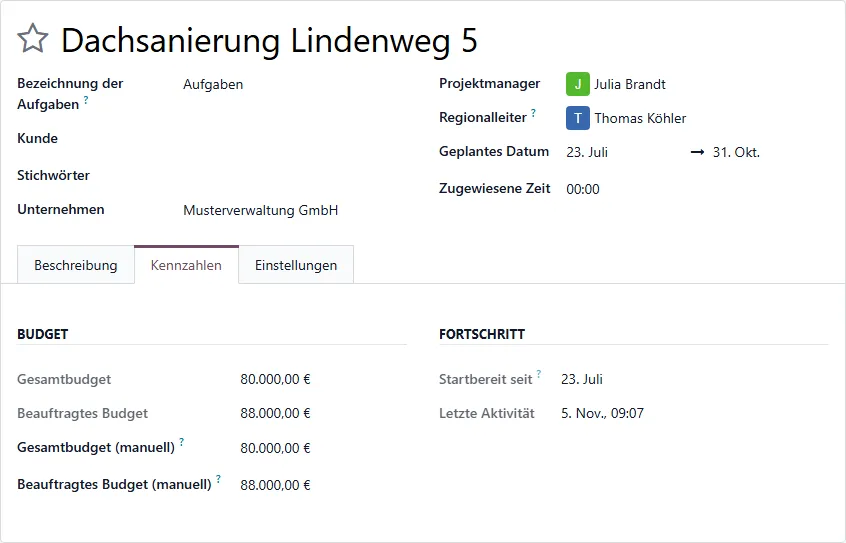
- Enter the Project Manager, the Regional Manager and, under Planned Date, the start and the planned completion.
- The Key Figures tab shows total budget, committed budget, “Ready Since” and the last activity.
Total Budget is the planned amount of the confirmed budgets on the project in their current version. Committed Budget is the sum of the confirmed purchase orders for this project, without tax. Drafts do not count. If the values are wrong or there is no budget, enter your own under Total Budget (manual) and Committed Budget (manual). They replace the computed ones.
Mark the ready stage
Section titled “Mark the ready stage”The time bar starts on the day the project first moves into a stage that is ready to start.
- Switch on Project Stages under Project › Configuration › Settings if not done yet.
- Open Project › Configuration › Project Stages and the stage from which work starts.
- Tick Ready to Start.
Projects that were already in this stage get the date from their history. If a project moves back and later forward again, the first date stays.
Status and escalation
Section titled “Status and escalation”Set the status as usual with the status light on the card or with a project update. When the status changes to Off Track, the regional manager gets a “Project escalated” to-do and a notification about it. Further updates with the same status do not create another to-do.
The Critical filter shows only projects that are overdue, have a yellow or red bar, or are At Risk or Off Track. Completed projects and projects in a folded stage are left out. The filter is refreshed on every change and every night.
Thresholds and labels per company
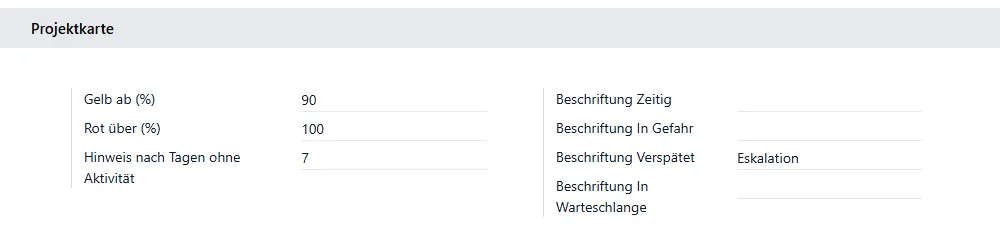
Section titled “Thresholds and labels per company”Under Project › Configuration › Settings, section Project Card, you set for the current company:
- Yellow From (%) and Red Above (%) for both bars, default 90 and 100.
- Note After Days Without Activity, default 7.
- Own names for the four statuses, for example “Escalation” instead of “Off Track”. Empty fields keep the standard name. The own names appear on the card. The status selection keeps the standard names.
Didn't find an answer? Contact support