

The heating cost statement is usually prepared by a metering service such as ista, Techem or Brunata. For it, the metering service needs the residential units, the billing recipients and the costs of the property. This add-on module transfers this information through the web services of the German association for energy and water data management (Bundesverband für Energie- und Wasserdatenmanagement, BVED). This is an industry standard that metering services offer. Instead of emailing lists, you send the data from SMARTBRIX.
The exchange takes three steps:
- Setup: SMARTBRIX and the metering service match each other’s numbers for the property and the residential units.
- Recipients: for each residential unit, you report who receives the statement and the consumption information during the year.
- Billing data: after the end of the billing period, you send the costs, the fuel invoices and the advance payments.
The interface does not yet fetch the settlement result or the statement as a PDF. You can take over the result as an ARGE file, see Metering import by ARGE file and Metering settlement in rental management.
Requirements
Section titled “Requirements”- The metering service has set up access to its BVED web services for you, at ista through the data exchange onboarding. You have the customer number, the login data and, if required, a certificate.
- You are an administrator. Only administrators see the BVED Access tab, and only they can exchange data with the metering service.
- The property has child properties with current usages, and cost types for heating and hot water, see Set up service charges.
Create the metering service
Section titled “Create the metering service”Create one record per metering service.
- Open Property Administration › Configuration › Metering Services and click New.
- Fill in the fields:
- Metering Service: the contact of the metering service.
- Customer Number: your customer number at the metering service.
- Data Exchange: “BVED Web Services”.
- Provider: “Ista”, “Techem” or “Other”.
- API Base URL: the address the metering service gives you, only the domain without a path.
- On the BVED Access tab, fill in the login data:
- Client Certificate and Certificate Password: only if the metering service requires a certificate. Upload the
.p12file you received from the metering service. Certificate Path then stays empty. - CA Certificate: only needed if the connection fails because the server does not trust the metering service’s certificate. The metering service tells you which file to use.
- Token URL and OAuth Client ID: the login address and ID the metering service gives you.
- OAuth Username and OAuth Password: for ista. Other metering services require an OAuth Client Secret instead.
- Client Certificate and Certificate Password: only if the metering service requires a certificate. Upload the
- Click Test Connection. The result appears in the chatter and under Sync Logs.
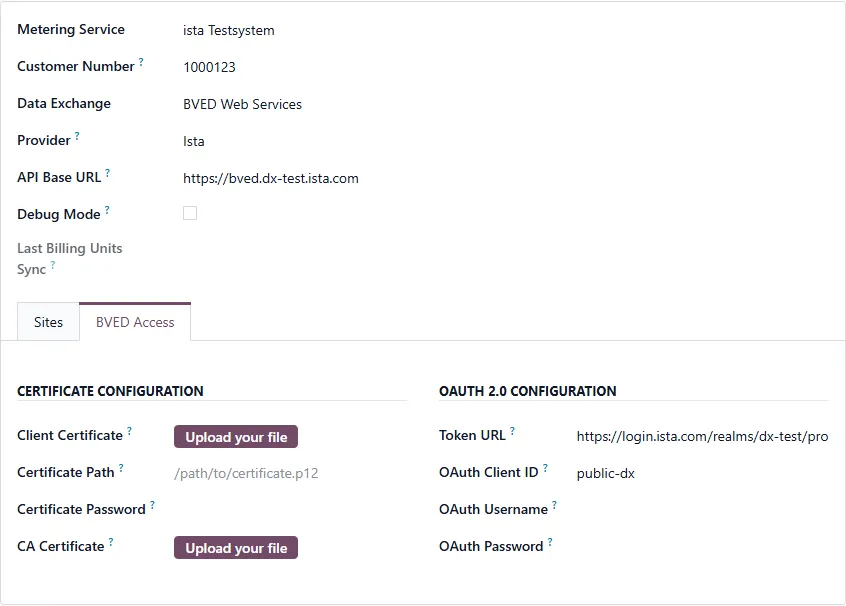
SMARTBRIX stores passwords encrypted. SMARTBRIX support sets up the key for this on the server. Without it, a metering service with passwords cannot be saved.
Assign sites
Section titled “Assign sites”The metering service keeps each property under a nine-digit site number. You assign this number to the property once.
- On the metering service, on the Sites tab, click Add a line and enter the Site Number and the Property. You can do the same on the property, on the Energy and Consumption tab, Metering Service section.
- Click Sync Billing Units. SMARTBRIX fetches status, address and setup of the sites you entered from the metering service. This also happens once a day.
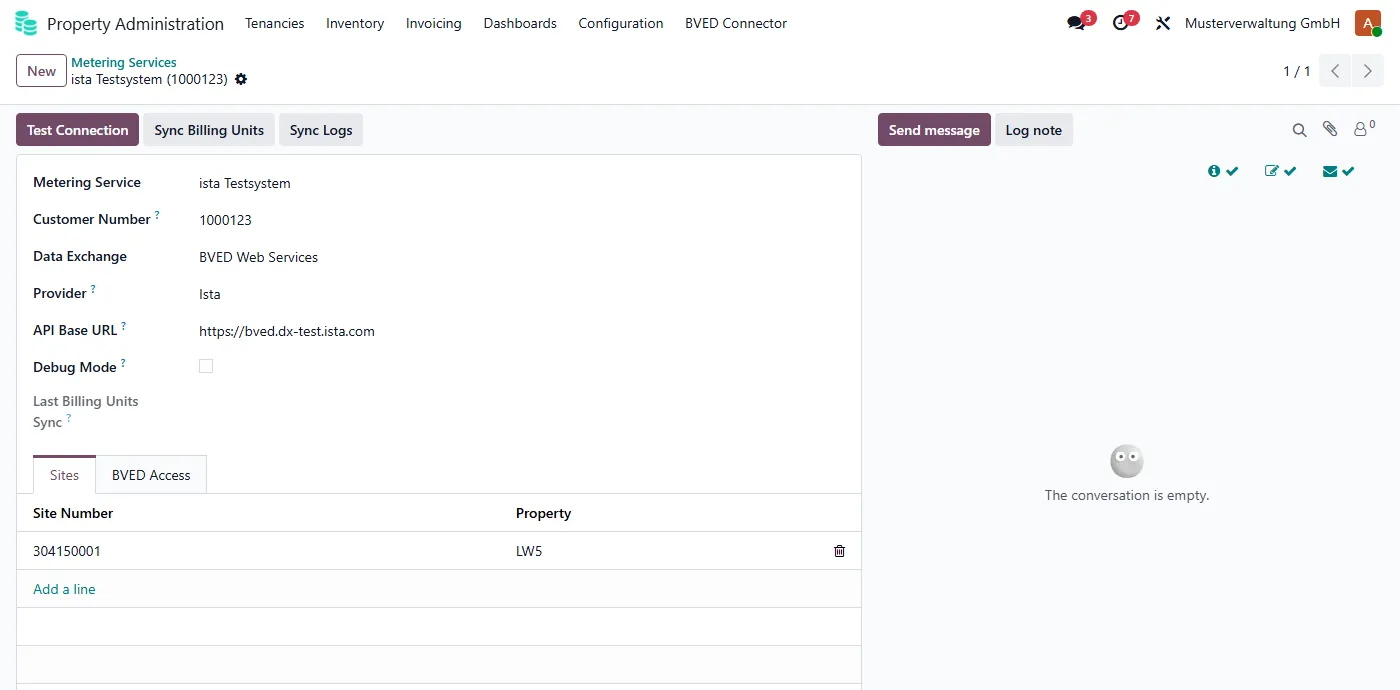
Syncing does not create new sites. If the metering service keeps a number that SMARTBRIX does not have, it appears in the chatter of the metering service. Then create it on the Sites tab with its property.
In SMARTBRIX, a site is called a billing unit. You find all of them under Property Administration › BVED Connector › Billing Units. There, SMARTBRIX fills in Fuel, Hot Water Included, Property Reference Number and the CO2 details on the Billing Input Basis tab from the property. Anything you change on the billing unit yourself is kept.
The Property Reference Number is your own reference and is not transmitted; the metering service receives the property ID. CO2: Total Floor Space is always transmitted. You send your own landlord share of the CO2 costs only with the CO2: Own Landlord Share checkbox, then also 0 % in the CO2: Share Landlord (%) field. Without the checkbox, the metering service determines the share.
Metering service cost types on your cost types
Section titled “Metering service cost types on your cost types”The metering service does not recognize costs by your cost types, but by its own BVED cost keys, for example “1.0.3 Grundsteuer” or “4.0.1 Energierechnung”.
- Under Property Administration › Configuration › Cost Allocation › Cost Types, open the cost type, for example “Heiz- und Warmwasserkosten”.
- In the Metering Service group, select the matching key in Cost Types at Metering Service. You can search by number or name. One key per data exchange is possible.
- For heating costs, select under Applies To whether the costs concern heating, hot water or both.
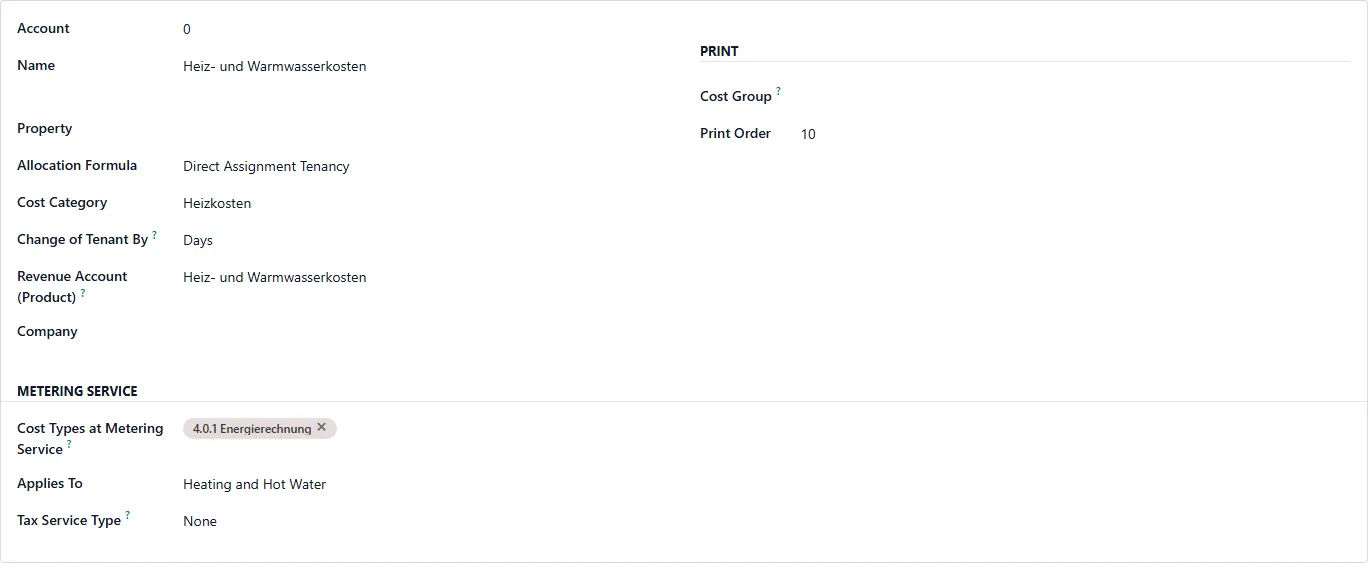
SMARTBRIX does not send cost types without a key. On a single expenditure you can select a different key, which then takes precedence over the cost type’s. For fuel invoices, enter the Delivered Quantity on the expenditure, for example “48,500” kWh of gas or liters of heating oil. The unit follows from the fuel of the billing unit.
Setup of the residential units
Section titled “Setup of the residential units”- Under Property Administration › BVED Connector › Billing Units, open the billing unit.
- Click Generate Residential Units. SMARTBRIX creates a residential unit for every child property on the lowest level with a current usage, also when it lies in a building of the property. Each residential unit gets position, floor space and billing recipient. If a name is longer than 35 characters, SMARTBRIX continues it in Recipient Additional Name, because the metering service accepts only 35 characters per name field.
- Click Send Setup. The Setup Status changes to “In Progress”.
- Wait for the result. The metering service matches the residential units by hand, which usually takes 1 to 2 working days. SMARTBRIX checks for the result every 30 minutes, or immediately with Refresh Setup Result. The metering service reports which residential units it matched and assigns its four-digit User Number. Residential units that only the metering service knows are added by SMARTBRIX. While the metering service is still working, the setup status stays “In Progress”.
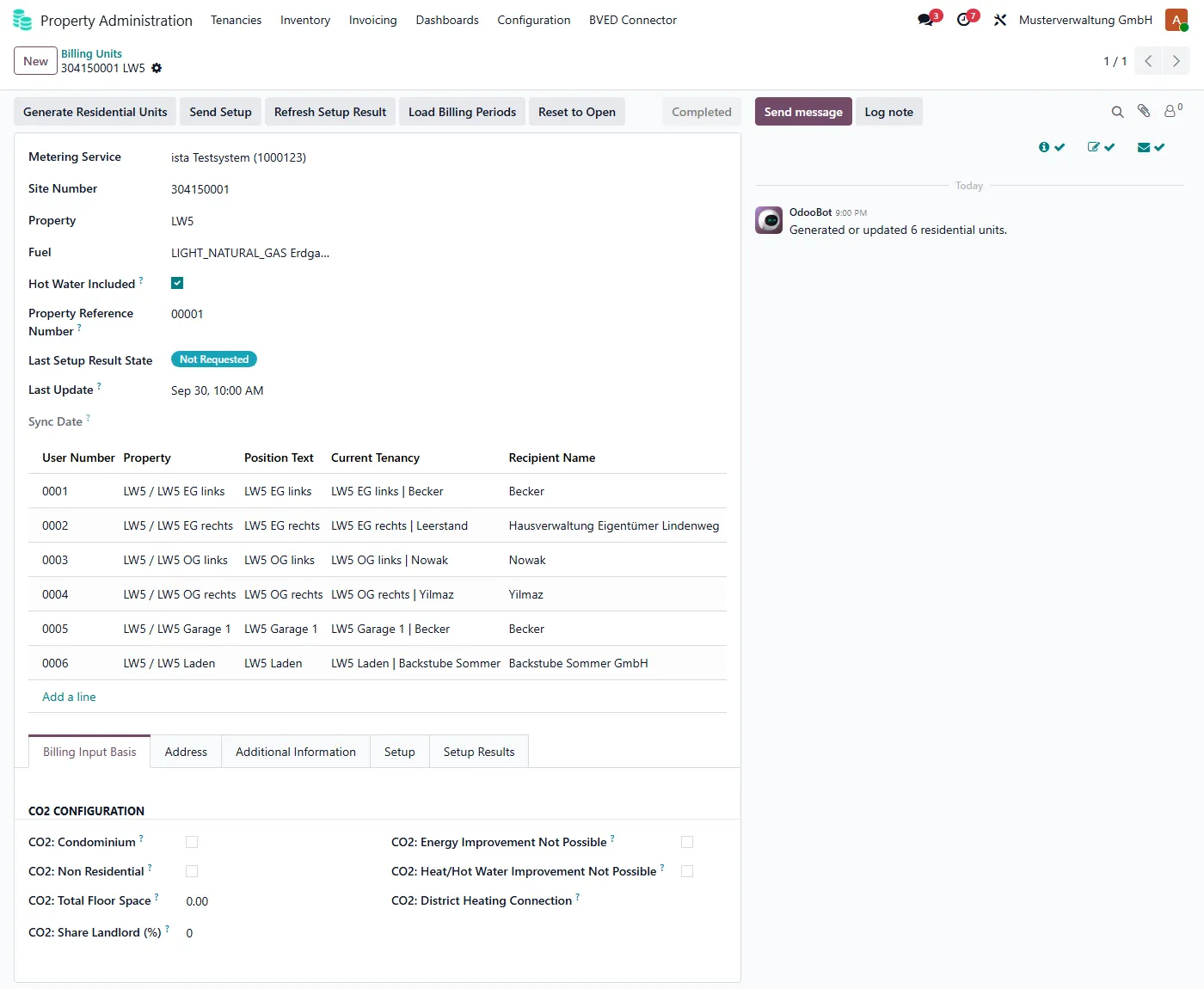
The Setup Status shows how far the metering service has got: “Open”, “In Progress” or “Completed”. You may send the setup again at any time, for example after a change to the property. You only need Reset to Open if you want to start the setup over. What the metering service reported back is on the Setup Results tab.
If Last Setup Result State shows “Needs Attention”, the metering service reported residential units that SMARTBRIX cannot match to any unit of the property. This happens, for example, when the metering service still holds data from an earlier setup. Check the residential units and send the setup again.
Report recipients
Section titled “Report recipients”When a usage changes, for example when a tenant moves, report the new recipient to the metering service.
- In the billing unit, open the residential unit.
- In the Current Billing Recipient group, check the name and first name.
- Click Send Consumption Info Contracts to report the recipient of the consumption information during the year.
- Click Send Billing Contracts to report the recipient of the statement.
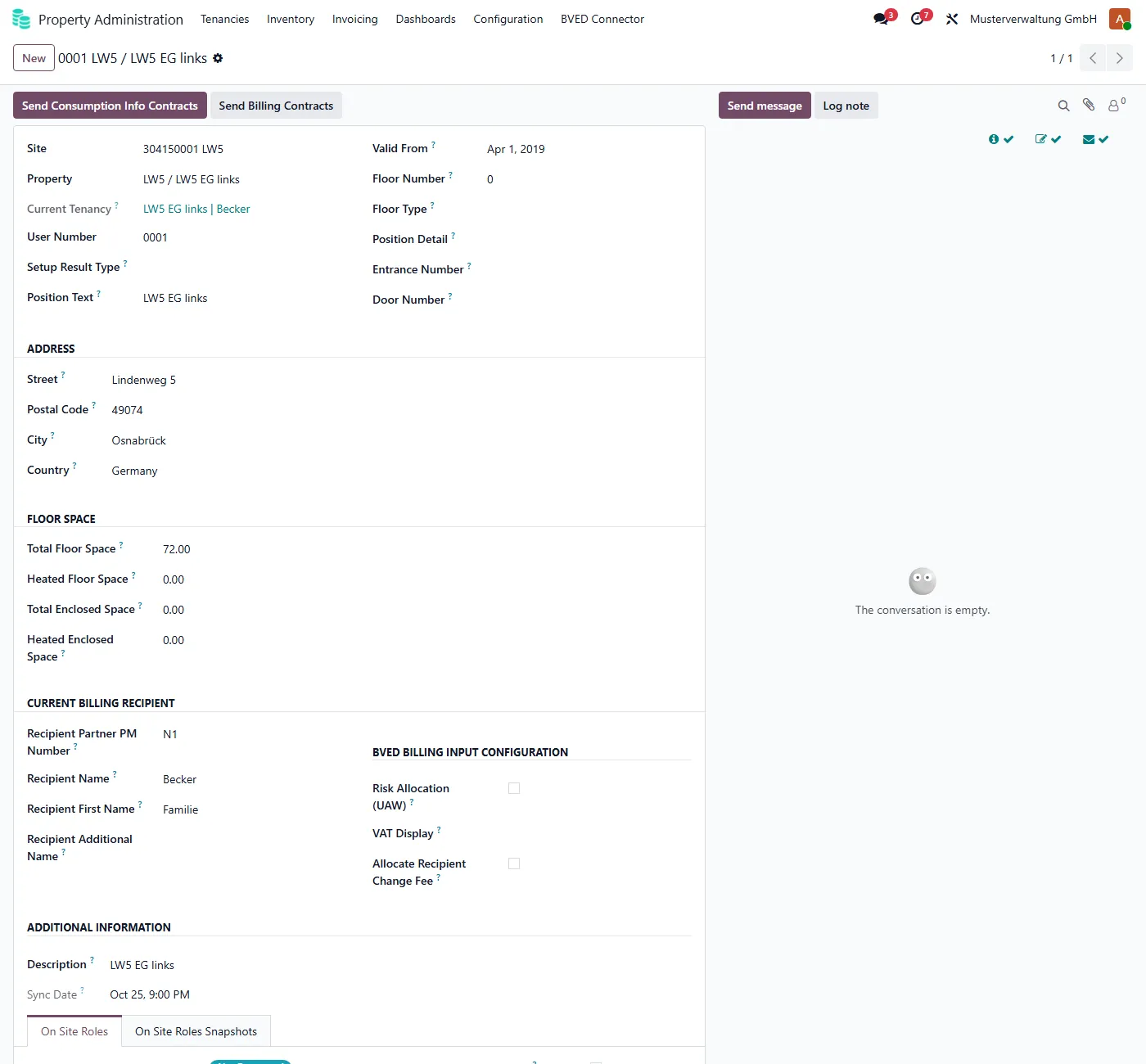
The two reports go to the metering service separately, because otherwise it rejects a report entirely as soon as one of the two kinds is not agreed for your access. SMARTBRIX does not report vacancies as recipients. Every report sent and every report read back is kept on the residential unit’s On Site Roles Snapshots tab.
Send billing data
Section titled “Send billing data”- Open the billing unit and click Load Billing Periods. The button appears once the setup is completed. SMARTBRIX creates a record under Property Administration › BVED Connector › Billing Inputs for every open billing period of the metering service.
- Open the record for the period there. Status at the Metering Service shows whether the metering service already has the readings. Payload Preview shows what SMARTBRIX would send.
- Click Validate. The metering service checks the data without taking it over and reports errors and warnings. The status changes to “Validated”.
- Click Send. This orders the statement from the metering service. With Send (Ignore Warnings), the metering service takes over the data despite warnings. The status changes to “Sent”.
You can also create a period yourself: under Property Administration › BVED Connector › Billing Inputs, click New, select Billing Unit, Period From and Period To, and save.
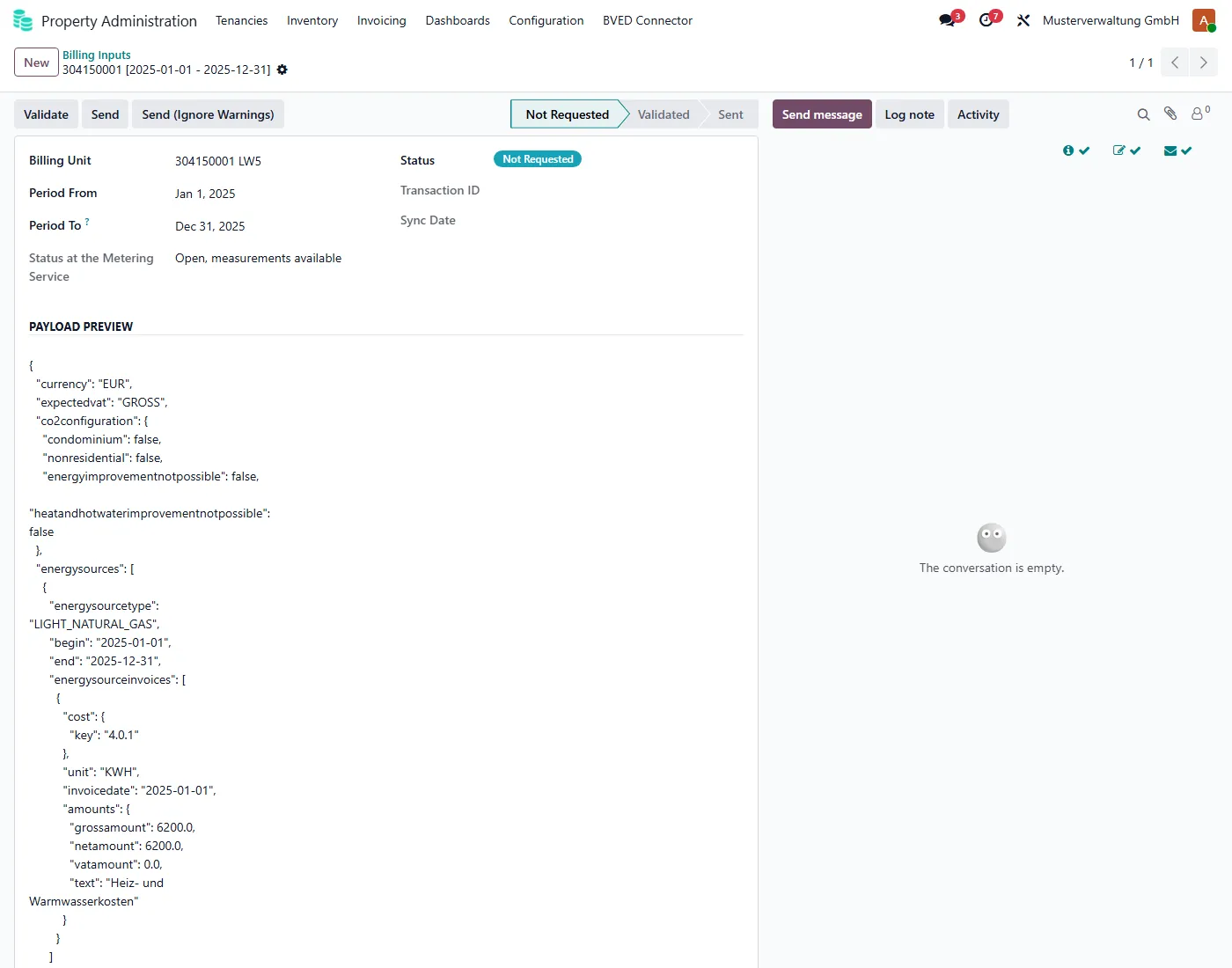
SMARTBRIX sends:
- the expenditures of the property and all its child properties whose cost type has a metering service key, with the share that falls on the period. An invoice covering two years therefore counts half.
- the fuel invoices with the delivered quantity, also pro rata,
- for storable fuels such as heating oil, the fuel stocks at the start and end of the period. You enter them on the property, on the Energy and Consumption tab, Metering Service section under Fuel Stocks. A stock counts if its date is at most 31 days before the start or end of the period.
- the CO2 details of the billing unit,
- as billing recipients, every usage that ran in the period, including those of tenants who have moved out. SMARTBRIX does not send vacancies.
- for each usage, the advance payments made for heating and service charges. These are the advance payments from the posted rent invoices of the period, as far as the tenant has paid them. If the tenant paid a rent invoice only in part, the advance payments count as paid first. Credit notes are deducted. For costs a usage pays as a flat amount, SMARTBRIX sends no advance payment.
The service charge statement in SMARTBRIX follows the same rule, so the metering service and the statement name the same prepayment. Exception: if Advance Payments in Statements is set to Agreed in the settings, the statement uses the agreed amounts (see Paid prepayments).
Common errors
Section titled “Common errors”| Problem | Cause | Solution |
|---|---|---|
| Test Connection reports an error. | Username, password, client ID or certificate is wrong. | Check the login data on the BVED Access tab. The metering service’s response is under Sync Logs. |
| The test works, syncing fails. | The test only checks the login. The customer number is wrong, or the metering service has not activated the access yet. | Check the customer number, ask the metering service. |
| A site cannot be saved. | The site number does not have exactly nine characters. | Enter the number as the metering service keeps it. |
| Generate Residential Units creates nothing or reports a missing address. | The billing unit has no property, or the child properties have no current usage. Every residential unit needs street, postal code, city and country. | Check the property and usages. If the address is missing on the unit, SMARTBRIX uses the billing unit’s address; complete it on the Address tab. |
| The setup status stays “In Progress”. | The metering service has not processed the setup yet. | Wait 1 to 2 working days, then ask the metering service. |
| Sending or the setup reports “Transfer failed”. | The metering service rejected the data or could not be reached. The status then shows “Error”. | Read the metering service’s answer in the message or under Sync Logs, correct the data and send again. |
| An expenditure is missing from the payload preview. | Its cost type has no metering service key, or its service period lies outside the period or has no end. | Complete the cost type and service period. |
| The metering service reports “Liegenschaft ist nicht für Datenaustausch für Abrechnung eingerichtet” (site not set up for billing data exchange). | The metering service has not enabled sending billing data for this property. | Contact the metering service. |
| The BVED Connector menu is missing. | The add-on module is not active, or you are not an administrator. | Ask your SMARTBRIX contact. |
What is not included
Section titled “What is not included”- The interface does not fetch the settlement result or the statement as a PDF. For that, use the import by ARGE file.
- The interface sends billing data only for rental management, not for condominium management.
- Only ista has been tested. Other metering services with BVED web services can be selected but have not been verified. Ask your metering service whether it offers the web services.
Didn't find an answer? Contact support