

Access restriction
Question about the manual? Ask Claude · Ask ChatGPT
In a project, every employee sees all tasks. Some matters are confidential, though, such as a formal warning to an employee. With the access restriction you set on a single task which users and groups can see it. Everyone else no longer finds the task anywhere: not in the project, not in the search, not in counters and not in the task analysis. This also applies to its messages, notes, attachments and activities. Tasks without an entry stay visible to everyone.
Set up groups
Section titled “Set up groups”Only groups that are enabled for it can be selected. An administrator sets this up once:
- Activate developer mode.
- Open Settings › Users & Companies › Groups.
- Create a group, for example “Personalabteilung”, or open an existing one.
- Tick Usable for Record Restriction.
- Add the members on the Users tab.
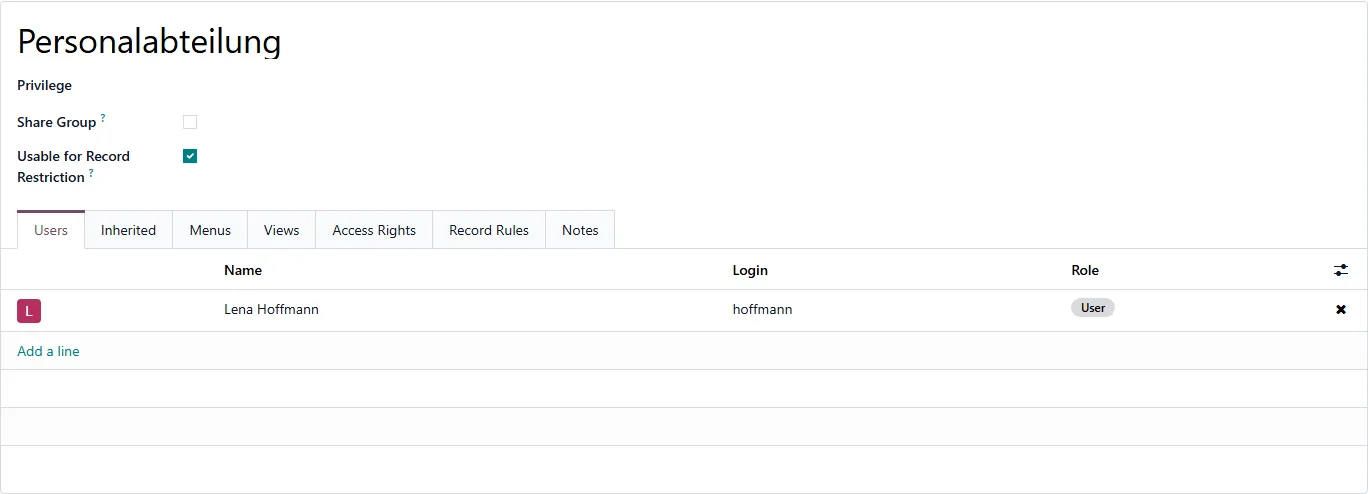
Anyone who joins the group immediately sees all tasks restricted to it. Anyone who leaves the group immediately stops seeing them.
Restrict a task
Section titled “Restrict a task”- Open the task.
- Click the Access tab.
- Under Restricted to Groups, enter one or more groups. Enter individual people under Restricted to Users.
- Save the task.
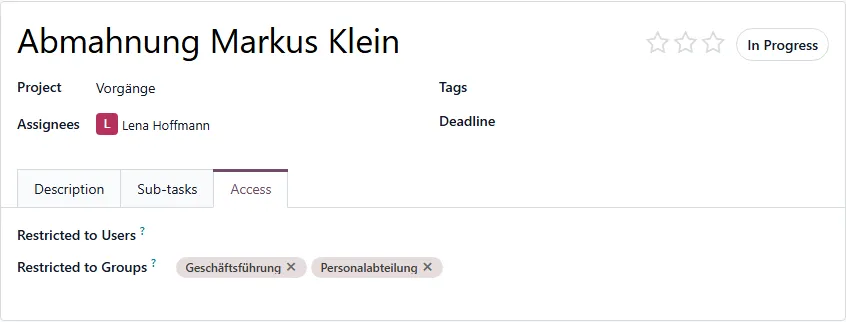
From now on, only the users entered, the members of the groups entered and the administrators see the task. SMARTBRIX removes all followers who no longer have access and notes in the chatter who was removed. These people no longer receive emails about the task.
In kanban and list views, people with access recognize a restricted task by the lock:
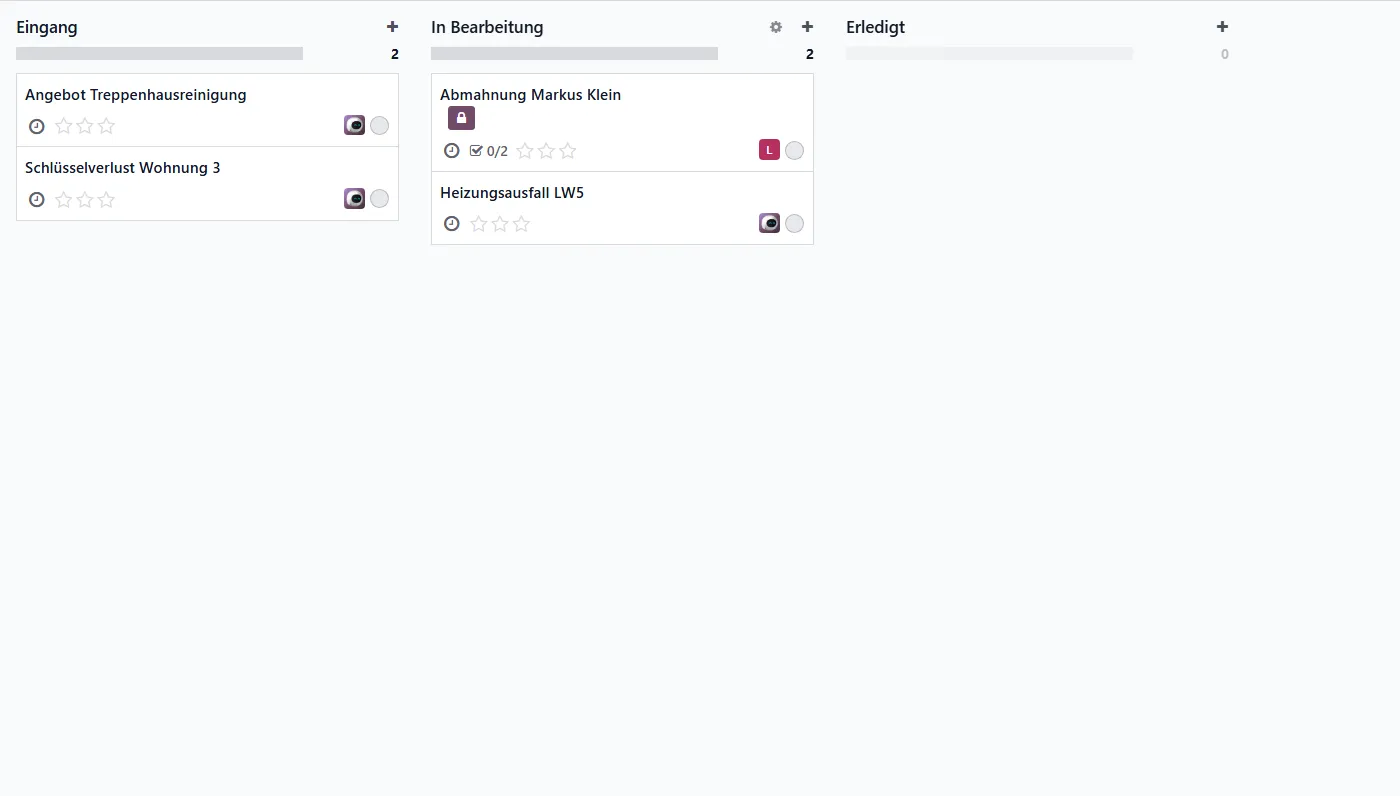
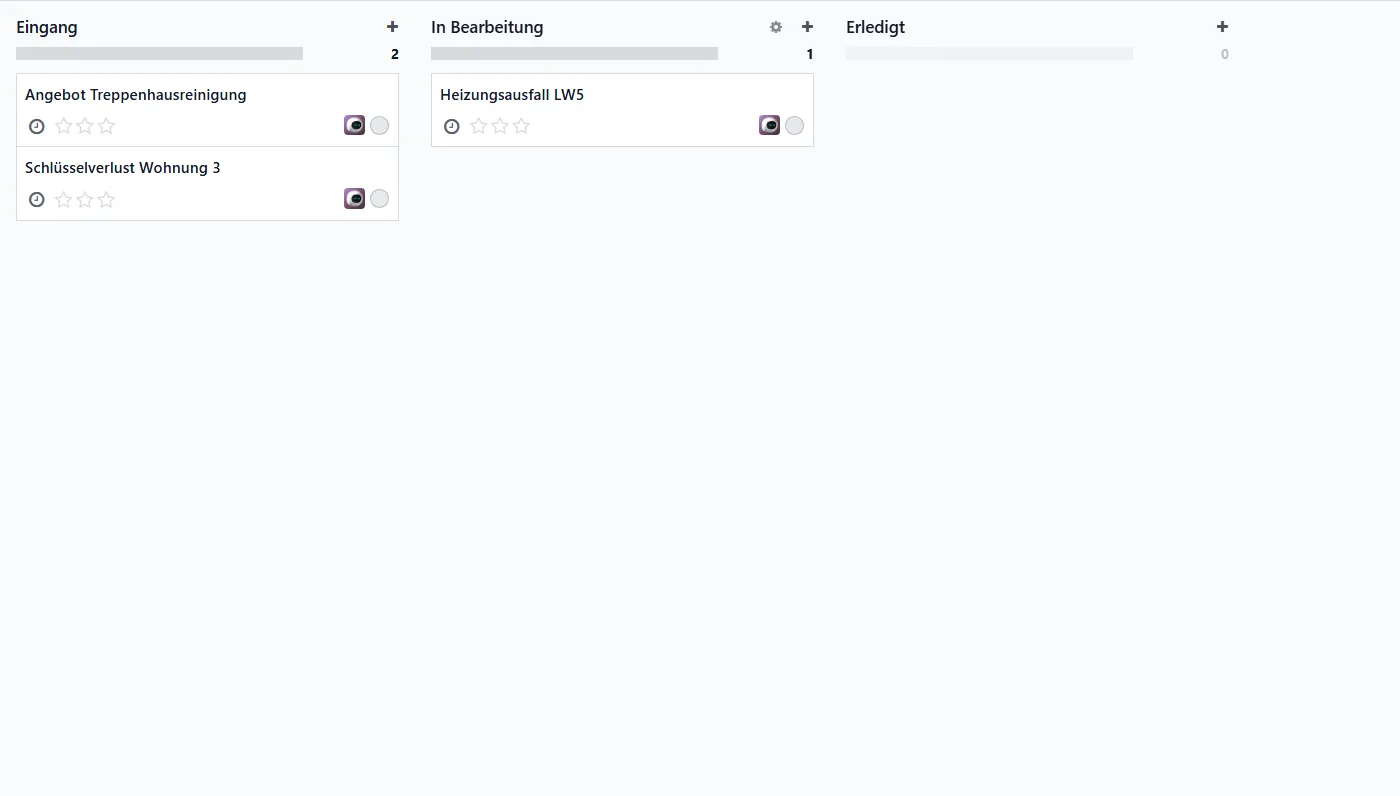
Colleagues without access see the same project without the task:
When you save, SMARTBRIX checks two things:
- Your own access: if you would lock yourself out, the task cannot be saved. Enter yourself or one of your groups.
- Assignees: everyone under Assignees must be allowed to see the task. Otherwise the task cannot be saved.
To lift the restriction, clear both fields on the Access tab.
Subtasks
Section titled “Subtasks”A new subtask takes over the restriction of its parent task. If you later change the restriction of the parent task, SMARTBRIX applies the change to all subtasks, including archived ones. After that, you can restrict a single subtask differently.
Messages to people without access
Section titled “Messages to people without access”A confidential matter is often about someone who may not see it. If you send this person a message from the chatter:
- They receive only the messages addressed to them, always by email, even if they otherwise receive notifications in SMARTBRIX.
- The email contains no button to the task.
- Their reply lands in the chatter of the task.
- They do not see internal notes or messages to others. They do not become a follower either.
Linked tasks
Section titled “Linked tasks”If a task that everyone can see refers to a restricted task, SMARTBRIX shows people without access Restricted record instead of the title. Clicking it reports that access is missing.
Attachments and documents
Section titled “Attachments and documents”Attachments in the chatter of the task are restricted just like the task itself.
Attachments in the chatter of the task are restricted just like the task itself. If an attachment is also stored in the Documents app, the document takes over the restriction of the task, also in the trash. SMARTBRIX turns off share links for this document so that nobody can reach the file through a link sent earlier.
Frequently asked questions
Section titled “Frequently asked questions”A task has disappeared. Where is it? Someone has probably restricted access, and you are not on the list. An administrator sees all tasks and can check the restriction.
Why can’t I select a group? The group does not have Usable for Record Restriction ticked. An administrator ticks it, see Set up groups.
A colleague no longer receives emails about a task. If she has no access, SMARTBRIX removed her as a follower. The chatter of the task names who was removed.
Can I restrict the whole project? You do not need the access restriction for that. In the project settings, set the visibility to Invited internal users.
Didn't find an answer? Contact support