

Companies
Question about the manual? Ask Claude · Ask ChatGPT
The company is the firm you manage for. Its name, address, logo and footer appear on every letter and every invoice. Many settings apply per company. If you manage for several firms, create each one as a separate company and switch between them at the top right.
Maintain company details
Section titled “Maintain company details”- Open Settings. The Companies block shows your company with its address and VAT ID.
- Click Update Info. The company form opens.
- Upload the logo at the top left.
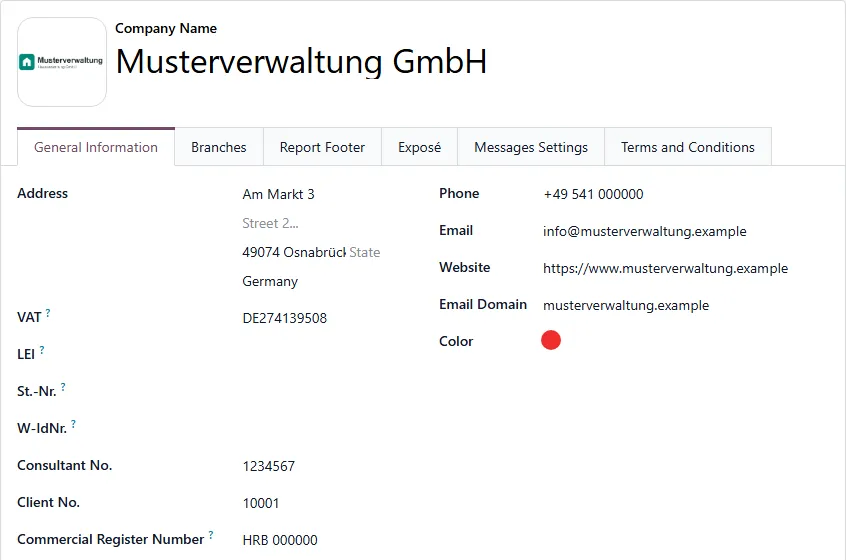
- On the General Information tab, fill in the details:
- Address: street, ZIP code, city and country. This becomes the sender line above the address field of every letter.
- Tax ID and St.-Nr. (German tax number): appear on invoices.
- Phone, Email and Website: appear in the footer as long as you do not set up a custom footer.
- Email Domain: the domain at which your company receives email. See Set up email.
- Save.
Further tabs on the company:
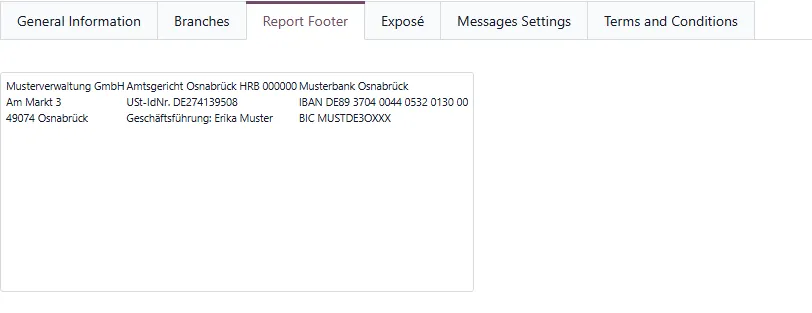
- Report Footer: the footer for letters, invoices and statements. What belongs in it is described under Letter layout.
- Exposé: company profile and legal texts for the exposé. See Prepare an exposé.
- Terms & Conditions: your privacy notice.
Color scheme of the interface
Section titled “Color scheme of the interface”Out of the box, SMARTBRIX shows the interface in petrol.
Business plan: The color scheme is fixed. There is no coloring based on your logo.
Light / Pro plan: You can color the interface per company in the colors of your logo. It always shows the colors of the company that is active at the top right.
Colors from the logo: If you upload a new logo under Settings › Configure Document Layout, SMARTBRIX reads two colors from it. On saving, it uses them for letters and for the interface. A logo you upload on the company form does not change the colors.
Colors by hand:
- Open Settings. The Companies block contains the Backend Theme Colors setting.
- Click Configure Backend Theme Colors.
- Under Base, choose the Primary Color and the Secondary Color, and under Label the two colors for labels. You enter a color with the color picker or as a color code, for example “#008879”.
- Click Save and reload the page.
In the same window, Set as Default takes the two colors from the document layout, that is, the colors of your logo. Clear empties all four fields; after Save, petrol applies again. If you uncheck Backend Theme Colors and save, the interface also shows petrol again, and the chosen colors stay stored.
Create several companies
Section titled “Create several companies”- Open Settings and click Manage Companies in the Companies block.
- Click New, enter the name and address, and save.
- Open Settings › Users & Companies › Users and there each user who works for the new company.
- Add the new company in the Companies field. It lists the companies the user may access.
- Under Default Company, choose the company the user starts with after logging in.
Every new company needs its own setup: chart of accounts and bank accounts, accounts and taxes on the products, the Administration settings, follow-up levels, logo and footer. It gets the SMARTBRIX DIN letter layout with a matching paper format automatically. Settings always apply to the company that is currently active. The individual steps are listed under Set up a new company.

Switch between companies
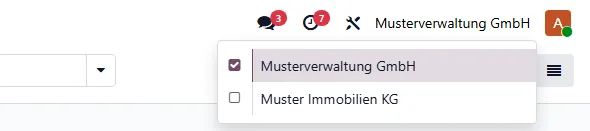
Section titled “Switch between companies”The name of the active company is shown at the top right. Clicking it opens the company switcher:
- Click the name: This company becomes active. You see only its data.
- Checkbox in front of it: You see the data of several companies at once, for example in lists and reports.
If several companies are checked, one of them remains the active one. It is shown at the top right and highlighted in the switcher. New records always get the active company, not the other checked ones.
Which company a record gets
Section titled “Which company a record gets”- Property: the company active when you create it. You can change it in the Company field on the property.
- Usage: always the company of its property. You cannot choose it on the tenancy.
- Rent invoices and permanent rent invoices: the company of the usage, regardless of which company is active during the invoice run.
- Cost type: the company of its property. A cost type without a property applies to all companies.
- Rooms, fixtures and keys: the company of their property.
- Contacts: no company, unless you enter one. All companies see such contacts.
- Invoices, journals, accounts and taxes: always belong to one company.
- Products: apply to all companies as long as you do not enter a company on the product. Taxes and accounts on the product are maintained per company.
What to watch out for
Section titled “What to watch out for”Create properties in the right company. Before you click New, check which company is active at the top right. With several checkboxes set, this is easy to miss.
Do not mix companies in one transaction. When you enter a property or tenancy, SMARTBRIX does not check whether the tenant, products and accounts belong to the same company. The error only shows when an invoice is created: the software then reports incompatible companies and does not create the invoice. Typical causes:
- The tenant is assigned to another company as a contact. Clear the Company field on the contact or enter the right one.
- The rent or service charge product, journal or account comes from the other company. Check the Administration settings while the property’s company is active. The selection there only offers products, cost types and accounts that match the active company or are not assigned to any company.
Change the company of a property only before the first invoice. The usages move with it; invoices and postings already created stay in the old company.
Condominium communities do not need a company of their own. You can run several communities in one company. They are kept apart by their booking property (Buchungsobjekt) and their owners.
Frequently asked questions
Section titled “Frequently asked questions”I cannot see a property that should exist. It belongs to a company that is not checked in the switcher. Set the checkbox or switch the active company.
I am not allowed to select a company. It is missing from the Companies field of your user. An administrator can change this.
Didn't find an answer? Contact support