

Letter layout
Question about the manual? Ask Claude · Ask ChatGPT
SMARTBRIX prints letters, invoices, reminders, service charge statements and condominium statements in a shared frame: logo, sender line, address field, info block and footer. You choose this letter layout once per company. There are three layouts, all following DIN 5008 Form B on A4.
The three layouts
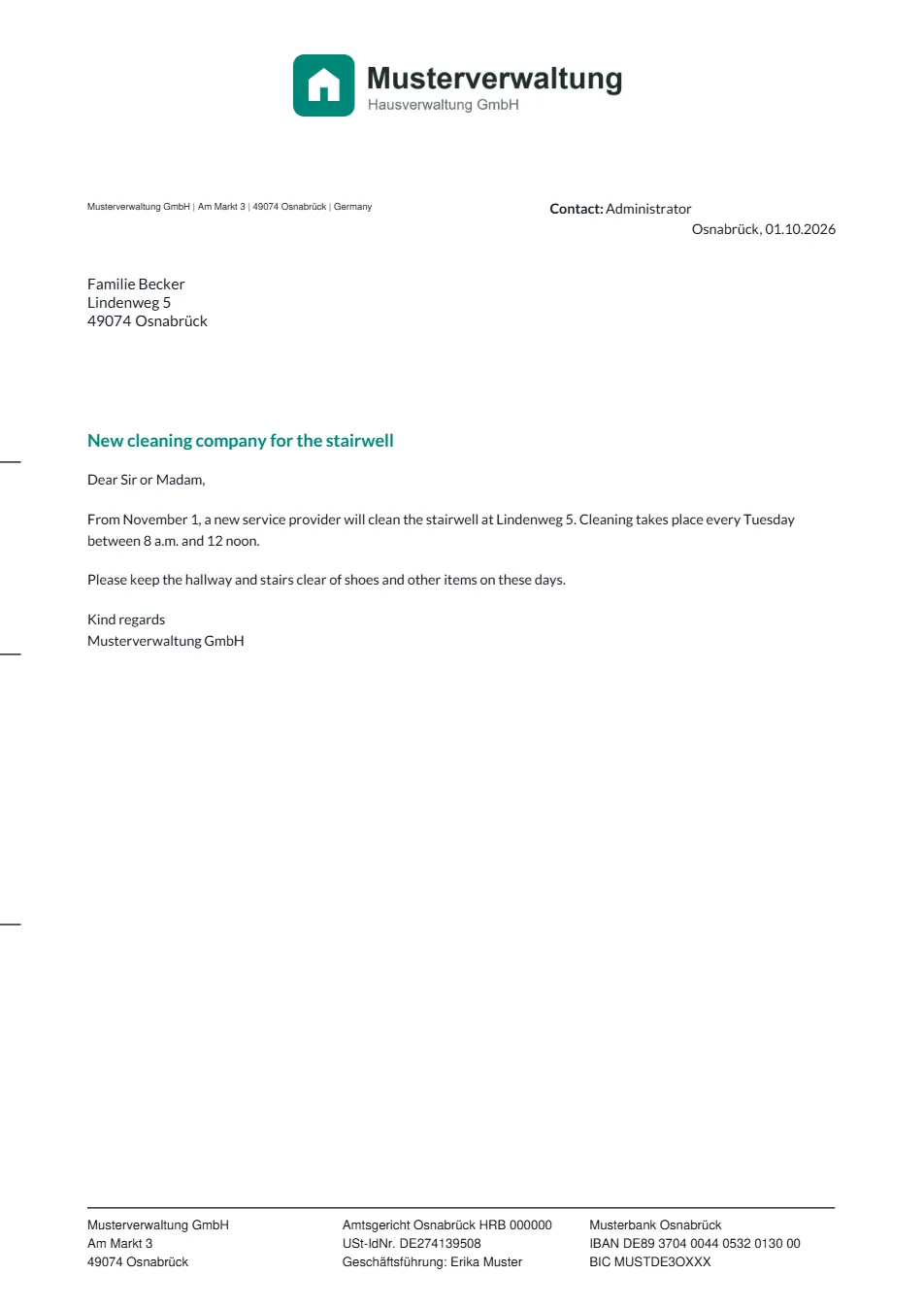
Section titled “The three layouts”SMARTBRIX DIN is the default layout: plain, with the logo in the header and the subject in bold and in the primary color above the text.
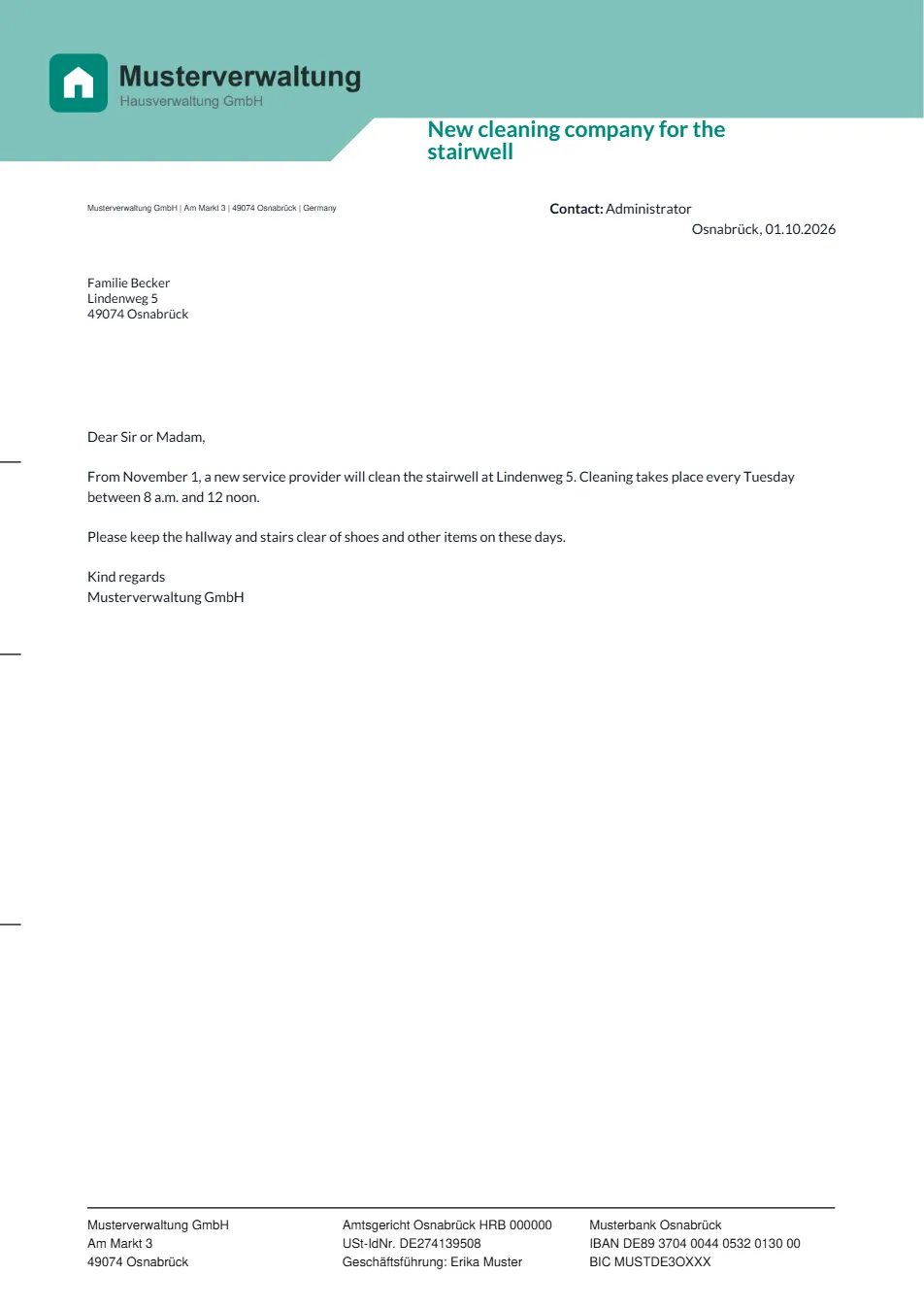
SMARTBRIX Folder places a colored, folded band in the primary color at the top. The subject sits in large type in the fold of the band, the logo in the band to its left. Tables are striped.
SMARTBRIX Bubble puts a light arc in the primary color at the top right and a wave in the secondary color at the bottom left, behind the page content. In this layout the logo is at most 20 mm high.
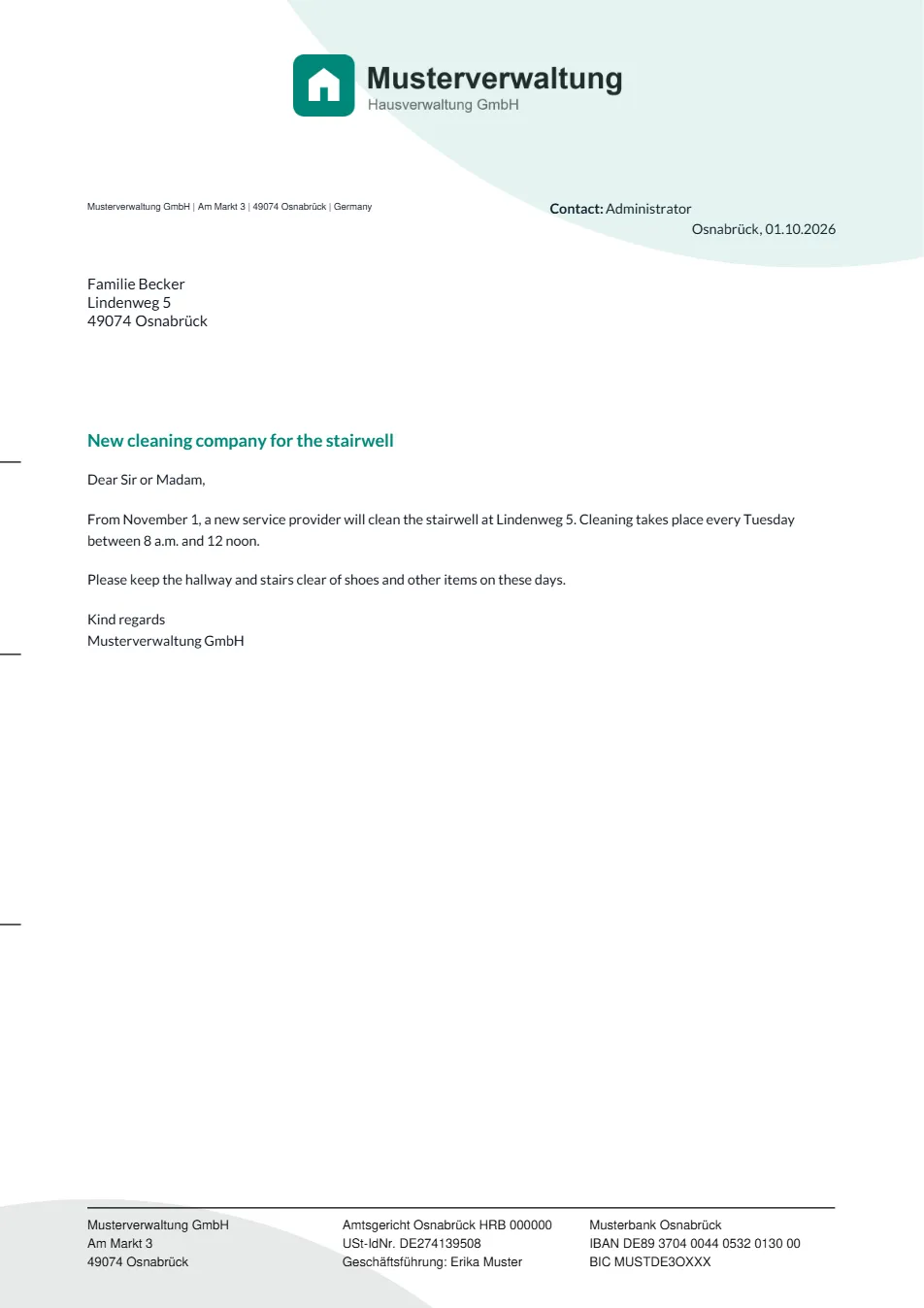
All three share the same structure:
- Sender line in small type above the address field. SMARTBRIX builds it from the company’s name, street, ZIP code, city and country.
- Address field on the left, in the window area of a DIN envelope.
- Info block to its right: invoice date, due date and reference on invoices; contact person, place and date on letters.
- Fold and punch marks on the left edge of the first page.
- Footer below a line on every page.
Set the layout and logo
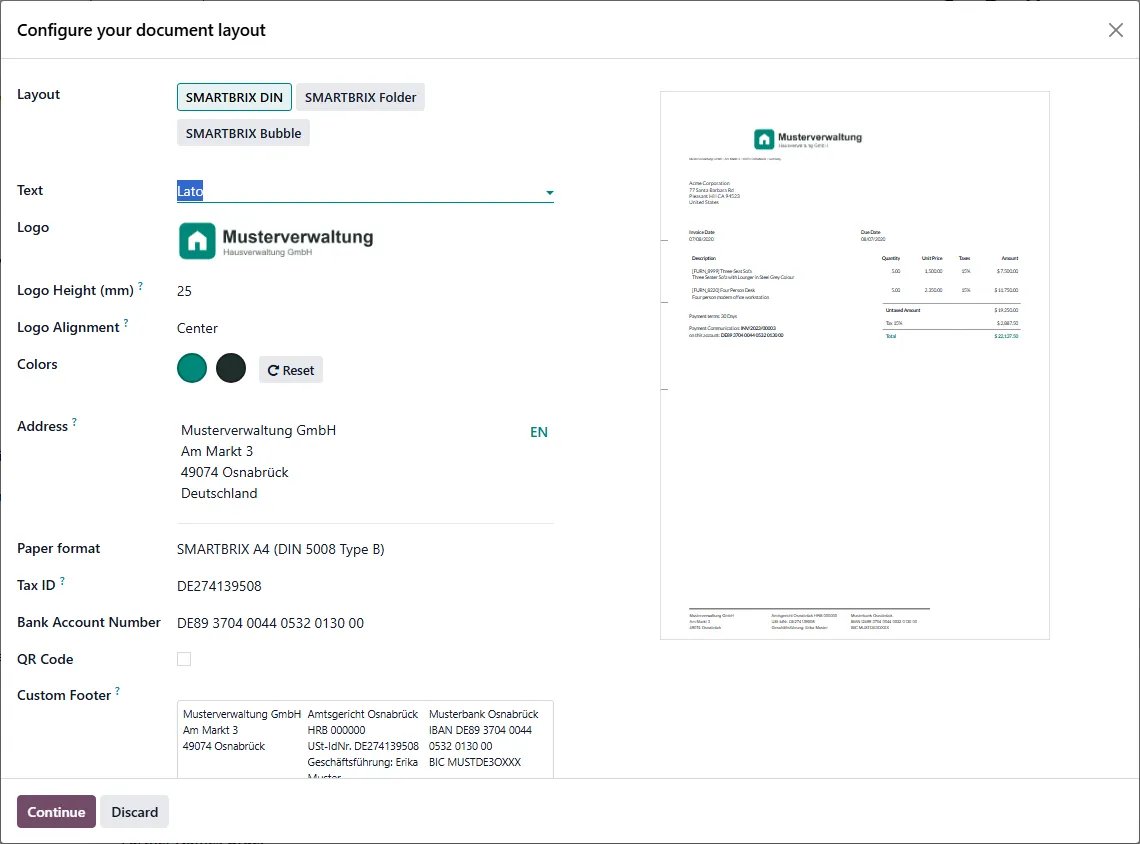
Section titled “Set the layout and logo”- Open Settings and click Configure Document Layout in the Companies block.
- Under Layout, choose one of the three layouts. The preview on the right shows a sample invoice.
- Upload your logo under Logo.
- Set the logo height in millimeters. Allowed values are 5 to 30 mm, the default is 25 mm. We recommend 20 to 25 mm. The logo keeps its aspect ratio. A very wide logo is printed smaller so that it fits the header.
- Choose the logo alignment: left, centered or right. By default the logo is centered. In the Folder layout, the alignment applies to the part of the band left of the subject.
- Under Colors, choose the primary and the secondary color. They color the subject, the band in the Folder layout and the shapes in the Bubble layout.
- Under Custom Footer, enter the footer as described in the next section.
- Click Continue.
Set up the footer
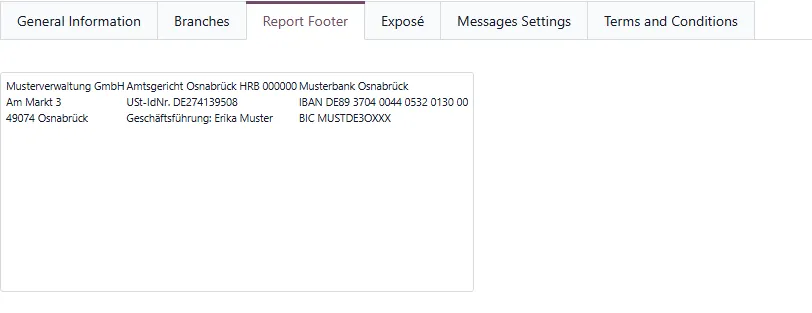
Section titled “Set up the footer”Without a custom footer, SMARTBRIX prints two columns: the company’s name and address on the left, phone and website on the right. Put mandatory details such as the registry court, managing directors or bank details in the custom footer:
- Open the company, for example through Settings, Companies block, Update Info.
- Switch to the Report Footer tab.
- Write the footer. For several columns, insert a table with the “/” command, one column per block.
- Save.
The custom footer replaces the two-column footer completely. So include the name and address too if you want them in the footer.
What uses the layout
Section titled “What uses the layout”These documents use the company’s frame, among others:
- Invoices, permanent rent invoices and credit notes
- Reminders and statements of account
- Letters, see Letters
- Service charge statement, index-linked rent increase and proof of the deposit investment
- Statements and reports of condominium management
The tenancy agreement and the exposé have a frame of their own. The exposé does take over the company’s logo, logo height and color.
Frequently asked questions
Section titled “Frequently asked questions”Can I use my own letterhead as a background? No. The layout builds the header from the logo and the footer from the custom footer. There is no free-text letterhead and no letterhead as an image or PDF.
Can the first page look different from the following pages? The logo and footer appear on every page. The address field, info block and fold marks appear on the first page only.
Can several companies have different layouts? Yes. The layout applies per company. Set it while the company in question is active.
Didn't find an answer? Contact support