

With LetterXpress, your letters no longer go to the print stack. SMARTBRIX sends each letter with its PDF attachments to LetterXpress, and LetterXpress prints it, puts it in an envelope and hands it to the post office. This applies to single and serial letters, to reminders that go out by letter, and to invoices. LetterXpress charges printing and postage to the balance of your LetterXpress account.
Prerequisites
Section titled “Prerequisites”- A LetterXpress customer account with credit. You create the API key in the LetterXpress customer area under Funktionen › Zugangsdaten › LXP API.
- A letter layout whose address field sits in the window of the envelope. LetterXpress reads the address from this field.
You set up access per company. Each company needs its own LetterXpress account. Only users with administrator rights see this section.
-
Open Settings › General Settings and go to the Integrations block, LetterXpress section. If you manage several companies, select the company you are setting up at the top right.
-
Enter the User and API Key of your LetterXpress account.
-
Leave the Mode on Test for now.
-
Set the defaults:
- Send Letters via LetterXpress: letters on paper now go to LetterXpress instead of the print stack. When you create letters, you can untick this for a single run.
- Print in Color: LetterXpress prints in color. Without the tick, in black and white.
- Print Double-Sided: LetterXpress prints on both sides. Without the tick, on the front only.
Print in Color and Print Double-Sided are presets. When sending, you change both for a single run.
-
Click Save.
-
Click Test Connection. If the connection works, SMARTBRIX reports “Connected to LetterXpress.” with your balance.
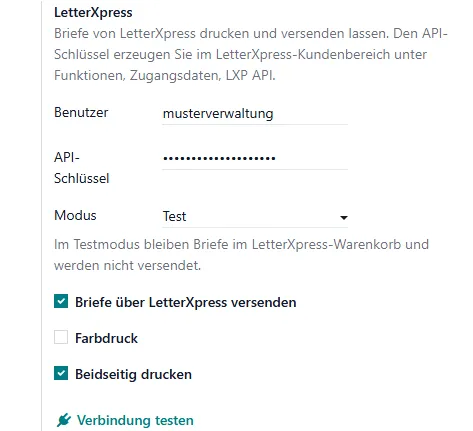
In Test mode, LetterXpress puts the letters in the shopping cart of your customer area (Versandwege › Warenkorb) and sends nothing. There you can see how LetterXpress reads the letter. LetterXpress deletes letters left in the shopping cart after seven days. Once you are happy with the result, set the Mode to Live.
Send letters via LetterXpress
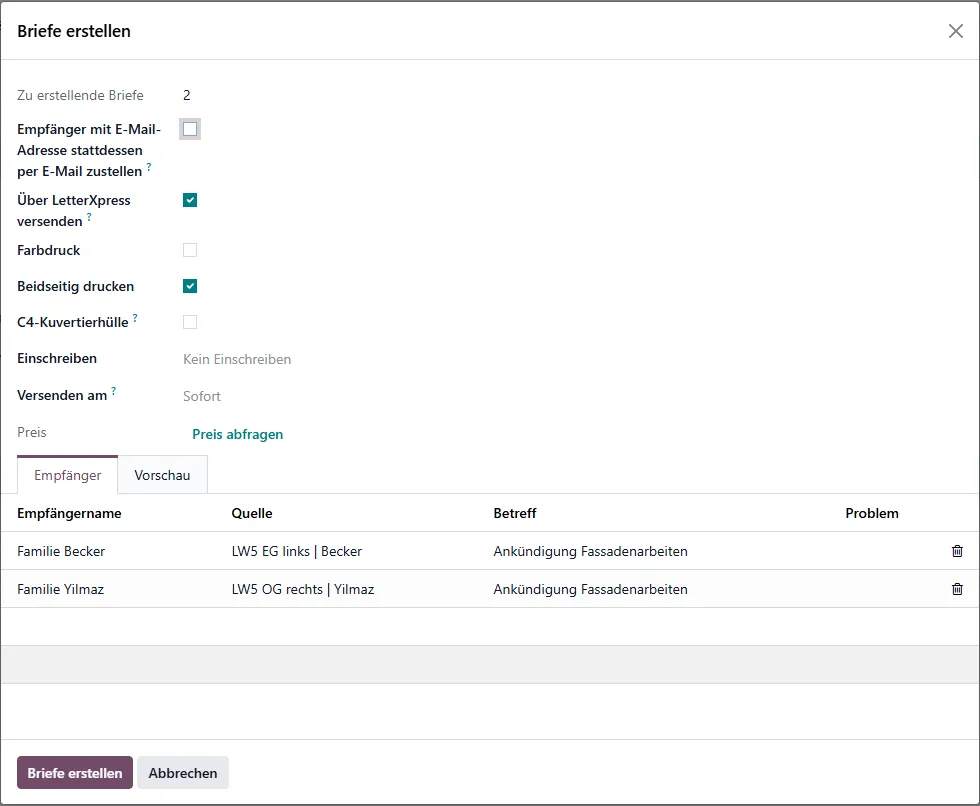
Section titled “Send letters via LetterXpress”You write the letter as described under Letters. The Create Letters window also shows the box Send via LetterXpress, preset from the settings.
- Check recipients and preview as usual.
- If needed, tick Deliver by email where possible. These recipients get their letter by email, all others via LetterXpress.
- Leave Send via LetterXpress ticked. The sending options appear below it.
- Choose the sending options, see Sending options.
- If needed, click Check price.
- Click Create letters.
SMARTBRIX creates each letter as a PDF and sends it to LetterXpress, together with its PDF attachments in the order letter, attachments. The letter is then in Sent via LetterXpress. The history of the tenancy or contact shows the internal note “Letter sent via LetterXpress:” with subject and PDF. No print stack is created for these letters.
LetterXpress sends letters to recipients with an address outside Germany as international mail.
Sending options
Section titled “Sending options”The sending options apply to all letters of the run:
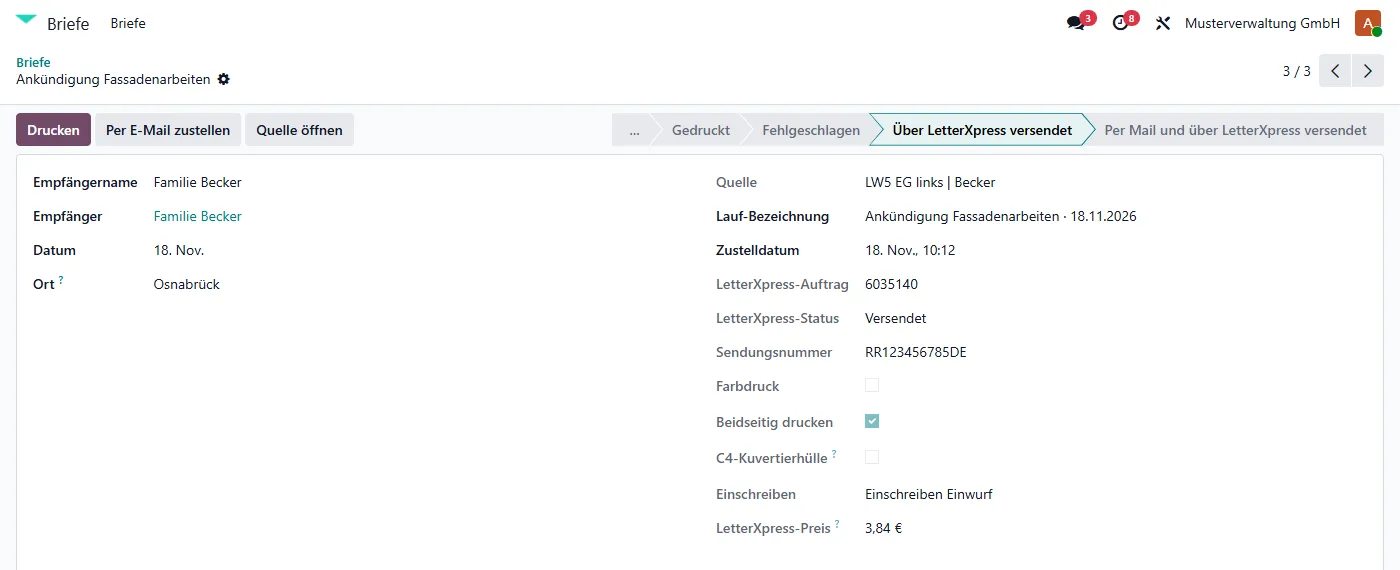
- Print in Color: LetterXpress prints in color, without the tick in black and white. Preset from the settings.
- Print Double-Sided: LetterXpress prints on both sides. Preset from the settings.
- C4 Envelope: the letter goes unfolded into a large envelope. This only works for fewer than 9 sheets.
- Registered Mail: Registered (letterbox) or Registered (signature). Left empty, the letter is an ordinary letter. Registered mail only goes to addresses in Germany and not together with delivery by email.
- Send On: LetterXpress holds the letter until this day. The date must lie in the future. Left empty, LetterXpress sends at once.
Check price asks LetterXpress what the letter to the first recipient costs with these options. SMARTBRIX creates the letter once as a trial and counts its pages including attachments. Next to the button you then see, for example, “€1.19 for the letter to Anna Müller, pages: 1”. Other recipients can cost more, for instance with longer attachments or abroad. If you change an option, the price disappears and you check again.
With registered mail, SMARTBRIX moves the address in the letter about 5 mm down. LetterXpress prints the registered-mail label above the address, and it would otherwise cover the first line.
The chosen options are then shown on the single letter. You cannot change them there, because the PDF already exists.
Reminders
Section titled “Reminders”Reminders follow the company setting Send Letters via LetterXpress. They go out with Print in Color and Print Double-Sided from the settings, without registered mail. If the follow-up level has the delivery Letter, the reminder letter goes to LetterXpress on release. With Email and letter, the debtor gets the email and the letter via LetterXpress, and the letter is in Sent by email and via LetterXpress. How to release reminders is shown in Dunning run.
Send invoices via LetterXpress
Section titled “Send invoices via LetterXpress”You send invoices, credit notes and service charge statements with the Send button of the invoice. LetterXpress gets the invoice as it was issued, without a covering letter.
On the contact you decide how it receives invoices: tab Accounting (in the Light / Pro plan Invoicing), section Customer Invoices, field Invoice sending, value via LetterXpress. For contact persons of a company, the field is on the company. If the contact has Contact by Letter ticked or no email address, nothing under Invoice sending and a complete address, via LetterXpress is preselected, provided the company has Send Letters via LetterXpress active.
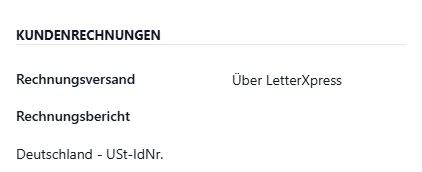
Once LetterXpress is set up for the company, SMARTBRIX hides Odoo’s own postal service (by Post) in the dialog. That leaves one route for invoices on paper. Contacts set to by Post then get their invoices via LetterXpress as well.
- Open the posted invoice.
- Click Send.
- Tick via LetterXpress. You can also tick by Email, then the customer gets both.
- Choose Print in Color, Print Double-Sided, C4 Envelope and, if needed, Send On. Print in Color and Print Double-Sided are preset from the settings.
- Click Send.
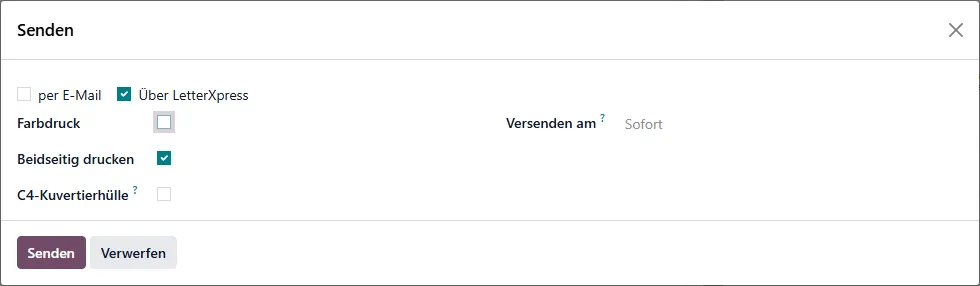
SMARTBRIX creates a letter for it and sends it to LetterXpress a few seconds later. You find the letter under Letters › Letters, with status, tracking code and price like any other. The history of the invoice then shows “Letter sent via LetterXpress:” with the PDF.
Several invoices at once: select the invoices in the list and click Send. Invoices to the same recipient go into one envelope, sorted by invoice number. Printed double-sided, each invoice starts on a sheet of its own. Sending several at once takes Print in Color and Print Double-Sided from the settings; the other sending options are not available there.
If the recipient lacks street, zip or city, the dialog warns before sending. A single invoice then cannot be sent via LetterXpress.
Send letters from the print stack afterwards
Section titled “Send letters from the print stack afterwards”You can send letters that are already in the print stack to LetterXpress afterwards:
- Open Letters › Letters.
- Select the letters.
- Click Send via LetterXpress.
This works for letters in Ready to print, Sent by email, ready to print, Not delivered and Failed. In a single letter, the same button is at the top of the form.
Delivery status
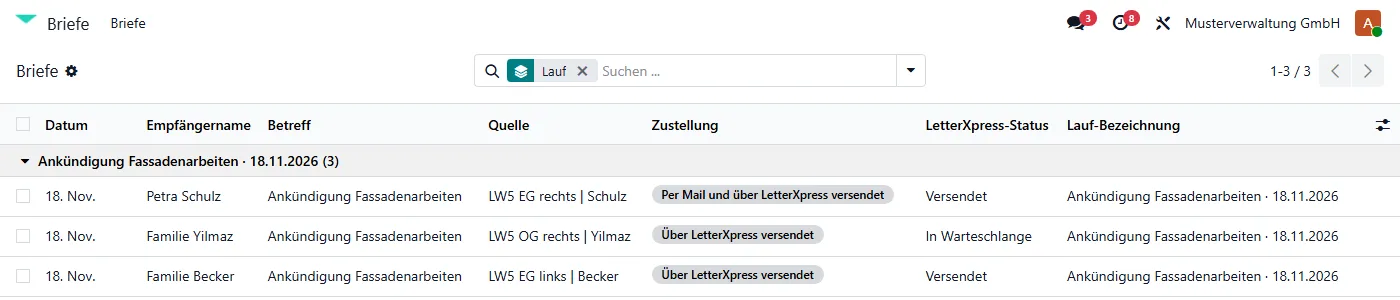
Section titled “Delivery status”After sending, the letter shows LetterXpress Job, LetterXpress Status, the LetterXpress Price (printing and postage including VAT) and, once LetterXpress reports it, the Tracking Code. SMARTBRIX fetches the status every two hours for letters of the last 30 days:
- Queued: LetterXpress has accepted the letter, it is waiting to be processed.
- On hold: LetterXpress has put the job on hold. You see the reason in the LetterXpress customer area.
- Posted: LetterXpress has handed the letter to the post office.
- Cancelled: the job was cancelled at LetterXpress.
- In shopping cart (test): in test mode, the letter is in the shopping cart.
The letter list shows the status as a column of its own. You show the column LetterXpress Price with its total through the column menu at the right of the list header. The filter Sent via LetterXpress shows all letters that went to LetterXpress.
Checkpoints
Section titled “Checkpoints”- Test Connection reports your balance.
- The letter is in Sent via LetterXpress and has a number under LetterXpress Job.
- Once LetterXpress has processed it, the LetterXpress Status is Posted.
Common errors
Section titled “Common errors”| Problem | Cause | Solution |
|---|---|---|
| The box Send via LetterXpress is missing in the Create Letters window. | User or API key are not entered for the active company. | Set up access, see Setup. |
| The letter is in Ready to print and shows a delivery error starting with “LetterXpress:”. | LetterXpress refused the letter or could not be reached. So that the letter is not lost, SMARTBRIX puts it in the print stack. | Read the reason in the letter and fix it, then click Send via LetterXpress or print the letter yourself. |
| The letter is in Failed, the delivery error starts with “No clear answer from LetterXpress”. | LetterXpress did not answer after SMARTBRIX had transferred the letter. It may have been accepted all the same. So that it does not arrive twice, SMARTBRIX does not put it in the print stack. | Check in the LetterXpress customer area whether the job is there. If it is missing, click Send via LetterXpress. |
| The LetterXpress Status is On hold. | LetterXpress has put the job on hold, for example because the balance is too low. | Check the reason in the LetterXpress customer area and fix it. |
| Letters do not arrive, the status stays In shopping cart (test). | The Mode is Test. | Set the Mode to Live. You send letters from the shopping cart in the LetterXpress customer area. |
| When creating, SMARTBRIX reports “Registered mail can only go to addresses in Germany” with names. | At least one recipient has an address abroad. | Remove these recipients from the run and write to them without registered mail, or empty Registered Mail. |
| When creating, SMARTBRIX reports “Registered mail goes on paper”. | Deliver by email where possible is ticked. | Untick it. |
| When creating, SMARTBRIX reports “The send date must lie in the future”. | Send On is today or earlier. | Choose a later date or empty the field. |
| The letter with C4 Envelope is in Ready to print, the delivery error starts with “LetterXpress:”. | The letter has 9 sheets or more with its attachments. | Create it again without C4 Envelope or print it yourself. |
| via LetterXpress is missing when you send an invoice. | User or API key are not entered for the company of the invoice. | Set up access, see Set up. |
| The dialog reports “The recipient address is incomplete”. | The customer lacks street, zip or city. | Complete the address on the contact and send again. |
| LetterXpress cannot read the address. | The address field of the letter layout is not in the envelope window. | Check the letter layout and try again in Test mode. |
What is not included
Section titled “What is not included”- No registered mail abroad.
- No registered mail for invoices. The registered-mail label needs the address moved down, but the issued invoice stays unchanged.
- No sending options per recipient. They apply to the whole run.
- Letters created without Send via LetterXpress that you later send from the print stack to LetterXpress go out without registered mail and with the defaults from the settings.
- No recalling a letter from SMARTBRIX. You delete a job in the LetterXpress customer area, and only within the first 15 minutes after sending.
- SMARTBRIX does not send letters in Sent by email to LetterXpress afterwards.
Didn't find an answer? Contact support