

Contract management
Question about the manual? Ask Claude · Ask ChatGPT
Besides maintenance contracts, Property Maintenance keeps all running contracts of your properties: supply of electricity, gas, water and heat, insurance policies, caretakers and other service providers. Every contract gets a contract type, and the form shows the fields that fit that type. SMARTBRIX shows the status of each contract and reminds you before the notice period and before a price guarantee ends.
Prerequisites
Section titled “Prerequisites”- The SMARTBRIX Maintenance module is installed. It brings the Property Maintenance app. Without the module there is neither contract management nor the Contracts section on the meter.
- The properties exist, see Create a property.
- For utility contracts with a meter: the meters exist, see Meters and readings.
Where to find contracts
Section titled “Where to find contracts”The contracts are under Property Maintenance › Contracts:
- All Contracts: contracts of every contract type.
- Maintenance Contract: only contracts of the type Maintenance. A contract you create here is a maintenance contract automatically.
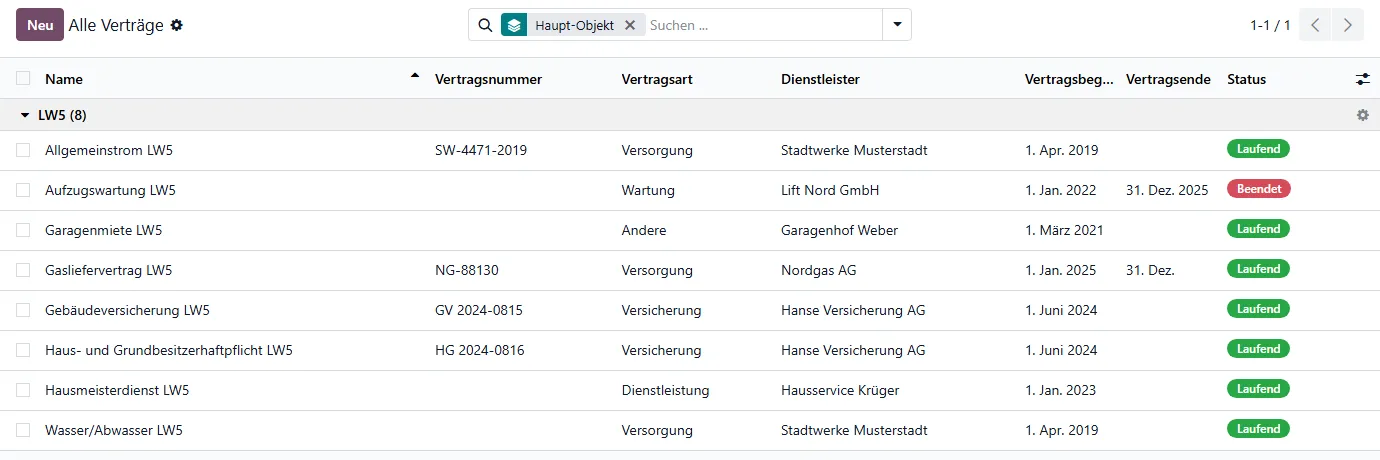
Both lists are grouped by Main Property and sorted by name. A contract without a property is in the group None. If a contract is entered on properties of several main properties, it appears in each of these groups.
Under Filters you narrow down the list:
- Active: contracts with the status Running or Ending Soon.
- Planned, Running, Ending Soon, Expired: contracts with exactly this status.
- Archived: archived contracts.
Group By also offers Contract Type and Service Provider. The search also finds contracts by property.
On the property, the Contracts button shows all contracts the property is entered on, whatever their type.
Create a contract
Section titled “Create a contract”- Open Property Maintenance › Contracts › All Contracts and click New.
- Enter a Name, for example “Allgemeinstrom LW5”.
- Choose the Contract Type:
- Maintenance: maintenance contracts with specialist companies, see Contracts and maintenance packages.
- Utilities: electricity, gas, water and sewage, heat.
- Insurance: for example building or liability insurance.
- Service: for example caretaker, cleaning or heating cost billing.
- Other: everything else, such as a rented garage.
- Under Service Provider, choose the contract partner: utility company, insurer or company.
- Under Properties, choose the properties the contract applies to.
- Enter Start of Contract, End of Contract, Notice Period and Notice Period Unit.
- Fill in the details that every contract type has:
- Contract No.: the number of the contract or insurance policy.
- Customer No.: your customer number with the contract partner.
- Customer Portal: the address of the contract partner’s online portal. A click on it opens the portal. Login data does not belong in this field.
- Amount and Payment Interval: what you pay and how often: Monthly, Quarterly, Half-Yearly or Yearly.
- Save.
SMARTBRIX calculates the Status and the Contract Notice Reminder for every contract type as described under Create a maintenance contract. A contract without an end date stays Running.
Utility contracts
Section titled “Utility contracts”With the contract type Utilities, the form shows the Utilities section:
- Tariff: the supplier’s tariff name, for example “Strom Komfort”.
- Base Price per Month: the fixed price per month. If the contract states a yearly price, divide it by twelve.
- Unit Price (ct per Unit): the price in cents per kilowatt hour or cubic meter.
- Price Guarantee Until: the last day the supplier guarantees the prices.
- Meter: the meter the contract bills.
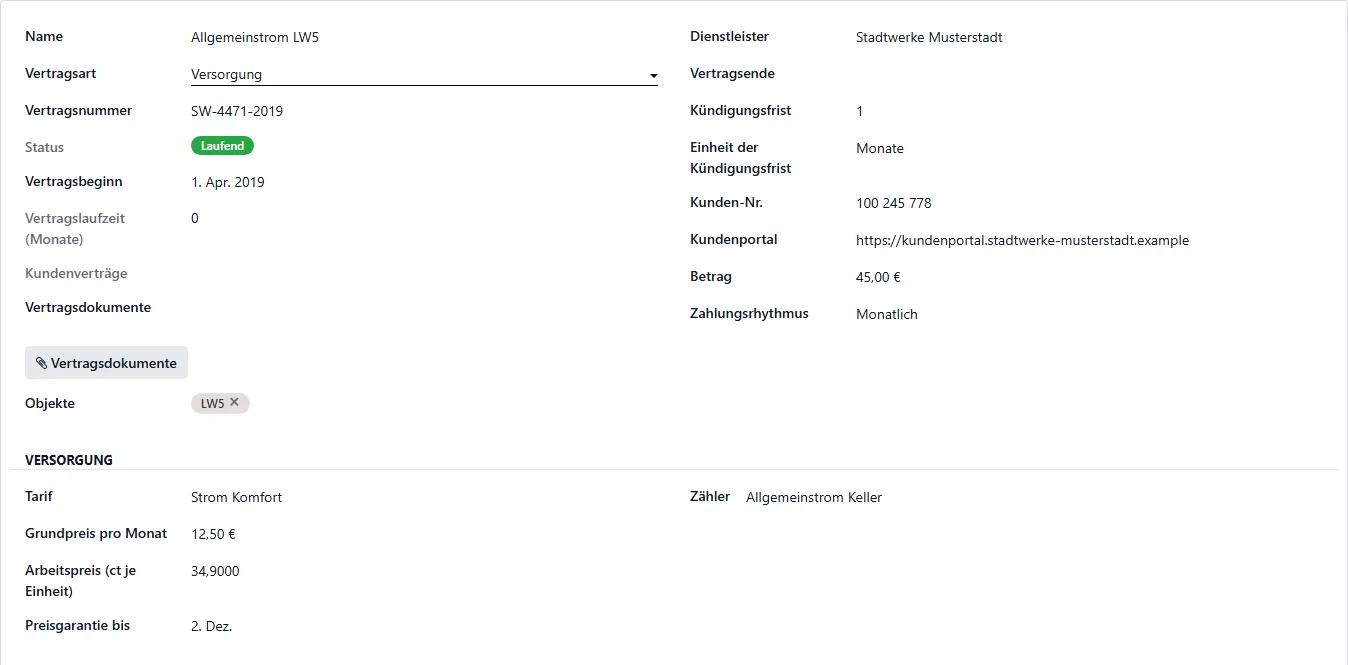
Meter offers the meters of the contract’s properties, of their child properties and meters without a property. Difference meters are missing because they have no device. If the contract has no property, all meters are offered. A contract has exactly one meter. If a supplier bills several meters, create one contract per meter.
If you change the contract type from Utilities to another type, SMARTBRIX clears the Meter field.
Contracts on the meter
Section titled “Contracts on the meter”The meter form has a Contracts section. It lists all contracts that chose this meter, including earlier contracts after a change of supplier. A click on a line opens the contract.

You can also link the contract from the meter:
- Open the meter under Property Management › Inventory › Meter Management › Meters.
- In the Contracts section, click Add a line.
- Choose the contract and click Select.
- Save.
The list offers utility contracts that have no meter yet and whose property is the meter’s property or a parent property, plus contracts without a property. If you create a contract with New in the selection window, it is a utility contract. Difference meters have no Contracts section.
Price guarantee reminder
Section titled “Price guarantee reminder”SMARTBRIX checks the utility contracts with a date under Price Guarantee Until every day. Once the contract’s notice period before that date has begun, the user who created the contract gets the activity Price Guarantee Reminder once. Without a notice period, SMARTBRIX uses 90 days. The activity names the end of the price guarantee: you should check the new prices or switch the tariff.
The reminder does not come if the End of Contract is before the end of the price guarantee, because there is nothing left to switch. If you enter a new price guarantee, the reminder comes again for the new date. The contract notice reminder runs independently.
Insurance
Section titled “Insurance”With the contract type Insurance, the form shows the Insurance section:
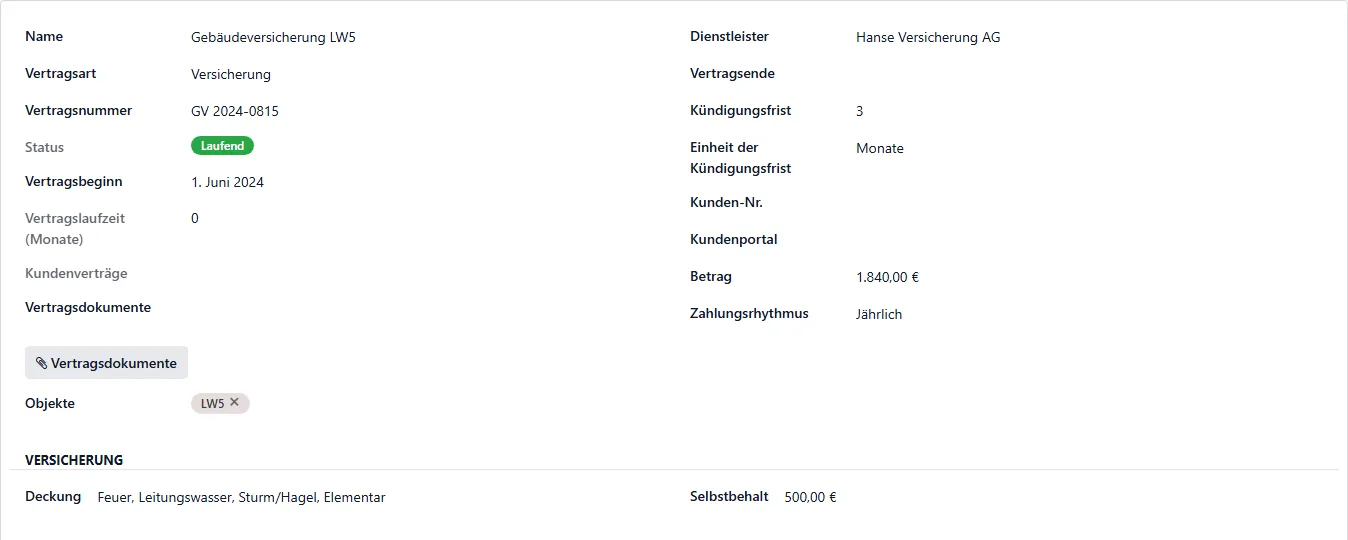
- Coverage: the insured risks, for example “Feuer, Leitungswasser, Sturm/Hagel, Elementar”.
- Deductible: the amount you bear yourself per claim.
Enter the policy number under Contract No. and the premium under Amount with the matching Payment Interval.
Checkpoints
Section titled “Checkpoints”- The contract is under All Contracts in the group of its main property.
- A maintenance contract is also under Maintenance Contract, other contract types are not.
- On the meter, the utility contract is in the Contracts section.
- The Active filter shows the contract while it is Running or Ending Soon.
Common errors
Section titled “Common errors”| Problem | Cause | Solution |
|---|---|---|
| A contract is missing under Maintenance Contract. | Its contract type is not Maintenance. | Open it under All Contracts and check the Contract Type. |
| The meter you want is not offered on the contract. | The meter belongs to another or a parent property, or it is a difference meter. | Enter the meter’s property under Properties on the contract. |
| A contract cannot be added on the meter. | The contract already has another meter, is not a utility contract or belongs to another property. | Change the Meter directly on the contract. |
| A contract is in the group None. | The contract has no property. | Choose the property under Properties. |
| A contract is not offered on the maintenance package. | Maintenance packages, maintenance and orders only offer contracts of the type Maintenance. | Check the contract’s Contract Type. |
What is not included
Section titled “What is not included”- Amount, Base Price per Month and Unit Price are for reference. SMARTBRIX books nothing from them and does not compare them with the bills. Book installments to utility companies as described under Utility installments.
- SMARTBRIX does not renew a contract by itself. You maintain the End of Contract yourself.
- Contract management does not store login data for the contract partners’ portals.
- Loans are not kept here but in Loan management.
Didn't find an answer? Contact support