

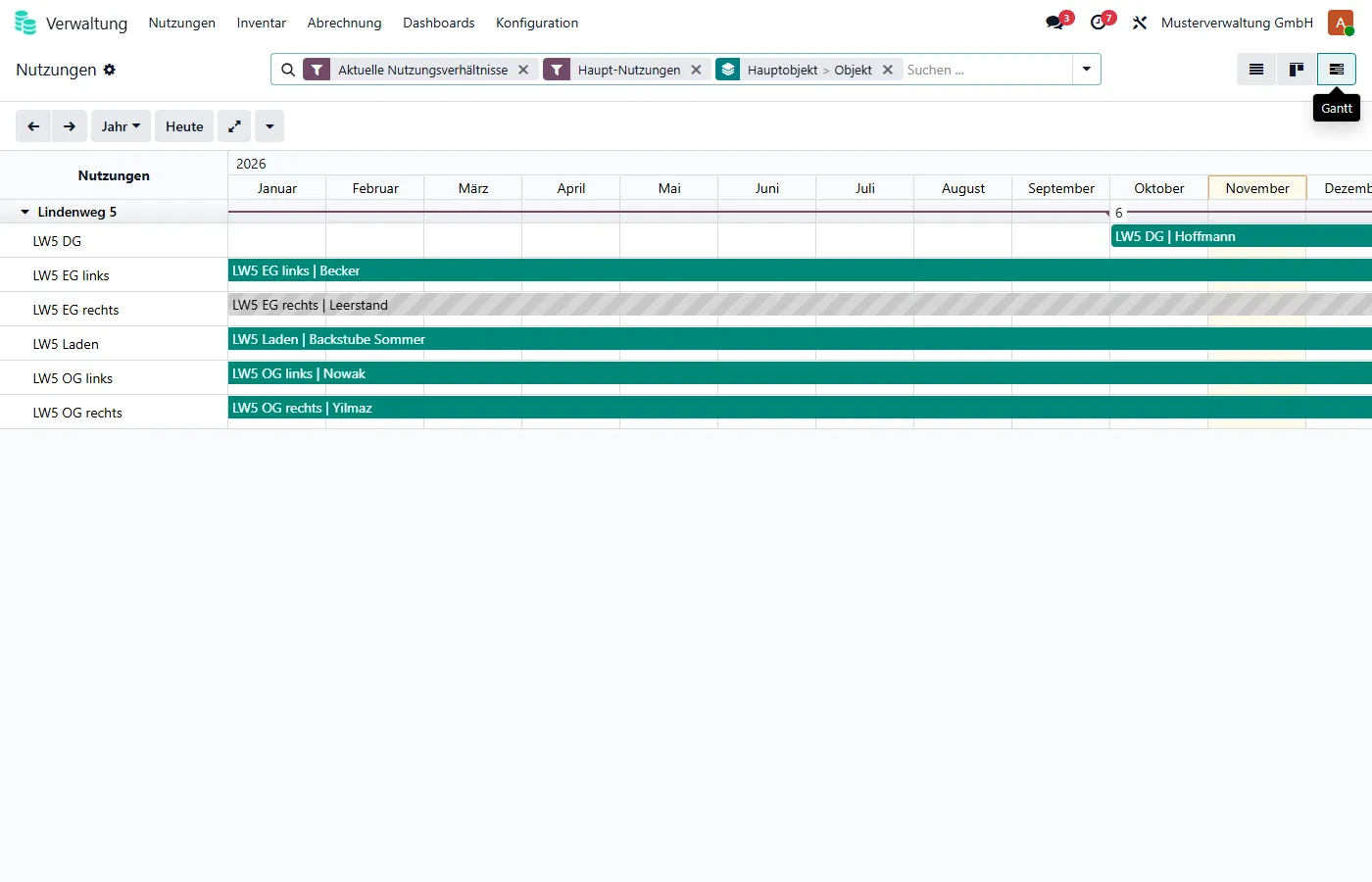
The Gantt view shows tenancies as bars on a timeline. Each row is a property, grouped by main property. You can see at a glance when a unit was let, where the tenant changed and how long a vacancy lasts. The view is for looking: you change the data of a tenancy in the tenancy itself.
Open the view
Section titled “Open the view”- Open Property Administration › Tenancies › Tenancies.
- In the view switcher at the top right, click Gantt.
The view takes over the filters and grouping of the list. Preset are Current Tenancies, Main Tenancies and the grouping Main Property › Property.
View the history
Section titled “View the history”With the Current Tenancies filter you only see tenancies running today. For ended and future tenancies:
- In the search, remove the Current Tenancies filter with the cross.
- Use the arrows to the left of Year to move to the period you want. Today jumps back to the current date.
- If needed, switch from Year to Month.
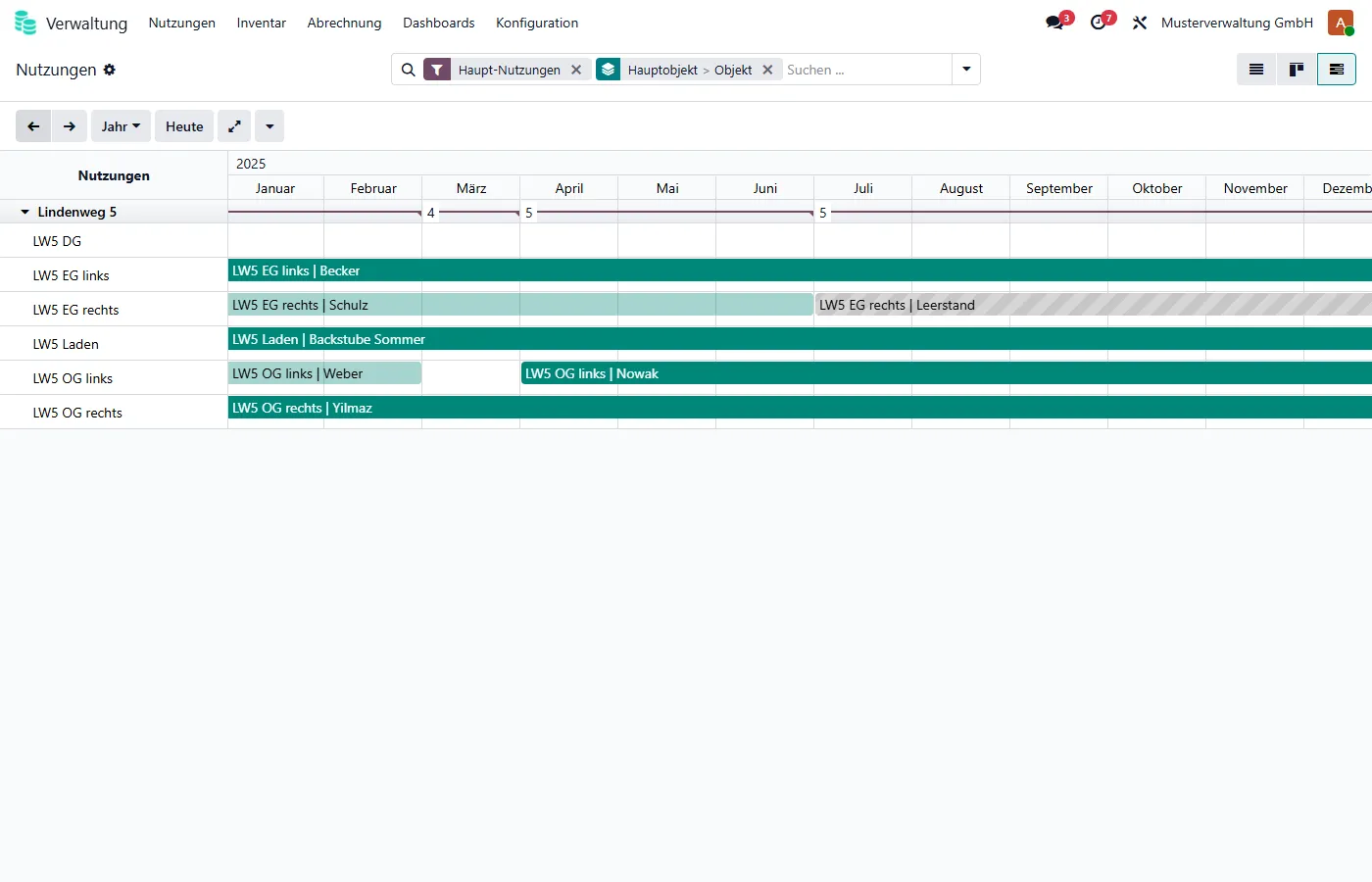
How to read the bars:
- Teal bar: a current or future rental, own use or use by the owner, from the start to the end of the tenancy.
- Light teal bar: a tenancy that has ended.
- Grey striped bar: a vacancy.
- Bar up to the right edge: a tenancy without an end date.
- Gap in a row: in this period the property has no tenancy, not even a vacancy.
- Number in the main property row: this many tenancies run in the main property in this period.
Sub-usages such as a garage let together with a flat only appear once you also remove the Main Tenancies filter.
Open a tenancy
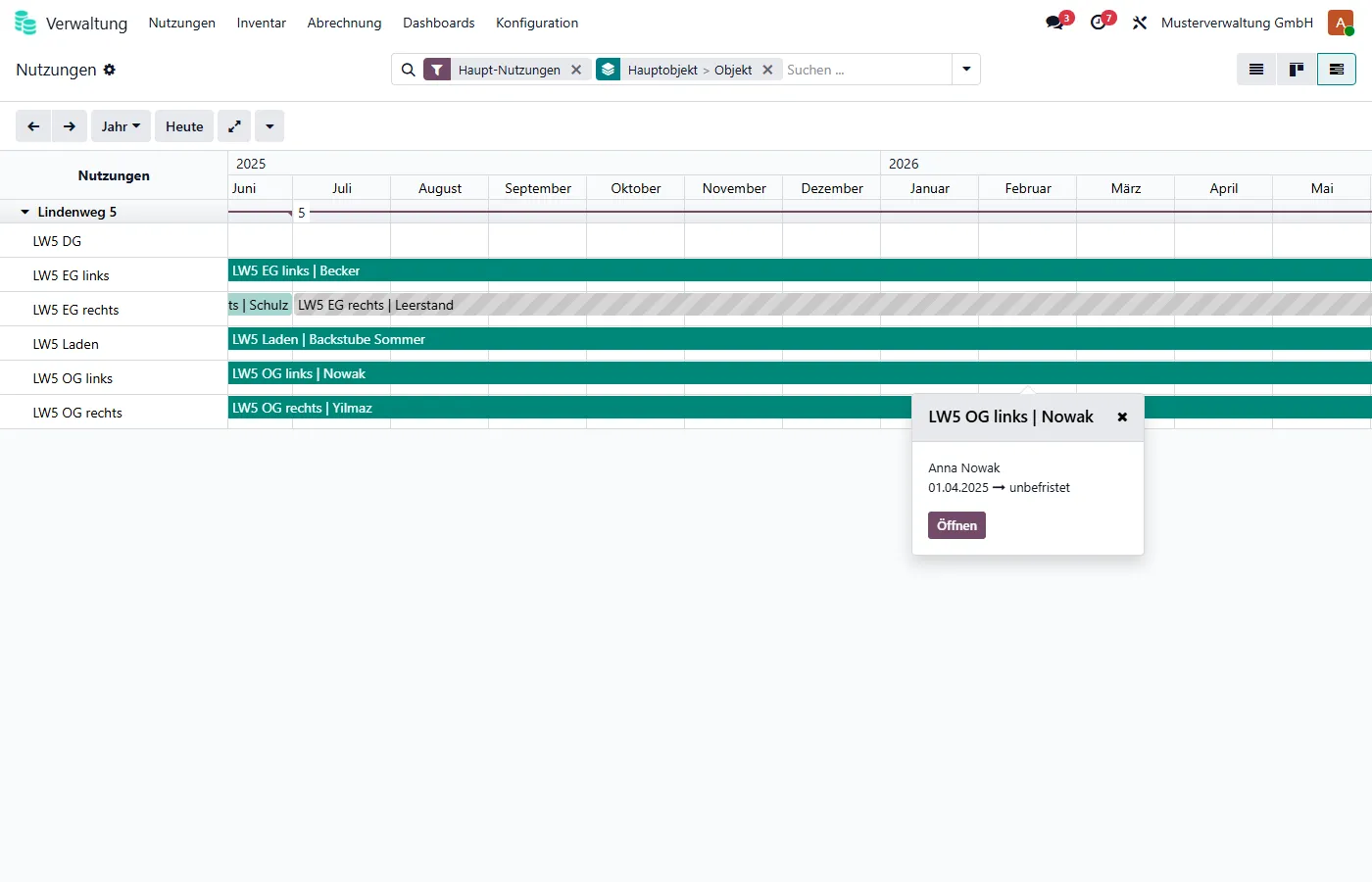
Section titled “Open a tenancy”- Click a bar. A window shows the invoice recipient and the period of the tenancy, open-ended for tenancies without an end date.
- Click Open. The tenancy opens in its usual form.
What is not included
Section titled “What is not included”- Bars cannot be moved or stretched. You change the start and end in the tenancy.
- You create new tenancies in the list or form, not in the Gantt view.
- A tenancy whose end lies before its start does not appear. In that case, check the dates of the tenancy in the list.
Didn't find an answer? Contact support