

Bank matching
Question about the manual? Ask Claude · Ask ChatGPT
Every bank transaction has to be matched once: to an open invoice, to an account or to a reconciliation model. Only then does an invoice count as paid, and only then are open items, reminders and reports correct. This step is called matching. How rent payments are matched to rent invoices is also shown on the Incoming payments and reminders page.
In the Light / Pro plan, the app is called Invoicing instead of Accounting. The matching screen looks the same in both plans.
Import a bank statement
Section titled “Import a bank statement”Automatic retrieval: SMARTBRIX fetches bank statements directly from the bank server by SFTP or by EBICS if one of the two is set up. By SFTP, new statements arrive every two hours. To see which files were imported, open Accounting › Accounting › Bank Statement Import History. EBICS downloads do not appear there; they are listed as EBICS files in the app. See EBICS.
Manual import:
- Download the bank statement in CAMT format from your online banking. A ZIP file with several statements works too.
- Open Accounting › Accounting › Import Bank Statement. In the Light / Pro plan, the Import (OCA) button on the tile of the bank account opens this dialog as well.
- Select the file under Statement File. You can select several files at once.
- Click Import and View.
SMARTBRIX assigns each statement to the right bank journal by its IBAN and then opens the transactions for matching. If SMARTBRIX reports “Account … is not configured in SMARTBRIX.”, the IBAN is missing on the bank journal. See Journals and bank accounts.
Open the transactions
Section titled “Open the transactions”- Open the Dashboard of the Accounting app.
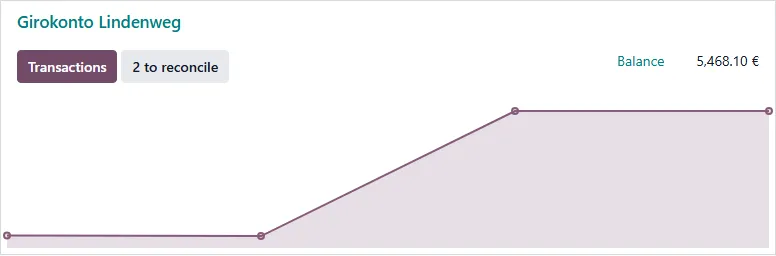
- On the tile of your bank account, click to reconcile. The number in front of it is the number of open transactions.
The list shows all transactions that are not yet matched. Next to each transaction are the buttons you use to match it.
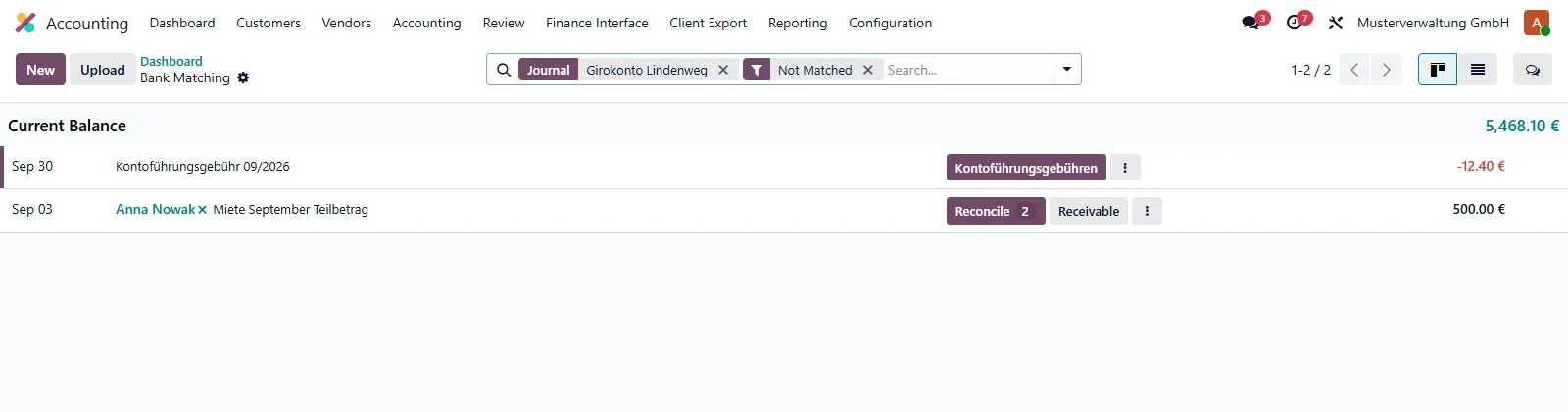
SMARTBRIX recognizes the payer by their IBAN and sets them as the contact on the transaction. So store the IBAN on the contact, on the Accounting tab under Bank Accounts. If a third party pays, for example a public authority, the Third-Party Rent Payer and Payment Match Key fields on the tenancy help. See Incoming payments and reminders.
If several invoices match
Section titled “If several invoices match”A contact often has several open items for the same amount, such as two monthly rents or two installments to a utility. For automatic matching, SMARTBRIX then decides as follows:
- If one item fits to the cent and another only roughly, the exact one wins.
- If the payment reference names a month, for example “Miete Juni 2026”, “Abschlag 07/2025” or “06.26”, the item of that month applies. For rent invoices, the month the rent is for counts; for other invoices, the month of the invoice date.
- If it names no month:
- Payment from a tenant: It settles the oldest open item. This also applies to a rent invoice that has already been created but is dated the first of next month.
- Your payment to a vendor: It goes to the most recent item invoiced up to the payment date. A standing order on July 15 therefore pays the July installment.
- Payment from a third-party rent payer such as a job center or social welfare office: It goes to the rent of the current month, not to arrears. If paid in advance, it goes to the following month as soon as that month’s rent invoice exists.
Abbreviations such as “Jan” only count with a period or a year, so that a first name like “Jan” is not read as January. If the payment reference names several months, step 3 decides.
SMARTBRIX retries transactions that are not yet matched once a day for up to 35 days. This way matching still works if the invoice is entered after the bank statement or the contact is set on the transaction later.
When you match by hand, you choose the item yourself. The dialog sorts the open items by date.
Match a transaction to an invoice
Section titled “Match a transaction to an invoice”- Click Reconcile on the transaction. The number in the button shows how many open items the contact has.
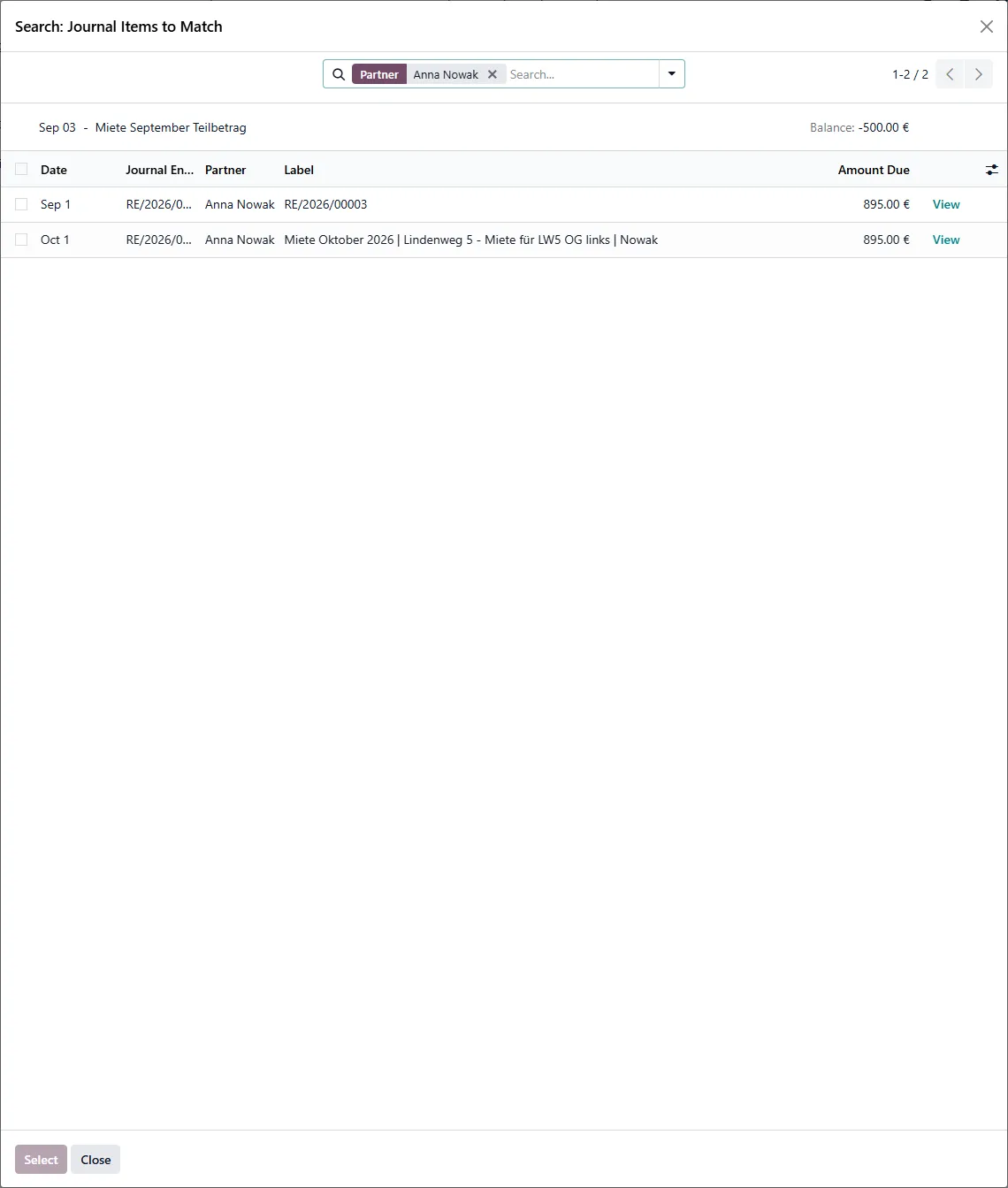
- The Search: Journal Items to Match dialog shows the open items of the contact. Select the invoice, or several invoices for a combined payment.
- Click Select.
The transaction then shows Reconciled, with the invoice number next to it. If the transaction does not cover the whole invoice, the rest stays open and the invoice shows “Partially Paid”. Use the arrow icon next to Reconciled to undo the matching.

If SMARTBRIX does not find the contact, choose it in the ⋮ menu with Set Partner. The Reconcile button then appears.
Transaction without an invoice
Section titled “Transaction without an invoice”Not every transaction belongs to an invoice. The other buttons:
- Receivable for incoming and Payable for outgoing payments: posts the amount to the contact’s receivable or payable account without matching it to an invoice. The invoice stays open. Use this only for prepayments for which there is no invoice yet.
- ⋮ › Set Account: posts the transaction directly to an account, for example interest or a refund.
- Reconciliation model: For recurring transactions such as account fees, a separate button with the name of the model appears. See Reconciliation models.
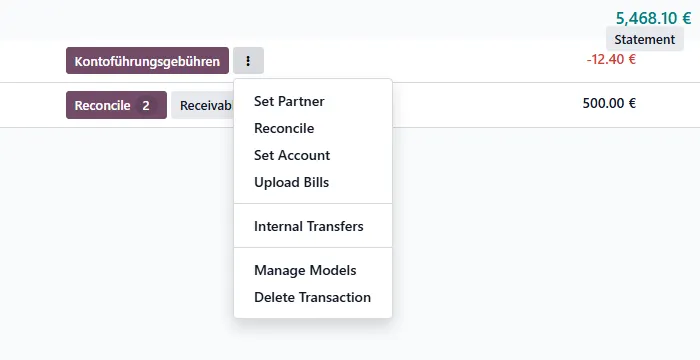
More entries in the ⋮ menu:
- Upload Bills: uploads the invoice for this transaction as a PDF, for example for a direct debit for which no invoice has been entered yet.
- Manage Models: opens the list of reconciliation models.
- Delete Transaction: removes a transaction that was imported twice.
More on matching: Bank reconciliation in the Odoo documentation.
Didn't find an answer? Contact support