

Prepare an exposé
Question about the manual? Ask Claude · Ask ChatGPT
The exposé is the marketing document for a property as a PDF: cover page with cover photo, key facts, floor plan, photo pages, location with maps and company profile, energy certificate, commission and contact person. SMARTBRIX builds it from the data already maintained on the property. Nothing needs to be entered twice.
Every version you create stays on the property as a document. Later you can see which version a prospect received. All prospects get the same version; to send changed data, create a new one.
One-time setup per company
Section titled “One-time setup per company”The look of the exposé comes from the company settings, the same ones that control the letter layout. Which sections print and in which order is set by the exposé template.
Logo and color
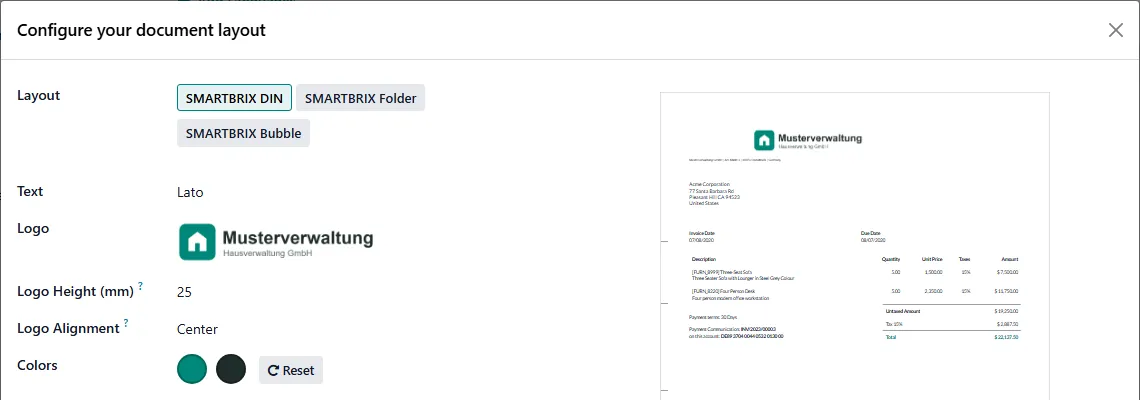
Section titled “Logo and color”Open Settings › General Settings and click Configure Document Layout. The exposé uses:
- Logo and Logo Height (mm): header of the cover page and the “Company profile” section.
- Colors, first color: the bands above each section and the line under the logo.
If the company has no logo of its own, its name takes the logo’s place, in the PDF and in the web exposé. The Odoo logo never appears.
Website and address
Section titled “Website and address”In the company form (Settings › Companies), website, street, ZIP and city must be filled in. They appear in the footer of every page and in the “Your contact” section.
Several companies
Section titled “Several companies”The exposé always shows the company that owns the property. For the web exposé it also matters whether this company has its own website with a domain:
- Own website with a domain: The link leads to this website, and the web exposé appears with its header, menu and footer.
- No website of its own: The link leads to the website of another company. The web exposé then appears without that header, menu and footer, only with the logo or name of the property’s company. The browser tab also names the property’s company.
Company profile
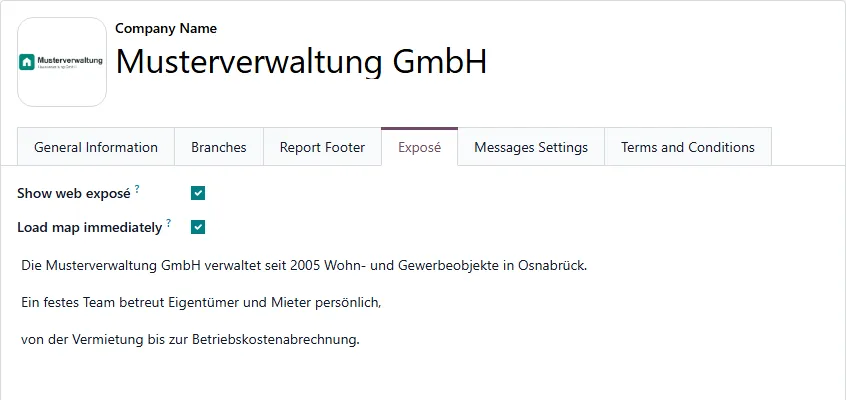
Section titled “Company profile”The company form has an Exposé tab. The text there appears in the “Company profile” section, wherever the template places it (in “Standard” on the location page below the maps), with the logo above it. If the text is empty, the section is left out.
Prepare the property
Section titled “Prepare the property”The exposé prints what is on the property. Sections without data are left out: no floor plan, no floor plan page; no location text and maps, no location page; no commission rule, no commission section.
Key facts (Base Data and Financial Data tabs)
Section titled “Key facts (Base Data and Financial Data tabs)”| In the exposé | Field on the property |
|---|---|
| Title | External Headline |
| Offer number in the header of every page | Reference ID |
| Address on the cover page | Street, number, ZIP, city. The street only prints if Show Street on Website is set. |
| Net rent or purchase price | Rent for For Rent, purchase price for For Sale |
| Living space | Living Space |
| Monthly additional costs | Additional Costs (service charges plus heating costs) |
| Deposit | Deposit |
| Available from | Available From; empty means “immediately” |
| Parking spaces and parking rent | Number of Parking Spaces, Price Parking |
| Energy figures | Energy Certificate tab: certificate type, energy value, energy source, hot water included, efficiency class, construction year |
| Contact person | Salesperson (name, phone, email of the user) |
Texts (Description tab)
Section titled “Texts (Description tab)”Three texts make up the body of the exposé: description, furnishing and location. In addition, the feature catalog appears as a list below the furnishing. The texts are translatable; the exposé prints in the company language.
Photos and floor plan (Description and Media tab)
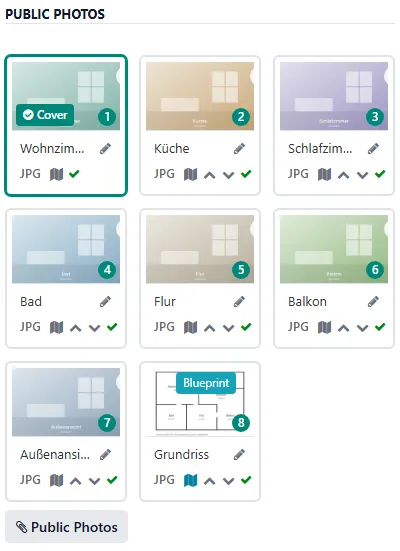
Section titled “Photos and floor plan (Description and Media tab)”- The cover photo appears large on the cover page. If none is marked, the exposé takes the first public photo. The image is cropped to the format of the cover page and keeps its center. Portrait images lose the most at the top and bottom.
- The public photos fill the impressions in portal order, six per page in the “Standard” template.
- An attachment marked as floor plan gets a page of its own. You set the mark with the plan icon below the image; the image then shows “Blueprint”. Images are printed; a floor plan in PDF format is appended at the end of the exposé.
SMARTBRIX draws three map views for the exposé: close, wide and portrait. The location page prints two of them. The section “Location, maps side by side” shows the close and wide views next to each other; the section “Location, map beside the text” shows the portrait map next to the location text and the wide view below it.
The maps are created as soon as the property has a position: shortly after you save the address, through the action Update Geo Position, or in the run every 30 minutes (see Address check). The wide view and the portrait map are only created for properties offered for sale, rent or lease. The close and portrait maps only show street level if the property address is released, otherwise town level. Without a position there are no maps.
All maps require the location map to be switched on: Settings › Property Management, block Location map. If it is off, the exposé prints no maps.
Commission rule and own stock (Financial Data tab)
Section titled “Commission rule and own stock (Financial Data tab)”The commission is maintained as a rule: basis, value and whether VAT is included. The same rule appears in the exposé and in the listing.
| Basis | Value | Example in the exposé |
|---|---|---|
| Percent of the purchase price | 3.57 | 3.57% of the purchase price incl. VAT |
| Monthly rents | 2 | 2 monthly rents plus VAT |
| Fixed amount | 1,500.00 | €1,500.00 incl. VAT |
| Commission-free | (no value) | commission-free |
SMARTBRIX checks the legal limits for residential space for rent: monthly rents only, two at most. If the property is marked as own stock (the management is itself owner, landlord or administrator), no tenant commission can be stored for residential space. Brokerage possible is set when a rule is maintained and the property is not own stock.

Continue with Create an exposé.
Didn't find an answer? Contact support