

Maintain email templates
Question about the manual? Ask Claude · Ask ChatGPT
SMARTBRIX sends many emails with texts it ships: viewing invitations, exposés, rejections, portal requests, search profile confirmations. Key users adapt these texts themselves, without administrator rights. If you work with several companies, each company can have its own version of a text.
How to build templates and use placeholders is described under Email templates.
Grant the right
Section titled “Grant the right”Administrators and users with the Key User right see the menu. SMARTBRIX gives it to nobody by itself.
- Open Settings › Users & Companies › Users and the user.
- On the Access Rights tab, choose Key User under SMARTBRIX.
- Save.
The key user can then also edit all other email templates.
Where to find the templates
Section titled “Where to find the templates”Open Property Management › Configuration › Property Management › Email Templates. The list shows every text SMARTBRIX ships and the versions of your companies. The Company column is filled for a company version and empty for the standard.
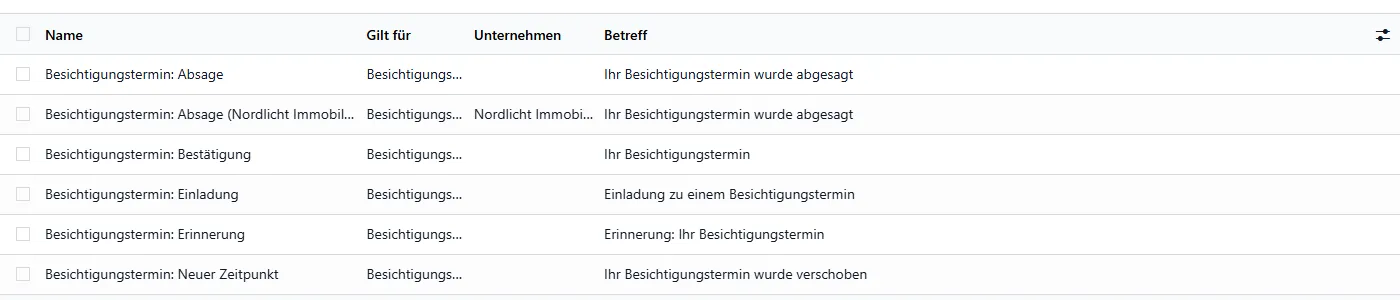
A version of its own for a company
Section titled “A version of its own for a company”- Switch at the top right to the company the text is meant for.
- Open the standard text, for example the viewing invitation.
- Click Text for my company. SMARTBRIX creates a copy named after the company and opens it. If the version already exists, that one opens.
- Change the subject and text and save.
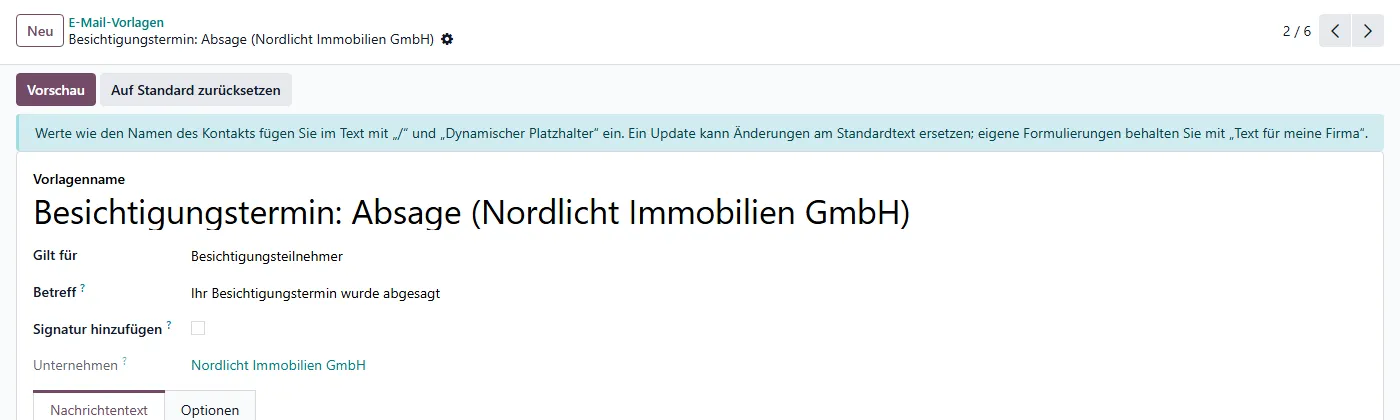
From then on, emails about this company’s properties go out with its version. All other companies keep getting the standard. Each company has at most one version per text and sees only its own.
If you pick a template yourself in the message window, choose your company’s version there.
Reset to standard
Section titled “Reset to standard”Open the company version and click Reset to standard. Subject and text come back from the standard in all languages. The version itself stays and still applies to the company.
Placeholders
Section titled “Placeholders”Insert values such as the name of the contact or the property in the text with / and Dynamic Placeholder. Which values exist depends on what the template applies to. A viewing invitation knows other values than an exposé delivery. More under Insert a placeholder.
Frequently asked questions
Section titled “Frequently asked questions”My changed text is gone after an update. You changed the standard text. Create a version with Text for my company and make your changes there.
An email still goes out with the standard text. Check which company the property belongs to. The version of the property’s company applies, not the company you are currently working in.
I do not see the Email Templates menu. You lack the Key User right. Ask your administrator to grant it.
Didn't find an answer? Contact support