

Keys
Question about the manual? Ask Claude · Ask ChatGPT
SMARTBRIX keeps the keys of each property with their quantity. You record every issue and every return as a key movement: who has the key, since when, how many, and whether all of them came back. At move-in and move-out, the key movements come from the handover protocol. You enter keys issued to service providers yourself.
Where to find keys
Section titled “Where to find keys”The keys are under Property Management › Inventory › Key Management:
- Keys: the stock per property, grouped by main property and property.
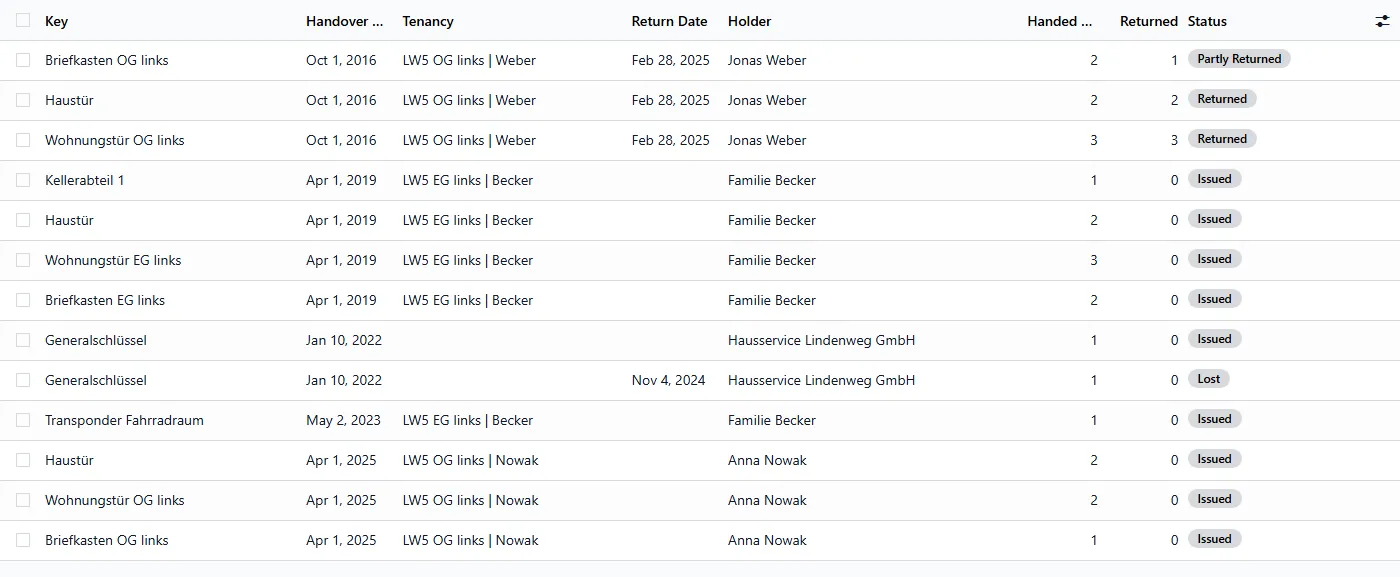
- Handovers: all key movements.
The same entries are under Property Administration › Inventory › Key Management. The Keys button shows the property’s keys including its child properties on the property, and the related key movements on the tenancy and on the contact.
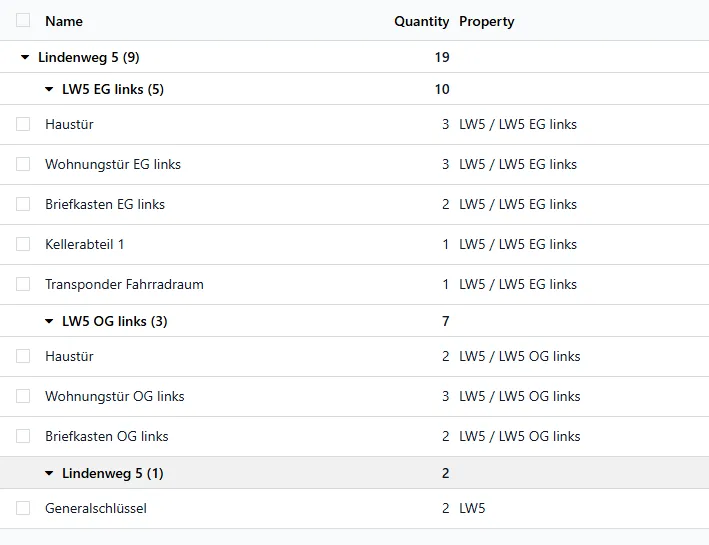
Create a key
Section titled “Create a key”- Open Property Management › Inventory › Key Management › Keys.
- Click New.
- Fill in the details:
- Name: for example “Apartment door ground floor left”.
- Identification: the number on the key or in the locking plan.
- Key Type: for example Front Door, Apartment Door, Letter Box, Basement Room, Garage, Transponder, Access Card or Access Code.
- Quantity: how many copies of this key exist for the property. The default is 1.
- Property: the unit the key belongs to. The Main Property follows from it. Create keys that apply to the whole building, such as a master key, on the main property.
- Comment and Tags as needed.
- Save.
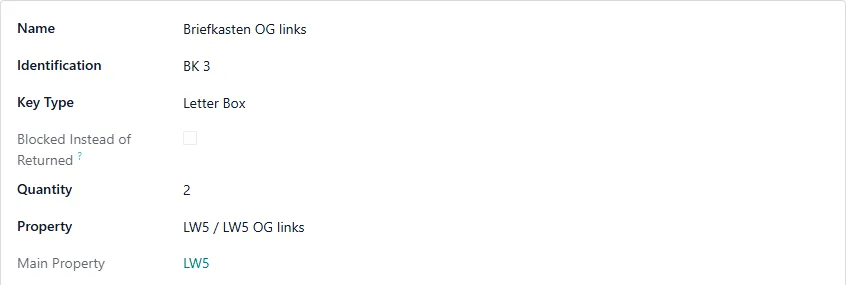
For Transponder, Access Card and Access Code, SMARTBRIX checks Blocked Instead of Returned on its own. These media are blocked if they do not come back.
In the saved key, Current Holder shows who has the key at the moment. SMARTBRIX uses the most recent key movement that is neither returned nor lost or replaced. The Key Handovers table below lists all key movements of this key.
Issue and take back keys
Section titled “Issue and take back keys”At move-in and move-out there are two ways:
- With a handover protocol: The protocol takes over the keys of the property. The key movements are created when you complete it. See Handover and Move-out and closing.
- Without a protocol: On the tenancy, in the Checklist tab, click Record Handover or Record Move-out. The Keys tab of the dialog lists all keys of the property, with the tenant preset as holder. Check Record for the keys that were actually handed over, and click Record.
For keys issued outside a tenancy, for example to the caretaker service or a tradesperson:
- Open Property Management › Inventory › Key Management › Handovers.
- Click New.
- Choose the Key, and enter the Handover Date, the Holder and the number of copies under Handed Out.
- Save.
When the key comes back, open the same key movement and enter the Return Date and the number of copies under Returned. SMARTBRIX does not accept a return date before the handover date.
Status of a key movement
Section titled “Status of a key movement”SMARTBRIX sets the Status from the dates and quantities:
- Issued: there is no return date yet.
- Partly Returned: a return date is entered, but fewer copies came back than were handed out.
- Returned: everything is back.
You set Lost and Replaced yourself in the key movement under Handovers, for example when the tenant reports a loss or the lock cylinder was changed. These two values stay, even if you change dates or quantities later. Record the reason in the Note field.
Frequently asked questions
Section titled “Frequently asked questions”Why is the “Keys taken back” item in the checklist still open? A key movement is still Issued or Partly Returned. Enter the return, or set the status to Lost or Replaced.
What does the note “Taken back without a recorded handover.” mean? When the return was recorded, there was no issue for this key and this usage. SMARTBRIX recorded the return anyway.
Is there a key receipt to print? No, there is no separate report. The keys are listed in the handover protocol and its PDF.
Didn't find an answer? Contact support