

Ongoing tenancy and termination
Question about the manual? Ask Claude · Ask ChatGPT
In the Active phase the tenancy is running. The rent debits create the invoices, meter readings are reported and checked, and the tenant reports concerns. There is little to do and a lot to keep an eye on until a termination arrives.
The ongoing tenancy
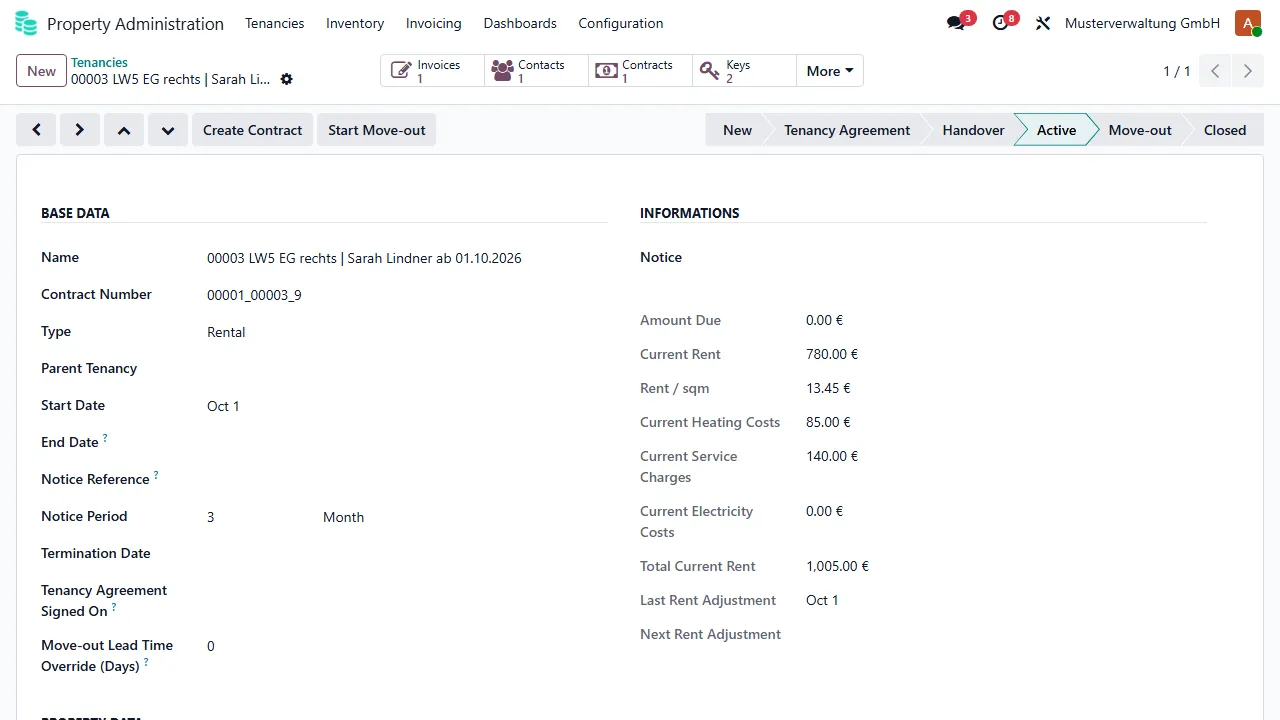
Section titled “The ongoing tenancy”- Check that the tenancy is in the Active phase. If anything from the handover is still open, the Checklist tab keeps showing the Handover group.
- Keep an eye on the rent debits. The run creates the invoices by itself. Its log is under Property Administration › Tenancies › Rent Invoice Logs. See Rent debits for more.
- If you need an extra invoice outside the cycle, choose Manual Rent Invoice in the action menu of the tenancy, enter the period and click Create Invoice.
with customer portal Handle reports from the portal
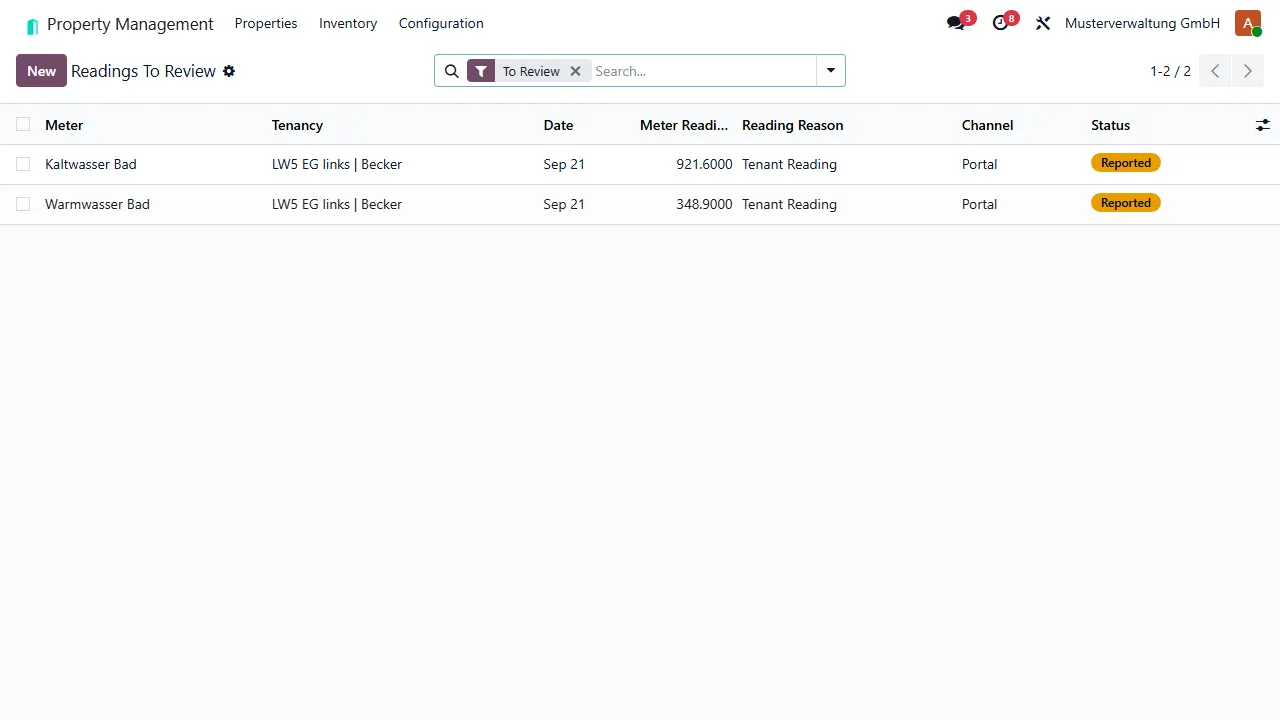
- Check incoming reported meter readings under Property Administration › Inventory › Meter Management › Readings To Review. A reported meter reading only becomes a meter reading once you accept it.
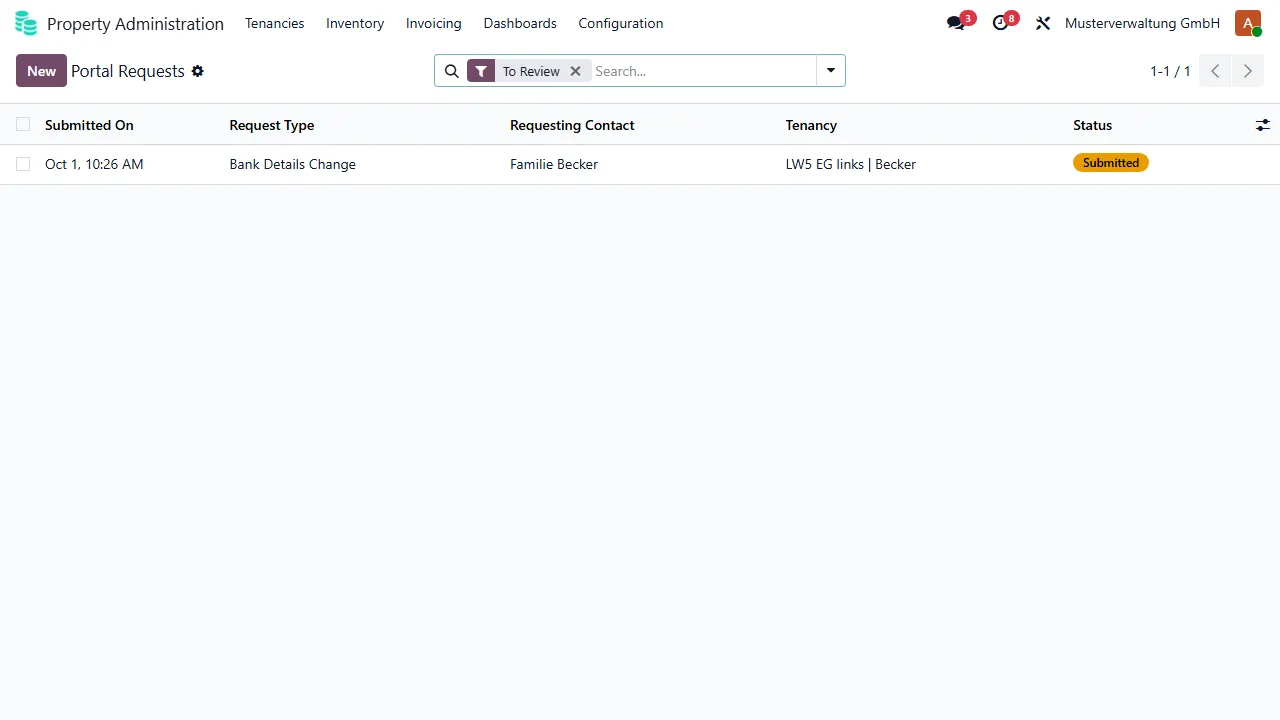
- Handle the tenant’s requests under Portal › Portal Requests and, if your system manages tenants’ issue reports, their concerns under Portal › Ticket Inbox.
What happens automatically
Section titled “What happens automatically”- The rent debits run from the start date, whether or not the handover has been recorded. An outstanding handover is open work, not an obstacle to the rent.
- The company setting Rent Invoicing Safeguard only applies in the New and Tenancy Agreement phases. If it is set to Warn & flag, the invoice is created and the reason is recorded. If it is set to Block, the invoice is not created and follows with the next possible run. In Handover, Active and Move-out no reason is ever recorded.
- The Checklist tab disappears as soon as the handover is complete.
- From the lead time before the contract end, or from a confirmed end, the Move-out and Closing groups appear on the Checklist tab. If your company does not use a move-out phase, this work stays with the running tenancy.
with customer portal What the tenant sees in the portal
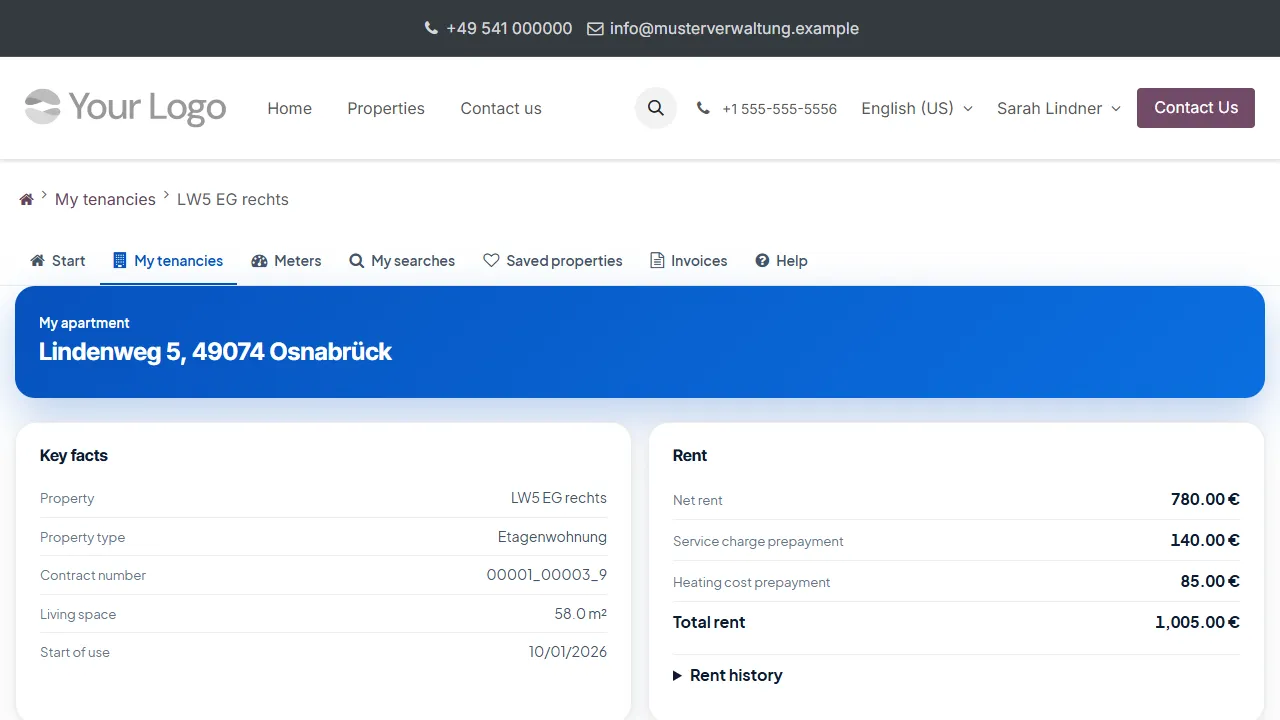
- Through My tenancies they reach the page of their property. The Before you move in card has disappeared on the move-in date, and so has the Not started yet badge.
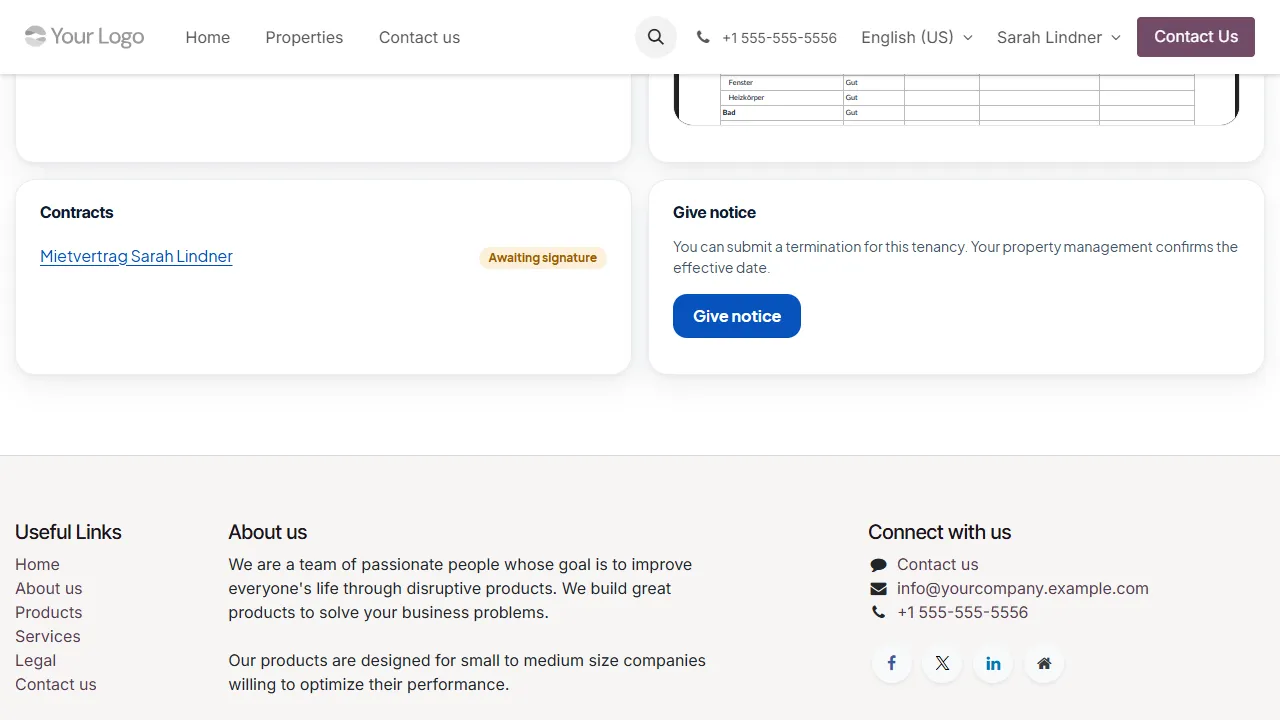
- They see the cards Key facts, Rent, Deposit, Documents, House documents, Contracts and Give notice.
- Key facts shows Property, Property type, Contract number, Living space, Rooms (if entered for the property) and Start of use. Once an end is set, End of use follows.
- Rent shows the breakdown with the Total rent sum line and an expandable Rent history.
- The Meters entry lets them report their readings. Only your acceptance turns a report into a meter reading. Until then they see the status of their report.
- Requests and reports on the start page lets them follow everything currently in progress between them and you.
Record a termination
Section titled “Record a termination”A termination arrives, you record it, and the system calculates the contract end from it. From then on the lead time for the move-out runs.
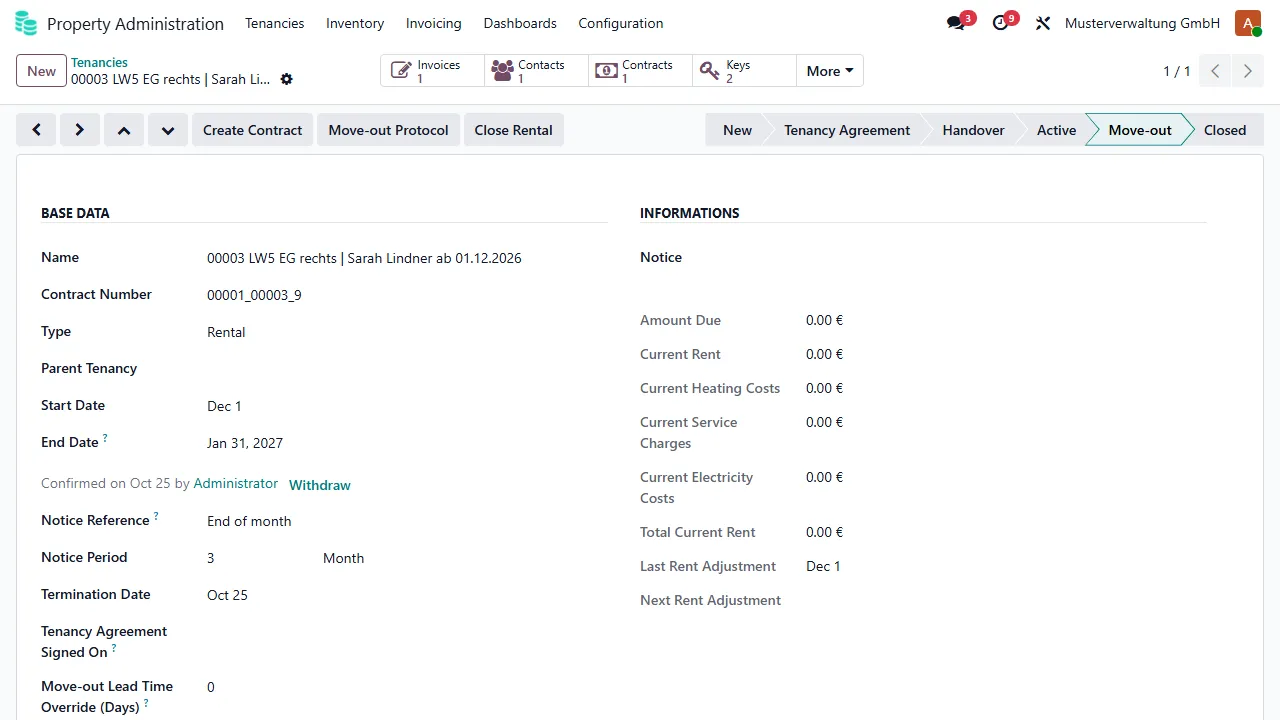
- Open the tenancy. The termination details are in the Base Data group.
- Check Notice Reference and Notice Period (in months). The choices are End of month, End of quarter, Statutory (§ 573c BGB) and Statutory commercial (§ 580a BGB). With the commercial option, the notice period does not apply.
- In the Termination Date field, enter the day on which you received the written termination.
- The form immediately calculates the End Date from it. Check it and overwrite it if something else was agreed.
- Save. If your company uses the move-out phase, the tenancy changes to the Move-out phase straight away.
- Once the end is final, click Confirm Contract End next to the end date. Afterwards the line shows who confirmed it and when.
Without the customer portal, the termination only arrives on paper or by email. There is nothing to check and nothing to confirm: you enter the termination date, and you are done.
with customer portal Handle a termination request from the portal
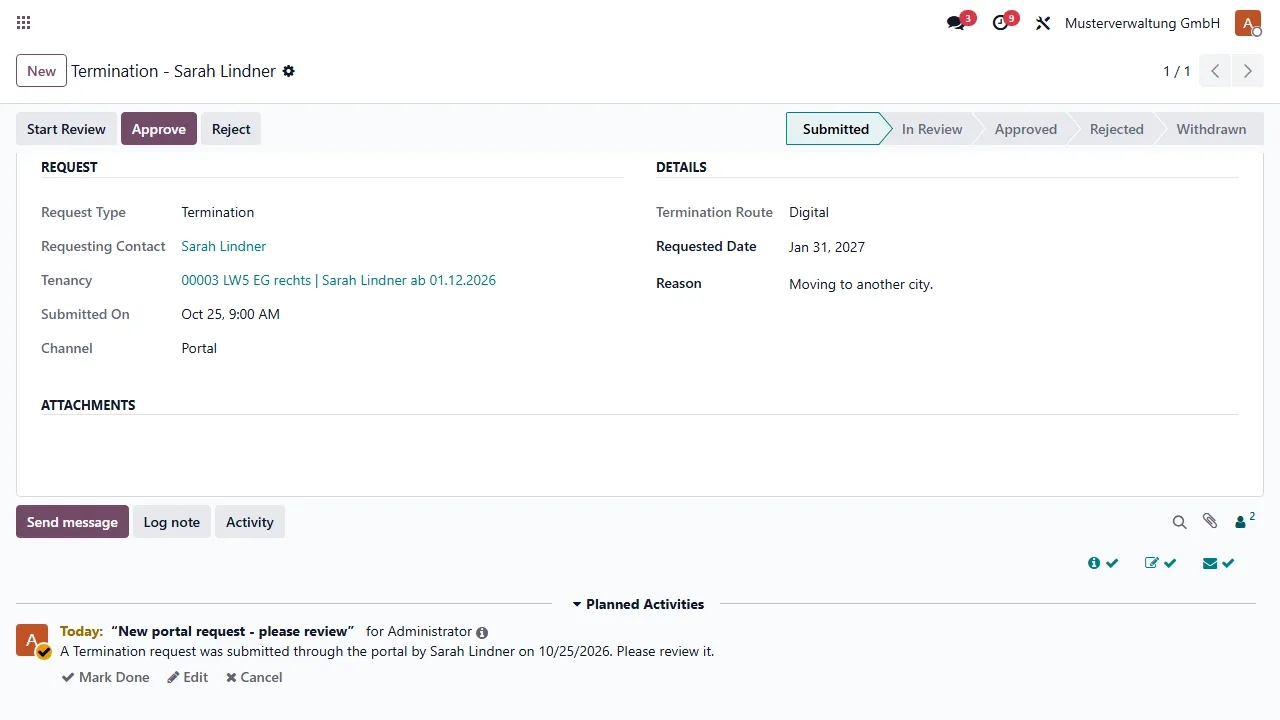
- If the tenant gives notice through the portal, a termination request is created as a portal request. Open it under Portal › Portal Requests.
- If the termination came by post, click Original Received as soon as the signed letter has arrived. This date is the reference point for the deadline.
- Click Approve. Only this turns the request into an effective termination: the system sets the termination date and calculates the end date from the notice period and notice reference.
- If the request is not in order, click Reject and enter the Rejection Reason in the Reject Request dialog. The tenant sees it.
What happens automatically
Section titled “What happens automatically”- An entered termination date determines the end date: termination date plus notice period, rounded to the selected notice reference. Without a notice reference, the termination date itself becomes the end.
- Statutory (§ 573c BGB) calculates differently: the notice must arrive by the third working day of a month, and then that month already counts. Saturdays count as working days, Sundays and public holidays do not. The public holidays follow the German state of the property.
- When the termination date is entered, the two fields for the next possible end are cleared.
- If your company uses the move-out phase, the tenancy changes to it as soon as you save. A confirmed contract end has the same effect, however far away it is.
- Without a termination and without a confirmation, the daily run changes the phase at the set Move-out Lead Time (Days) before the end date. The default is 30 days. For each tenancy, Move-out Lead Time Override (Days) sets a value of its own.
- If the end moves later again, the run only reverses the change it triggered itself, and only as long as nothing has been recorded for the move-out. A confirmed end prevents the reversal.
- If your company does not use a move-out phase, the tenancy stays in Active. The Move-out and Closing groups of the checklist appear there from the same point in time.
- The rent debits continue regardless until the end date.
with customer portal With a termination request from the portal
- A termination request from the portal does not change the tenancy at first. Only your Approve sets the termination date.
- Each tenancy has only one open termination request at a time, across both routes.
- On approval, the note “Termination confirmed. The contract ends on …” remains in the history, and the contract partners receive the email “Your termination is confirmed”.
- When the request arrives, the system creates an activity for the person responsible for the property: “New portal request - please review”. If no responsible person is set, no activity is created. There is no separate email to the management.
with customer portal What the tenant sees in the portal
- On the page of their tenancy they find the Give notice card with the sentence “You can submit a termination for this tenancy. Your property management confirms the effective date.” and the Give notice button.
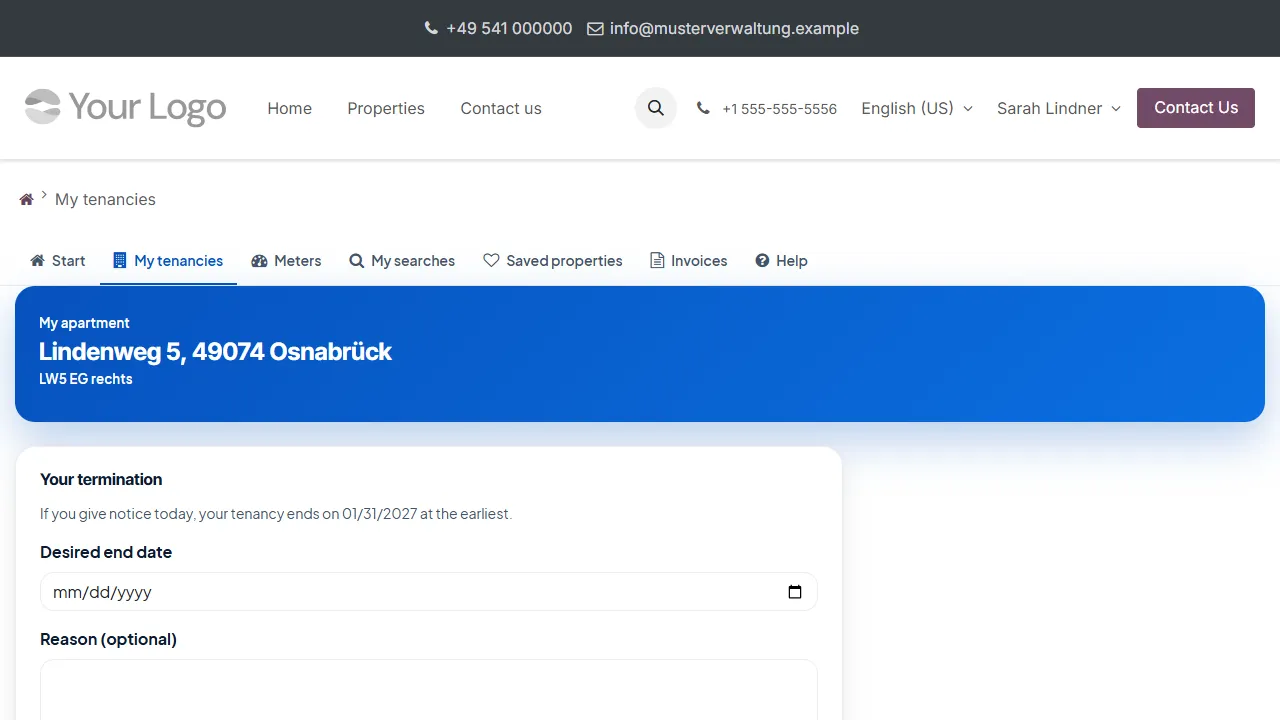
- The button leads to a page of its own with the Your termination card.
- On the postal route they read your management’s introduction, the notice “If you give notice today, your tenancy ends on … at the earliest.”, the list of Contractual partners and the sentence “The termination is only valid when all contractual partners sign it.” They tick the confirmation and click Request the termination form.
- On the digital route they fill in Desired end date and Reason (optional) and click Submit termination.
- Afterwards they read “Thank you!” and “Your request has been received” with the status of their request. On the postal route it also says “We have emailed you the termination form. Please send the signed original by post; the termination only takes effect once it arrives.”
- Open the request lets them follow the status and send you messages.
- Once the termination is recorded, the card says “This tenancy is already terminated. Your property management is happy to help with any question about the end date.”
Didn't find an answer? Contact support