

Vulcavo is a service for hybrid and online owners’ meetings and for circular procedures. The apartment owners log in there and vote. SMARTBRIX remains the leading system for the master data, the preparation of the resolution procedure and the register of resolutions: you compile the agenda in SMARTBRIX as usual, Vulcavo sends the invitations and runs the vote, and the announced results come back automatically.
How to run a resolution procedure without Vulcavo is described under Resolution procedures and register of resolutions. That page also explains what agenda, required majority and announcement mean. Without Vulcavo, you run an owners’ meeting directly in SMARTBRIX, with an attendance list, proxies and voting item by item, see Run the owners’ meeting in SMARTBRIX. For a meeting through Vulcavo, the Start Meeting button is not available.
Set up
Section titled “Set up”Access in the settings
Section titled “Access in the settings”An administrator sets up the access, once per company.
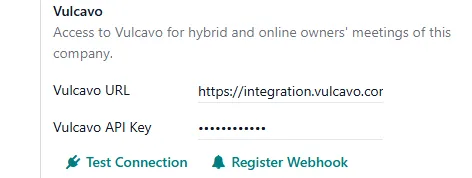
- Open Settings and choose Condominium on the left. The Vulcavo setting is in the Owner Contributions and Booking section.
- Enter the Vulcavo URL and the Vulcavo API Key you received from Vulcavo. The URL is prefilled.
- Click Test Connection. If everything is correct, SMARTBRIX reports “The connection to Vulcavo works.”
The key determines which communities Vulcavo assigns to this company. If you manage several companies, each gets its own access. Users without administrator rights do not see the setting.
Instant notice on end and cancellation
Section titled “Instant notice on end and cancellation”Without further setup, SMARTBRIX checks with Vulcavo every 15 minutes. If you click Register Webhook in the same setting, Vulcavo reports on its own as soon as a meeting or circular procedure is finished or canceled. SMARTBRIX then collects results and documents right away. SMARTBRIX confirms the registration with “Vulcavo now reports finished and cancelled meetings right away.”
- Register once per company. A second click replaces the previous registration, so it does no harm.
- Your SMARTBRIX must be reachable from the internet under an HTTPS address. Otherwise Vulcavo refuses the registration, and SMARTBRIX shows Vulcavo’s answer.
- On a copy of your database, such as a test system, the Vulcavo API key and the registration are empty. Do not register there with the key of your live system: Vulcavo would then report to the copy only.
The community
Section titled “The community”- Open Condominium › Communities › Communities and then the community.
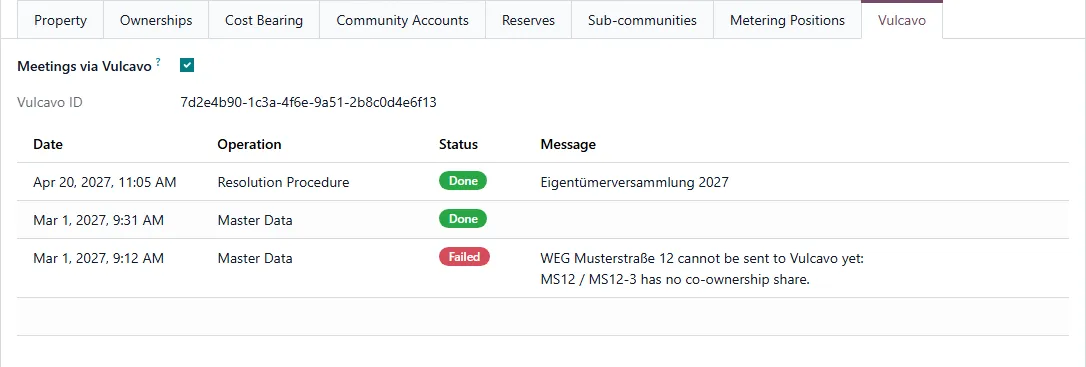
- On the Vulcavo tab, tick Meetings via Vulcavo.
- Click Send to Vulcavo at the top. SMARTBRIX sends units, co-ownership shares, apartment owners and sub-communities. Whatever of this community is missing in SMARTBRIX, Vulcavo removes. This way, for example, a seller also disappears there after a change of owner.
After the first transfer, the tab shows the community’s Vulcavo ID. Below it, SMARTBRIX keeps the log of transfers with Date, Operation, Status and Message.
Before the transfer, check two things:
- Co-ownership share: every current condominium ownership needs a co-ownership share. If one is missing, SMARTBRIX sends nothing and names the units concerned.
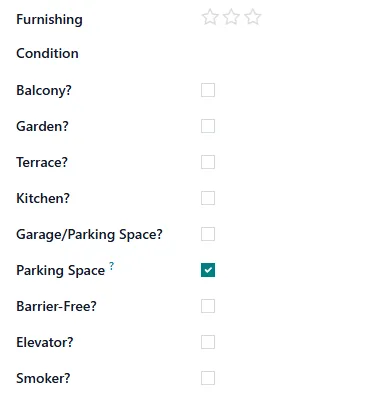
- Parking space: Vulcavo handles parking spaces and garages separately. The Parking Space checkbox is on the unit’s Base Data tab, Details group, among the features such as Balcony?. SMARTBRIX ticks it itself if Has no space is ticked on the unit. This also affects units that are not parking spaces, for example an advertising space: remove the tick there.
With the apartment owners, SMARTBRIX sends name, title, address, email address and phone number. Owners with Contact by Letter set in their contact record, or without a valid email address, get post from Vulcavo, all others get email.
Process
Section titled “Process”Prepare and send
Section titled “Prepare and send”- Create the resolution procedure under Condominium › Resolutions › Resolution Procedures. Run in Vulcavo is ticked if the community holds its meetings via Vulcavo. If a single resolution procedure should run without Vulcavo, remove the tick before you send it.
- For an owners’ meeting: enter the full address on the Venue tab. Vulcavo needs street, zip code, city and country, even for an online meeting.
- Compile the agenda in SMARTBRIX, with motions, required majorities, sub-communities and attachments.
- Click Send to Vulcavo. SMARTBRIX first sends the community’s master data, then the resolution procedure with the whole agenda.
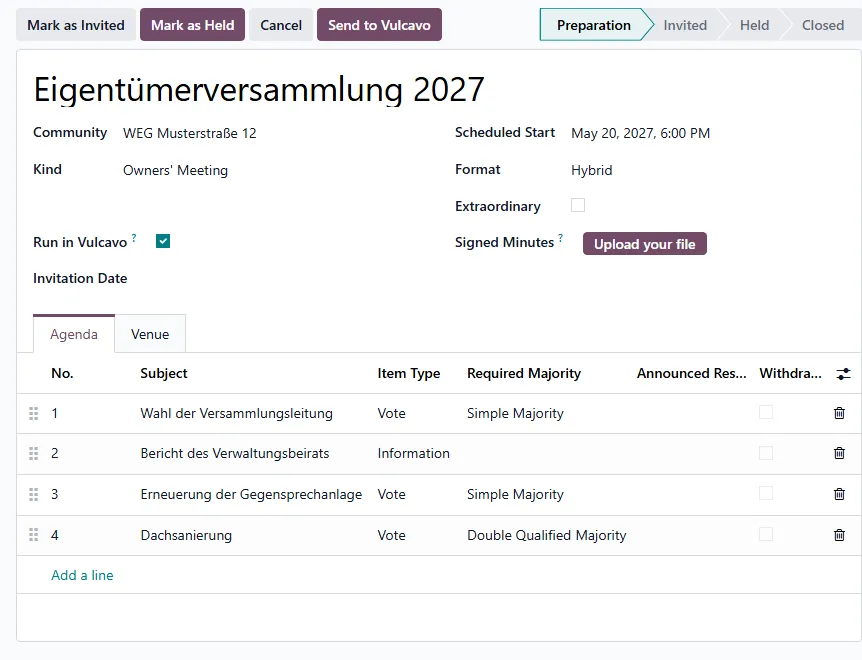
Until the meeting or the vote starts in Vulcavo, you can keep changing the agenda in SMARTBRIX and send it again. Each transfer replaces the state in Vulcavo. In addition, SMARTBRIX sends the master data and the agenda of every resolution procedure that has already been sent and has not started yet, every night.
After that, the resolution procedure shows the Vulcavo Status last reported by Vulcavo (“Not started” before the start) and whether the agenda was fully found in Vulcavo (Agenda Matched). Run in Vulcavo can no longer be changed.
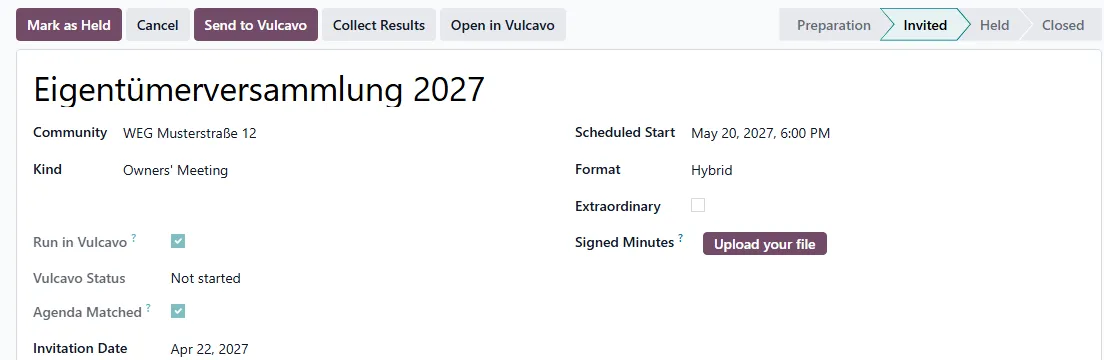
Invite
Section titled “Invite”Vulcavo invites the apartment owners, because only Vulcavo knows their personal login details. That is why SMARTBRIX has no Write Invitation button here. You start sending the invitations in Vulcavo.
Vulcavo does not report back to SMARTBRIX whether and when it sent the invitations. Click Mark as Invited once the invitation has gone out, so that the Invitation Date is correct. If you skip this, SMARTBRIX still sets the resolution procedure to Held when it starts in Vulcavo.
Attachments go to Vulcavo with the agenda. With the Invitation encloses them with the invitation in Vulcavo, With the Minutes with the minutes.
Meeting and vote
Section titled “Meeting and vote”The meeting or the circular procedure takes place in Vulcavo. Open in Vulcavo opens the community’s meetings in Vulcavo in a new window. The voting deadline of a circular procedure ends in Vulcavo at 11:59 p.m. on the deadline day.
As soon as Vulcavo reports the start, SMARTBRIX sets the resolution procedure to Held and, for an owners’ meeting, schedules the activity “File the signed minutes”. From now on Vulcavo leads: Send to Vulcavo disappears, and the community’s master data only goes out again after the vote has ended. This way, no apartment owner loses access in the middle of the vote.
Results
Section titled “Results”SMARTBRIX collects what has happened in Vulcavo every 15 minutes. Collect Results collects it right away. If the webhook is registered, SMARTBRIX collects without waiting after the end or a cancellation in Vulcavo. Vulcavo does not report announcements during the meeting; they still come with the 15-minute collection.
- Announced items: SMARTBRIX takes over the subject, motion, votes and announced result and announces the item, just as you would by hand. The resolution gets the next number in the register of resolutions. If the motion was changed in the meeting, the resolution contains the changed wording.
- Added items: items added during the meeting are created on the agenda by SMARTBRIX.
- Cancellation: if you cancel the resolution procedure in Vulcavo, SMARTBRIX cancels it too, as long as no resolution has been announced yet.
Documents and closing
Section titled “Documents and closing”Once the resolution procedure has ended in Vulcavo, SMARTBRIX fetches its documents and attaches them to the resolution procedure: for an owners’ meeting the minutes, attendance list, participation log and dispatch log of the invitation; for a circular procedure the voting log and the dispatch logs of the invitation and the announcement.
Once all documents are there, SMARTBRIX sets the resolution procedure to Closed. Voting items that Vulcavo has not announced by the end, for example because they were withdrawn in the meeting, are withdrawn by SMARTBRIX at that point.
The minutes come from Vulcavo as a Word file. Have them signed and upload the signed version under Signed Minutes. This completes the activity “File the signed minutes”.
What is transferred when
Section titled “What is transferred when”| What | Direction | When |
|---|---|---|
| Master data: units with co-ownership share and parking space, apartment owners, sub-communities | SMARTBRIX to Vulcavo | with Send to Vulcavo on the community or on the resolution procedure; every night for every community with a resolution procedure in Preparation or Invited; not while a vote of the community is running in Vulcavo |
| Resolution procedure with agenda and attachments | SMARTBRIX to Vulcavo | with Send to Vulcavo and again every night until it starts in Vulcavo |
| Invitation | only in Vulcavo | Vulcavo sends it; you enter the invitation date yourself with Mark as Invited |
| Status, announced results and added items | Vulcavo to SMARTBRIX | every 15 minutes and with Collect Results, until the resolution procedure is closed or canceled; with a registered webhook, end and cancellation right away |
| Documents | Vulcavo to SMARTBRIX | with the next collection after the end in Vulcavo, right away with a registered webhook |
Things to note
Section titled “Things to note”- Who leads: until the start, SMARTBRIX leads. Whatever you change in Vulcavo before then in the agenda or master data is overwritten by the next transfer. From the start, Vulcavo leads.
- Do not create or move items in Vulcavo: SMARTBRIX matches the items in Vulcavo by order and subject. If the agenda in Vulcavo differs, SMARTBRIX reports this after the transfer, writes it to the community’s log and schedules an activity. Send again before the start in that case. If the meeting starts with the differing agenda, SMARTBRIX takes over no results for the agenda; status, documents and closing still come through. Announce the items by hand then.
- Resolution number: SMARTBRIX assigns the number in the register of resolutions at the announcement. In its documents, Vulcavo counts on from the last number in the register of resolutions. If you prepare two resolution procedures of one community at the same time, both count from the same number in Vulcavo, and Vulcavo’s documents can show duplicate numbers. The register of resolutions in SMARTBRIX stays correct.
- No money from the announcement: a resolution on advances or additional contributions announced via Vulcavo also creates no entries and no charges. The same applies as for an announcement by hand, see Resolution procedures and register of resolutions.
- Attachments: Vulcavo only accepts PDF, PNG and JPEG files up to 100 MB. If an agenda item has a different file, the transfer stops with the name of the file.
- Errors: if you click yourself, SMARTBRIX shows an error right away. If a nightly or 15-minute run fails, the error appears on the community’s Vulcavo tab, and the Responsible user of the building gets the activity “Vulcavo transfer failed”. As long as it is open, no second one is added.
Frequently asked questions
Section titled “Frequently asked questions”Why is “Write Invitation” missing? The resolution procedure runs via Vulcavo, and Vulcavo sends the invitations.
Why is “Send to Vulcavo” missing? The resolution procedure has started in Vulcavo, has already been held, or Run in Vulcavo is not ticked.
An apartment owner changed shortly before the meeting. Does the new one have access? The nightly transfer brings the change to Vulcavo. To do it right away, click Send to Vulcavo on the community. If the vote is already running, the change only goes out after it ends.
Didn't find an answer? Contact support