

Publish properties on the website
Question about the manual? Ask Claude · Ask ChatGPT
Every property being marketed can get its own page on your website. The website shows published properties in the Properties menu as a list with search and filters. The property page shows photos, key facts, price and a contact form. Anyone who submits the form arrives in the CRM as an opportunity.
Requirements
Section titled “Requirements”- The property has a Property Status of type Sales. Only then does the form show the Public Photos and Go to Website buttons.
- The External Headline is filled in. It becomes the heading of the property page and appears in the property list.
- Price, areas and description are maintained on the property, just as the exposé uses them. See Prepare an exposé.
You maintain the photos for the website through Public Photos.

Publish
Section titled “Publish”- Open the property under Property Management › Properties › Properties.
- Click Go to Website. The property page opens in the website preview.
- At the top right, turn on the Published switch.

Property in the same bar takes you back to the form. The property then shows the time under Published Date. To take a property off the website again, turn off Published.
As long as a property is not published, only logged-in colleagues see its page. Visitors are redirected to the property list.
Property list and property page
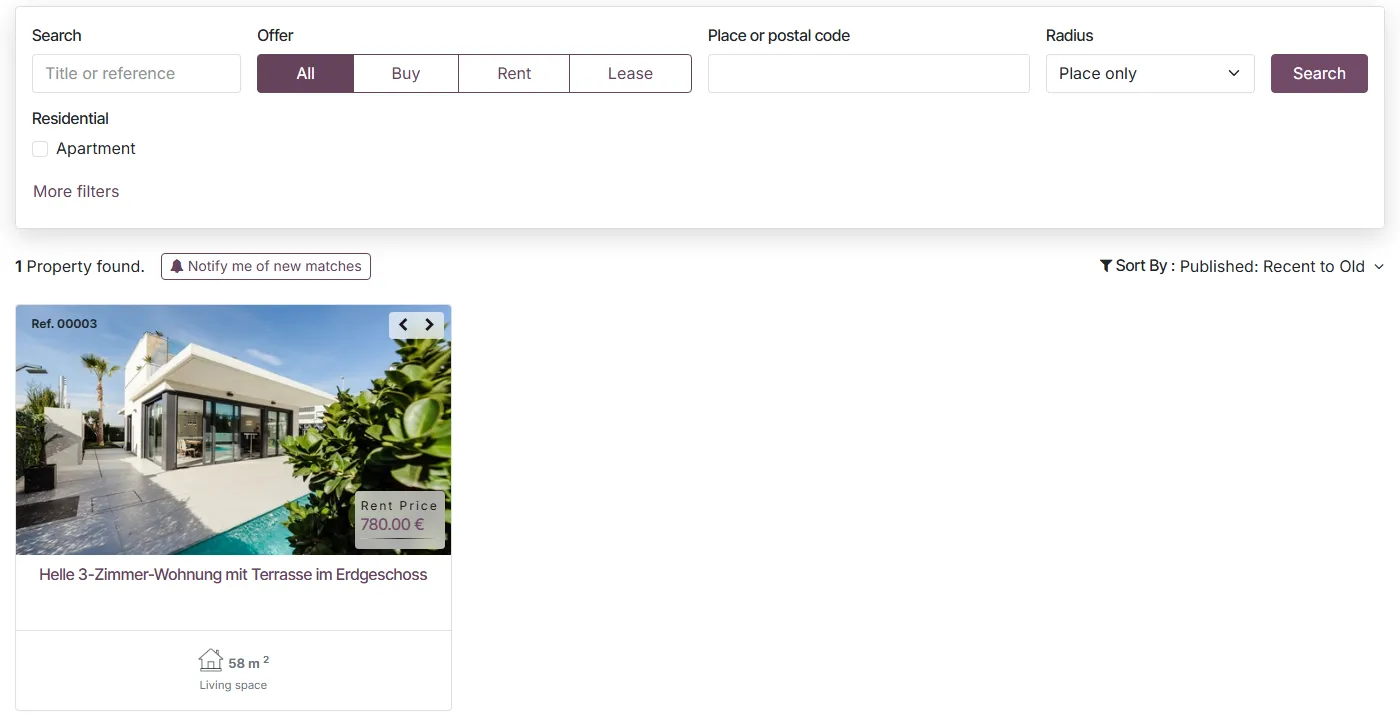
Section titled “Property list and property page”The property list shows all published properties. Visitors search by title or reference in the Search field and filter by Offer, Place or postal code with Radius, and by property type, for example Apartment. More filters holds rooms, living space, plot area and features. With Sort By they can also order the list by price.
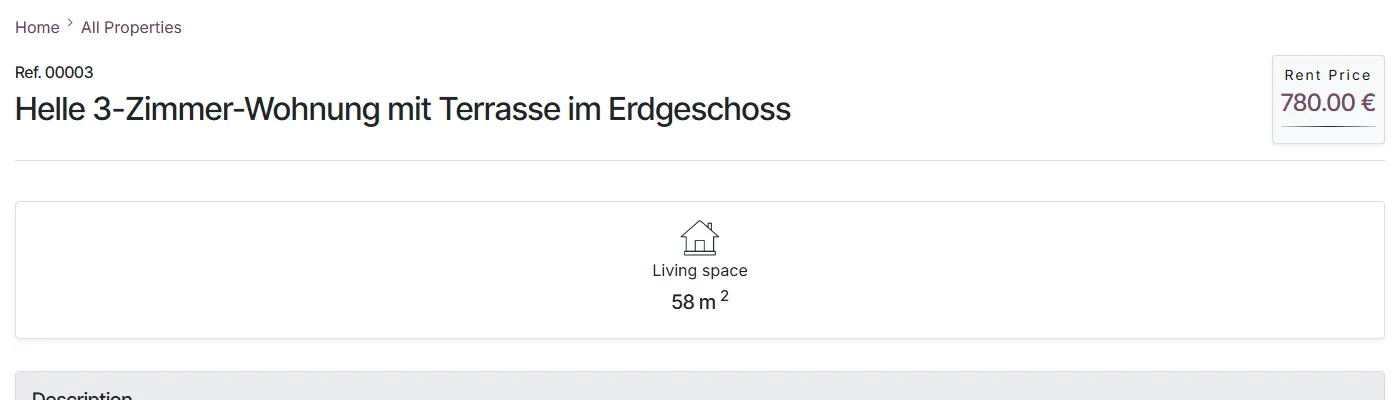
The property page shows the external headline, the photos, the price and the key facts. Below follow the sections Description, Location, Features and Other with the texts from the property, and the contact form.
Feature on the homepage
Section titled “Feature on the homepage”SMARTBRIX comes with four building blocks for the homepage: Property Search, Property Search 2, Property Cover and Property Categories. You add them in the website builder through Edit.
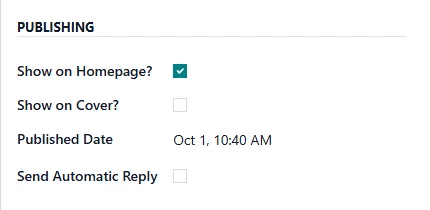
You control which properties the building blocks show on the property in the Sales tab, Publishing group:
- Show on Homepage?: The property appears in the building block with the categories.
- Show on Cover?: The property appears in the large image slider.
- Send Automatic Reply and Reply Email Template: Anyone who inquires through the contact form immediately receives an email with this template.
Inquiries through the contact form
Section titled “Inquiries through the contact form”When a visitor submits the contact form on the property page, SMARTBRIX creates an opportunity in the CRM:
- The opportunity is linked to the property and assigned to the Responsible user of the property.
- SMARTBRIX finds the contact by email address or creates a new one. A contact of another company than the property’s is not used; a new contact has no company.
- If Send Automatic Reply is set, the reply email goes out.
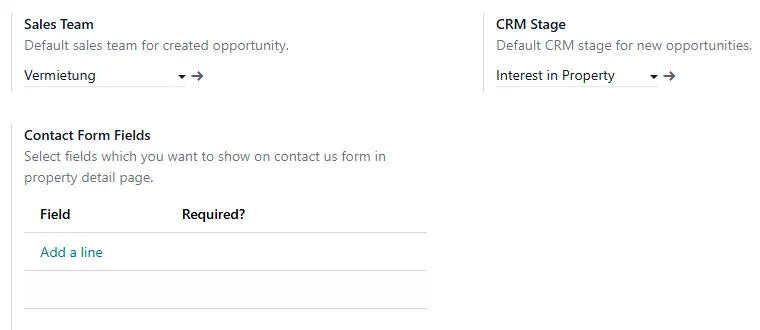
You set the sales team and stage of the new opportunity under Settings › Website, Properties section. There you also choose the Contact Form Fields and which of them are required.
How to continue with the opportunity is described in Set up CRM and Opportunity and application.
Didn't find an answer? Contact support