

Graduated rent
Question about the manual? Ask Claude · Ask ChatGPT
With a graduated rent, the tenancy agreement already fixes the increases: on set dates the base rent rises by an amount or a percentage. In SMARTBRIX you enter the steps once on the tenancy and have all of them created as rent lines. Rent debiting picks up each step from its start date on its own.
Set up the steps on the tenancy
Section titled “Set up the steps on the tenancy”- Open the tenancy under Property Administration > Tenancies > Tenancies.
- On the Configuration tab, select Is graduated rent?. The Graduated Rents tab appears.

- On the Graduated Rents tab, enter the steps from the tenancy agreement.
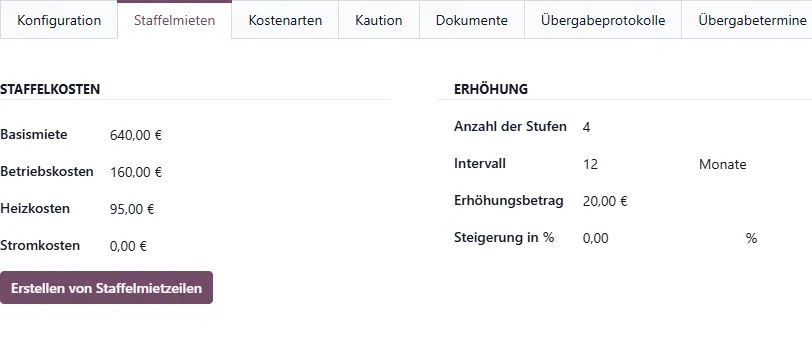
Graduated Costs: the amounts of the first step. When you select the checkbox, SMARTBRIX copies them from the rent details of the object. Electricity costs are only copied if the object bills electricity separately.
- Base rent: the base rent of the first step.
- Service Charges, Heating costs, Electricity cost: the advance payments. They stay the same in every step.
Increase Parameters:
- Number of steps: how many rent lines are created. “4” gives four rent lines.
- Interval: the gap between steps in months, for example “12”.
- Increase amount: how many euros the base rent rises per step. Applies with Fixed Increase.
- Increase percent: how many percent the base rent rises per step. Applies with Percentage Increase and is calculated on the previous step each time.
Create the rent lines
Section titled “Create the rent lines”- On the Graduated Rents tab, click Create graduated rent lines. The Generate Graduated Rent Lines window opens.
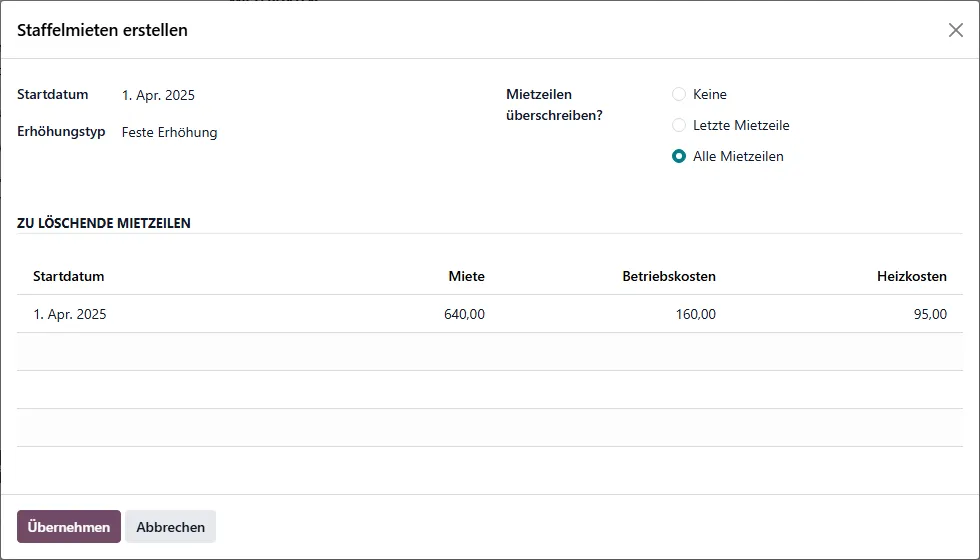
- Under Override Option, choose what happens to the existing rent lines:
- None: The existing lines stay and the steps are added after them. The Start Date is the start of the last rent line plus one interval. The first new step already carries the first increase, that is the Base rent plus the amount or percentage.
- Override Latest Rent Line: SMARTBRIX deletes the last rent line. The steps begin on its start date with the Base rent.
- Override All Rent Lines: SMARTBRIX deletes all rent lines. The steps begin with the start of the tenancy and the Base rent.
- Check the Start Date. It is the start of the first step.
- Choose the Increase Type: Fixed Increase or Percentage Increase.
- With Override Latest Rent Line and Override All Rent Lines, the window lists the lines that will go under Rent lines to delete.
- Click Apply. If lines are deleted, SMARTBRIX asks for confirmation first.
SMARTBRIX creates one rent line per step. The base rent rises from line to line, the advance payments stay the same. Each new line copies day of invoice, billing period, invoice date day, In Advance, heating space and co-ownership share from the last existing rent line. If there was none, it bills monthly. The space comes from the object, the number of persons from the last rent line.
Example with Override All Rent Lines: base rent €640, service charges €160, heating costs €95, “4” steps, interval “12”, amount “20”, start date 04/01/2025. Four rent lines are created:
| Start date | Base rent | Total |
|---|---|---|
| 04/01/2025 | €640.00 | €895.00 |
| 04/01/2026 | €660.00 | €915.00 |
| 04/01/2027 | €680.00 | €935.00 |
| 04/01/2028 | €700.00 | €955.00 |
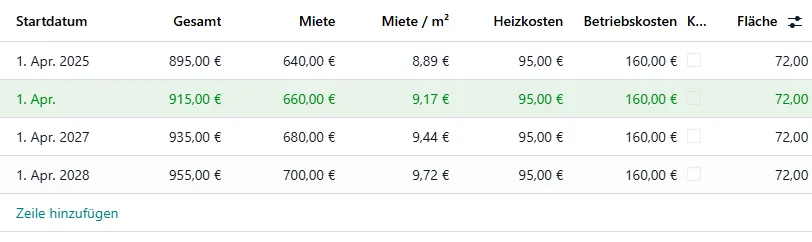
With Percentage Increase and “3” %, the steps would be €640.00, €659.20, €678.98 and so on. With None after an existing line, the steps start at €660.00.
Rent debiting always uses the rent line valid on the day of invoice. The new step therefore appears on the first rent invoice from its start date without any further action. See Rent debits.
Checkpoints
Section titled “Checkpoints”- The Rent table has one line per step, spaced by the interval.
- With Override Latest Rent Line and Override All Rent Lines, the first new line carries the Base rent, with None the first increase. Each further line carries the next increased amount.
- The invoicing columns (via the icon on the right edge of the table header) are the same in every line.
Common errors
Section titled “Common errors”| Problem | Cause | Solution |
|---|---|---|
| With None, the first new step is lower than the last existing line. | The steps are calculated from the Base rent on the tab, not from the last rent line. | Enter the base rent of the last existing line as Base rent. |
| Message “Rent can’t be 0 while creating the Graduated Rent Lines”. | Base rent is empty. | Enter the Base rent and create the lines again. |
| Message “Enter at least one step.” | Number of steps is “0”. | Enter a number and create the lines again. |
| Message “Enter an interval of at least one month.” | Interval is “0”. | Enter an interval and create the lines again. |
| Message “Enter an increase amount greater than 0.” or “Enter an increase percentage greater than 0.” | The amount or percentage for the chosen Increase Type is missing. | Enter the value or choose the other Increase Type. |
| Message “This usage already has a rent line starting on …” | A step falls on the start date of an existing line. | Adjust the Start Date, or choose Override Latest Rent Line or Override All Rent Lines. |
| Message “A rent line to be deleted comes from an index increase.” | One of the lines to delete is an anchor line of an index-linked rent. | Choose None and add the steps after the existing lines. |
| Message “Posted rent invoices exist for a rent line to be deleted.” | A rent invoice is already posted for the period of a line to delete. | Choose None and add the steps after the existing lines. |
Special cases
Section titled “Special cases”Changing advance payments: Each step is a rent line of its own. If you change service charges, heating or electricity costs in one line, for example after the service charge statement, SMARTBRIX carries the new amount over to the later steps. This only applies to steps that have not started yet and still carry the old amount. If a later step already has a different amount, it and all steps after it stay unchanged. The usage history notes from which steps the amount was carried over. A change on the Graduated Rents tab only takes effect when you create the rent lines again.
Changing the steps later: Change the values on the Graduated Rents tab and create the rent lines again with Override All Rent Lines. With Override Latest Rent Line, SMARTBRIX replaces only the last line and adds new steps from its start date. Both only work as long as no rent invoice is posted for the lines concerned. For a running tenancy, add new steps with None.
Graduated rent and index-linked rent: If a later rent line, such as a graduated rent step, already exists after the adjustment date of an index increase, SMARTBRIX skips the index increase. See Index-linked rent.
What is not included
Section titled “What is not included”- SMARTBRIX creates no letter to the tenant and no task before a new step.
- SMARTBRIX does not check whether the steps meet legal requirements, such as a minimum gap between two steps. It takes the interval and amount as you enter them.
- The wizard does not create descending steps with a negative amount or percentage. Enter such rent lines by hand.
Didn't find an answer? Contact support