

Search profiles
Question about the manual? Ask Claude · Ask ChatGPT
A search profile records what a prospect is looking for: type of marketing, basic type, price, area, location and features. SMARTBRIX matches it in both directions: on the search profile you see the matching properties, on the property the matching prospects. Every inquiry about a property creates a search profile or extends the existing one. If the prospect wishes, SMARTBRIX sends new matches by email, but only after the prospect has confirmed this personally.
Set up
Section titled “Set up”The settings are under Settings › Property Management, in the Search Profiles section. They apply per company.
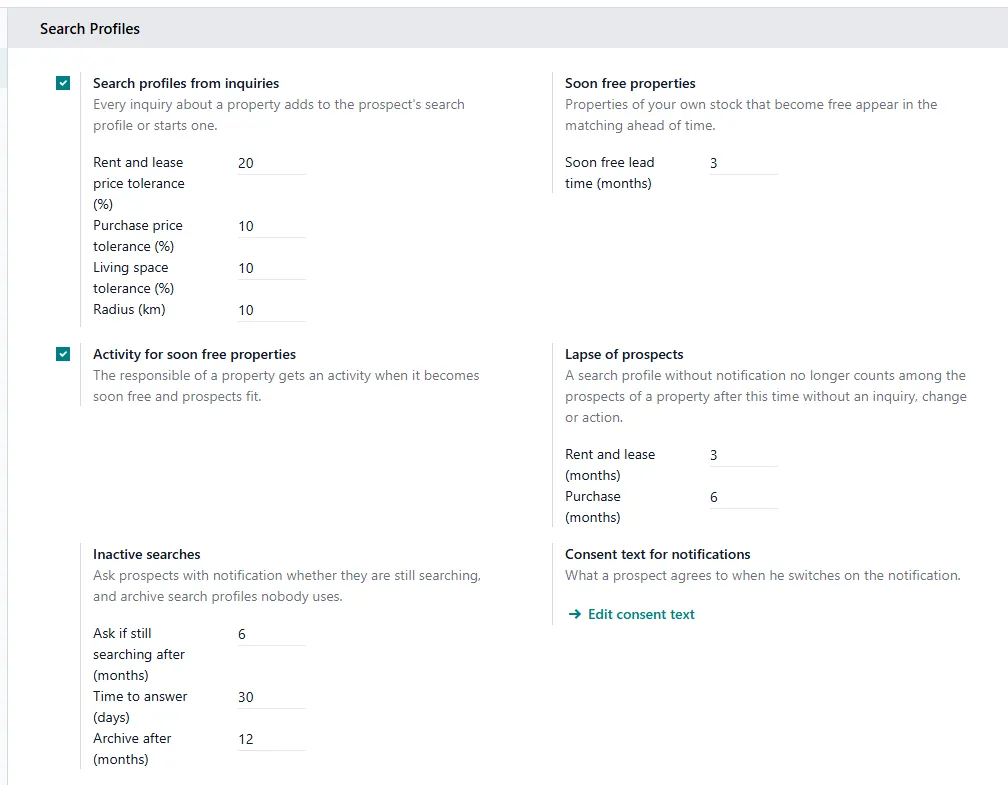
- Search profiles from inquiries: every inquiry about a property creates a search profile or extends the existing one. The tolerances widen the values of the property: Rent and lease price tolerance (%) (default 20), Purchase price tolerance (%) (10), Living space tolerance (%) (10) and Radius (km) (10).
- Soon free properties: properties from your portfolio whose tenancy is ending appear in the matching before they become vacant. Soon free lead time (months) sets how far ahead (default 3). This only applies to rent and lease.
- Activity for soon free properties: when a property will soon be vacant and prospects match, the person responsible for the property gets a task once, with the number of prospects.
- Lapse of prospects: a search profile without notification no longer counts on the property once it has had no inquiry, change or action for this long. By default 3 months for rent and lease, 6 months for purchase.
- Inactive searches: Ask if still searching after (months), Time to answer (days) and Archive after (months) control the life cycle (see below). The value 0 turns the step off.
- Consent text for notifications: the text a prospect consents to when turning on the notification. Edit consent text opens it, also for translating.
Find search profiles
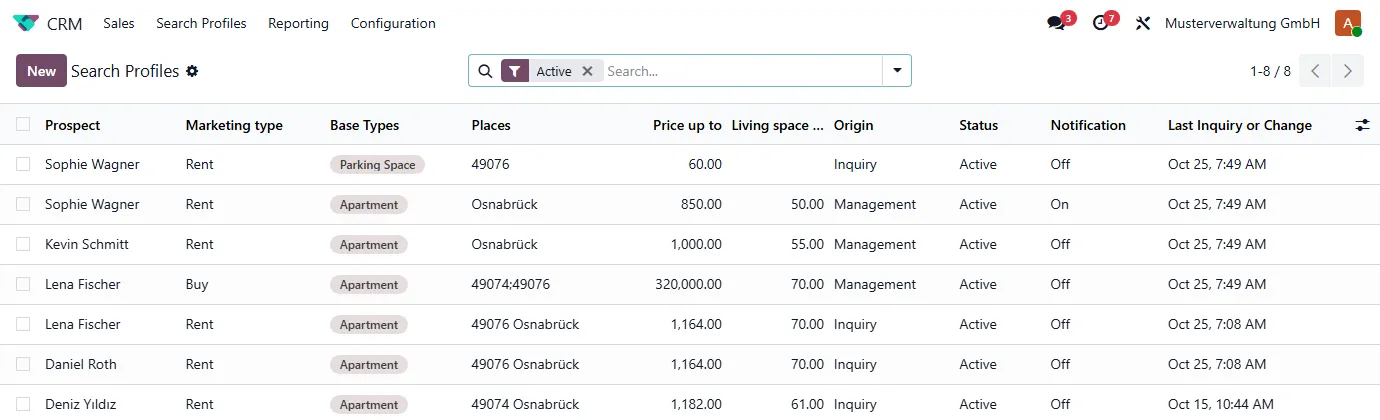
Section titled “Find search profiles”All search profiles are under CRM › Search Profiles › Search Profiles. The list shows prospect, type of marketing, basic types, places, price, origin, status and notification. Filters such as Lapsed, With notification or Seeks several properties narrow it down.
On the contact, the Search Profiles smart button leads to the contact’s searches; on the opportunity, the Search Profile smart button leads to the search it came from.
Create a search profile
Section titled “Create a search profile”A search profile comes into being in three ways. The Origin on the form shows which one it was.
- From an inquiry: when a prospect inquires about a property, whether through the website, a property portal, by email or entered manually, SMARTBRIX creates a search profile with the values of the property and the tolerances. If the contact already has an open search profile of the same type of marketing without notification, that one is extended: the basic type and place are added, the price limit goes up, the minimum area goes down. A search profile for which the prospect has confirmed the notification stays exactly as confirmed. The inquiry then gets a search profile of its own.
- Manually: click New in the list, select the Prospect and the Marketing type and enter the criteria.
- Through the website: in the property list on the website, the visitor sets a filter and clicks Notify me of new matches. The search profile is created with the visitor’s email address. Only when the visitor clicks the link in the confirmation email does it become a contact with the notification turned on. SMARTBRIX deletes unconfirmed sign-ups after seven days.
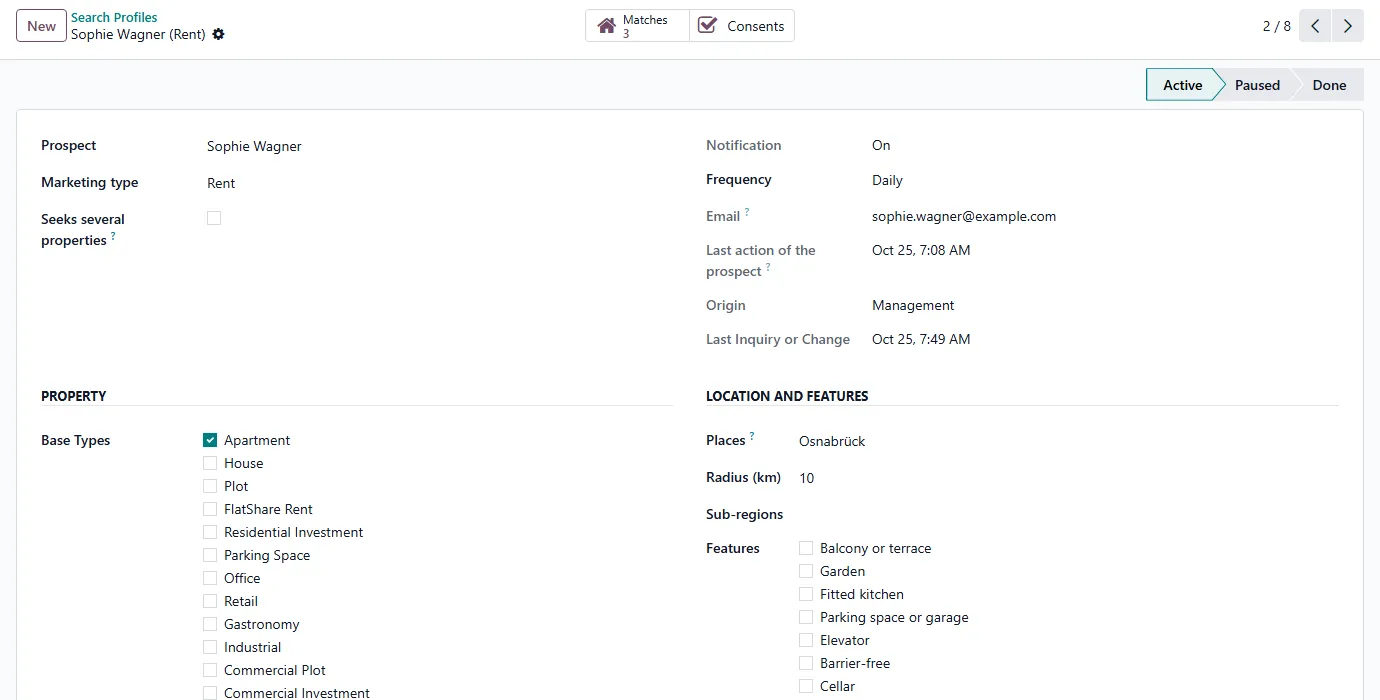
The criteria on the form:
- Property group: Base Types, Price from and Price up to (purchase price, total rent or lease rent), Living space from (m²) and To, Rooms from, Plot area from (m²) and To, Move in by.
- Location and features group: Places (postal codes or places, separated by semicolons), Radius (km), Sub-regions and Features.
An empty criterion means “any”; every criterion you fill in is a strict limit. Personal details such as income or household size do not belong in the search profile.
Seeks several properties: check this box if the prospect is looking for more than one property, for example several apartments for a company. A won opportunity or a new tenancy then does not complete this search; it only ends manually.
Several searches per contact
Section titled “Several searches per contact”A contact can have several search profiles, for example a rental apartment for now and a condominium apartment to buy later. On the property, SMARTBRIX still counts people, not search profiles. If several searches of the same person match, the list of prospects shows the best match and “+1 further search” in the remarks. With the notification, a contact receives each property by email only once, even if it matches several of their searches.
Matches and matching
Section titled “Matches and matching”The Matches smart button on the search profile shows the matching properties. Matches meet all criteria. With Partial matches, the property lacks a detail that the search profile requires; the Reason column names it, for example “Balcony or terrace: not stated”. Type of marketing and basic type must always match.
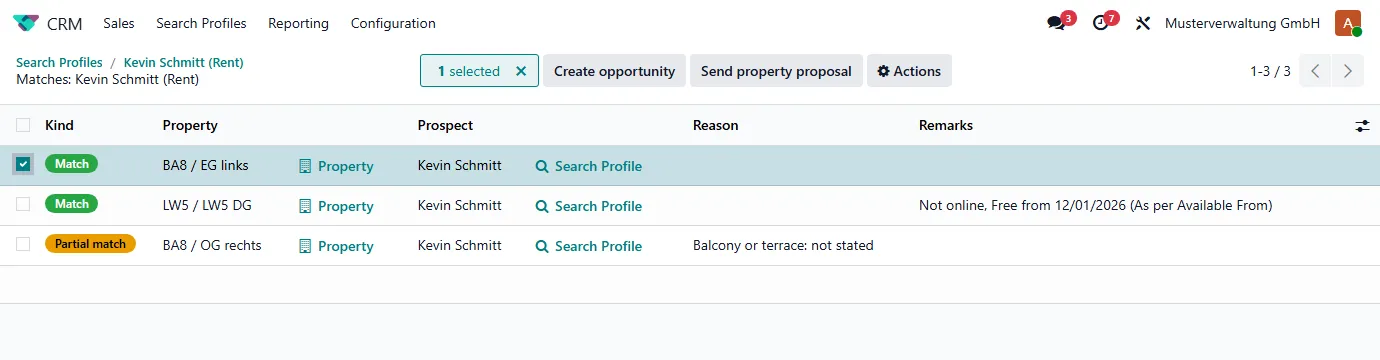
The Remarks tell you what matters before the next step: Has an opportunity, Not online, “Free from …”, Guide price from the current rent (for properties that will soon be vacant and have no marketing price) and No property mails (the prospect has objected to property mails).
When you select lines, two buttons appear:
- Create opportunity: creates one opportunity per line for contact and property, with a reference to the search profile. If an open opportunity already exists, SMARTBRIX uses it.
- Send property proposal: sends the prospect an email with the selected properties. Partial matches and properties that are not online are left out. The proposal also goes to search profiles without notification. If the prospect has objected, nothing is sent. The sending is logged as a note on the search profile and on the Send history tab.
On the property, the Prospects smart button shows the same list from the other direction. You find all marketed properties and properties that will soon be vacant, with the number of their prospects, under CRM › Search Profiles › Matching, with the filters Soon free, Online and Without prospects.
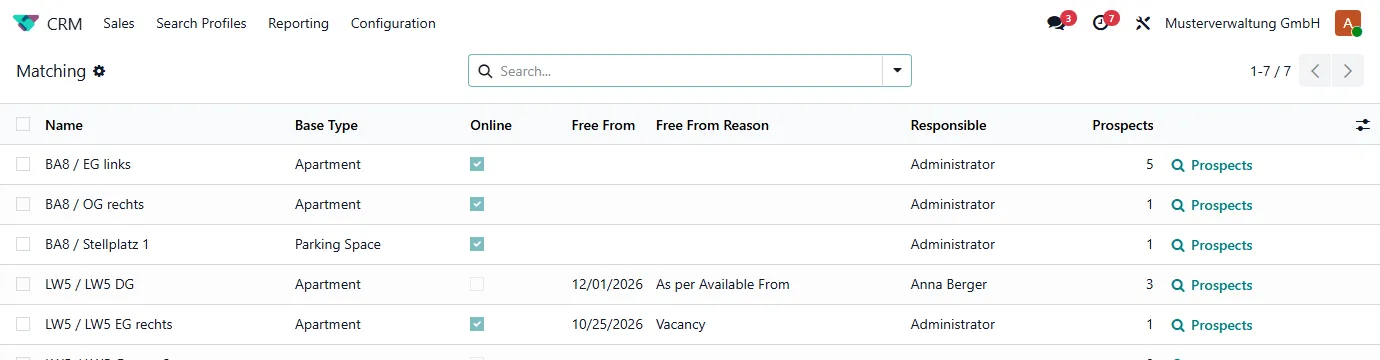
A rented property drops out of the matching for rent and lease, a sold one for purchase. It stays visible on the website until you end the marketing.
Notification
Section titled “Notification”With the notification, the prospect receives new matches by email. Only the prospect can turn it on: they receive an email “Please confirm your notification”, and only their click on the link turns it on. Until then, the Notification field shows “Awaiting confirmation”. If the prospect does not confirm within seven days, the notification stays off.
If a prospect asks you for the notification by phone or email:
- Open their search profile and click Set up notification on request.
- Under Requested via, select Conversation, Email or Form.
- Click Send confirmation email.
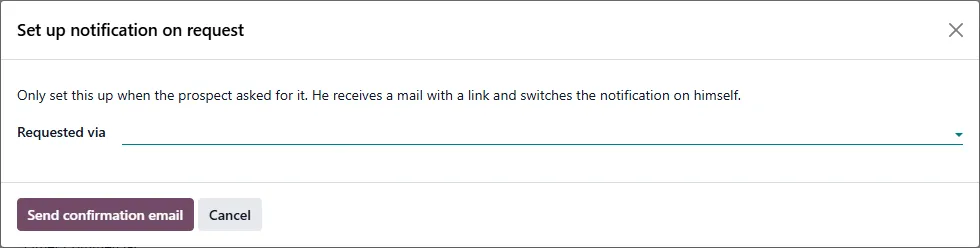
After the confirmation, the notification is On. The Frequency is Daily for rent and Weekly for purchase and lease; you can set it to Immediately. The email “New offers for your search” contains new matches, price reductions and properties that are available again, at most ten per email. If nothing has changed, no email is sent.
Every confirmation leaves a consent record with address, wording, source and timestamps. You find it on the search profile through the Consents smart button and collected under CRM › Search Profiles › Consents. SMARTBRIX deletes a consent record three years after the notification ends.
Pause: only the prospect can pause, through the link in every email or in the customer portal. The notification then shows Paused. The Paused step in the status bar of the search profile is a separate thing. It is a marker for your management: the search profile keeps counting in the matching, and a notification that is turned on keeps running.
Unsubscribe: the Unsubscribe link in every email turns off the notification for all search profiles of the contact and records an Objection to property mails on the contact. Property proposals are then no longer sent to them either; replies to their own inquiries are not affected. If the contact has several searches with notification, the unsubscribe page also offers Only this search: no more notifications. Only the prospect can lift the objection, by turning the notification on again and confirming it.
with customer portal My searches and saved properties
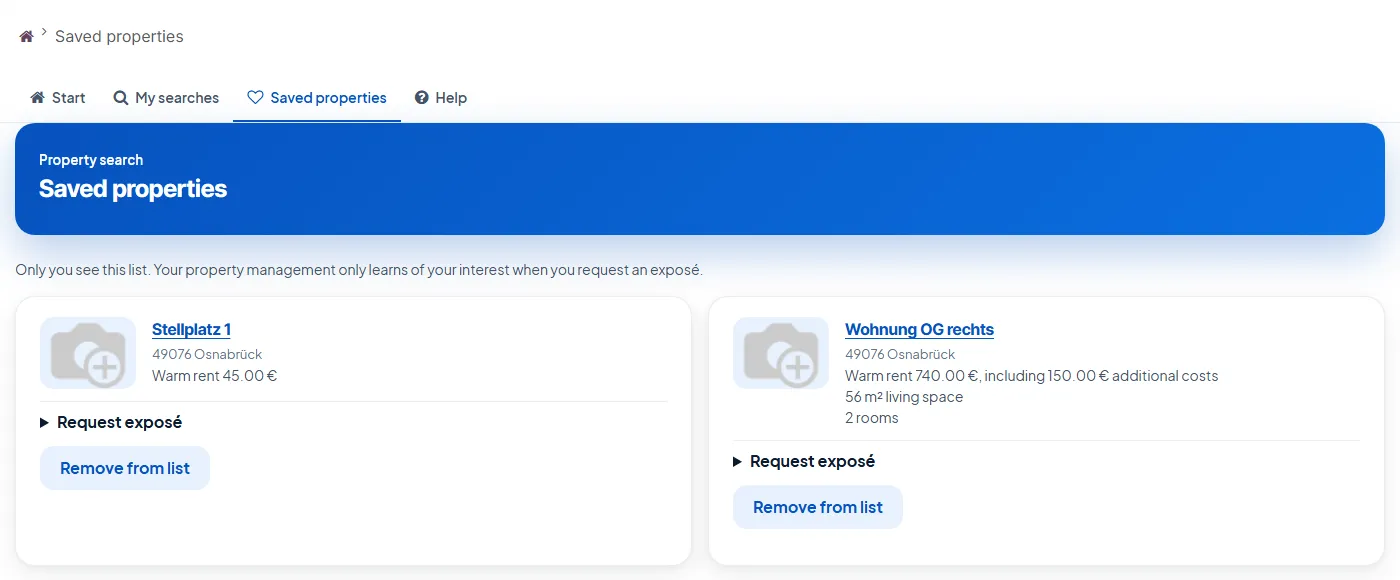
If a prospect has access to the customer portal, they see My searches and Saved properties there. You send the access with Invite to Portal on the search profile or on the contact; there is no self-registration.
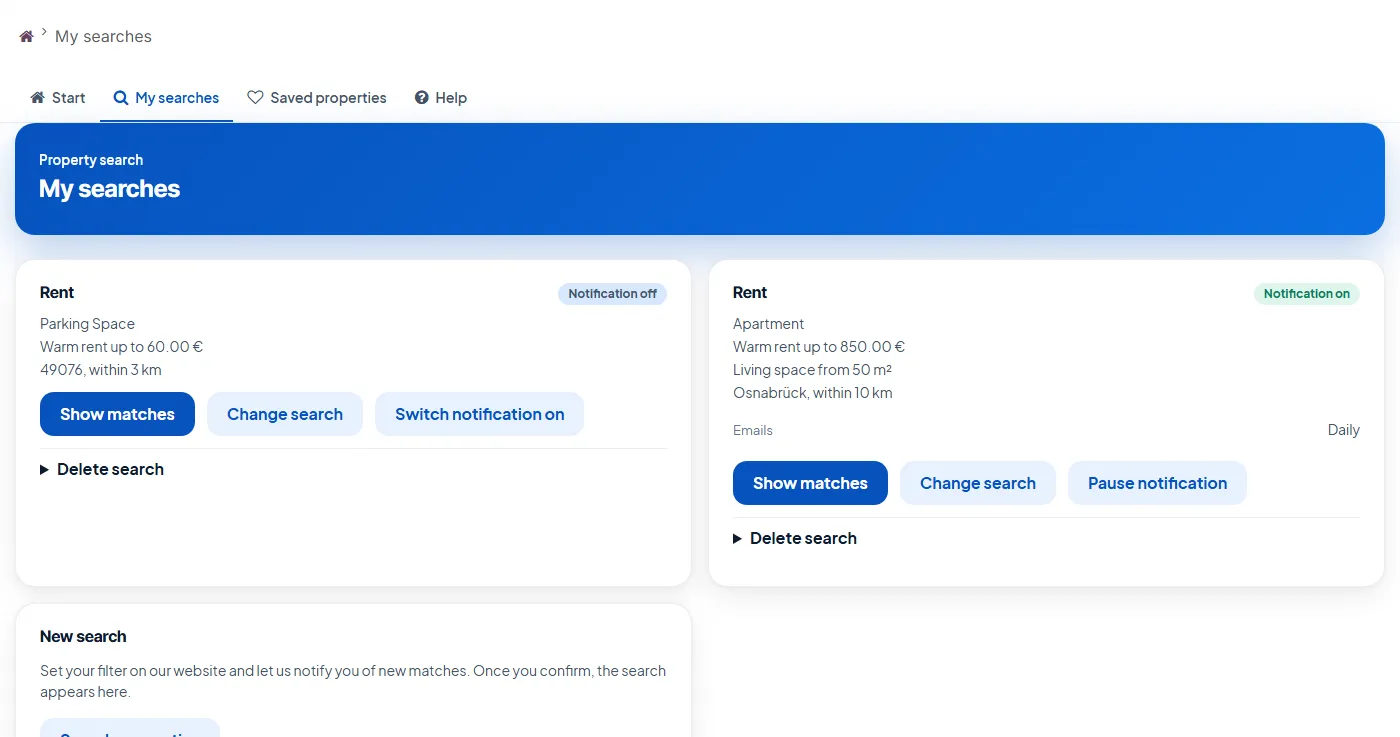
My searches lists all search profiles of the prospect with their criteria. The prospect can Show matches, Change search, Pause notification, resume it or turn it on (again with a confirmation email) and Delete search.
Under Saved properties, the prospect collects properties marked with the heart on the website. The management does not see this list. Only when the prospect chooses Request exposé for a property is an opportunity created, and the salesperson of the property is notified. An entry with an open inquiry shows Requested, a property that is no longer online shows No longer available.
Opportunity without a property
Section titled “Opportunity without a property”If a search starts with a conversation before a property has been chosen, create an opportunity without a property. It then shows the Create search profile button as long as it is open, has a contact and is not linked to a search profile.
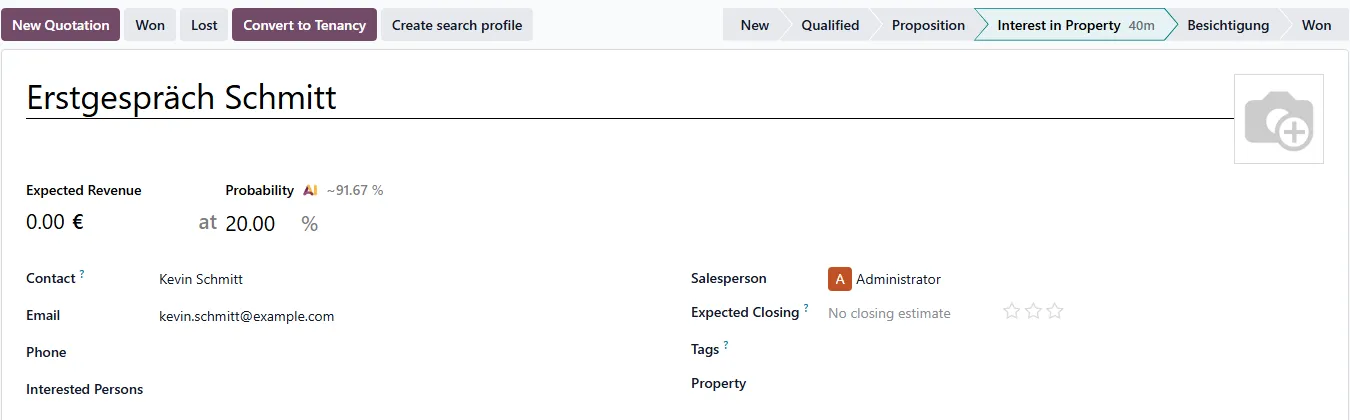
- Click Create search profile.
- If the contact has no open search profile yet, SMARTBRIX creates one and opens it. Enter the criteria.
- If the contact already has one, a window shows their open search profiles with criteria and notification. Check the right one and click Link, or create another one with New search.
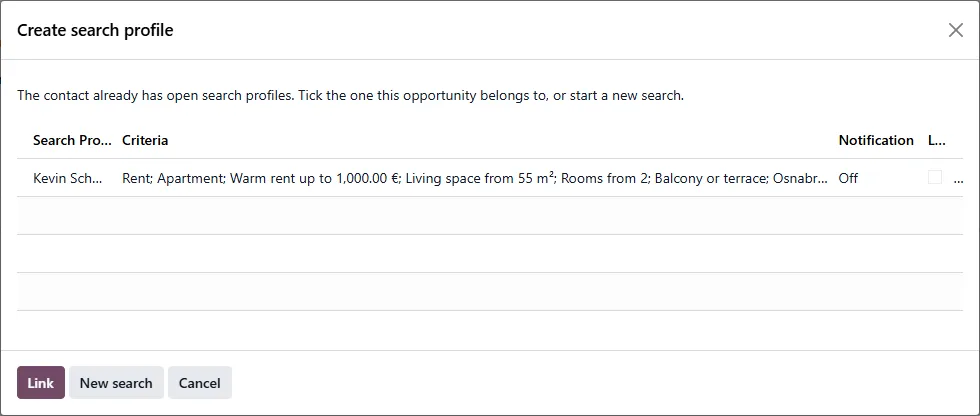
You find opportunities without a property in the pipeline with the Without property filter. When the search ends, SMARTBRIX archives these opportunities with the note “Search ended: archived along with its search profile.” They count neither as won nor as lost.
When a search is done
Section titled “When a search is done”A search profile changes to Done in the status bar:
- when an opportunity from this search profile is won,
- when you create a tenancy for a contact of the search profile, as invoice recipient, contract partner or occupant. This applies to searches for rent or lease whose basic types match the property or are empty. The history shows “Search done: tenancy … created.”
- when you set it to Done manually.
With Seeks several properties, only the last point applies. A search profile that is done drops out of the matching, and its notification is turned off. If you set it back to Active, the notification stays off.
How SMARTBRIX handles the other opportunities of the same search after an award is described under Award.
Life cycle
Section titled “Life cycle”A daily run keeps the search profiles up to date. You set the deadlines under Inactive searches.
- Follow-up question: if a prospect with notification has done nothing for six months, they receive the email “Are you still searching?” with the Keep searching button. Confirming, changing the search, requesting an exposé, resuming and Keep searching count as actions; merely opening an email does not.
- Pause: if the prospect does not reply within the 30 days set under Time to answer (days), SMARTBRIX pauses the notification. The same happens if emails to their address could not be delivered five times. Clicking the link in an email resumes it.
- Archiving: SMARTBRIX archives search profiles without notification or with a paused notification after twelve months without an inquiry, change or action.
- Lapsed: a search profile without notification that has not been touched for longer than the period under Lapse of prospects no longer counts on the property and in the matching. It stays active, shows the hint “Lapsed” on the form and still shows its matches. Any new inquiry or change brings it back.
- Consent records: SMARTBRIX deletes consent records three years after the notification ends.
Frequently asked questions
Section titled “Frequently asked questions”Why can’t I set the notification to “On” myself? Because the prospect has to consent. The field is read-only. Use Set up notification on request; the prospect confirms with a click.
Why does a property count no prospects although search profiles match? Check whether the search profiles have lapsed, are done or archived, and whether they have a contact. Unconfirmed sign-ups from the website only count after confirmation.
Why did an inquiry create a second search profile? The existing search profile has a confirmed notification. It stays exactly as the prospect confirmed it, so the inquiry gets one of its own.
Who may delete search profiles? Only users with administrator rights in CRM. Deleting ends the consent but is not an objection. To end a search, setting it to Done is enough.
Didn't find an answer? Contact support