

The property form
Question about the manual? Ask Claude · Ask ChatGPT
The property form has up to eight tabs. Each tab is divided into named sections, and sections you rarely edit start collapsed. Which fields a property shows depends on its base type and on whether it is a main property or a child property. A parking space therefore shows no rooms, and a single apartment shows no number of apartments.
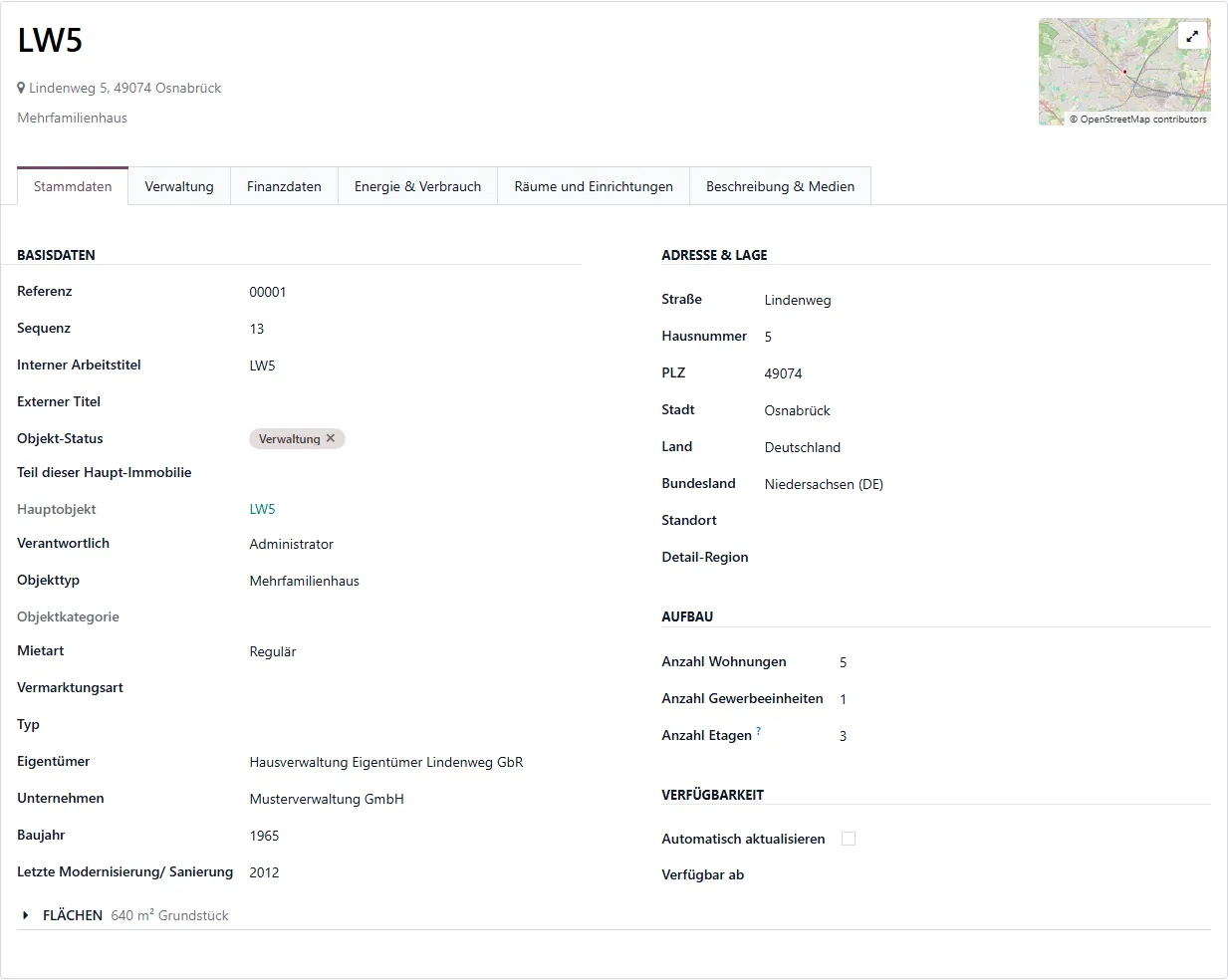
The tabs
Section titled “The tabs”| Tab | What it holds | Shown |
|---|---|---|
| Base Data | Basic Data, Address and Location, Structure, Availability, Areas, Land Register | always |
| Administration | Rental Administration, condominium administration, Administrative Fees, Contractual Partner, Further Data, House Documents, Owner documents, Maintenance | when the property is in rental or condominium administration |
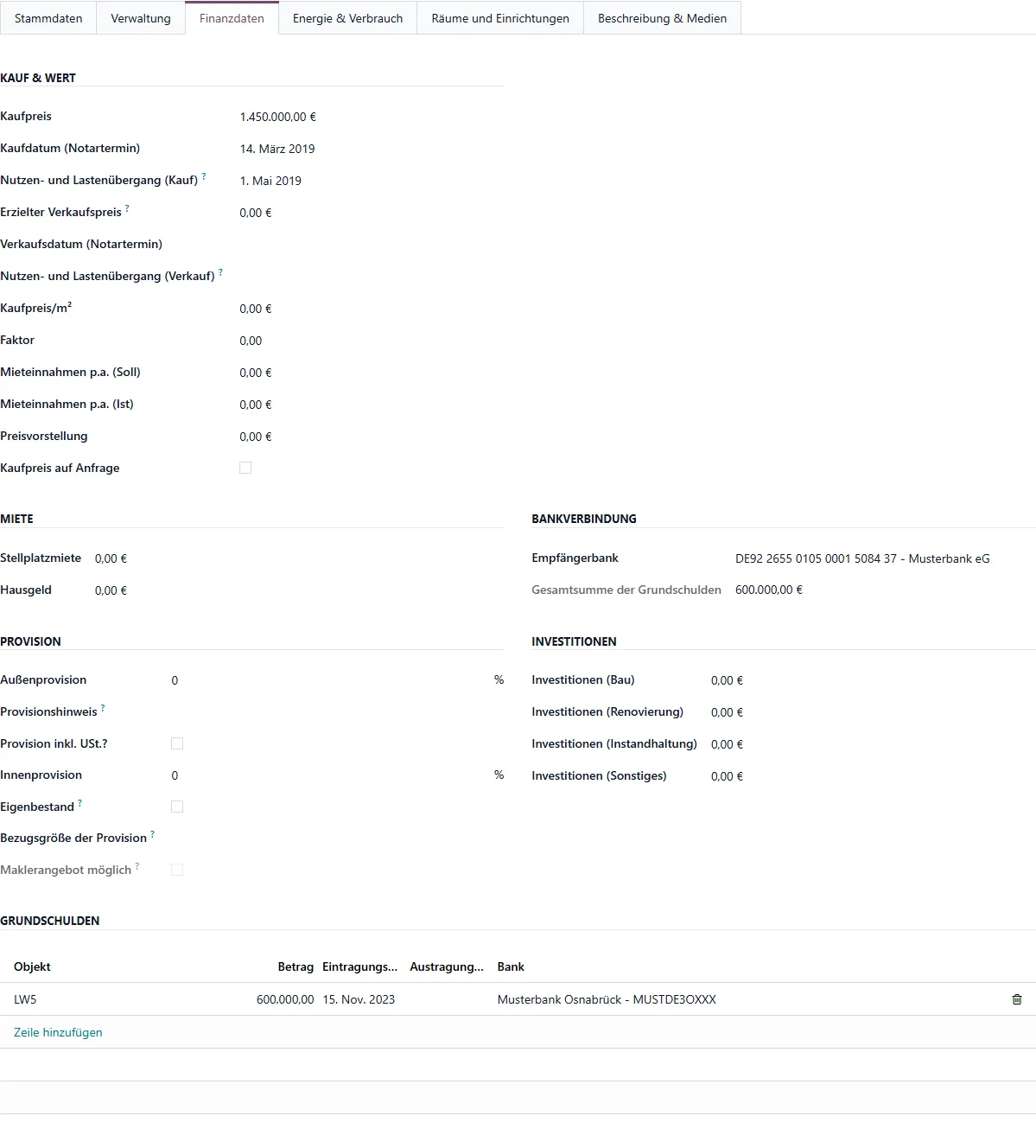
| Financial Data | Purchase and Value, Market Value and Land Value, Rent, Lease, Bank Account, Commission, Investments, Land Charges | always |
| Energy and Consumption | Energy performance certificate, CO2 Costs, heating costs, metering, consumption information | always |
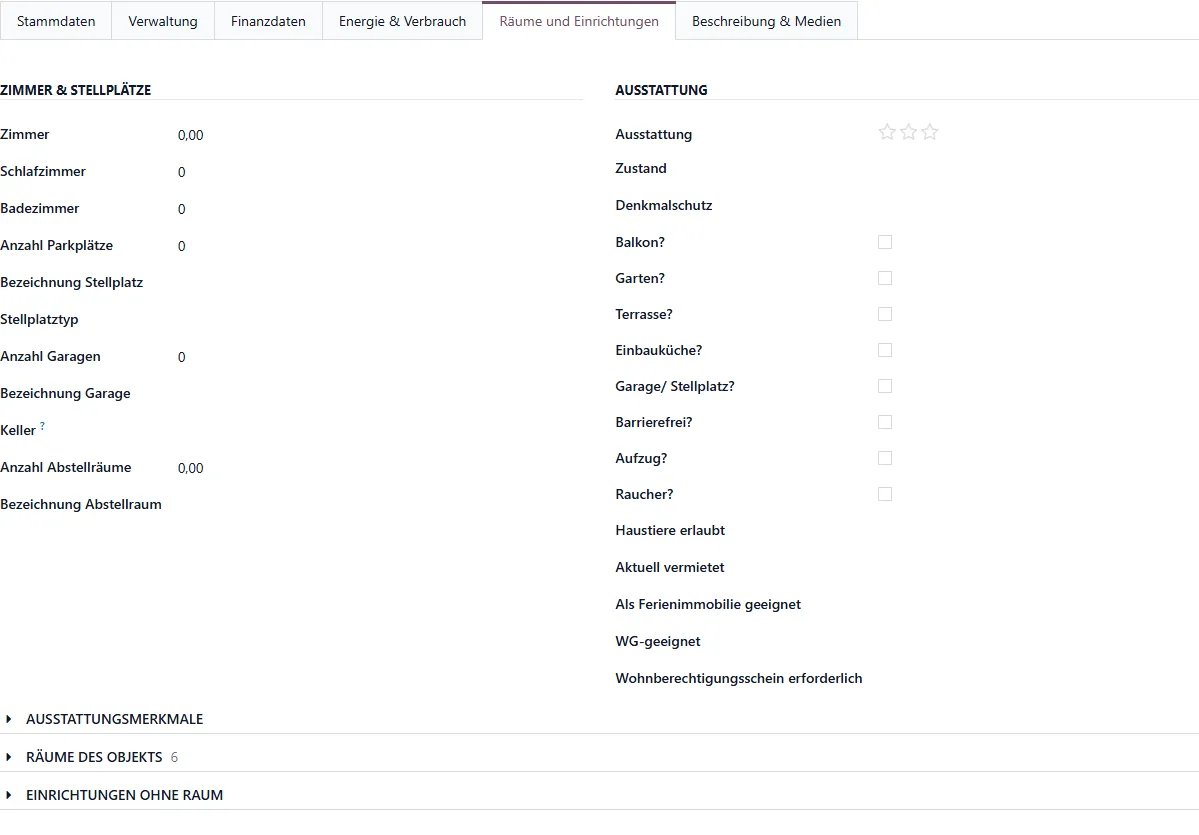
| Rooms and Features | Rooms and Parking, Equipment, Commercial Details, Property Features, Rooms of the Property, Features without Room | always |
| Description and Media | Texts, public, internal and protected photos and documents, Virtual Tours / External Links | always |
| Sales | Brokerage Order, Publishing, Portal Publications, Enquiries, Flat Share Rent | only in the sales stage |
| Valuation | valuation and dossier | only with a PriceHubble connection set up |
Sections for features your system has not booked are missing. Land register, market value and standard land value appear for properties with the country Germany.
On the Financial Data tab, the Transfer of Benefits and Burdens (Purchase) sits below the purchase date (notary appointment), and the Transfer of Benefits and Burdens (Sale) below the sale date. Once the transfer date is filled in, the history in the owner portal, the portfolio report and the liquidity graph use it instead of the notary date.
Expanding and collapsing sections
Section titled “Expanding and collapsing sections”Click the heading of a section with an arrow to expand or collapse it. When collapsed, some sections show a summary line with the key values, for example Areas with “72 m² living space”. The summary line leaves out empty values.
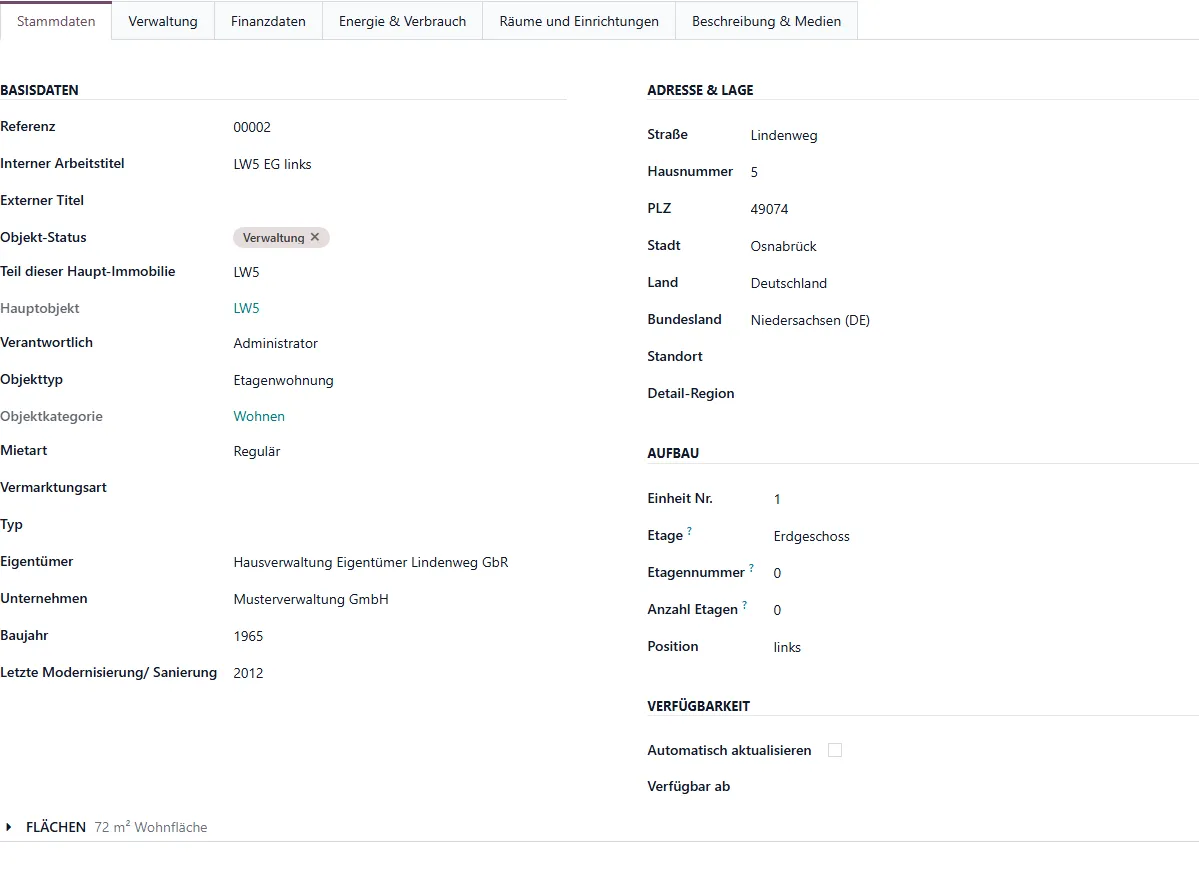
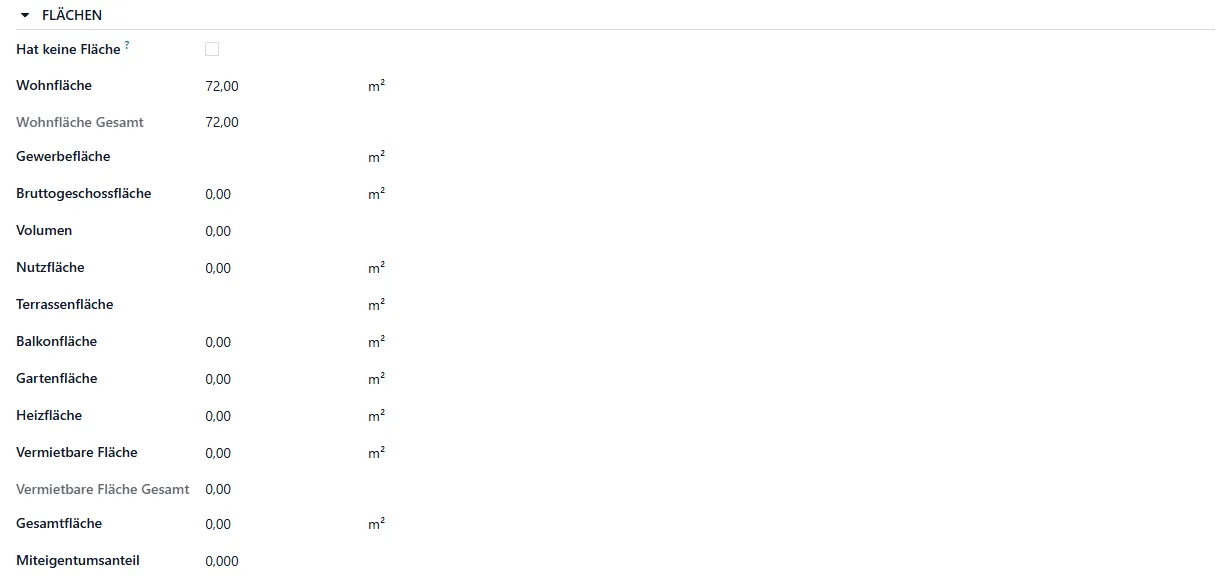
- Remembered state: Your browser remembers which sections you expanded or collapsed. The state applies to all properties. If you then open another property, the section is open there as well.
- Default state: Sections you have never clicked stay as designed. Basic data and address are open, areas and land register are collapsed. This also applies if your browser may not store anything.
- Error on save: If a collapsed section has an empty required field or an invalid value, it expands when you save. As long as the error remains, it cannot be collapsed.
Which fields a property shows
Section titled “Which fields a property shows”Two attributes decide which fields appear:
- Base type: It comes from the Property Type of the property. Each property type has a base type under Listing Sub-Type, for example “Apartment”, “Parking Space” or “Retail”.
- Level: A property without an entry in Parent Property is a main property, all others are child properties.
The base types are grouped like this:
- Residential: Apartment, House, FlatShare Rent, Residential Investment
- Commercial: Office, Gastronomy, Retail, Industrial, Other Commercial, Commercial Investment
- Plot: Plot, Commercial Plot
- Parking Space
| Field or section | Hidden for |
|---|---|
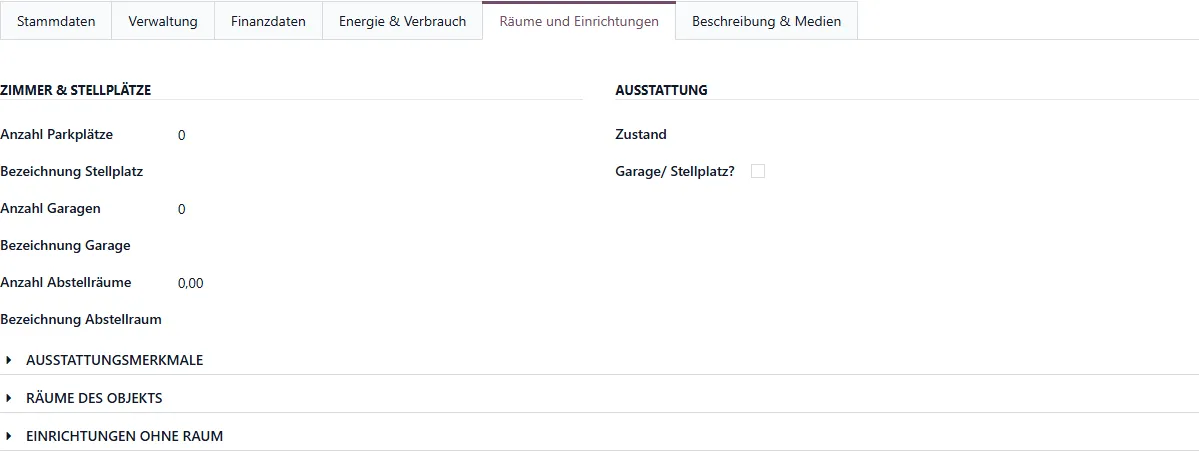
| Rooms, Bathroom | parking space, plot |
| Bedroom | parking space, plot, commercial |
| Equipment such as Balcony?, Garden?, Kitchen?, Elevator?, Barrier-Free? | parking space, plot |
| Number Of Apartments, Number Of Commercial | child properties and parking spaces |
| Unit Nr., Floor, Position | main properties, except in the sales stage and except for Apartment or FlatShare Rent |
| Rooms of the Property, Features without Room | plot |
| Areas other than the plot area | plot and properties with Has no space |
| Plot Area | child properties, except in the sales stage |
| Energy performance certificate | parking space, plot |
| Commercial Details | all properties except Office, Gastronomy, Retail, Industrial and Other Commercial |
The land register is shown on every level, because a condominium unit also has its own land register sheet.
The two images show the Rooms and Features tab of an apartment and of a garage in the same building:
Setting the base type of a property type
Section titled “Setting the base type of a property type”- Open Property Management > Configuration > Property Management > Property Types.
- In the row of the property type, choose an entry under Listing Sub-Type. It starts with the base type, for example “Parking Space / Garage”.
- Click Save.
All properties with this property type then show the fields of their base type.

Special cases
Section titled “Special cases”Sales stage: If a property is in the sales stage, it also shows the fields a listing needs, on every level. A main property then shows Floor and Unit Nr. again, for example, and a child property the Plot Area. If the energy performance certificate is missing, the Sales tab points this out at the top. The notice does not block publishing.
Apartment as main property: A condominium unit without a parent property shows Floor and Position, even though it is a main property.
Parking space: If you choose a property type with the base type parking space in the form, SMARTBRIX ticks Has no space. Parking spaces whose property type you do not change keep their setting.
What is not included
Section titled “What is not included”- You do not choose the base type on the individual property, but on the property type.
- Hidden fields keep their values. SMARTBRIX deletes no data when the property type changes.
Didn't find an answer? Contact support