

Set up service charges
Question about the manual? Ask Claude · Ask ChatGPT
You do these steps once per company. The cost types apply to all buildings; which of them a building uses is set on the building (see Properties and usages).
Cost categories
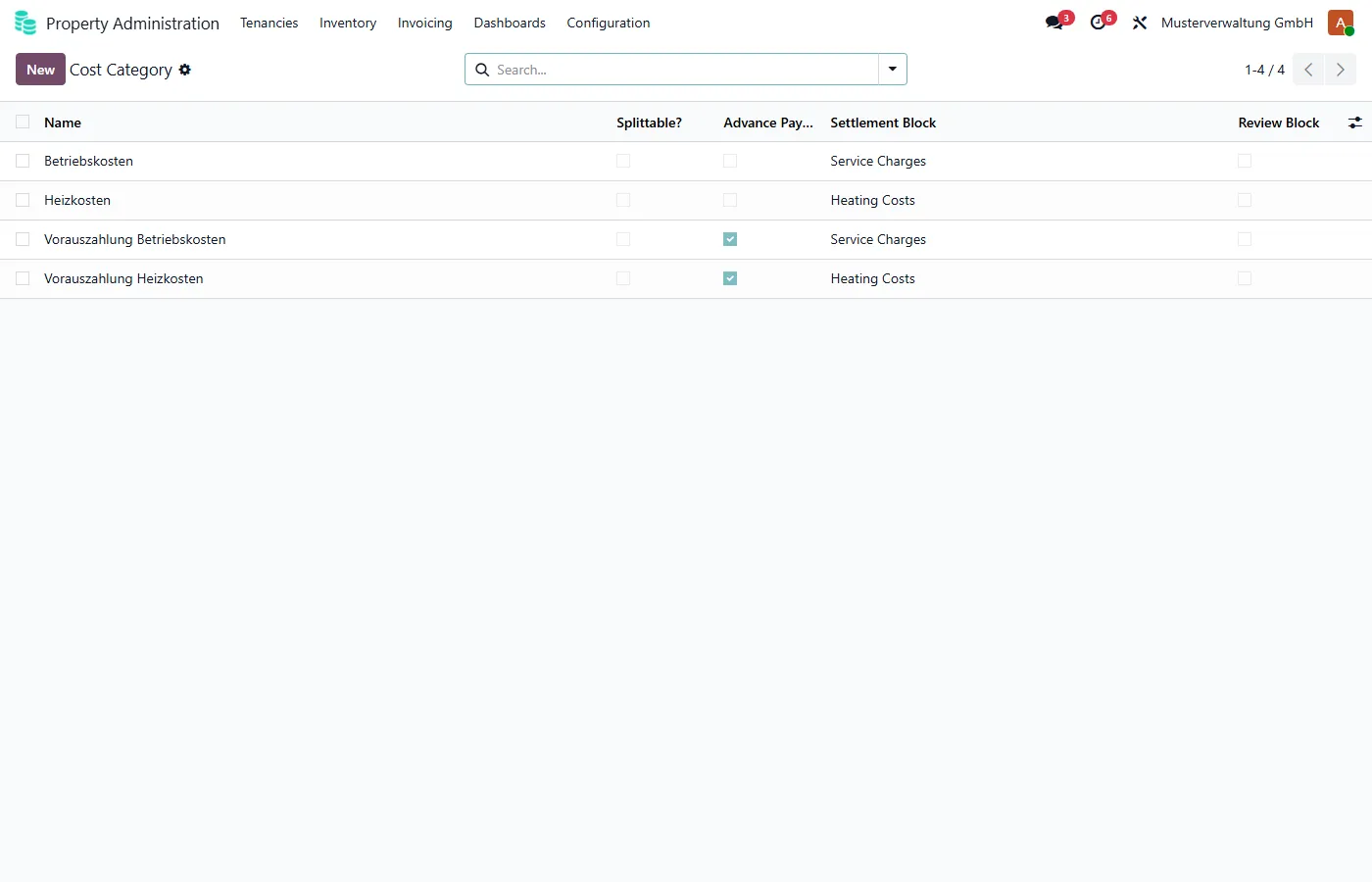
Section titled “Cost categories”- Open Property Administration › Configuration › Cost Category. You can edit the list directly.
- Create one line per group and choose the Settlement Block: “Service Charges”, “Heating Costs” or “Electricity Costs”.
- Tick Advance Payment? only for the categories the tenant pays monthly (rent debits). Categories for actual costs stay unticked.
Cost types
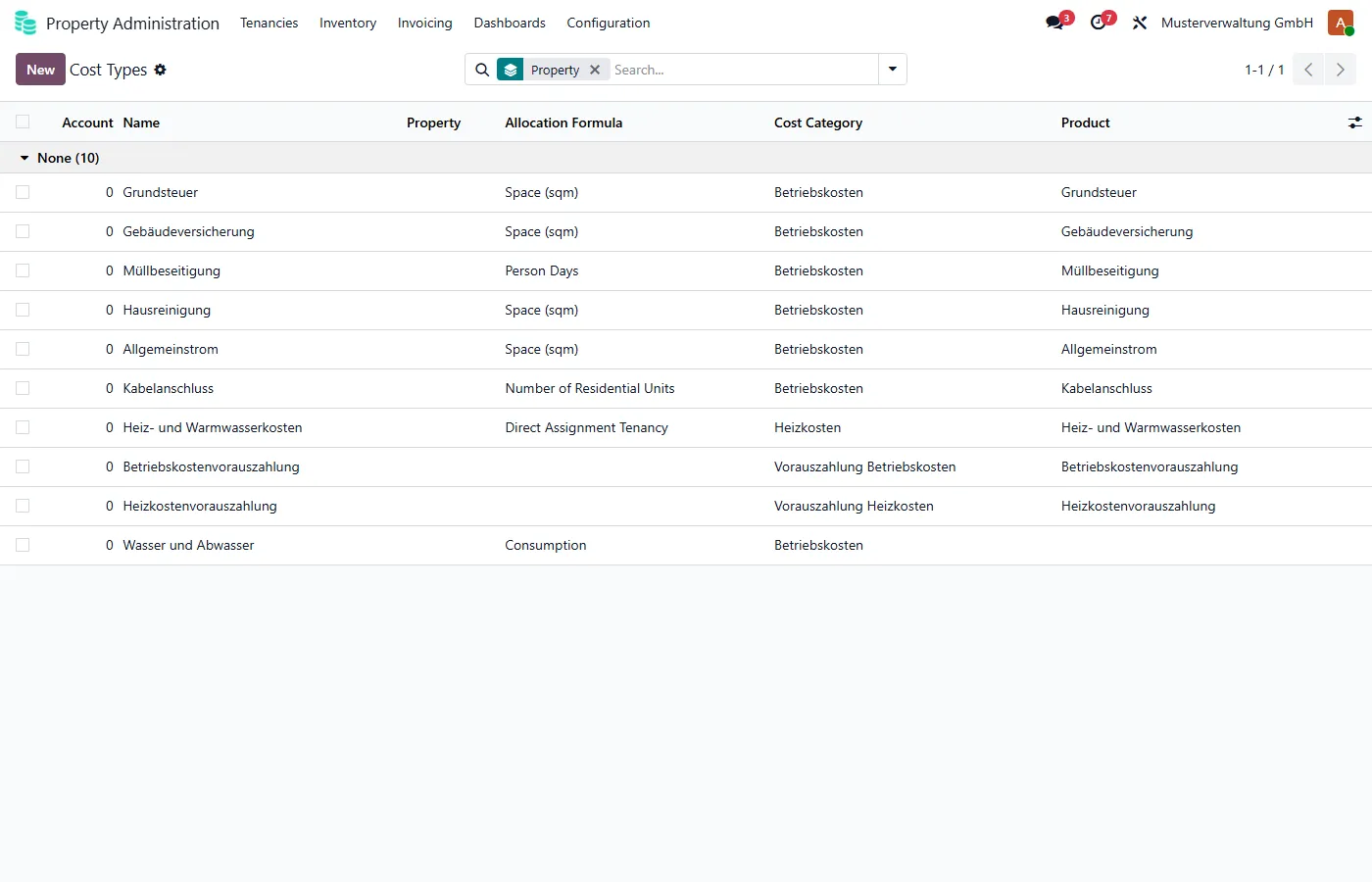
Section titled “Cost types”- Open Property Administration › Configuration › Cost Allocation › Cost Types and click New.
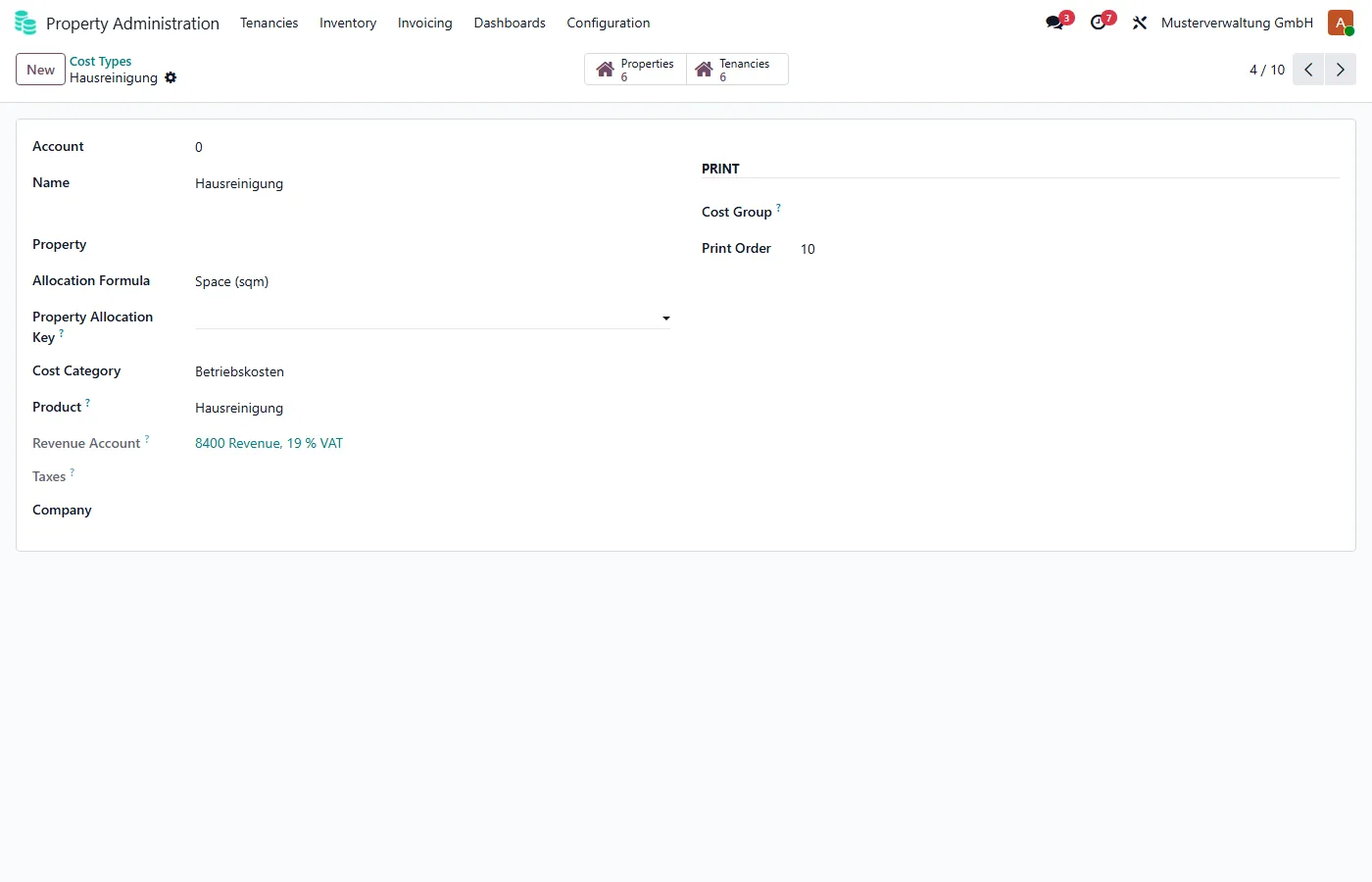
- Enter the name, for example “Grundsteuer” (property tax), and choose the Cost Category.
- Choose the Allocation Formula, that is, the allocation key (see table).
- Choose the Product. The cost type later appears on the tenant’s invoice under this product. Below it, the cost type shows the Revenue Account and Taxes of the product. The tax only applies to advance payments and lump sums on the rent invoice. On the service charge statement, VAT follows the rent of the usage.
| Allocation key | Splits by | Values come from |
|---|---|---|
| Space (sqm) | living or usable area | rent line, Space (m²) field |
| Heating Space (sqm) | heated area | rent line, Heating Space (m²) field |
| Person Days | persons times days occupied | rent line, Persons field |
| Number of Residential Units | each usage counts the same | term of the usage |
| Co-Ownership | co-ownership shares | rent line, Co-Ownership field |
| Property Allocation Key | values of your own per unit, for example garden shares or the fee per waste container | Configuration › Cost Allocation › Property Allocation Keys |
| Direct Assignment | amounts entered per usage | on the expenditure, for example from the metering service’s heating cost statement |
| Consumption | meter readings | accepted meter readings |
Heating costs when the tenant changes
Section titled “Heating costs when the tenant changes”If the category of a cost type belongs to the “Heating Costs” settlement block, the form also shows Change of Tenant By. This field decides how days count when a tenant moves in or out during the settlement period:
- Days: every day counts the same. This is the default.
- Degree Days: a winter day counts more than a summer day, according to the heating demand of its month (§ 9b of the Heating Costs Ordinance, HeizkostenV). A year has 1000 ‰, of which January has 170 ‰ and June, July and August 13.3 ‰ each.
Example: a tenant lives in the apartment from January 1 to June 30. By days, they bear 181 of 365 days of the apartment’s heating costs; by degree days, 583.3 ‰ (170 + 150 + 130 + 80 + 40 + 13.3). An apartment let all year bears the same amount in both cases. A vacancy in winter weighs more by degree days and stays with the owner.
Degree days apply to the allocation keys Space, Heating Space, Person Days, Number of Residential Units, Co-Ownership and Property Allocation Key. They change nothing for Consumption and Direct Assignment. If you keep hot water as a cost type of its own, leave it on Days: hot water costs are split by days when the tenant changes.
If a cost type should be split by values of your own per unit instead of the values of the rent line, choose the allocation key “Property Allocation Key” and list the cost type in a property allocation key.
Cost groups
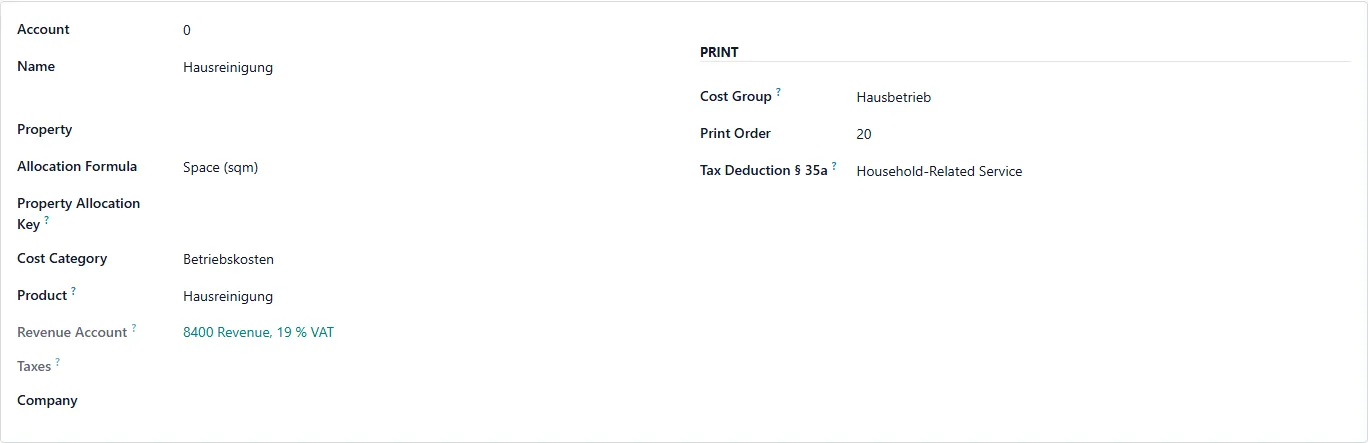
Section titled “Cost groups”In the Print block of the cost type you set the heading it is printed under:
- Cost Group: the heading, for example “Öffentliche Lasten und Versicherung” (public charges and insurance), “Hausbetrieb” (building operation) or a building part.
- Print Order: the order of the groups. A group appears at the position of its lowest number.
The print order sorts only the groups, not the cost types within them. Within a group, cost types are sorted by settlement block, then by the cost type’s Account field, then by name. For an order of your own within a group, enter ascending numbers under Account, for example 10, 20, 30. The field is used only for sorting.
As soon as at least one cost type has a cost group, the service charge statement is organized by groups, each with its own heading and subtotal. Cost types without a group come first. The report of the overall statement follows the groups as well. Without cost groups, the printout stays organized by settlement blocks as before.
Tax deduction under § 35a
Section titled “Tax deduction under § 35a”Tenants can deduct labor costs from the statement from their income tax, separately for household-related services and craftsmen’s services. In the Print block of the cost type, choose under Tax Deduction § 35a how the labor costs of this cost type appear on the statement:
- Household-Related Service: typical for caretaker, cleaning, garden care and winter service.
- Craftsman’s Service: typical for maintenance and repair.
- Not Eligible: the labor costs do not appear on the statement.
If the field stays empty, the labor costs appear on the statement as “Not assigned” and count toward no total. The allocation check reports every cost type that carries labor costs in the period and is not classified. If a service provider bills both kinds, create two cost types. In the list of cost types, show the column through the column selection.
The overall statement records the classification on release. If you change it afterwards, the invoices of this overall statement stay unchanged, even if you create a missing invoice again. What the table looks like is described under Labor costs under § 35a.
Once a cost type has been settled, its allocation key and category can no longer be changed. How to allocate it differently from an effective date is described in Change a cost type after settlement.
Settings
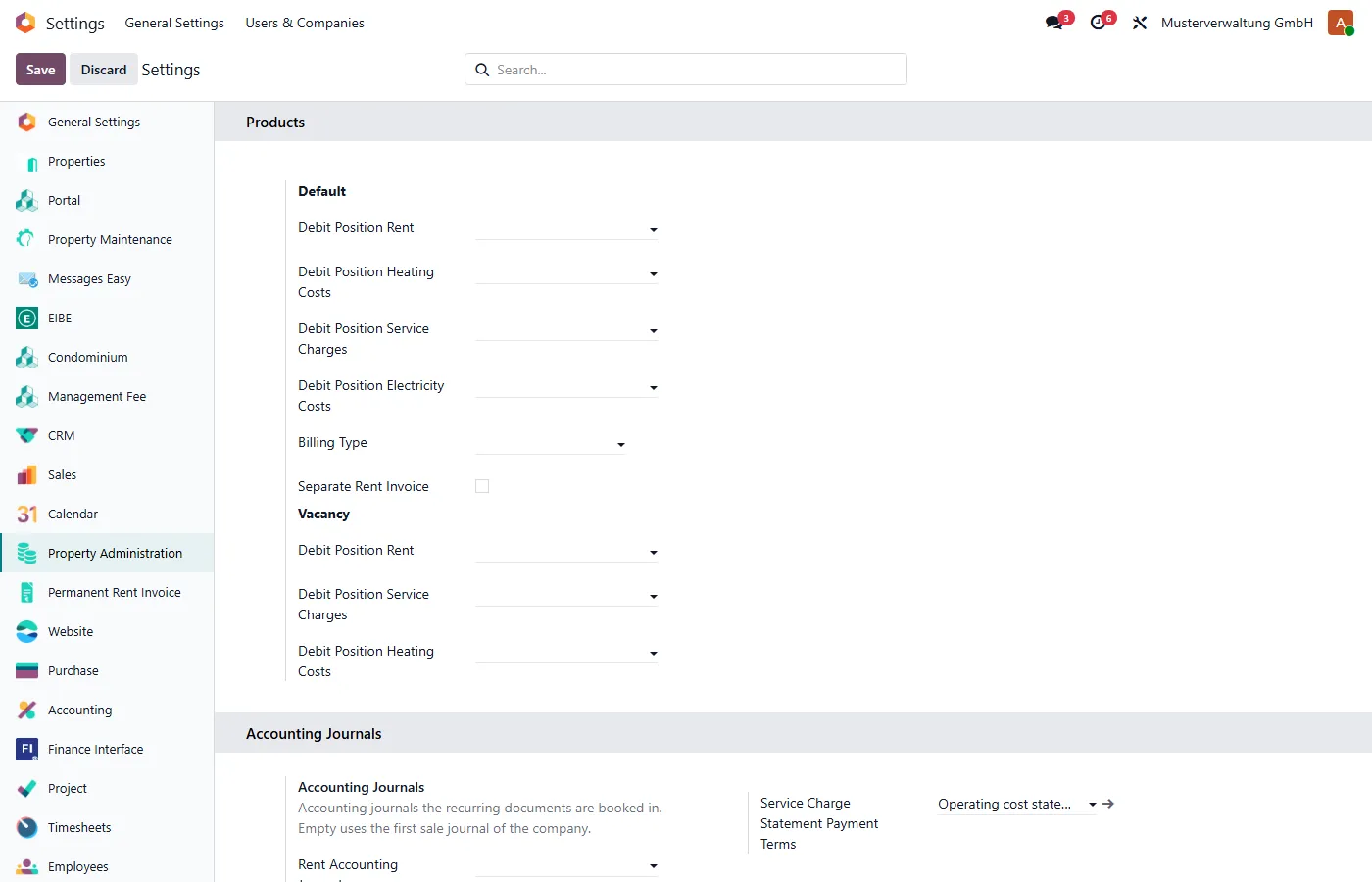
Section titled “Settings”- Open Settings and choose Property Administration on the left. The Products block holds the defaults for new usages.
- Under Default, choose the cost types for Debit Position Service Charges and Debit Position Heating Costs (the prepayment cost types) and the Billing Type.
- Under Vacancy, choose the same fields for vacancies. They apply when a usage is created as a vacancy.
- In the Accounting Journals block, set the Service Charge Statement Journal and the Service Charge Statement Payment Terms if needed. Without an entry, SMARTBRIX uses the first sales journal and the tenant’s payment terms.
Didn't find an answer? Contact support