

Functions and main menu
Question about the manual? Ask Claude · Ask ChatGPT
Under Apps, administrators find two pages for fitting SMARTBRIX to their business. SMARTBRIX lists all functions, grouped like this handbook, and switches them on or off. Main Menu sets the order of the apps on the home screen and which apps do not appear there at all.
Requirements
Section titled “Requirements”- You are an administrator. SMARTBRIX does not show the Apps menu to other users.
Switch functions on and off
Section titled “Switch functions on and off”Open Apps › SMARTBRIX. Under each heading such as Properties or Accounting, every function has one row:
- Checkbox: the function is switched on. Functions that are off are shown in gray.
- Version number: the installed version. Update pending means the system holds a newer version that has not been applied yet.
- Icons on the right: Information (description of the function), Handbook (the matching page here), Settings (only for functions that are on and have settings of their own) and Update (only for functions that are on).
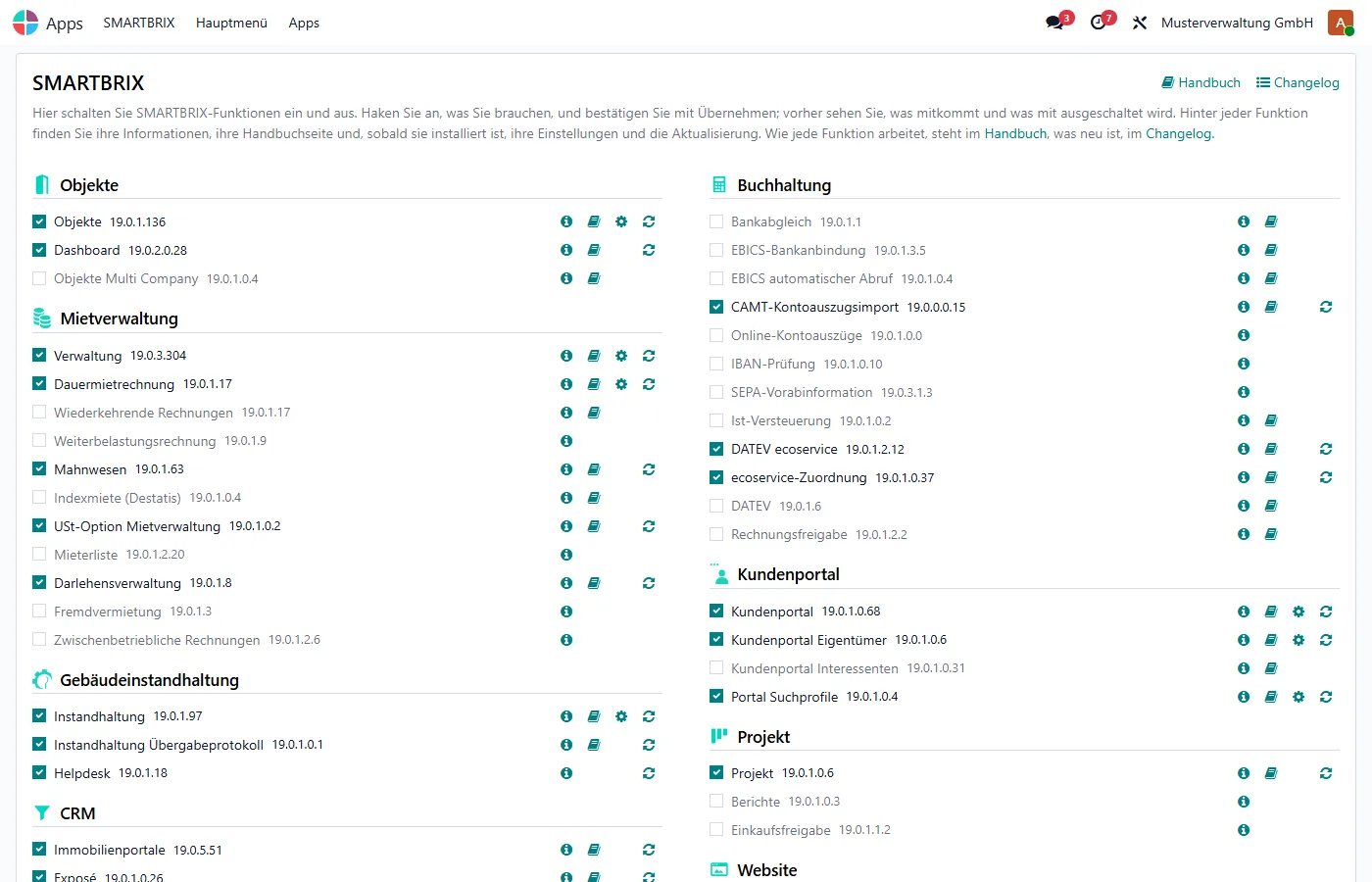
Above the list, What’s new in the handbook shows the latest new and changed guides, each with its date and a link to the page. All news opens the full list. If the handbook cannot be reached at the moment, the section is missing.
To switch functions on or off:
- Tick or untick one or more functions.
- Read the box above the list. It names what is switched on, what is also switched on because your selection needs it, and what is switched off along with it.
- Click Apply. Discard restores the previous state.
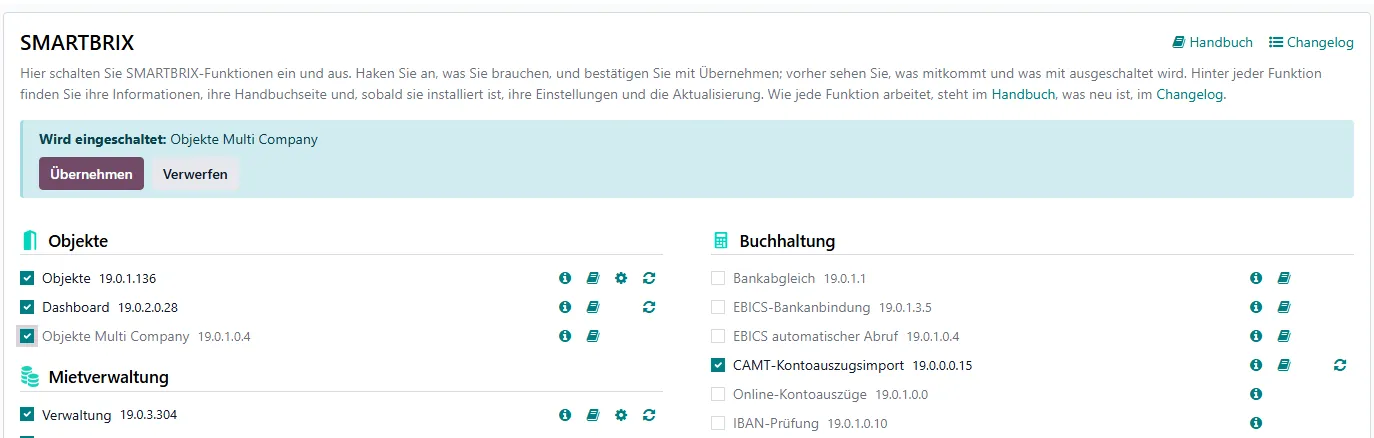
Functions your selection needs are marked Required by your selection. Functions that go away with your selection are marked Switched off with your selection. Neither can be unticked on its own while the selection stands.
When you switch a function on, SMARTBRIX installs it right away and reloads the page. When you switch a function off, the uninstall dialog opens next, where you confirm once more.
Update applies the newer version of a function. SMARTBRIX asks first. Functions built on it are updated too; this can take a few minutes.
Arrange the main menu
Section titled “Arrange the main menu”Open Apps › Main Menu. The list shows every app of the home screen once. The setting applies to all users.
- Order: drag a row by the handle left of the name to where you want it. The apps appear on the home screen in this order.
- Visible: switch it off and the app no longer appears on the home screen, and its menus go away.
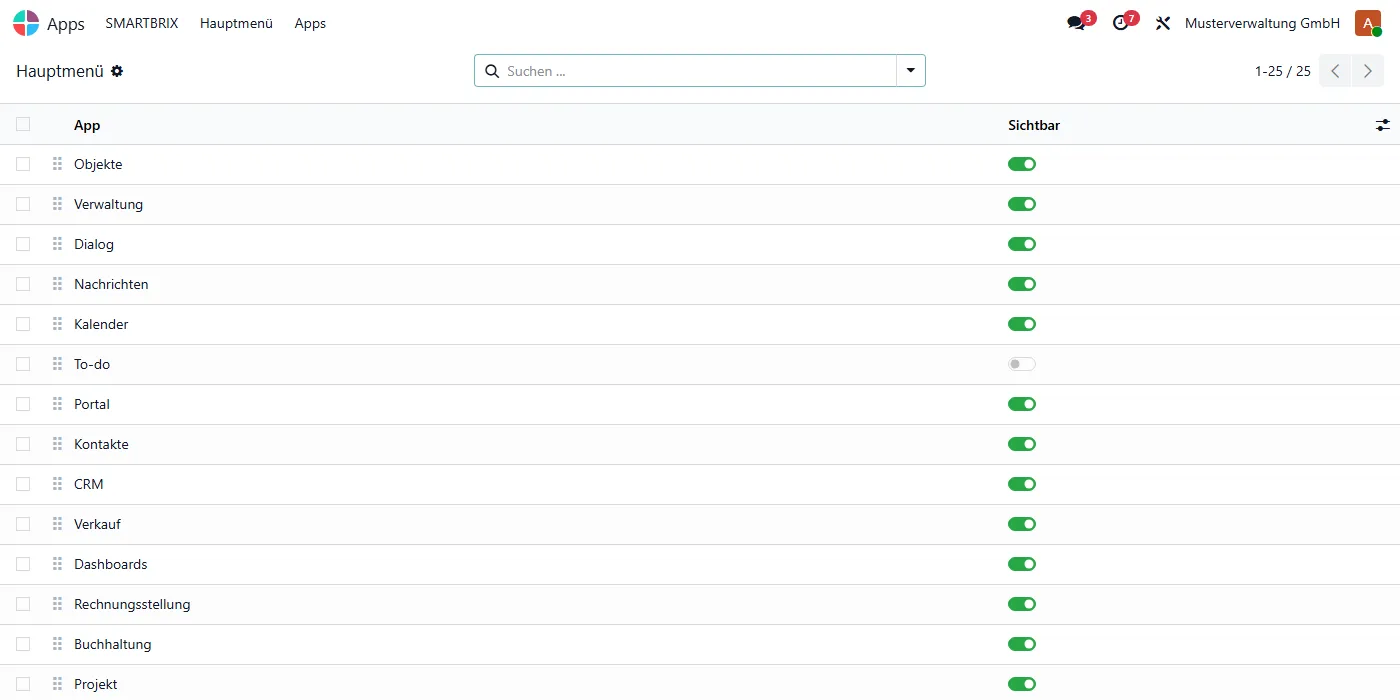
The change is saved right away. You see it once you reload the page (F5). Other users see it the next time they reload SMARTBRIX.
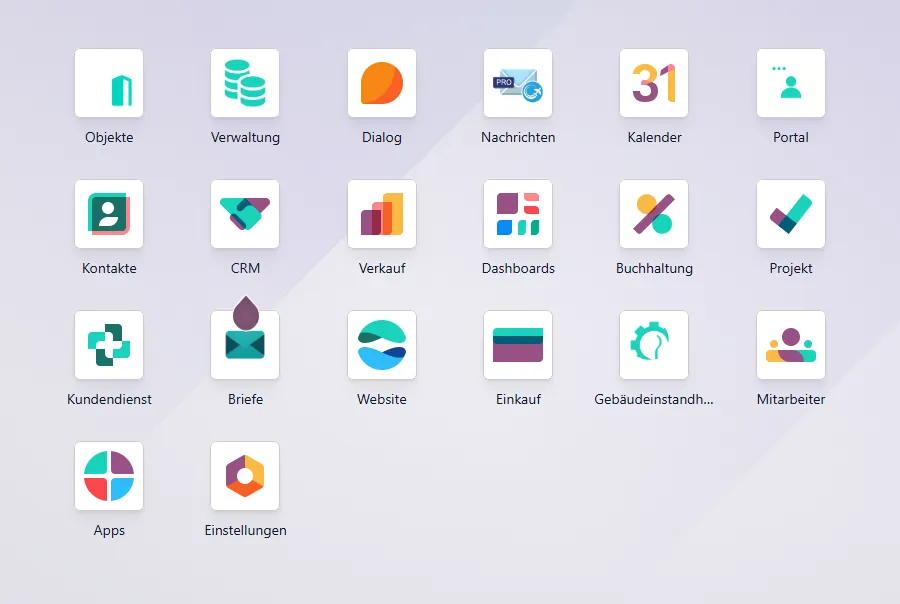
The setting survives updates. A newly installed app first appears behind the arranged apps. The next time you open Main Menu, it is added at the end of the list, where you can move it into place.
Common errors
Section titled “Common errors”| Problem | Cause | Solution |
|---|---|---|
| The home screen shows the old order. | The page has not been reloaded since the change. | Reload the page (F5). |
| Switching off Apps brings up a message that this menu cannot be hidden. | Without Apps, nobody could reach this setting any more. | Keep Apps visible and drag it to a place where it does not get in the way. |
| A function cannot be unticked. | Another selected function needs it, or it goes away with your selection anyway. | First untick the function that needs it, or start over with Discard. |
What is not included
Section titled “What is not included”- Hiding is not an access right. Anyone with a direct link to a hidden app can still open it. Who may see what is set by the user rights.
- There is no separate order per user. All users see the same order.
Didn't find an answer? Contact support