

Dunning
Question about the manual? Ask Claude · Ask ChatGPT
If an invoice is still open after its due date, SMARTBRIX sends the invoice recipient reminders in levels. This happens in the dunning run: it collects all due claims of a company and creates one dunning notice per invoice recipient as a draft. You check the drafts and release them. Only then does SMARTBRIX send the email or letter.
This page covers the setup. The daily work is described under Dunning run, the open items under Open claims and dunning blocks.
- Debtor: the invoice recipient the claim is against. If the invoice recipient is a person of a company, it is the company.
- Follow-up level: defines how many days after the due date the level applies, the text of letter and email and how the reminder is delivered.
- Dunning notice: a letter to one debtor with all overdue positions. It starts as Draft and is Executed after release.
- Dunning run: collects the dunning notices of one company for a cut-off date.
Prerequisites
Section titled “Prerequisites”- The bank transactions are matched, see Bank matching. Otherwise you send reminders for amounts that were paid long ago.
- An outgoing mail server is set up so that reminders can go out by email.
- The company has a bank account. The letter names it in the payment request.
- Users who send reminders need the right Dunning in the Accounting section of their Access Rights. Clerk sees the dunning menus, starts dunning runs, checks and discards drafts and sets dunning blocks. Administration can also set up dunning. Users who may edit invoices get the clerk right automatically.
Settings
Section titled “Settings”Open Settings › Invoicing and scroll to the Dunning section.
Open Settings › Accounting and scroll to the Dunning section.
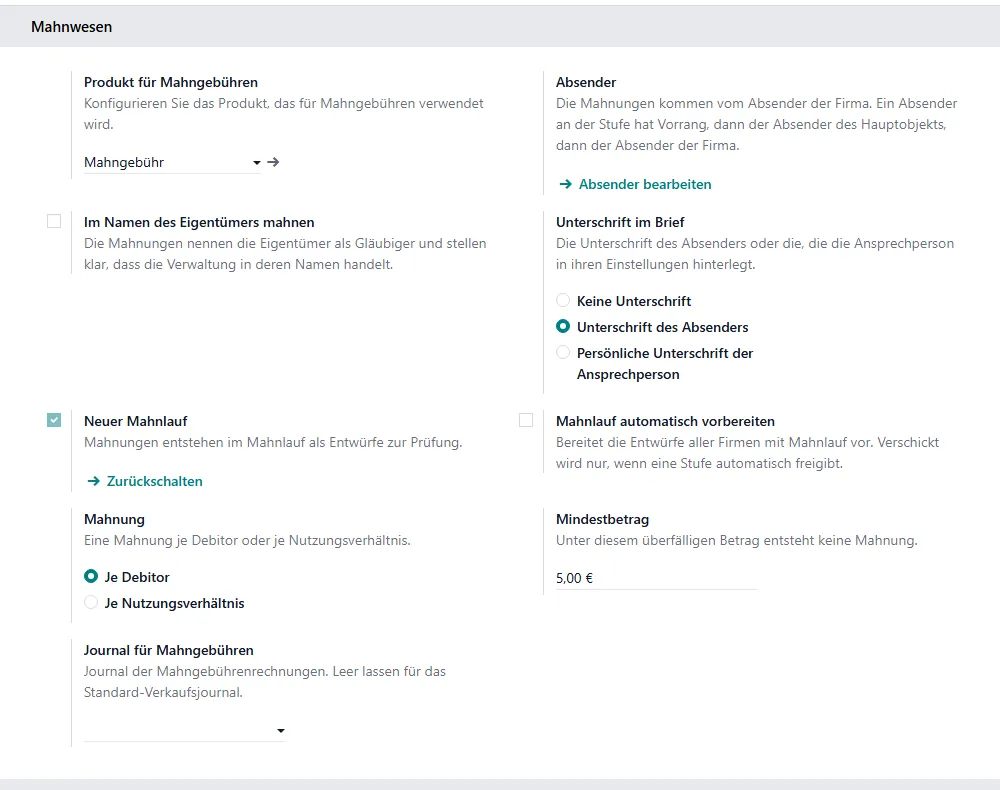
- Dunning Fee Product: the product of the fee invoices. The supplied product “Dunning Fee” has no VAT and no income account. As long as it has none, SMARTBRIX shows a yellow note and the fee is booked to the default account of the journal. Set the income account your accountant specifies on the product.
- Sender: who the reminders come from. Edit Sender opens the sender of the company, see Sender.
- Dun on Behalf of the Owner: the letter names the owners as creditors and contains a sentence on the authority of the management company. Without the tick, the company sends reminders in its own name.
- Signature in the Letter: No Signature, Signature of the Sender (the image in the sender) or Personal Signature of the Contact. Each user stores the personal signature in their own preferences; it is the same as in the tenancy agreement. Without one, the letter has no signature.
- New Dunning Run: if ticked, the company sends reminders in the dunning run. You only change it with Switch to the Dunning Run or Switch Back, see below.
- Prepare Dunning Runs Automatically: creates the drafts on its own at regular intervals, for all companies with the dunning run. Below it you choose the Dunning Run Interval (Daily or Weekly) and the Next Dunning Run with day and time. Only what a level with Release Automatically allows is sent, see Automatic dunning run.
- Dunning Notice: Per Debtor combines all overdue claims of a debtor in one notice. Per Tenancy writes a separate notice for each tenancy.
- Minimum Amount: below this overdue amount, no notice is created. Default: €5.00.
- Dunning Fee Journal: sales journal of the fee invoices. Empty means: the first sales journal of the company that is not assigned to a property.
Switch to the dunning run
Section titled “Switch to the dunning run”New companies use the dunning run from the start. Companies that sent reminders with SMARTBRIX before the dunning run existed stay on the previous dunning process until you switch. This needs the Administration right for dunning.
- Select the company you want to switch in the top right corner.
- In the settings, click Switch to the Dunning Run under New Dunning Run. On the dunning overview the button is called Switch now.
- Check the steps of the wizard and go to the next one with Next. Nothing changes before you confirm.
- Click Switch to Dunning Run.
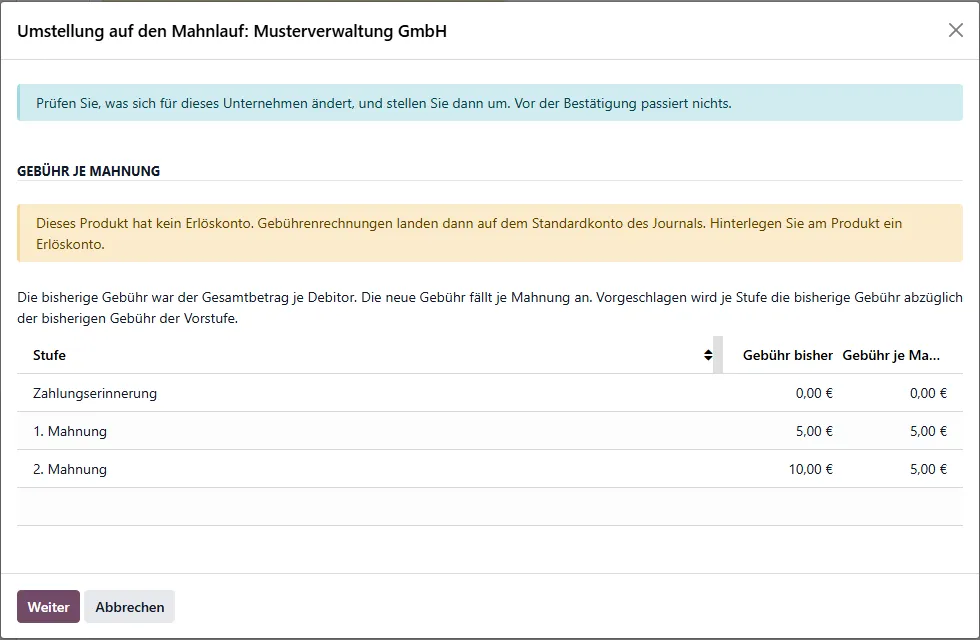
The wizard only shows steps that change something for the company:
- Fee per Notice: in the dunning run, the fee of a level is the amount of this one notice. In the Business plan it used to be the total amount for the contact. The wizard therefore suggests the previous fee minus the fee of the previous level for each level: 0, 5 and 10 euros become 0, 5 and 5 euros. You can change every amount. Under Release Automatically, tick the levels that were sent automatically so far and should continue to be.
- Reminders Set to Manual (Business plan only): contacts whose reminders were set to manual. With a tick at Block, the contact gets a dunning block; without it, the dunning run includes the contact from now on.
- What Changes: the summary. It lists the new dunning blocks, the open tasks of the previous process that SMARTBRIX closes, and where the texts of the levels come from.
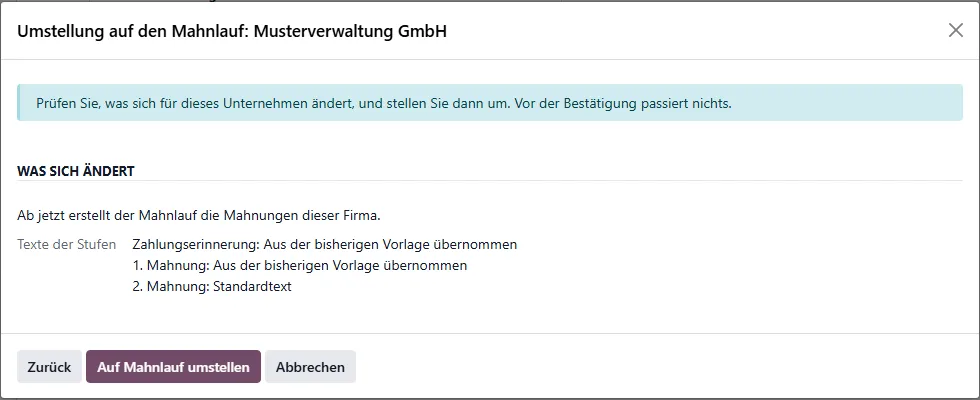
SMARTBRIX copies the texts of the previous templates into the levels. Parts the letter now sets itself (salutation, table) and conditions of the old template do not always fit. Check every text after switching, see Follow-up levels. If the company has no levels yet, SMARTBRIX creates three: Payment Reminder after 7 days, 1st Dunning Notice after 21 days and Final Dunning Notice after 35 days.
After switching, a note appears in the history of the company contact. Switch Back returns to the previous process. SMARTBRIX discards open drafts; the fees stay as they are.
Follow-up levels
Section titled “Follow-up levels”- Open Invoicing › Configuration › Follow-up › Follow-up Levels and the entry of your company.
- Open a level. The fields of the dunning run are in the Dunning Run block.
- Open Accounting › Configuration › Invoicing › Follow-up Levels.
- Open a level. Description holds the name, below it the days after the due date and, at Charge a dunning fee of, the fee. The other fields are on the Dunning Run tab.
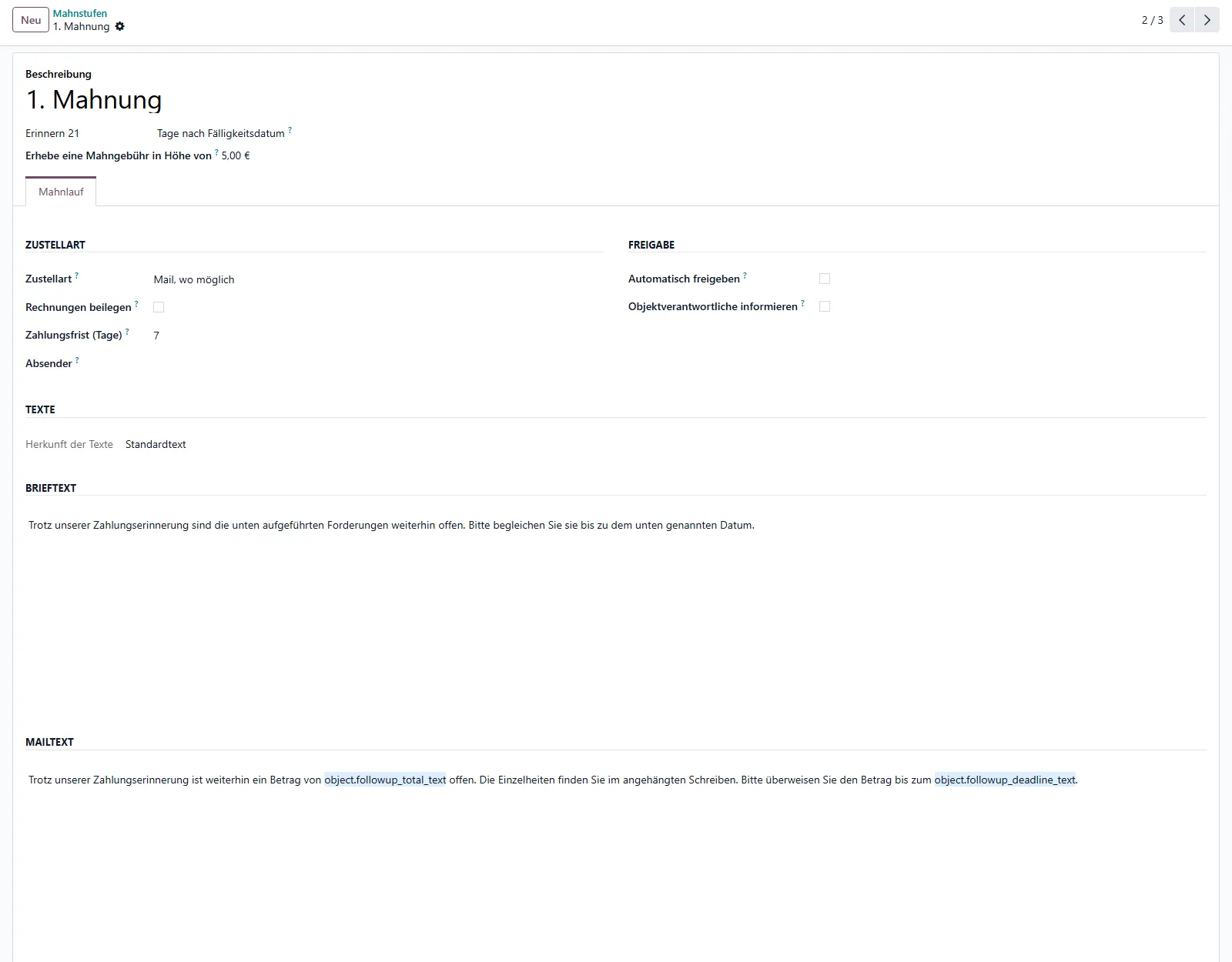
- Days after the due date: a claim reaches the level once this many days have passed since its due date. If it was already dunned, SMARTBRIX also waits for the payment deadline of the last notice.
- Dunning Fee: amount per notice. Empty or 0 means: no fee. More under Dunning fee.
- Delivery: Email where possible sends an email with the letter as PDF. If the debtor has no email address or Contact by Letter is set on the contact, it becomes a letter. Letter always sends a letter, Email and letter both.
- Enclose Invoices: encloses the PDFs of the dunned invoices. SMARTBRIX never encloses fee invoices.
- Payment Term (Days): days from sending to the deadline stated in letter and email. Default: 7.
- Sender: a separate sender for this level. Empty means: the sender of the main property or of the company.
- Release Automatically: the automatic dunning run sends drafts of this level without a check. After a run you start yourself, SMARTBRIX never releases automatically.
- Inform Property Responsibles: after sending, the responsible person of the property gets a task on the debtor.
- Text Origin: Written by hand, Taken from the previous template or Standard text. A yellow note above it says what to check after the copy.
- Letter Text and Mail Text: the text of the level. SMARTBRIX sets salutation, table of claims, payment request and closing itself; do not write them into the text. Placeholders such as total amount and deadline are filled in when the notice is sent.
- Residential Rent Block, Commercial Rent Block, Owner Contributions Block: paragraphs that only appear if the notice contains a claim of this type. The standard text of the 1st dunning notice reserves the lump sum of €40 under section 288 (5) BGB for commercial rent; it is not booked. The standard text of the final dunning notice reserves termination without notice.
Sender
Section titled “Sender”The sender defines the address the email comes from, the letterhead of the letter and the contact person named. Every company has a default sender. More senders are possible, for example for the main properties of an owner with their own accounting.
- In the settings, click Edit Sender under Sender. If there are more, Other Senders opens the list.
- Fill in the fields:
- Main Properties: only for additional senders. The sender applies to notices whose claims all belong to these main properties. A main property can only be in one sender.
- Sender Email, Reply-To Email, Copy To: addresses of the email. Empty means: the email address of the letterhead company.
- Letterhead Company: whose letterhead and address the letter carries. Empty means: the company of the notice.
- Return Address: the small line above the address window.
- Signature and Signature Image: text below the closing, for example “Your rent accounting team”, and the image for Signature of the Sender.
- Contact in the Letter and Contact in the Mail: Fixed Contact takes name, phone and email from this sender. Property Responsible takes the responsible person of the property, Level Responsible the first responsible person of the level. If a value is missing there, the fixed entry applies.
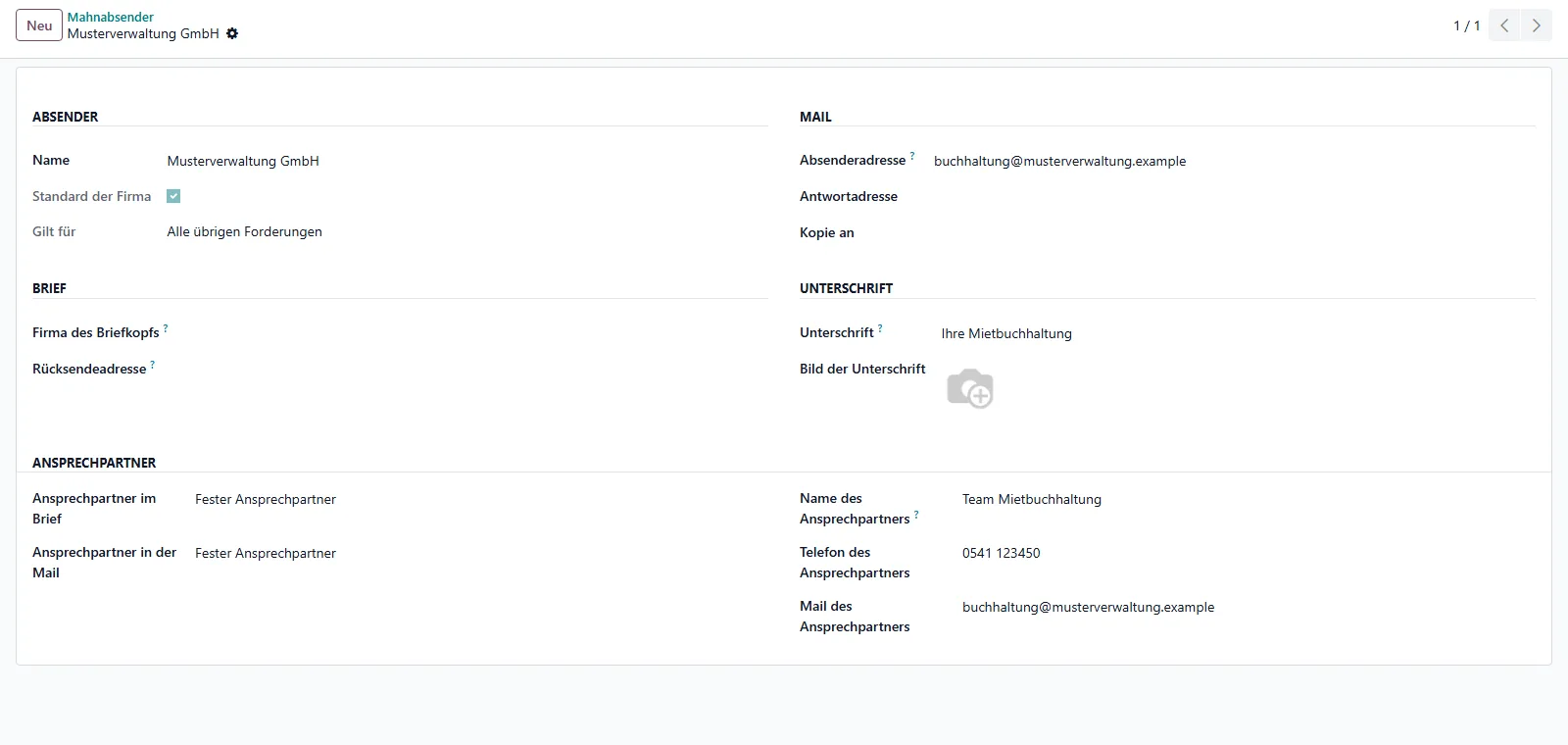
SMARTBRIX decides the sender per notice: first the sender of the level, then the sender of the main properties, otherwise the default sender of the company.
What is not included
Section titled “What is not included”- SMARTBRIX does not calculate the lump sum under section 288 (5) BGB or default interest.
- Dunning fees always go to the managing company, not to the owner.
- The dunning run does not yet recognize owner contributions of the condominium administration as a separate claim type. The owner contributions block therefore does not appear on its own.
Didn't find an answer? Contact support