

Create the overall statement
Question about the manual? Ask Claude · Ask ChatGPT
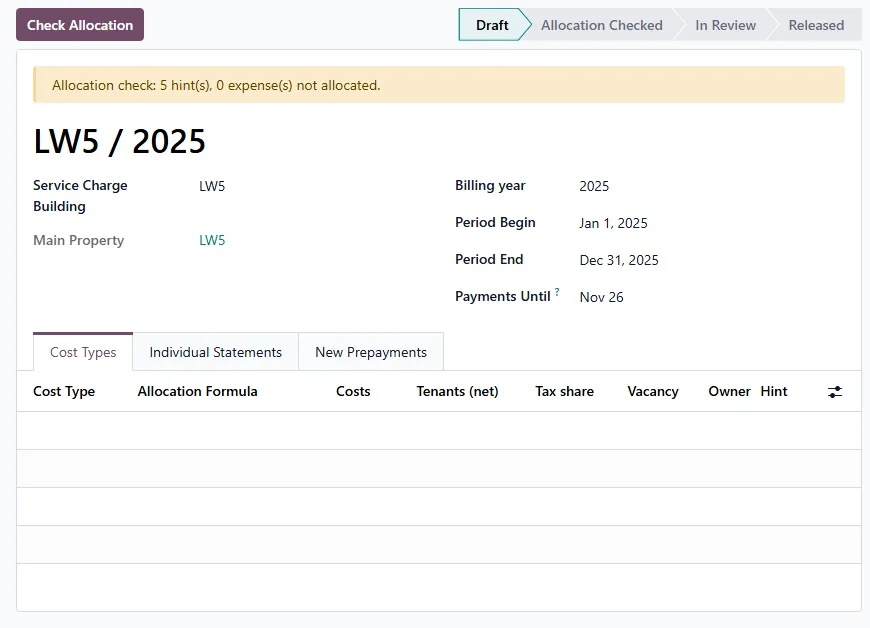
Every service charge statement is created through an overall statement. The overall statement belongs to a building and a settlement period. It shows where every euro of the costs went: to the tenants, to vacancies or to the owner. It passes through four stages:
- Draft: Building and period are set, nothing is allocated yet.
- Allocation Checked: The values used for the allocation are frozen.
- In Review: The statements for each usage are calculated. You check the figures.
- Released: The invoices are created (see Invoice for the service charge statement).
Invoices are only created by releasing the overall statement, not on the individual statement.
Step by step
Section titled “Step by step”- Click Create Service Charge Statement: in the menu Property Administration › Invoicing › Create Service Charge Statement, or at the top of the list of tenancies, overall statements or individual statements. A new overall statement opens in draft.
- Select the Service Charge Building. The Billing year is preset to the previous year. SMARTBRIX fills Period Begin and Period End from the start month of the service charge statement on the building. You can change all three fields. Payments Until is preset to today. If an overall statement already exists for the building and period, SMARTBRIX points this out right away. In that case, open the existing one under Property Administration › Invoicing › Overall Statements.
- In the draft, a yellow bar shows how many notices the allocation check has and how many expenditures are not allocated. Click Check Allocation at the top, then Check. The check uses the building and period of the overall statement, including a changed end date. What the list shows and how to close gaps is described under Check the allocation.
- Once the allocation is in order, click Create Service Charge Statement at the top of the result list. For each usage, SMARTBRIX freezes the area, persons, heating space, co-ownership share and the values of the property allocation keys and starts the calculation in the background. Open notices do not block this. The overall statement then opens. When the calculation is finished, you receive a notification, and the overall statement is in the In Review stage.
The allocation can only be approved through the check, so no statement goes out unchecked.
From the end-of-contract checklist of a usage, Create Statement opens the overall statement of the building for the year of the contract end. If it already exists, SMARTBRIX opens the existing one.
If the overall statement is in Allocation Checked with no calculation running, start it with Calculate.
What the calculation does:
- It allocates all expenditures of the period to the usages.
- For each participating usage, it creates a service charge statement with one item per cost type, without blocks covered by a flat amount.
- It offsets the prepayments the tenants paid (see Paid prepayments).
- It creates tasks for the person responsible for the property if something is missing, for example “Cost types missing on this usage”.
- It fills the cost type overview and writes the notices.
Check the overall statement
Section titled “Check the overall statement”In the In Review stage, the Cost Types tab shows for each cost type:
- Costs: what the cost type cost in the period.
- Tenants (net): how much of it the tenants carry.
- Tax share: the input VAT contained in the shares of tenants without VAT.
- Vacancy: what falls on vacancies.
- Owner: the rest. This includes flat amounts, capping limits, fixed amounts and costs that SMARTBRIX could not allocate.
- Hint: anything unusual about this cost type (see below).
The icon at the end of the line opens the expenditures of the cost type.
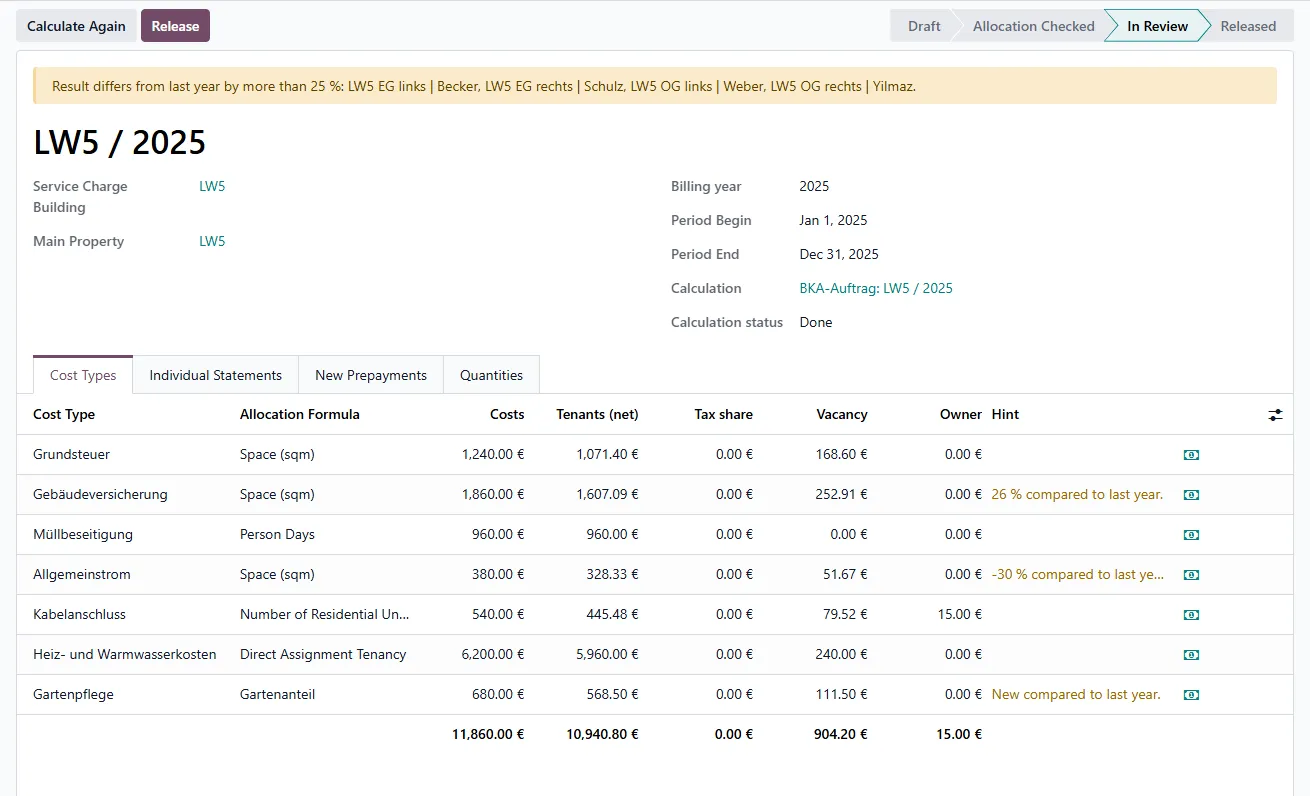
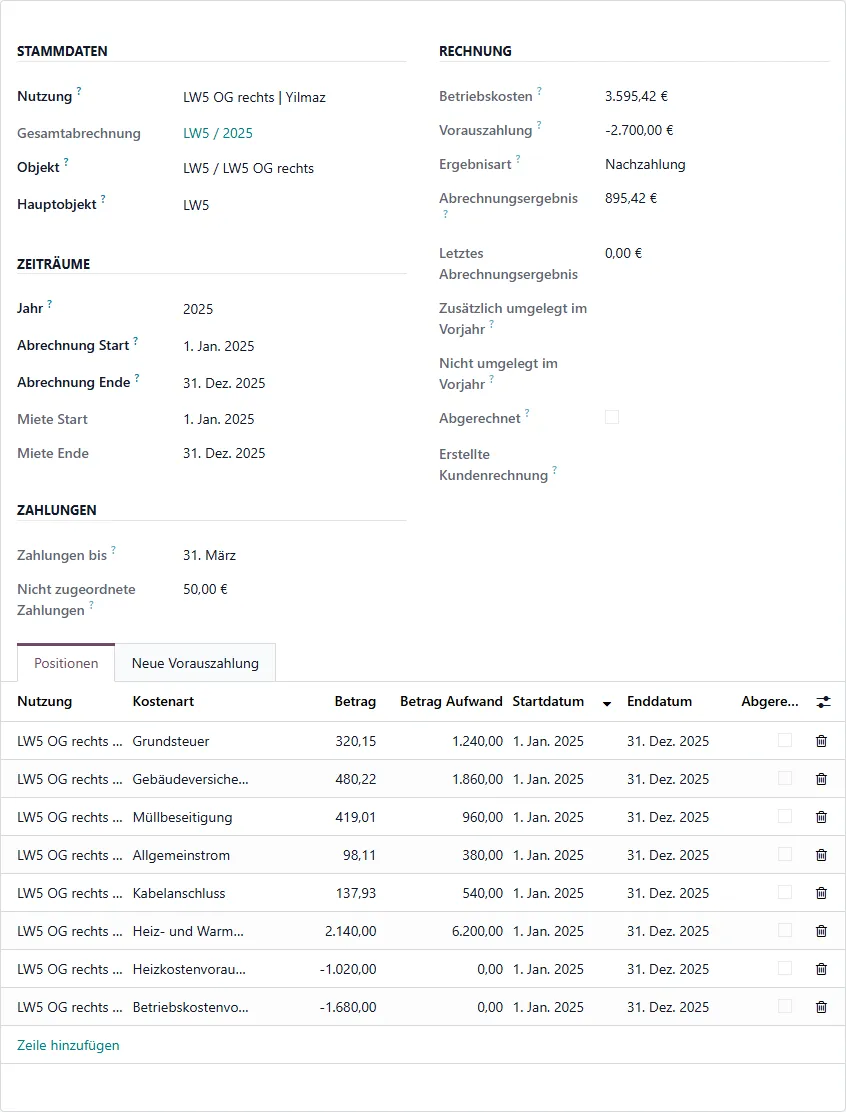
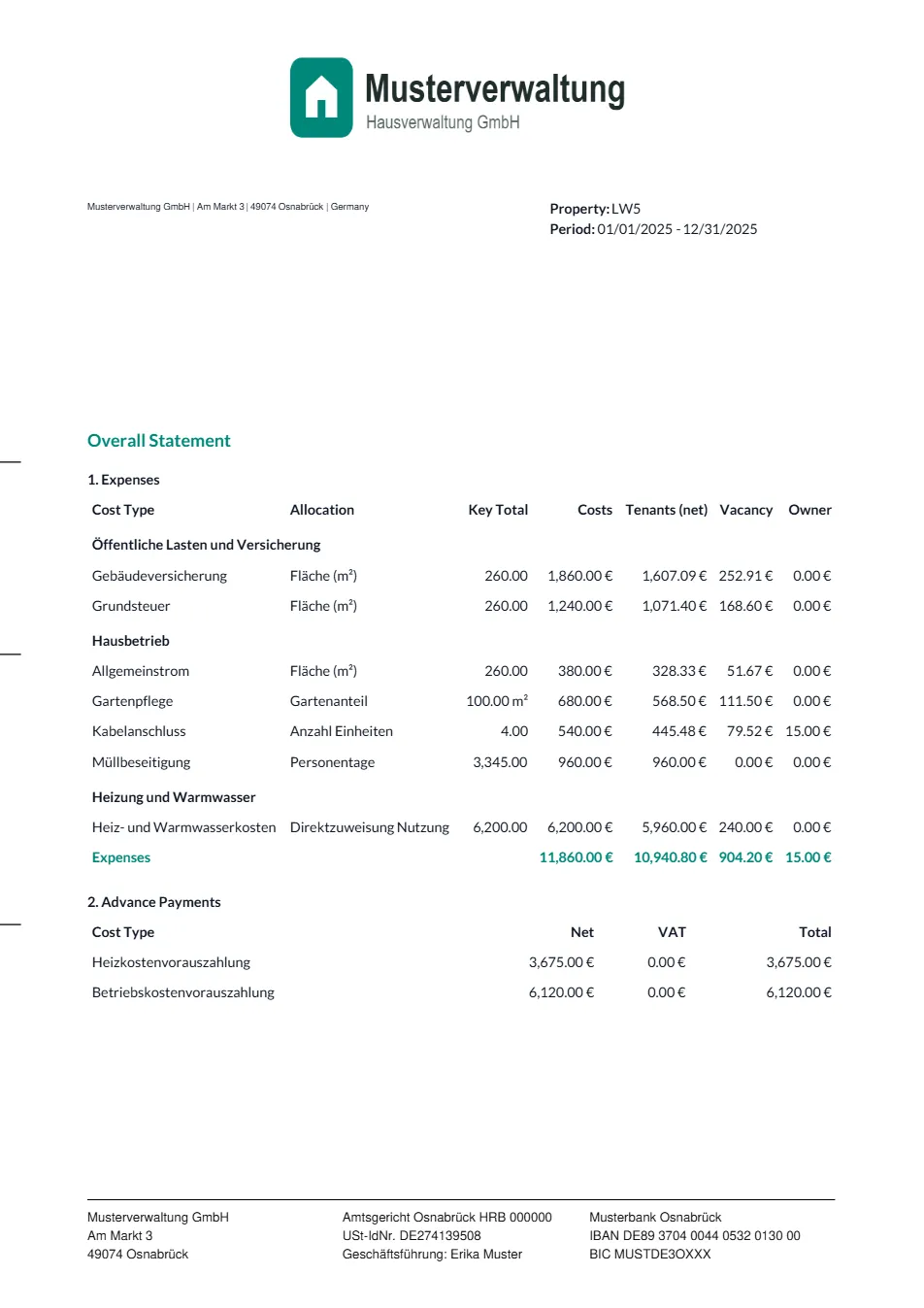
In the example, the owner carries €15.00 of the cable connection, because a fixed amount of €120.00 applies to the apartment OG rechts. The vacancy in EG rechts and the vacancy in March in OG links appear under Vacancy.
The Individual Statements tab lists the statement of each usage with its period, billing result and invoice. The Quantities tab lists the frozen values for each usage and segment, and the values of the property allocation keys. The smart buttons at the top take you to the individual statements, the invoices, the expenditures and the journal.
Deviation notices
Section titled “Deviation notices”SMARTBRIX compares with the released overall statement of the previous year and with the costs themselves. The notices appear in the Hint column and in the yellow bar at the top. They do not block anything.
| Notice | Meaning |
|---|---|
| “… not allocated.” | Part of the costs did not reach any usage and stays with the owner. Use Check Allocation to find the cause. |
| “Tenants carry more than the costs.” | The tenants’ shares are higher than the costs, for example when the amounts entered for a direct assignment exceed the expenditure. |
| “New compared to last year.” | The cost type had no costs in the previous year. |
| “No costs this year, last year …” | An invoice is probably missing. |
| “… % compared to last year.” | The costs differ by more than the set threshold. |
| “Result differs from last year by more than … %: …” (yellow bar) | These tenants receive an additional payment or refund that differs greatly from the previous year. The comparison is with the usage’s statement of the previous year, even if it was created without an overall statement. Only a closed or invoiced statement counts, not a discarded draft or a cancelled invoice. |
You set the threshold under Settings › Property Administration, block Accounting Journals, in the Deviation Threshold (%) field. The default is “25”. With “0”, the notices about the previous year are dropped.
Paid prepayments
Section titled “Paid prepayments”The statement credits only the prepayments the tenant actually paid. Whatever the tenant still owes is part of the additional payment. Once the deadline for the statement has passed, the landlord can no longer claim open prepayments separately, only the result of the statement.
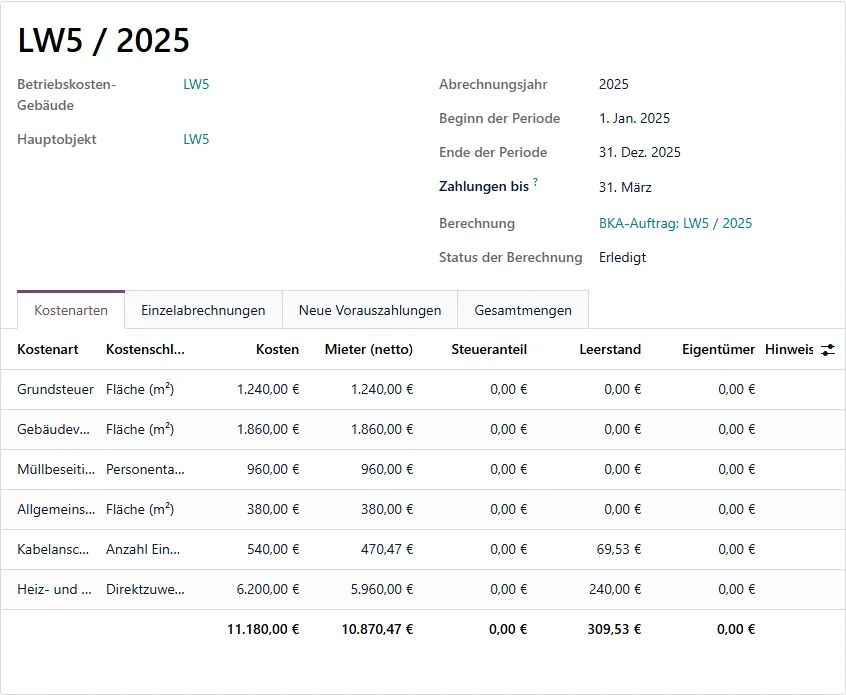
- Payments Until on the overall statement sets the day up to which payments count. The payment date counts, not the day the payment was matched. The day is printed on the tenant’s statement.
- If the tenant paid a rent invoice only in part, the prepayments count as paid first. The base rent stays open first.
- For months without a rent invoice in SMARTBRIX, for example before the switch to SMARTBRIX, the agreed prepayment from the rent line applies. The months are listed on the individual statement under Months Without Rent Invoice.
- What counts is the rent invoice of the month, not the day of the payment. If a tenant settles arrears from the previous year during the billing year, that counts for the previous year.
- With a separate rent invoice, a rent reduction higher than the rent can reduce the prepayment documents. The tenant never paid this part. The statement deducts it from the credited prepayments of the block whose document carries it. Only posted documents count.
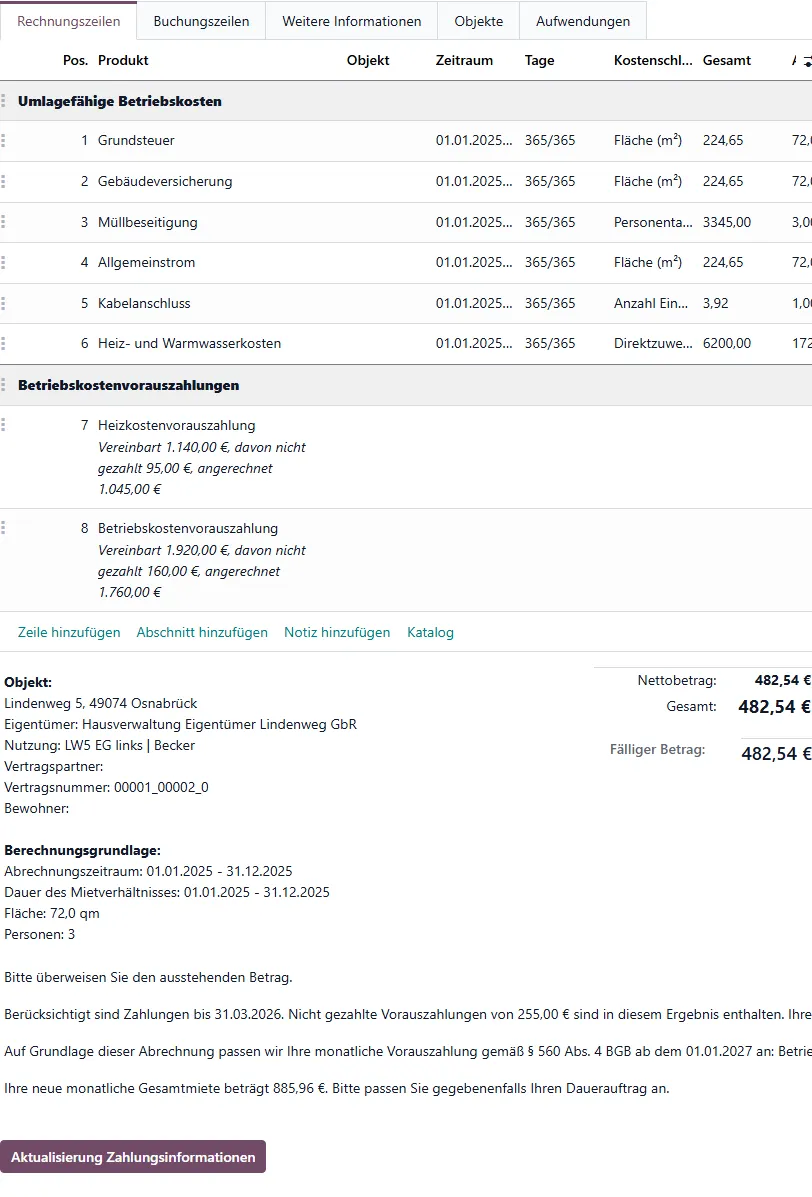
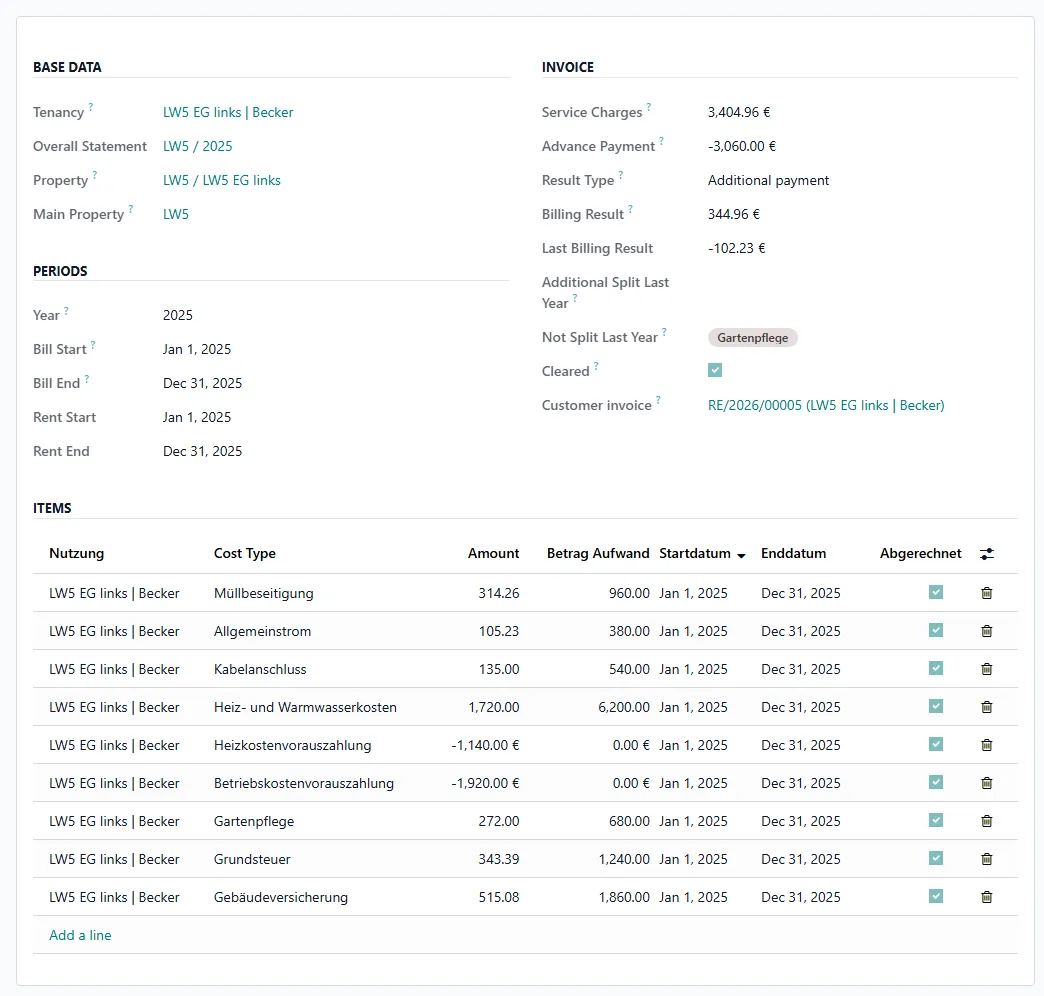
Example: the Becker family did not pay the March rent. The agreed service charges are €160.00 a month, €1,920.00 in total. The statement credits €1,760.00, and the additional payment rises by €160.00, plus €95.00 for heating.
When you post the statement invoices, SMARTBRIX clears the open prepayments on the old rent invoices with credit notes, one per rent invoice (see Invoices).
Check payments
Section titled “Check payments”The result is only right if the tenants’ payments are matched in bank matching. SMARTBRIX points out gaps:
| Notice | Where | Meaning |
|---|---|---|
| Unmatched Payments | individual statement | Payments or credit notes of the tenant that are not matched with any invoice. |
| Unreconciled Bank Transactions | individual statement | Bank transactions of the tenant up to the Payments Until day that are not reconciled yet. |
| Open Items | individual statement with a refund | Overdue invoices of the tenant. Set off the refund against them before paying it out. |
| Payments Changed | individual statement | The tenant has paid prepayments of the statement since the calculation. |
| “Bank transactions without a partner …” | notification after the calculation | Unreconciled bank transactions without a partner. They may come from any tenant. |
| “Advance payments are open for more than half of the tenants …” | notification after the calculation | Incoming rent is probably not matched in SMARTBRIX. |
Under Property Administration › Invoicing › Individual Statements, the Check Payments filter shows all statements with a notice. When you release and when you post, SMARTBRIX asks and names the reason for each tenant. Match the payments, set Payments Until to a later day and click Calculate Again. Or carry on with Continue anyway.


Without bank reconciliation in SMARTBRIX
Section titled “Without bank reconciliation in SMARTBRIX”If you match incoming rent outside SMARTBRIX, go to Settings › Property Administration, block Accounting Journals, and set Advance Payments in Statements to Agreed. The statement then credits the agreed prepayments from the rent lines, without notices and without credit notes. With the update to this version, SMARTBRIX preset the field from your bookings: Agreed if less than half of the rent invoices of the last twelve months were settled by a payment.

The report
Section titled “The report”Print › Overall Statement gives you the report for owners or auditors. It contains the expenses by cost group with the allocation, total quantity, costs and the shares of tenants, vacancies and owner, the prepayments, the result and, as an appendix, the quantities. Until the release, the report names the stage of the overall statement under Status. In the result, Costs settled shows the costs of the usages that receive an invoice, that is, the tenants and the vacancies with an invoice address. If prepayments are missing, the prepayments section also shows the columns Agreed and Not Paid.
How to organize the expenses in groups is described under Cost groups.
The control list
Section titled “The control list”From In Review on, Control List (Excel) downloads every statement of the overall statement as an Excel file. No draft invoices are created, so you can check before you release. It stays available after the release.
The file has three sheets:
- Statements: for each tenant and vacancy the costs, prepayments and last year’s prepayments, result, last year’s result and the difference in euros and percent. Above the deviation threshold, the row carries a hint.
- Positions: for each statement and cost type the allocation key, key sum, key share, building costs and amount as on the printed statement, plus the amount per key unit and last year’s key share. If the key sum of a cost type changes, for example because fewer people live in the building, comparing the two shares shows the usage where persons or space have changed. After a change of tenant, last year’s share stays empty because the new tenancy has no previous year. For each cost type, an Owner row shows what stays with the owner, so the Allocated Amount column adds up to the costs.
- Cost Types: the cost type overview with its hints, plus last year’s costs and key sum and the cost change in percent. This shows, for example, whether the square metres of the building have changed.
Last year’s values only appear if the previous year was settled in SMARTBRIX; otherwise the cells stay empty. The amount per key unit shows outliers even without a previous year, for example a flat with unusually many person days.
The file names the tenants in the Tenant column. If you pass it on to third parties or an AI tool, delete that column first when the names are not needed.
The quantity check
Section titled “The quantity check”From Allocation Checked on, Quantity Check appears at the top. The printout shows, per allocation key, the values of each usage with period, days and weighted value, followed by the key total. It prints the values frozen when the allocation was approved, that is, the values of the service charge statements. How the printout is structured is described under Check the allocation.

The individual statement
Section titled “The individual statement”You find the statements for each usage under Property Administration › Invoicing › Individual Statements or in the Individual Statements tab of the overall statement. The Invoice block shows Service Charges, Advance Payment, the Result Type (“Additional payment”, “Refund” or “Neutral”) and the Billing Result. The Overall Statement field leads back. Under Items, you see each cost type with its share and the total amount of the expenditure.
On the printed statement, the Days of Use column normally shows how many days of the period the usage ran, for example “181/365”. For heating costs that are split by degree days at a change of tenant, it shows the share of the heating demand of the period instead, for example “583.3/1000.0 ‰”. A sentence below the table points this out (see Heating costs at a change of tenant).
A statement that belongs to an overall statement cannot be invoiced, reset or deleted on its own. This always happens for the whole building.
Recalculate and reset
Section titled “Recalculate and reset”- Calculate Again (in review): takes back the statements and the allocation and recalculates with the frozen values, for example after an expenditure was added later. Changed cost types, property allocation keys or rent lines do not arrive this way; that needs Reset to Draft.
- Reset to Draft: deletes the statements, draft invoices, cost type overview and frozen values and takes back the allocation. Then approve the allocation again.
- Property Administration › Invoicing › Reset Service Charge Statement: resets all statements for a building and year and deletes the related overall statement.
If you set posted invoices back to draft first so that you could reset, these drafts keep their number and remain; they are not deleted. When you release again, SMARTBRIX takes them back and only replaces the items, the number stays. This applies to invoices and credit notes as long as an additional payment stays an additional payment and a refund stays a refund. If the result changes, SMARTBRIX creates a new document, and the yellow bar names the drafts left over. Cancel them in Accounting.
If a draft was already reconciled with a payment or another entry, SMARTBRIX reconciles it again when posting. If the entry no longer fits, for example because the additional payment turned into a refund, the chatter of the document names it. Reconcile it by hand then.
Didn't find an answer? Contact support