

Send an exposé
Question about the manual? Ask Claude · Ask ChatGPT
You send from the opportunity, so the prospect and the property are known. The prospect needs no account: they receive an email from your company with a personal link.
Send the exposé
Section titled “Send the exposé”-
Open the opportunity. The Send exposé button appears as soon as the opportunity has a property.

-
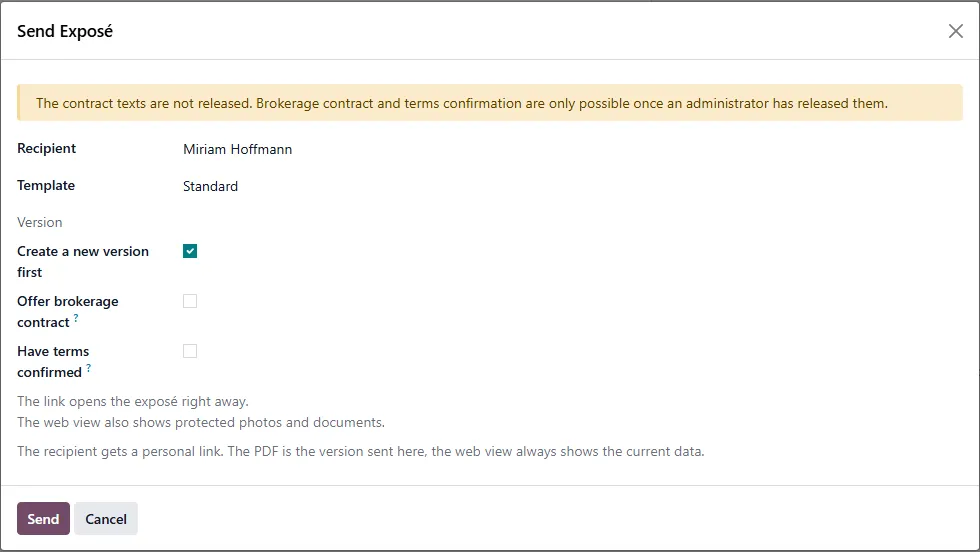
In the wizard, check the Recipient (prefilled with the customer of the opportunity) and the Version (prefilled with the latest). If the property has no exposé yet, Create a new version first is already set and the Version field is hidden; the new version is created with the template in the Template field.
With Offer brokerage contract and Have terms confirmed, the recipient accepts the brokerage contract or confirms the terms and conditions before the exposé opens. Both are only possible once an administrator has released the contract texts; until then, the dialog shows a notice.
-
Click Next. The wizard shows the subject and text of the email as the recipient gets it: in their language, falling back to the company language, with their personal link. Add a personal sentence, for example. Leave the link in place.
-
Click Send. The email goes to the recipient, and the chatter of the opportunity shows the delivery with the PDF attached. If you cancel before, nothing is sent and nothing is created.
If you do not want to edit the text, tick Send without editing in step 2. The button then reads Send and sends the standard text right away. Whether the box is ticked by default is set per company: Settings › Users & Companies › Companies, Exposé tab, Send exposé without editing the mail. You maintain the standard text itself under Maintain email templates.
Send the link in a reply
Section titled “Send the link in a reply”When you answer a question, you can put the personal link to the web exposé into the reply without starting the whole delivery.
- In the chatter of the opportunity, open Send message and click the icon to expand it. The full email dialog opens.
- Leave exactly one recipient under To and write your text.
- Click Insert web exposé. The link to the newest version then sits as a button at the end of the text. Send the email as usual.
The link belongs to that one recipient. The email therefore goes to them only, not in copy to the followers of the opportunity. Their calls show on the Exposé deliveries tab. The button is only in the full dialog, not in the small input field of the chatter.
What the prospect sees
Section titled “What the prospect sees”The link opens a page with the property title, town and company and the Open exposé (PDF) button. Each visit to the page and to the PDF is recorded with its time, nothing more: no IP address, no tracking pixel, no click tracking.
The link always shows the version that was sent. A version created later on the property does not change what the prospect already has. To send the new version, send again.
Messages from the web exposé
Section titled “Messages from the web exposé”Under “Your contact”, the web exposé shows name, photo and phone, but no personal email address. Instead, the prospect writes through the form “Write to us”: a question or a viewing request, optionally with a preferred date. The Request a viewing button opens the same form.
The message lands as an internal note on the opportunity the exposé was sent from, and the salesperson gets a notice. Because the personal link identifies the prospect, the note says “sender confirmed”. Reply in the chatter of the opportunity with Send message, as with any other email.
The form accepts at most five messages per delivery and hour.
If the contact’s email address should appear in the exposé after all, on the web and in the PDF, tick “Show personal email in the exposé” under Settings › Users & Companies › Companies, tab Exposé.
Track deliveries
Section titled “Track deliveries”The Exposé deliveries tab on the opportunity shows, for each delivery, the time, recipient, version, agreement, number of accesses and the last access.

Frequently asked questions
Section titled “Frequently asked questions”Sending shows “The offer for this recipient changed”. The agreement changed between Next and Send, for example because a colleague has meanwhile sent the recipient an offer, or because the expiry date is a different one since yesterday. Close the wizard, open it again and click Next again.
The PDF shows old data. The exposé is a version as of the time it was created. Click Create Exposé on the property and then send the new version.
The floor plan page is missing. The attachment needs the floor plan mark on the Description and Media tab. Floor plans in PDF format are appended at the end and do not count as printed pages.
The location page has no maps. The property has no position yet. Run the action Update Geo Position on the property or wait for the run every 30 minutes, then create the exposé again. If the property shows “Address not found”, check the address first. Without the location map switched on, there are no maps.
The commission does not print. The Commission basis is missing on the Financial Data tab. The old percentage alone is not enough.
The exposé is in the wrong language. The exposé prints in the company language, not in the language of the logged-in user. Check the language of the company contact.
Creation stops with “The exposé cannot be created: the pictures of this object are too large”. The photos together exceed the limit for a printable document. Reduce large photos or remove them from the public photos.
The prospect reports that the link does not work. The link is personal, does not expire and must be copied in full. As long as a delivery points to a version, that version cannot be deleted, so the link stays valid. If in doubt, send again.
Didn't find an answer? Contact support