

Carry out maintenance
Question about the manual? Ask Claude · Ask ChatGPT
A maintenance is the actual job. The technician works through the checklist and answers each item with Yes or No. When the maintenance is completed, SMARTBRIX enters the date as the last maintenance on the completed duties, and their next deadline starts.
Find maintenance requests
Section titled “Find maintenance requests”- Property Maintenance › Maintenance › Maintenance Requests: all maintenance requests as cards by stage New, In Progress and Done, plus list and calendar.
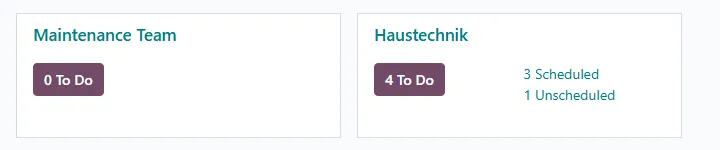
- Property Maintenance › Dashboard: one card per maintenance team with the number of open maintenance requests, plus the figures Scheduled and Unscheduled. Clicking a card opens the team’s maintenance requests.
- Property Maintenance › Maintenance › Maintenance Plan: the calendar, see Plan maintenance.
The person responsible for a scheduled maintenance gets an activity for the date, unless you have switched this off in the settings.
The maintenance
Section titled “The maintenance”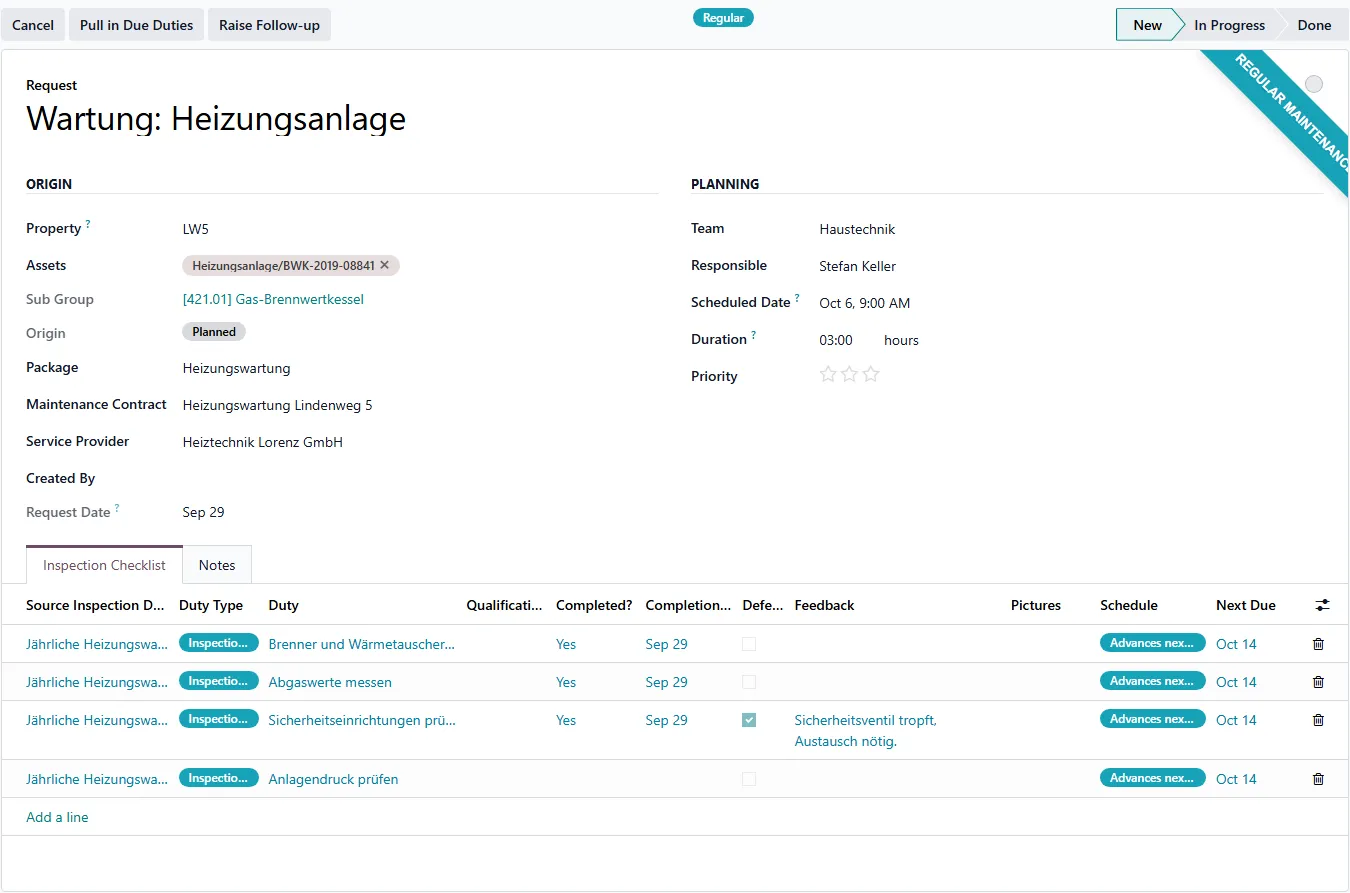
Header: the buttons Cancel, Pull in Due Duties, Raise Follow-up and, for routine tasks, Reschedule Series. Next to them, the kind of maintenance and the stage.
- Regular: The checklist contains at least one duty. Completing it updates deadlines.
- Ad-hoc: a maintenance without a duty, for example a repair. It does not change any deadline.
- Follow-up: a follow-up from an earlier maintenance.
Origin section:
- Property and Assets.
- Origin: Planned (scheduled from the maintenance demand), Automatic (created by SMARTBRIX), Internal (created by hand) or External (from a report).
- Maintenance Package, Maintenance Contract and Service Provider: who does the work, taken from the maintenance package.
Planning section: Team, Responsible, Scheduled Date, Duration and Priority. After completion, Close Date, the actual duration and the deviation are added.
Work through the checklist
Section titled “Work through the checklist”The Inspection Checklist tab has one line per maintenance step. The Source Inspection Duty column names the duty it belongs to.
- Completed?: Click Yes or No. Empty means open. With Yes, SMARTBRIX sets the Completion Date to today.
- Defect Found: Select this if you found a defect, even if the step is done. Describe it under Feedback and attach photos under Pictures.
- Schedule: The Advances next due date marker shows that this line updates the duty’s deadline on completion.
Complete the maintenance
Section titled “Complete the maintenance”Set the stage to Done. This only works if every line of the checklist is answered with Yes or No. Otherwise a message lists the open items.
On completion:
- SMARTBRIX enters the Last Maintenance on every duty whose lines are all set to Yes, using the latest completion date of its lines. The next deadline counts from that day.
- A duty with a line set to No stays unchanged. It appears in the maintenance demand again once the maintenance is completed.
- SMARTBRIX notes in the history if defects were recorded but no follow-up was raised.
A defect alone does not move a deadline. An inspection passed with a defect counts as done.
Raise a follow-up
Section titled “Raise a follow-up”If the technician could not finish everything or found a defect, create a follow-up maintenance:
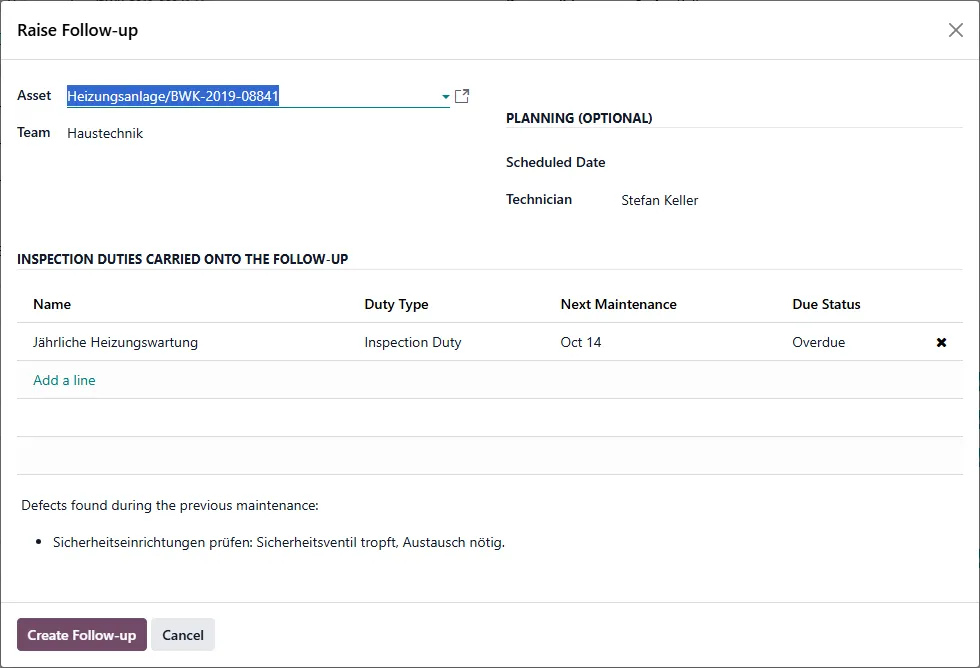
- In the maintenance, click Raise Follow-up.
- Check Asset and Team.
- In the Planning (optional) section, enter a date and technician, or clear the date if the follow-up is to be planned later. The date of the original maintenance is filled in.
- Inspection duties carried onto the follow-up lists the duties that were not completely done with Yes in this maintenance. Remove duties you do not want to carry over.
- The description lists the defects found. Add to it if needed.
- Click Create Follow-up.
The new maintenance is named “Follow-up: “ followed by the name of the original maintenance, has the origin Internal and the kind Follow-up. The Triggered By and Follow-ups buttons link the two maintenance requests. Without a date, the follow-up appears in the maintenance demand as an unscheduled maintenance. Completing the follow-up updates the deadline of the carried-over duties.
If only a part has to be delivered later and the technician returns for the same work, do not raise a follow-up. Leave the maintenance open, set the status to Blocked and enter the new date.
Pull in due duties
Section titled “Pull in due duties”If the technician is on site anyway, they can take care of other duties of the same asset at the same time. Pull in Due Duties appears if the asset has other duties that fall due in the next 14 days and do not have a maintenance yet. Select the duties and click Add to Checklist.
Reschedule a series
Section titled “Reschedule a series”In a maintenance from a routine task, Reschedule Series changes the cycle of the whole series. Enter Frequency, Interval, Weekdays or Month Days, Series Start and Slot Time, and apply. SMARTBRIX writes the new cycle to all routine tasks on the checklist and moves this maintenance to the new date. Other maintenance requests of the series that already exist stay unchanged.
To move only this one date, change only the Scheduled Date.
Cancel a maintenance
Section titled “Cancel a maintenance”Cancel archives the maintenance. The duties on the checklist appear in the maintenance demand again. You bring a canceled maintenance back to the New stage with Reopen Request. SMARTBRIX does not undo a last maintenance date already entered when you cancel or reopen.
Reports and repairs
Section titled “Reports and repairs”Create a damage report, such as a dripping radiator, as a maintenance: Property Maintenance › Maintenance › Maintenance Requests › New. Enter a name, the property and the asset, and leave Scheduled Date empty. The maintenance has the origin Internal and appears in the maintenance demand as an unscheduled maintenance.
If the report comes in as a helpdesk ticket, click Create Maintenance Demand in the ticket. This creates a maintenance without a date, with the origin External, linked to the ticket. As soon as you schedule it, the ticket shows the date.
Jobs as project tasks
Section titled “Jobs as project tasks”If your technicians work in the Project app, go to Property Maintenance › Configuration › Settings, set the Execution Mode to Project Task and select a Default Maintenance Project. From then on, every new job is created as a task in the project instead of a maintenance:
- The task goes into the property’s project, otherwise into the default project.
- The date is the task’s deadline, the technician is among the assignees, and the duration is in the planned hours.
- The task has the Inspection Checklist and Maintenance tabs and the same buttons as a maintenance.
- You complete it with the task’s Done status. SMARTBRIX then updates the deadlines just as for a maintenance.
- You find the tasks under Property Maintenance › Maintenance › Project Tasks.
Switching does not change existing jobs. Open maintenance requests run to completion as maintenance requests.
Frequently asked questions
Section titled “Frequently asked questions”The maintenance cannot be set to Done. At least one line of the checklist is still open. Answer every line with Yes or No.
Why did the deadline not move after completion? At least one step of the duty is set to No. The duty then counts as not done. Raise a follow-up or schedule the duty again.
Didn't find an answer? Contact support