

The management contract records who owes the management fee, for which type of administration and for which properties. Its fee positions determine the amount of the fee. Each contract has exactly one client and one type of administration. The terms are explained under Management fee.
Create a contract
Section titled “Create a contract”- Open Management Fee › Management Contracts.
- Click New.
- Give the contract a name, for example “Management Lindenstraße 12 condominium”.
- Choose the Type of Administration: Condominium Administration or Rental Administration. Only the types active in your system are offered.
- Enter the client and properties as described below for the type of administration.
- Set the term and billing.
- On the Fee Positions tab, create the calculation rules and, below them, the Minimum Fee and Maximum Fee if needed.
- Save.
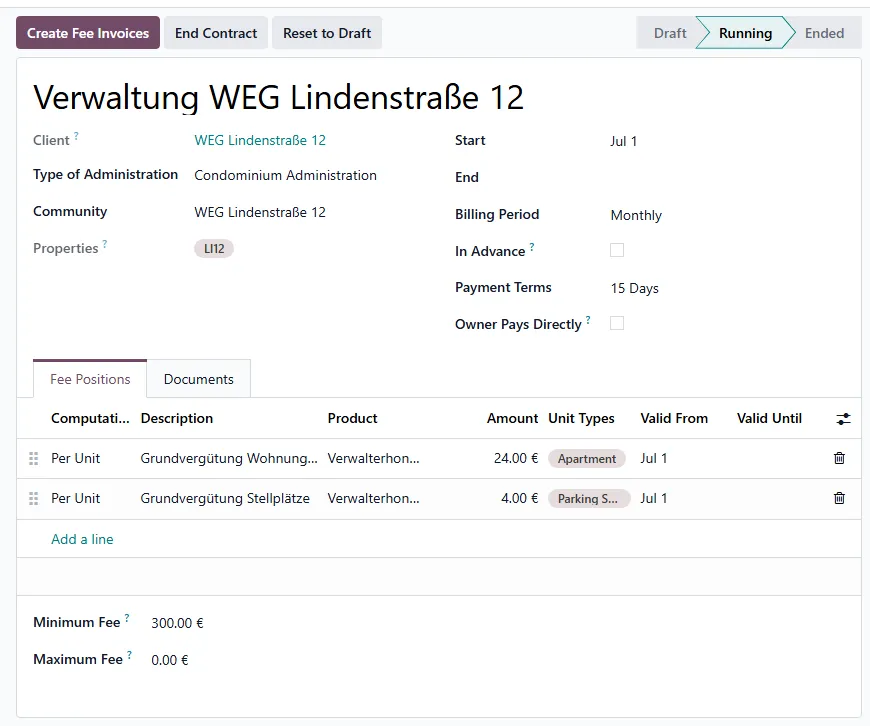
Condominium contract
Section titled “Condominium contract”In the Community field, choose the condominium community. SMARTBRIX enters its legal entity as the Client and its booking property under Properties. Neither can be changed on a condominium contract. Fee positions per unit count the units of the community.
Rental management contract
Section titled “Rental management contract”Choose the owner as the Client and then, under Properties, the properties the owner has you manage. The client must be entered as the owner on each selected property. Otherwise SMARTBRIX refuses to save with the message “The client must be the owner of every property.” The selected properties are billed together with their child properties.
An owner can have several management contracts, for example if their apartment building has different terms than their condominium apartment.
If you also manage individual apartments in a condominium community for their owners, create a rental management contract with that owner for their apartments. It runs separately alongside the community’s condominium contract.
Term and billing
Section titled “Term and billing”- Start and End: SMARTBRIX only charges within the term. Without an end date, the contract runs indefinitely.
- Billing Period: Monthly, Quarterly or Yearly. The periods follow the calendar: month, quarter, calendar year.
- In Advance: SMARTBRIX then charges flat fees and amounts per unit on the first day of the period. Without the checkbox, it charges after the end of the period. A percentage of the target rent is always charged in arrears.
- Payment Terms: determine the due date of the fee invoices.
- Owner Pays Directly: for an owner whose money is not held in a trust account with you. SMARTBRIX then posts only your invoice, and the owner pays by bank transfer like a regular customer. You can only select this if the manager side is enabled in the settings.
- Minimum Fee and Maximum Fee (on the Fee Positions tab below the list): see Minimum and maximum fee.
Status
Section titled “Status”A contract is Draft, Running or Ended. The fee run only charges running and ended contracts, an ended one up to its end date.
- Prepare the contract as a draft. Once it is signed, click Start Contract. The contract is then Running. It cannot be started without a property or without a fee position.
- To end the contract, enter the End date and click End Contract. The contract is then Ended. The next run charges the partial period, see End of contract.
- Reset to Draft takes the contract out of the fee run until you click Start Contract again.
Store the signed contract on the Documents tab of the management contract. This way you can show it when the advisory council or the owner has questions.
Find contracts
Section titled “Find contracts”The list under Management Fee › Management Contracts shows the client, type of administration, properties, term, billing period and state. On the property and on the community, the Management Contracts button opens the contracts that apply there.

Fee positions
Section titled “Fee positions”Each fee position calculates part of the base fee. You can combine any number of them, for example a flat fee with an amount per parking space. Each position has:
- Computation: Flat Fee, Per Unit or Percentage of Rent.
- Description: appears on the invoice line. Without a description, the product name appears there.
- Product: determines the income account and tax rate.
- Valid From and Valid Until: the period in which the position applies.
The amounts of flat fees and per unit positions apply per contract period, that is per month, quarter or year, as set under Billing Period.
Flat fee
Section titled “Flat fee”A fixed Amount per period.
Per unit
Section titled “Per unit”An Amount per unit and period, plus the Unit Types that count, for example apartment or parking space. For different rates, create a separate position for each rate.
How SMARTBRIX counts:
- It counts the properties of the contract that have no child properties of their own, that is the apartment, not the building above it. For a condominium contract, these are the units of the community.
- What counts is the unit type from the unit’s property type. If you choose, for example, “Apartment” under Unit Types, all units with the unit type apartment count, regardless of the subtype in the property type.
- Whether a unit is let or vacant does not matter.
- The stock at the time the run creates the invoice counts. An apartment you create counts from the next run. It does not change a draft that already exists.
- SMARTBRIX does not calculate tiered rates by the size of the complex. You set the matching rate when you conclude the contract.
Percentage of rent
Section titled “Percentage of rent”Only with rental management. A Percentage (%) of the rent basis. The rent basis consists of the posted rent invoices of the tenancies on the contract’s properties and their child properties whose service period starts within the period. If a rent invoice has no service period, its invoice date counts. SMARTBRIX calculates with the net amounts. Credit notes on rent invoices reduce the rent basis of the period in which their invoice date falls, for example for a rent reduction. A vacant property has no target rent.

- Components: the base rent always counts. With Incl. Operating Costs (service charge prepayments and electricity), Incl. Heating Costs and Incl. Additional Products, these parts are added. This lets you map net rent excluding utilities as well as gross rent including heating. The Incl. Additional Products column is hidden. Show it with the icon on the right of the list header.
- Usage: All, Commercial Only or Residential Only. Commercial means a tenancy with the Commercial Rent? checkbox on the Configuration tab.
- Never included: VAT, deposit, additional payments and credits from the service charge statement, dunning fees.
A percentage of the target rent is always charged in arrears, because the rent basis is only fixed once the rent invoices are posted. If a rent invoice combines rent and service charges in one line, the prepayments cannot be separated from the base rent.
Minimum and maximum fee
Section titled “Minimum and maximum fee”Minimum Fee and Maximum Fee apply to the total base fee per period. If the total is below or above, SMARTBRIX adds a separate line with the difference, for example “Top-up to the minimum fee of €300.00” or “Cut to the maximum fee of …”. In the partial period at the start or end of the contract, both apply pro rata by days.
SMARTBRIX decides this once, after the end of the period. If you later change positions, the minimum or the maximum fee, this does not affect periods already charged. Only if you delete the draft fee invoice does the next run recalculate the period. The same applies to positions charged after the period, such as a percentage of the target rent.
Change a position from a date
Section titled “Change a position from a date”Do not change an existing position. Create a new position with the new rate and Valid From, and on the old one enter the previous day under Valid Until. This keeps track of which rate applied when. If a rate changes within a period, SMARTBRIX calculates each version for its days.
Examples
Section titled “Examples”Per apartment and per parking space with a minimum fee
Section titled “Per apartment and per parking space with a minimum fee”The agreement is €24 per apartment, €4 per parking space, at least €300 per month. Create:
- Billing Period monthly, Minimum Fee “300.00”.
- Position Per Unit, amount “24.00”, unit type Apartment.
- Position Per Unit, amount “4.00”, unit type Parking Space.
With 4 apartments and 2 parking spaces, this gives:
| Line | Amount |
|---|---|
| 4 units × €24.00 | €96.00 |
| 2 units × €4.00 | €8.00 |
| Top-up to the minimum fee of €300.00 | €196.00 |
| Total | €300.00 |
With 13 apartments, the total of €320.00 is above the minimum fee, and the top-up line is dropped.
Percentage of the annual net target rent from commercial units only
Section titled “Percentage of the annual net target rent from commercial units only”The agreement is 4% of the annual net target rent, from commercially used space only. Create:
- Billing Period yearly.
- Position Percentage of Rent, percentage “4”, none of the Incl. … checkboxes, Usage Commercial Only.
If the base rents of the commercial tenants total €18,420 for the year, SMARTBRIX charges “4 % of €18,420.00 target rent (commercial)” after the end of the year, that is €736.80 net. The rents of the apartments do not count.
Flat fee plus parking spaces, in advance
Section titled “Flat fee plus parking spaces, in advance”The agreement is €150 per month for the building and €5 per parking space, payable in advance. Create:
- Billing Period monthly, checkbox In Advance.
- Position Flat Fee, amount “150.00”.
- Position Per Unit, amount “5.00”, unit type Parking Space.
With 8 parking spaces, a draft for €150.00 plus €40.00, a total of €190.00 net, is created on the first day of each month.
Didn't find an answer? Contact support