

The customer portal has an app of its own, Portal. There you define how the portal looks, how tenants may give notice and which teams accept issue reports. A tenant gets access with the portal invitation, usually automatically with the tenancy agreement.
Settings
Section titled “Settings”Open Portal › Settings.
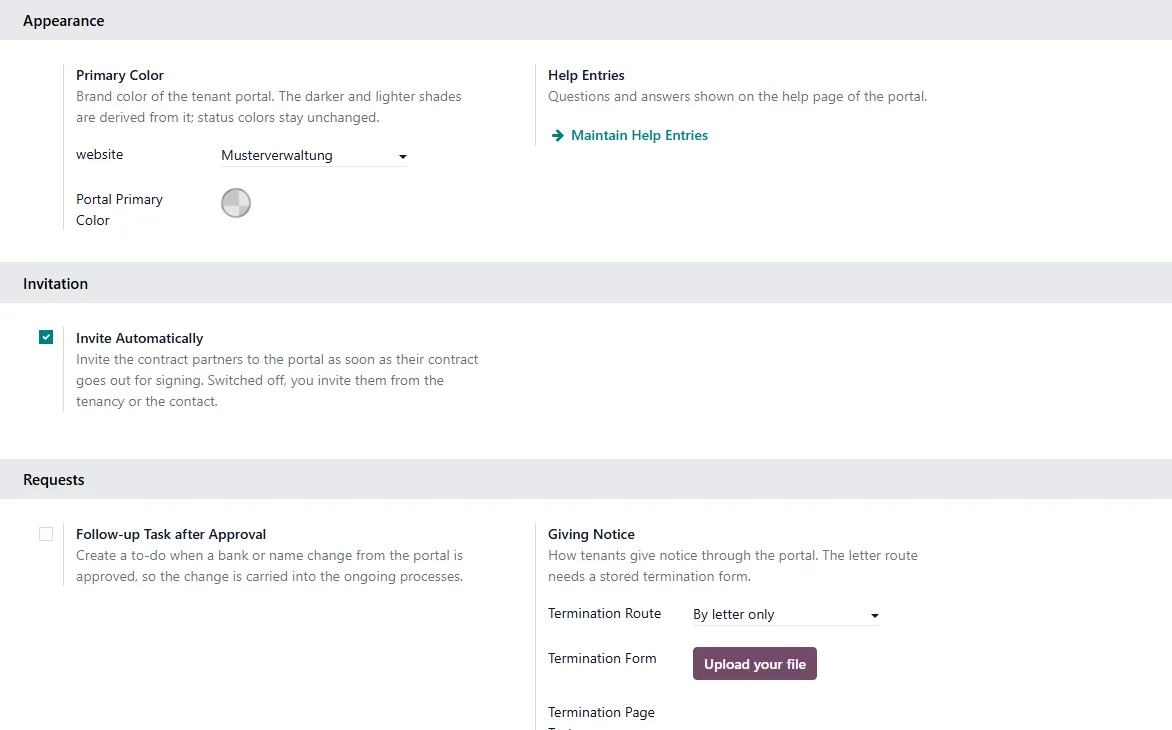
Appearance
- Primary Color: the brand color of the portal, per website. SMARTBRIX derives lighter and darker shades from it.
- Maintain Help Entries: opens the questions and answers of the help page in the portal. Entries on the service charge statement, meter readings, defects, payment details and change of name come included. You also find them under Portal › Help Entries.
Invitation
- Invite Automatically: invites the contract partners to the portal as soon as their tenancy agreement goes out for signing. If it is off, you invite them by hand from the tenancy or the contact, see Invite tenants.
Requests
- Follow-up Task after Approval: after an approved change of bank details or name, creates a task for the selected user, so that the change reaches running processes such as direct debits.
- Giving Notice: under Termination Route you define whether tenants give notice by letter, digitally or both. For the postal route, upload a PDF under Termination Form, which the tenant downloads. Without a form, the postal route does not appear in the portal. Termination Page Text appears above the termination form in the portal.
- Reporting an Issue: tenants report defects and concerns to the teams you have released for the portal (see below).
Guarantees, Before move-in, Meter Submissions
- Giving a Guarantee: how guarantors provide their guarantee. See Tenancy agreement.
- Note for Future Tenants: a text that future tenants see until their tenancy starts. If it is empty, it does not appear.
- Final Reading Window (Days): for how many days after the end of the tenancy the tenant can still report meter readings. The default is 30 days.
Click Save.
Release teams for issue reports
Section titled “Release teams for issue reports”Issue reports from the portal become tickets in customer service. So that the tenant can choose a category when reporting, release teams:
- Open the team:
Helpdesk › Configuration › Teams
Helpdesk › Configuration › Helpdesk Teams
- Tick Release for the portal.
- Under Portal label, enter what the category is called in the portal, for example “Report damage or a defect”. If it is empty, the tenant sees the team name.
If no team is released, issue reports go to the default team of the website, and the settings show a notice.
Invite tenants
Section titled “Invite tenants”A tenant can only reach the portal after the portal invitation. It goes out by email with the subject “Your access to the tenant portal” and contains the link the tenant uses to set their password.
With Invite Automatically switched on, the invitation goes out as soon as you publish the tenancy agreement. The tenant then signs the agreement in the portal.
With Invite Automatically switched on, the invitation goes out as soon as you send the signature request for the tenancy agreement. Signing takes place through the e-signature; SMARTBRIX stores the signed agreement in the documents of the tenancy.
Anyone who can already log in does not get a second invitation. In all other cases, invite manually:
- Open the tenancy under Property Administration › Tenancies › Tenancies.
- Click Invite to Portal.

All contract partners and the invoice recipient who do not have access yet are invited. Occupants who are not contract partners are not invited. A note then appears in the chatter of the tenancy.
The same button exists on the contact. It only appears there if the contact has an email address and no access yet. Only users who may create and edit contacts see either button.
More on the process when the agreement is concluded: Tenancy agreement.
Visibility per tenancy
Section titled “Visibility per tenancy”The tenancy form has the Portal group:
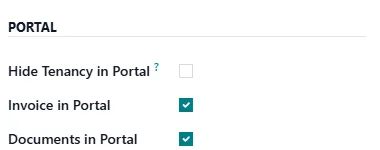
- Hide Tenancy in Portal: the tenancy does not appear in the portal, and nobody is invited to it.
- Invoice in Portal: the invoices of the tenancy appear in the portal.
- Documents in Portal: the documents of the tenancy appear in the portal. Without the tick, the tenancy page shows no documents.
In the portal, contract partners and invoice recipients see the same. Occupants without a contract do not see the tenancy. After the tenancy ends, it remains readable; new issue reports are then no longer possible, and meter readings only within the final reading window.
The portal shows the documents from the Contract Documents field of the tenancy and the house documents of the property. There is no release per individual document: if Documents in Portal is set, the tenant sees everything stored there.
Didn't find an answer? Contact support