

List on property portals
Question about the manual? Ask Claude · Ask ChatGPT
SMARTBRIX transfers a property to property portals as a listing, using the details already maintained on the property. You set up the portal accounts once, select the portals on the property and start the transfer. SMARTBRIX transfers changes to the property every night on its own. Inquiries from the portals arrive as opportunities in the CRM, see Portal inquiries.
One-time setup
Section titled “One-time setup”Portal accounts
Section titled “Portal accounts”The portals are under Property Management › Configuration › Portal Sync › Property Portal. You edit the list directly in the line.
- Name: what the portal is called on the property and in the opportunities, for example “Immobilienscout24”.
- Portal Type: the portal, for example Immobilienscout24, Immowelt, eBay Classifieds or WG-Gesucht.
- Host, User Name, Password: the credentials you receive from the portal. For Immobilienscout24 they stay empty; there you log in to the portal when activating.
- Customer ID and Customer Name: only for Immozentral and Immopool.
- Active: SMARTBRIX sets this when activating. You do not change the field by hand.

To activate a portal:
- Select the portal in the list.
- In the Actions menu (gear icon), choose Activate.
- Immobilienscout24 only: the Authentication dialog shows a link. Open it, log in to Immobilienscout24 and grant access. Then click Proceed in the dialog.
The portal is then Active and has a Unique ID.
Listing type per property type
Section titled “Listing type per property type”Which kind of listing is created (apartment, house, office, plot and so on) depends on the property type. Open Property Management › Configuration › Properties › Property Types and choose the matching entry in the Listing Sub-Type column. A property whose property type has no listing sub-type cannot be listed.

Whether the property is offered for rent or for sale is decided on the property by the For Sale? field alone. A home share is only available for rent, investment properties only for sale.
Portal email of the person in charge
Section titled “Portal email of the person in charge”The listing shows the person in charge of the property as the contact person. On their contact, enter the Portal Email that should appear in the listings. The field only exists on contacts of users.
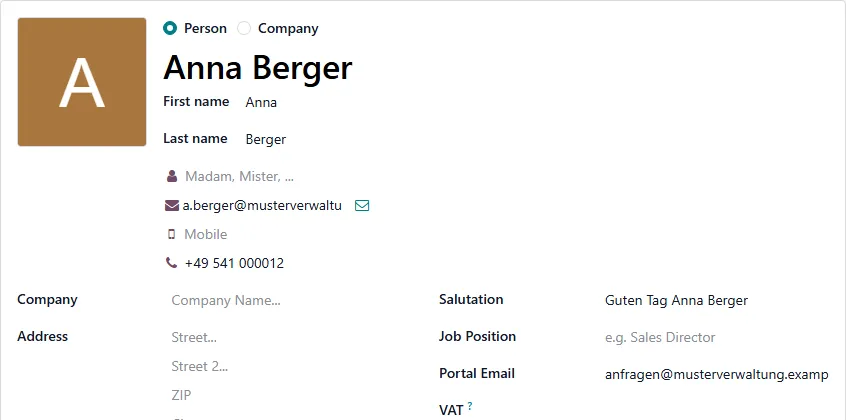
SMARTBRIX transfers new contact persons to the portals at night. A property that you activate on the same day therefore only gets the contact person with the next nightly transfer.
List a property
Section titled “List a property”The Sales tab appears on the property as soon as the property has a Property Status of type Sales. You create the stages under Property Management › Configuration › Properties › Property Stages.
- On the property, maintain at least the details the portal requires (see Required details).
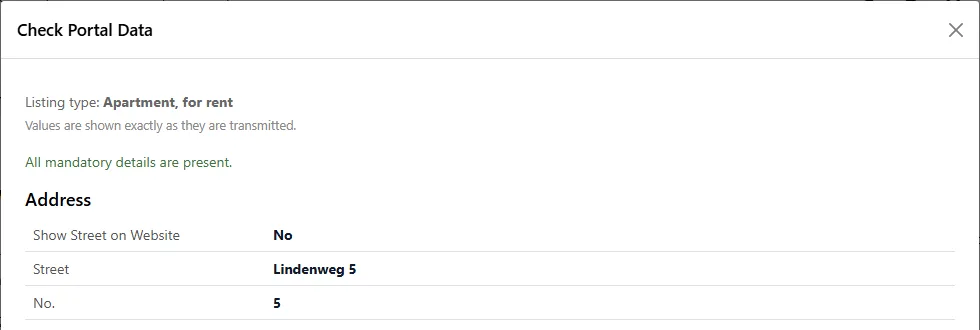
- Open the Sales tab and click Check Portal Data.
- Check the dialog: at the top you see the listing type and either “All mandatory details are present.” or the list of missing details. Below that, every value appears as it will be transferred. Close the dialog.
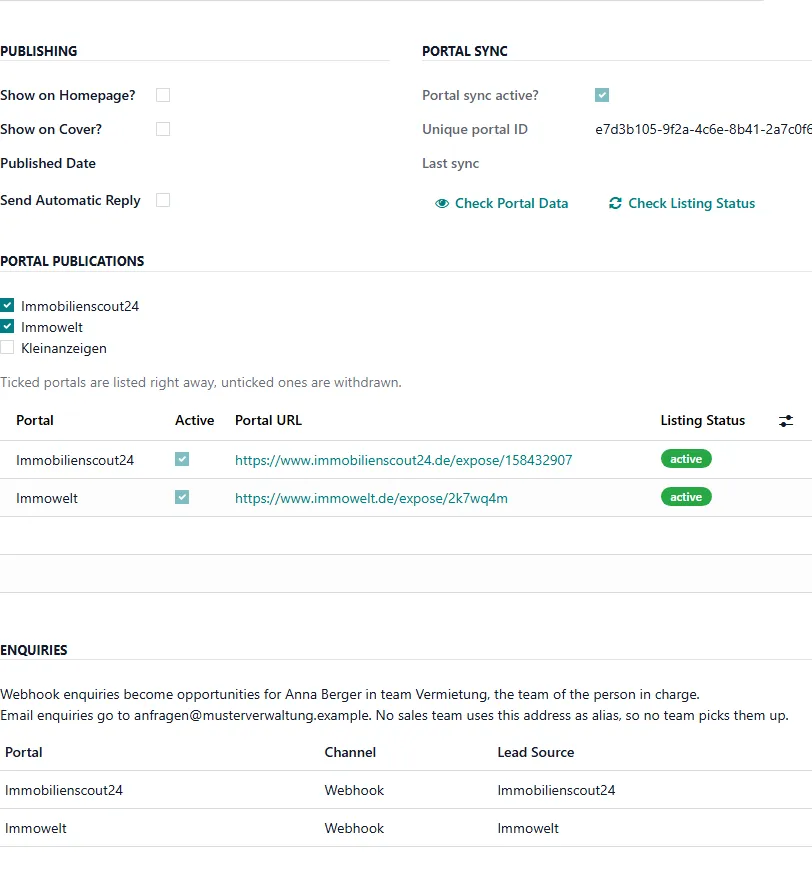
- Under Portal Publications, check the portals.
- Save the property.
- Click Activate Portal Sync at the top.
SMARTBRIX reports “Submitted to 2 portal(s).” The portals publish with a delay. The table below the portals shows one line per portal with Portal URL and Listing Status. As soon as the portal has published the listing, the link to the listing appears there.
While the sync is active, you cannot change the Reference ID of the property. It identifies the listing on the portals.
More portals, changes, withdrawal
Section titled “More portals, changes, withdrawal”- Add or remove a portal: with the sync active, SMARTBRIX lists a checked portal immediately when you save. An unchecked portal is withdrawn.
- Transfer changes: every night SMARTBRIX transfers all properties that have changed since the last transfer. Click Update Portal Sync to transfer immediately. SMARTBRIX then reports “Property data updated on 2 portal(s).”
- Check status: SMARTBRIX fetches the status and link of the listings every three hours. To do it immediately, use Check Listing Status in the Portal Sync area.
- Withdraw everything: Deactivate Portal Sync deletes all listings of the property on all portals. The property itself stays unchanged.
SMARTBRIX also withdraws a property from all portals when you archive it.
Required details
Section titled “Required details”Every listing needs the address (street, number, ZIP, city and whether the street is shown) and the External Headline. In addition, the listing types require:
| Listing type | Also required |
|---|---|
| Apartment | Living space, rooms, rent or purchase price |
| House | as apartment, plus plot area |
| Home share | Rent, living space, title with at least ten characters |
| Office | Usable area |
| Hospitality, retail, industrial, other commercial | Total area and usable area |
| Plot | Plot area |
| Investment properties | Construction year, total area and rentable area |
Properties offered for sale always need a purchase price. The Reference ID may be at most 50 characters long and must not contain umlauts (ä, ö, ü).
WG-Gesucht only accepts home shares, apartments and houses for rent.
Frequently asked questions
Section titled “Frequently asked questions”When activating, “The following details are required before this property can be published” appears. The message names the missing details, for example “External Headline”, “City”, “No.” (house number) or “Show Street on Website”. Fill them in on the property. Check Portal Data shows the same list before activating.
The Check Portal Data button is missing. The property type of the property has no Listing Sub-Type.
The sync was active and is off again the next day. At night, SMARTBRIX switches off the sync for properties that are not listed on any portal. Check at least one portal before activating.
A listing has disappeared from the table. If a listing was removed on the portal, the line gets the status “removed”. SMARTBRIX clears such lines at night.
The status shows “Error”. The portal rejected the listing. The text after “Error” names the reason. Fix it on the property and click Update Portal Sync.
Didn't find an answer? Contact support