

Option to tax
Question about the manual? Ask Claude · Ask ChatGPT
Under German VAT law (UStG), letting is generally exempt from VAT. If you rent to a business, you can waive the exemption and charge the rent with VAT (option to tax). You may then deduct the input VAT from the costs of the property, but only in the proportion that falls on the space let this way. SMARTBRIX calls this proportion the option rate. SMARTBRIX calculates it from the areas and uses it to split the input VAT of costs that concern the whole property. Costs of a single unit follow that unit’s usage.
Mark the tenancy
Section titled “Mark the tenancy”- Open the tenancy under Property Administration › Tenancies › Tenancies.
- On the Configuration tab, tick Commercial Rent?. Only then does VAT Option? appear.
- Tick VAT Option? and save.
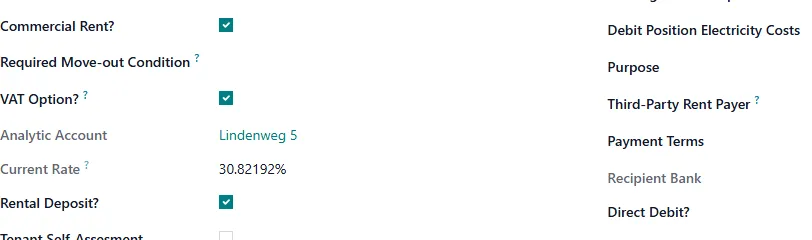
Below it, SMARTBRIX shows the Analytic Account of the property and the Current Rate. When you save, SMARTBRIX also turns on the option to tax on the analytic account.
If you clear Commercial Rent?, the option to tax is removed as well.
Option rate on the analytic account
Section titled “Option rate on the analytic account”The option rate applies per analytic account, that is, to all properties that post to the same analytic account. You find it under Property Administration › Configuration › Analytic Account.
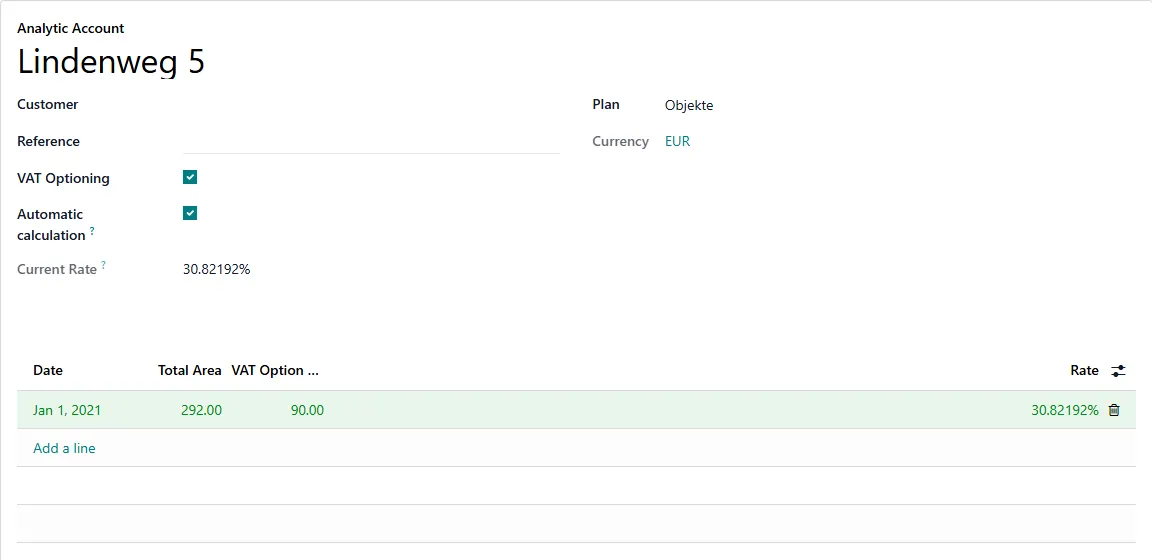
- VAT Optioning: The input VAT is split on this analytic account.
- Automatic calculation: SMARTBRIX calculates the rate itself, every night and when you save the analytic account.
- Current Rate: the rate that applies today.
The table below is the history. Each line applies from its Date until the next line; the line valid today is highlighted in green. Rate is the opted area divided by the total area:
- Total Area: the areas of the running tenancies of the analytic account, taken from the rent lines.
- VAT Option Area: the areas of the running tenancies with VAT Option? ticked.
Rent lines with No space needed, for example for a parking space, do not count. With automatic calculation, a new line is only created when the rate changes, for example because of a change of tenant.
Without automatic calculation, you maintain the lines yourself with Add a line.
Input VAT on vendor bills
Section titled “Input VAT on vendor bills”If a line of a vendor bill, receipt or vendor credit note posts to an analytic account with the option to tax, SMARTBRIX splits the input VAT:
- The deductible part (input VAT times the share of the line) stays on the input VAT account.
- The non-deductible part is posted in addition to the expense account of the invoice line.
Which share applies to a line depends on its property, see Which share applies to which line. For costs of the whole property it is the option rate that applies on the Bill Date. As long as the bill has no bill date, SMARTBRIX calculates with 0 % there.
An example with an option rate of 30.82 %: cleaning costs €400.00 net, plus €76.00 input VAT. €23.42 is deductible; the remaining €52.58 goes to the expense account in addition. The Journal Items tab of the bill shows the result:
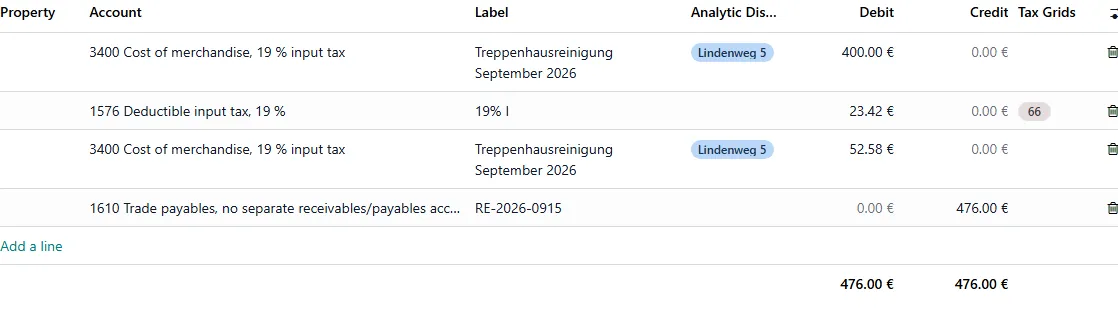
View and change the share: In the invoice lines, show the VAT Share and VAT Rate columns with the icon at the right edge of the table header. VAT Share shows what SMARTBRIX set for the line: Rate (the option rate), 100% (fully deductible) or 0% (not deductible). You can change the value of any line.
Recalculate: If you change the option rate of the analytic account or the bill date while the bill is a draft, click Refresh VAT Split at the top of the bill. Then check the journal items before you confirm the bill.
On vendor credit notes, the document shows a note that the tax amounts were split by the option rate.
In the tax report, only the deductible part counts as input VAT, €23.42 in the example. The non-deductible part is an expense and appears there neither as tax nor as tax base.
Which share applies to which line
Section titled “Which share applies to which line”The analytic account applies to the whole property. The apartments and units below it have none of their own. The option rate therefore only fits costs that concern the whole property, such as the roof, the stairwell or the caretaker. If a line concerns a single unit, such as a repair in the shop, that unit’s usage decides. SMARTBRIX therefore sets VAT Share by the Property of the line and the usage on the bill date:
| Property of the line | Usage on the bill date | VAT Share | Deductible in the example above |
|---|---|---|---|
| Unit without sub-properties (apartment, shop, parking space) | with VAT Option? | 100% | €76.00 |
| Unit without sub-properties | without VAT Option? | 0% | €0.00 |
| Unit without sub-properties | no usage | Rate, with a notice | €23.42 |
| Property with sub-properties (building, section) | not checked | Rate | €23.42 |
| No property | not checked | Rate | €23.42 |
This only applies to lines on an analytic account with the option to tax. All other lines are set to 100%.
Property of the line or of the bill: If the line has no Property of its own, SMARTBRIX takes the Property from the header of the bill. If it has one, that one applies, even if the header names another.
Every kind of usage counts: What decides is the VAT Option? checkbox on the usage, not its kind. A vacancy with this checkbox counts like an opted tenancy, for example for an empty commercial unit that is to be let with VAT again. Own use or a vacancy without the checkbox gives 0%.
Parking space or cellar let with the unit: If it is a property of its own with its own usage, that usage applies, not the one of the apartment or shop. Check the VAT Option? checkbox there.
Change of tenant: The usage running on the bill date counts. If one usage ends on that day and the next starts on it, the new one counts. If the bill concerns a service before the change, change the share yourself.
Bill without a bill date: Without a date, the share is set to Rate. As soon as you enter the Bill Date, SMARTBRIX sets it by the usage on that day.
No usage on the bill date: If a unit has no usage on that day, for example because no vacancy was created between two tenancies, the share stays on Rate. The top of the bill then shows the notice “No usage on the bill date for …”. The notice does not stop you from posting. Create the missing usage and set the share of the line to 100% or 0% yourself. Properties with sub-properties get no notice, because no usage of their own is expected there.
Share chosen by hand: If you change the share of a line, it stays. SMARTBRIX sets it again as soon as you change the Property or the analytic account of the line or the Bill Date. A new bill date sets all lines with the option to tax again; a new Property in the header only the lines without a property of their own.
Bills created without the form: Imported e-invoices and bills from invoicing runs get their share on creation by the same rules.
Bank entries: If you book a payment in the bank reconciliation directly to an expense account with input VAT, the same applies. The booking date counts instead of the bill date. You see VAT Share and the notice about a missing usage when you edit the line. If you choose another Property there, SMARTBRIX sets the share again. If a line is spread over the analytic accounts of several properties, SMARTBRIX splits it by property, and each part gets the share of its property. A share chosen by hand is kept by every part.
Several analytic accounts on one line: With Rate, the option rate of the first analytic account counts.
Posted bills: SMARTBRIX does not change the share of posted bills, even if a usage changes later.
Separate account for non-deductible input VAT
Section titled “Separate account for non-deductible input VAT”If the non-deductible part is to go to a separate account instead of the expense account of the invoice line, set this in the accounting settings in the Taxes section:

Tick Non-deductible input VAT (VAT optioning) and select the account.
Didn't find an answer? Contact support