

Set up accounting
Question about the manual? Ask Claude · Ask ChatGPT
SMARTBRIX sets up the chart of accounts for you during onboarding, including taxes, journals and payment terms. For an additional company, you load it yourself, see Set up a new company. After that, you maintain these settings yourself: new accounts, accounts on products, bank accounts. All menus on this page are in the Accounting app under Configuration.
Accounts
Section titled “Accounts”Open the chart of accounts under Accounting › Configuration › Accounting › Chart of Accounts. Click New to create an account, for example a separate revenue account for recharged costs.
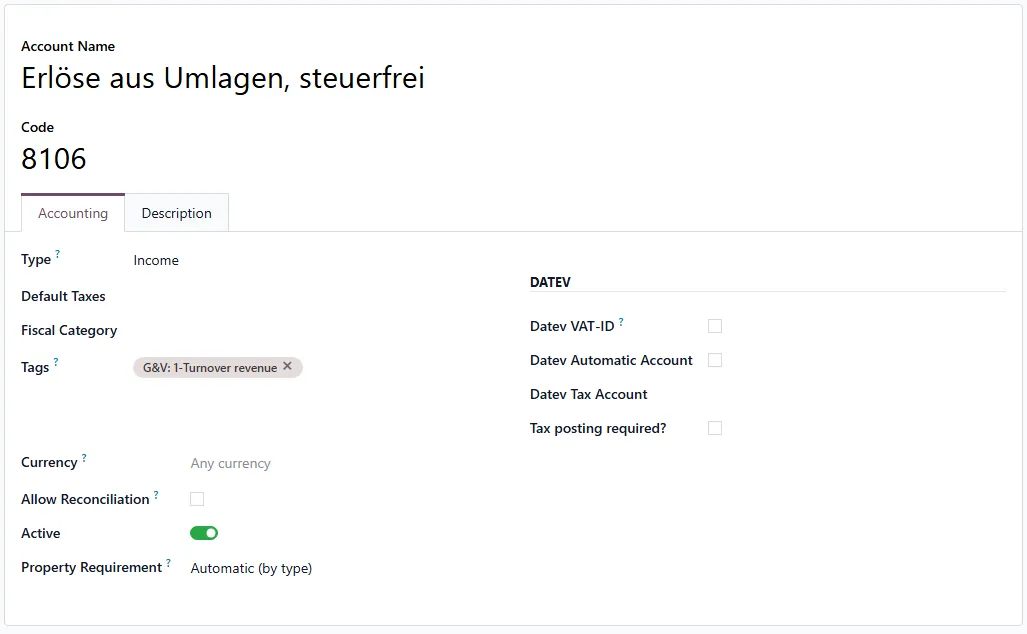
- Code and Account Name: number and name as they appear in reports and in the DATEV export.
- Type: determines whether the account is in the balance sheet or in the profit and loss statement. Revenue accounts have the type Income, cost accounts the type Expenses.
- Default Taxes: the tax SMARTBRIX suggests when you post directly to this account.
- Tags: assign the account to a line in the balance sheet, the profit and loss statement or Schedule V (Anlage V), the rental income form. Give new accounts the same tags as a comparable account. More on this under Set up the cash receipts statement.
- Allow Reconciliation: for accounts on which open items are cleared, such as receivables, payables and transit accounts.
- Property Requirement: determines whether entries on the account need a property.
- Automatic (by type): revenue and expense accounts need a property, all others do not. This is the default.
- Required: the account always needs a property.
- Neutral: the account never needs a property, for example for the costs of your own management.
Safeguards when posting
Section titled “Safeguards when posting”When posting, SMARTBRIX checks whether every entry on a revenue or expense account is assigned to a property. You find the setting under Accounting › Configuration › Settings in the Property Dimension section.

- Property Requirement Safeguard: checks whether revenue and expense lines carry a property.
- Owner Consistency Safeguard: checks whether a document stays with exactly one owner.
Both safeguards have three levels:
- Off: no check.
- Warn & flag: the document is posted and flagged. This is the default.
- Block: SMARTBRIX refuses to post until the error is fixed. Automatic runs such as the rent debits still only flag.
Under Open Safeguard Warnings, you see how many documents were posted despite a warning. Work through these documents before you switch to Block. The How the safeguards work button explains the levels in the interface.
If a line has no property, SMARTBRIX adds it when posting: first from the usage of the invoice, then from the Property field in the invoice header, finally from the property of the journal. For each property, SMARTBRIX sets the analytic account of the property so that the standard reports can be evaluated by property.
Taxes and fiscal positions
Section titled “Taxes and fiscal positions”Open the taxes under Accounting › Configuration › Accounting › Taxes. The chart of accounts comes with the usual rates, for example “19%”, “7%” and “0%” for sales and “19% I” for input tax.
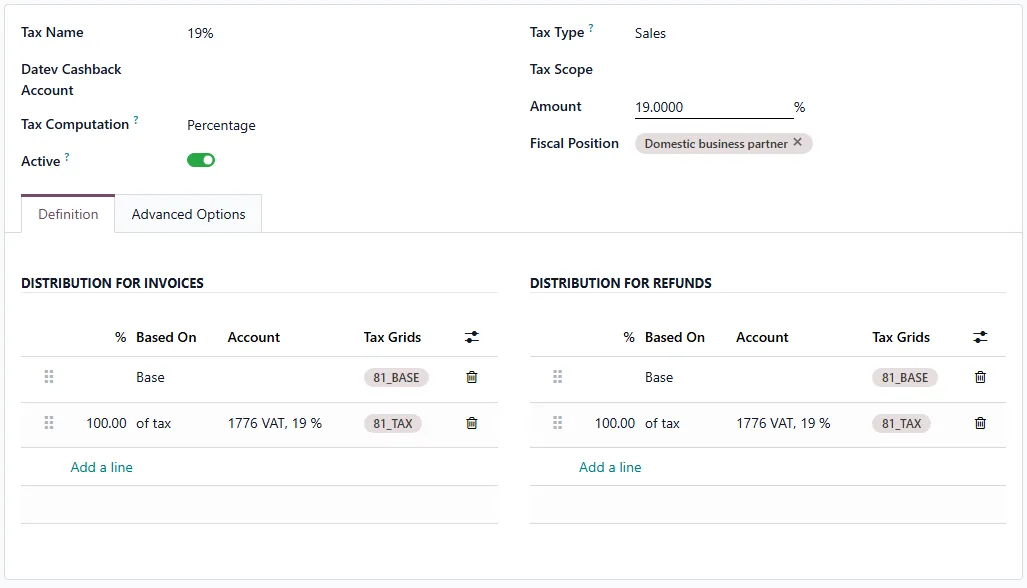
- Tax Type: Sales for customer invoices, Purchases for vendor bills.
- Amount: the tax rate in percent.
- Definition tab: which account the tax is posted to and which line of the advance VAT return (Umsatzsteuer-Voranmeldung) it goes into.
Only change the account and tax grid of an existing tax after consulting your tax advisor.
Fiscal Positions (Accounting › Configuration › Accounting › Fiscal Positions) replace taxes and accounts for each business partner, for example for service providers from other EU countries. You set which fiscal position applies on the contact, in the Sales & Purchase tab in the Fiscal Position field.
How to split input tax for partially opted letting is described under Option to tax.
Products
Section titled “Products”Every invoice line has a product, for example net rent or service charge prepayment. The product determines the account and tax of the line. Open the products under Accounting › Customers › Products or Accounting › Vendors › Products.
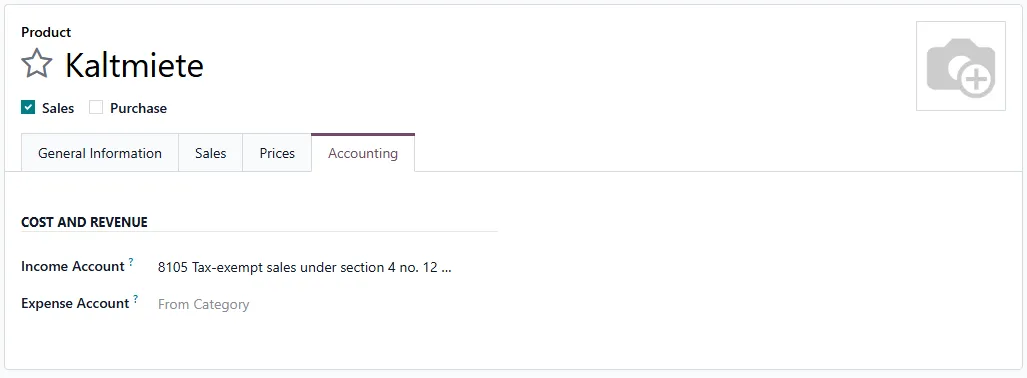
- Sales and Purchase: whether the product can be selected on customer invoices or vendor bills.
- General Information tab, Sales Taxes and Purchase Taxes: the tax SMARTBRIX suggests on customer invoices and vendor bills.
- General Information tab, Position Label: appears on documents for tenants instead of the product name.
- Accounting tab, Income Account and Expense Account: the accounts for customer invoices and vendor bills. If empty, the field shows “From Category”: the account of the product category then applies.
Which products the rent debits use for rent and prepayments is set in the Property Administration app. See Rent debits.
Journals and bank accounts
Section titled “Journals and bank accounts”A journal collects entries of one kind: Sales for customer invoices, Purchase for vendor bills, Bank for each bank account, Miscellaneous for transfers between accounts. Open the journals under Accounting › Configuration › Accounting › Journals.
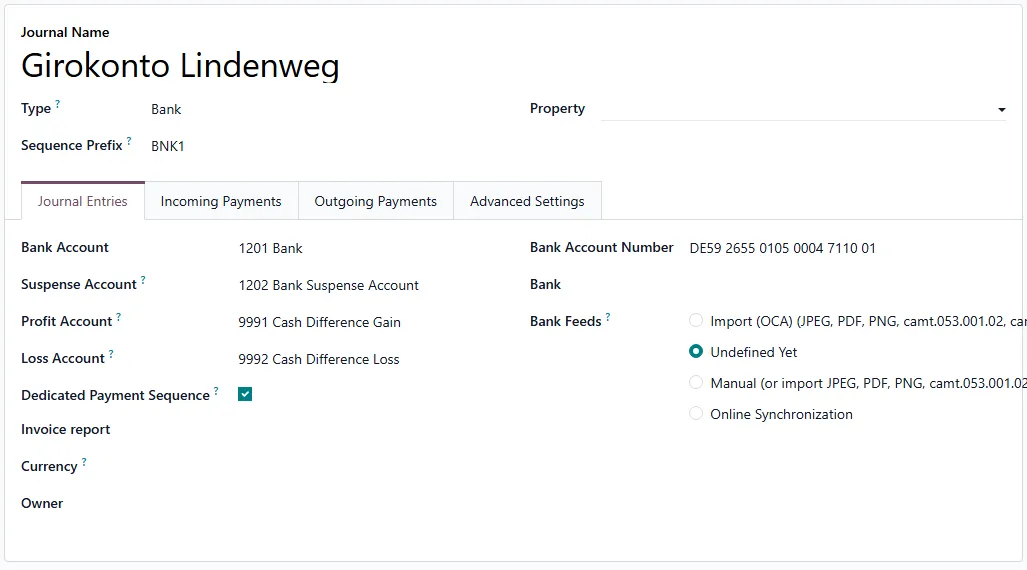
For a new bank account, create a journal of Type Bank:
- Click New and enter the Journal Name, for example “Girokonto Lindenweg”.
- Choose Bank as the Type.
- In the Journal Entries tab, enter the IBAN under Bank Account Number. SMARTBRIX uses it during import to recognize which journal a bank statement belongs to.
- Save. The related bank account in the chart of accounts is created automatically.
Two fields on the journal belong to SMARTBRIX:
- Property: entries of this journal without a property of their own get this property when posted. Useful for a bank account that belongs to only one main property.
- Owner: makes the bank account a trust account of an owner. Entries on it belong to the owner’s accounting. How to run such an account with the owner as account holder is shown in Bank accounts of external owners.
Which journals rent invoices, deposits and service charge statements go into is set under Settings › Property Administration: Rent Accounting Journal, Deposit Accounting Journal and Service Charge Statement Journal. If a field is empty, SMARTBRIX uses the first sales journal.
Payment terms
Section titled “Payment terms”Payment terms determine the due date of an invoice and therefore when dunning starts. You find them under Accounting › Configuration › Invoicing › Payment Terms.
SMARTBRIX comes with two of its own:
- “Deposit: 3 installments from rental start”: splits the deposit into three monthly installments. The default for this is set under Settings › Property Administration in the Default Deposit Payment Terms field. See Deposit.
- “Service charge statement: 30 days after receipt”: applies to service charge statements, set in the Service Charge Statement Payment Terms field.
More on the standard settings: Accounting in the Odoo documentation.
Didn't find an answer? Contact support