

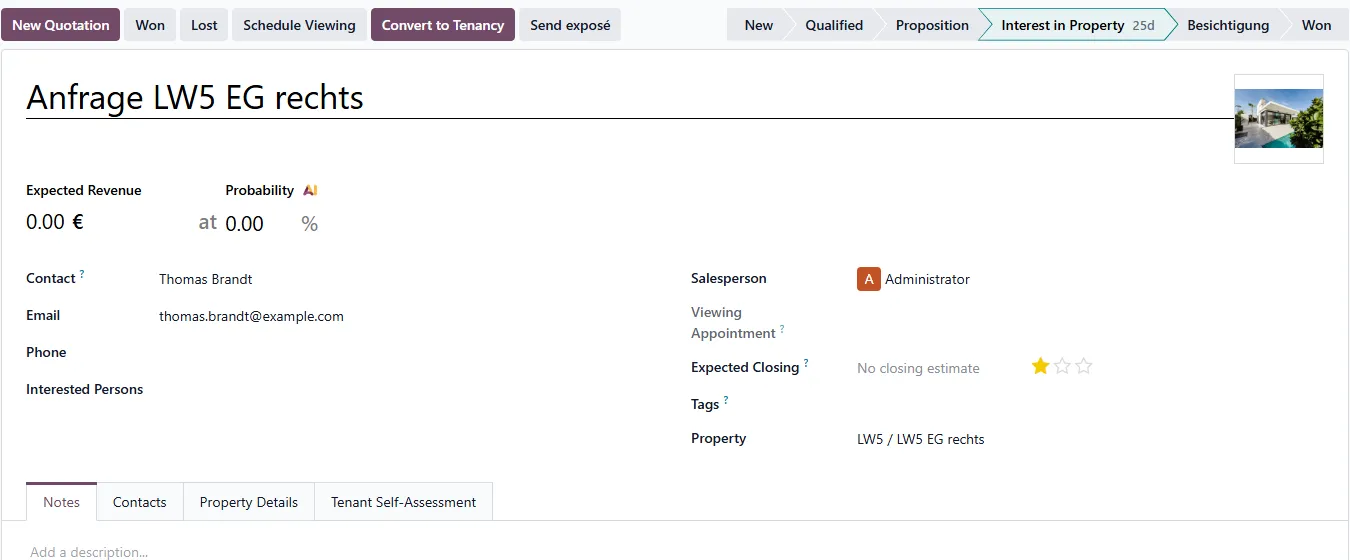
In CRM you handle every prospect inquiry as an Opportunity. SMARTBRIX builds on the Odoo CRM and links each opportunity to the property it is about. From the opportunity you schedule viewings, send the exposé, invite the prospect to apply and finally create the tenancy.
What a prospect is looking for is recorded in a search profile. Every inquiry creates one, and it finds matching properties in your portfolio.
Anything this page does not explain works as in standard Odoo. The Odoo documentation on CRM describes it in detail. How to set up teams, stages and the inquiry form is covered in Set up CRM.
Getting started
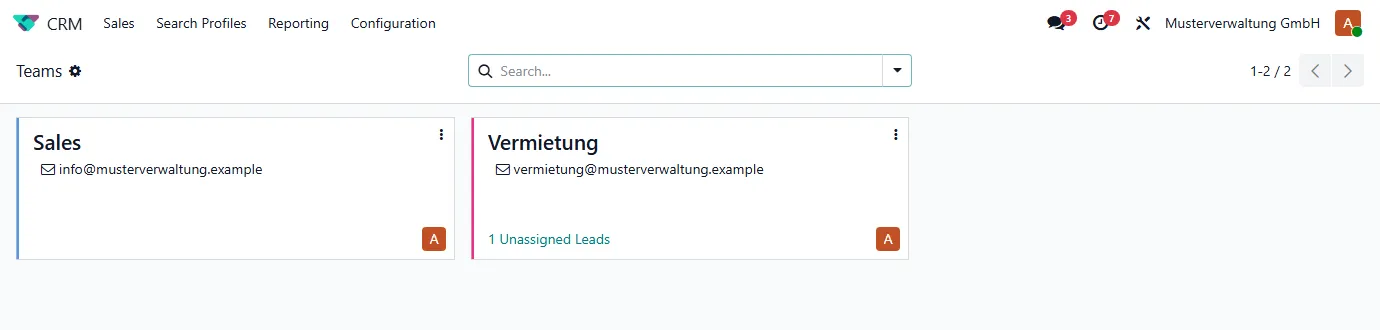
Section titled “Getting started”Clicking CRM opens the overview of the sales teams. Each card shows one team, for example “Vermietung” and “Sales”, with hints such as Unassigned Leads. Click the team name to open that team’s pipeline.
You find all opportunities of all teams under CRM › Sales › My Pipeline. The My Pipeline filter there shows only the opportunities you are responsible for. Remove it to see all of them.
The pipeline
Section titled “The pipeline”The pipeline shows the opportunities as cards, arranged by Stage. Drag a card to the next column when the inquiry moves forward. You define the stages yourself. SMARTBRIX comes with the Interest in Property stage, where new inquiries from your website land.
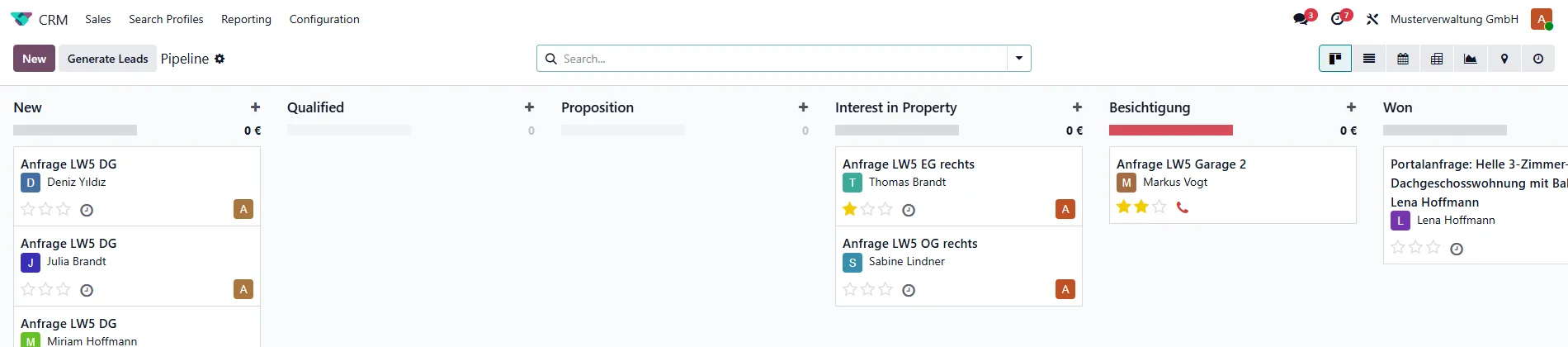
A stage can create activities automatically when an opportunity enters it, for example a call for the person responsible for the property as soon as an opportunity moves to the stage “Besichtigung”. See Set up CRM.
The opportunity
Section titled “The opportunity”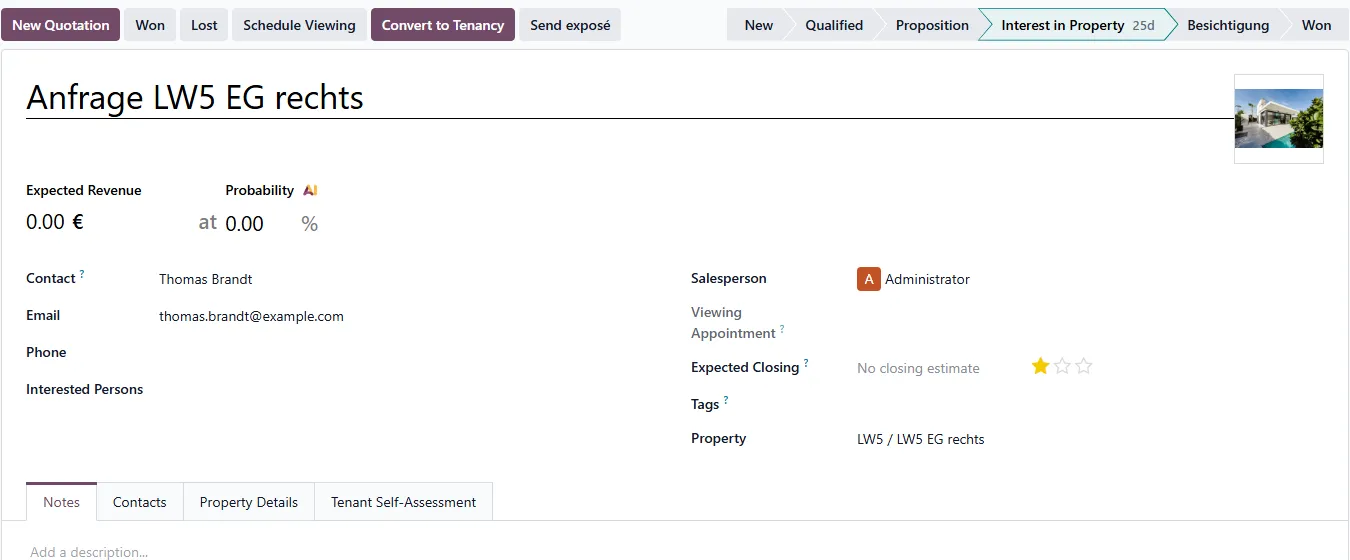
Compared with standard Odoo, the opportunity in SMARTBRIX holds these details:
- Property: the property in question, for example an apartment. Without a property, most buttons in the header are missing.
- Interested Persons: further people besides the Contact, for example the partner who wants to move in too.
- Viewing Appointment: the next appointment the prospect has confirmed. SMARTBRIX fills in this field itself.
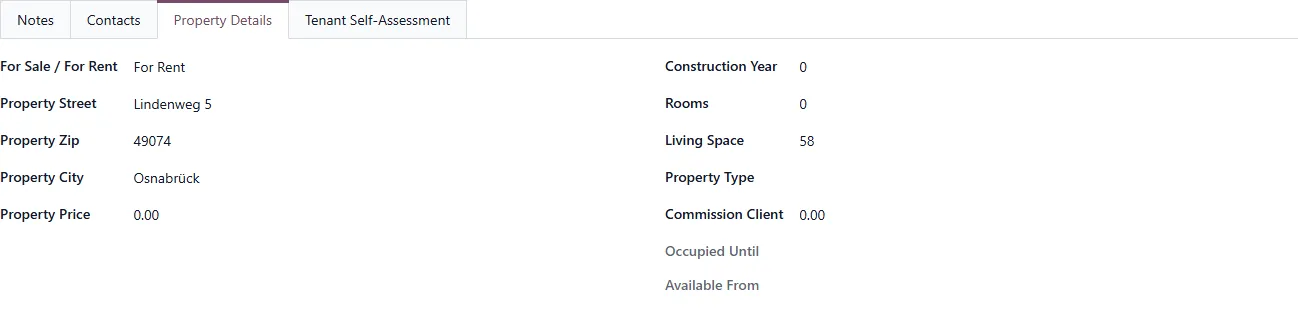
- Property Details tab: details such as the type (for rent or for sale), address, price, rooms and living space. SMARTBRIX takes them over from the property when the opportunity is created. If you change the property afterwards, the values on the opportunity stay as they are.
Buttons in the header, once contact and property are entered:
- Schedule Viewing: see Viewing.
- Send exposé: see Send an exposé.
- Invite to apply: see Opportunity and application.
- Convert to Tenancy: only for opportunities of a team with the Team Type Administration, see Create a tenancy.
Where opportunities come from
Section titled “Where opportunities come from”- Website: When a prospect sends an inquiry through the contact form of a property page, an opportunity is created with the property already filled in. You set the team and stage; the person responsible for the property becomes responsible for the opportunity. SMARTBRIX looks up the contact by email address and creates it if it does not exist yet.
- Property portals: Inquiries about your listings arrive as opportunities, see Portal inquiries.
- Email: Emails to the email address of a sales team become opportunities, as in standard Odoo.
- Manually: Click New in the pipeline. In the quick entry, select the Property right away.
Won or lost
Section titled “Won or lost”- Won: Click Won, or create a tenancy from the opportunity; SMARTBRIX then marks it as won itself. An open application from the prospect is accepted at the same time. If other opportunities for the property are still open, the Remaining Opportunities dialog opens, where you close them and send rejections, see Award.
- Lost: Click Lost, choose a lost reason and add a Closing Note if needed. An open application from the prospect is rejected at the same time.
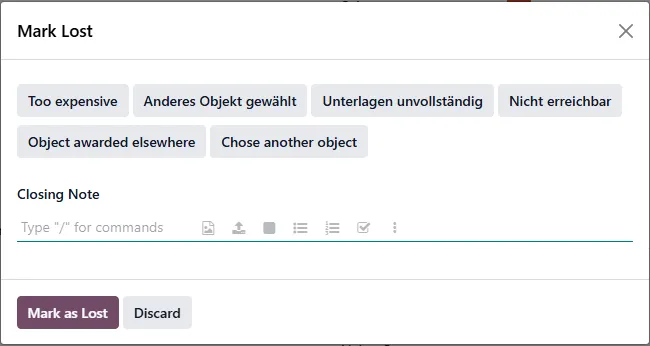
Lost opportunities disappear from the pipeline. You find them with the Lost filter and bring them back with Restore.
Delete an opportunity
Section titled “Delete an opportunity”When you delete an opportunity, SMARTBRIX asks whether to delete the linked contact as well. Check Delete the linked contact as well if the prospect does not appear anywhere else, for example after a single inquiry that led nowhere. SMARTBRIX only deletes contacts that are not used elsewhere, for example in a tenancy or an invoice. Those are kept, and a message names them.
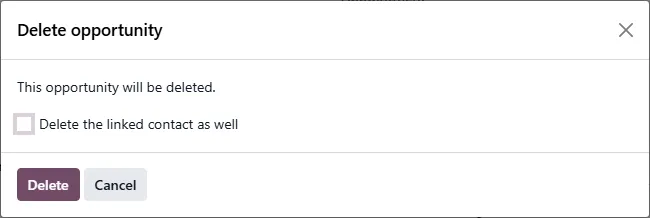
If you only want to close an inquiry, mark it as lost instead. That way it stays clear what happened to it.
Several companies
Section titled “Several companies”If you manage several companies in one database, the pipeline shows only opportunities of the companies selected at the top right, plus opportunities without a company. An inquiry from the website belongs to the company of the property.
Didn't find an answer? Contact support