

Extended lists
Question about the manual? Ask Claude · Ask ChatGPT
This add-on module extends the lists in SMARTBRIX. Below each column heading there is a search field, you can change values directly in the row, and you duplicate selected records with one click. Each user decides which columns a list shows and how wide they are. The administrator sets colors and row numbers for everyone.
The extensions apply to lists you open from a menu. Lists inside a form, such as the invoice lines of an invoice, and lists in dialogs stay unchanged.
Buttons above the list
Section titled “Buttons above the list”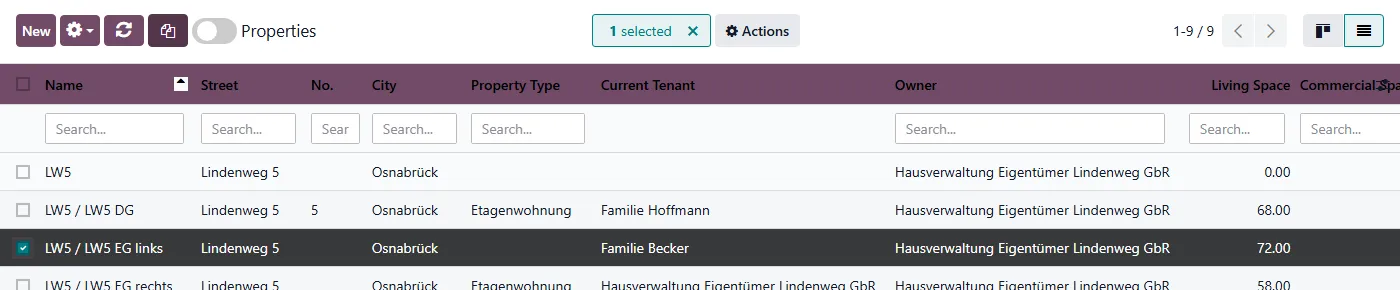
Next to New, from left to right:
- Gear icon: show, hide, move and rename columns.
- Refresh Data (two arrows in a circle): reloads the list.
- Duplicate Records (two sheets): appears only once you have selected at least one row.
- Read/Edit Mode switch: makes the list directly editable.
If one of these buttons is missing, you lack the matching right (see Grant access rights).
Choose columns
Section titled “Choose columns”How to show, hide, move and rename columns with the gear icon is described under Searching, filtering and grouping. Three notes:
- The gear icon offers all fields of the record, not only the columns the list shows by default.
- You can move a column only by the cross to the right of its name, not by the name itself.
- The icon with the circular arrow restores the original columns after a confirmation. The whole page then reloads.
SMARTBRIX remembers the column selection, order, names, widths and the position of the edit switch for each user and each list.
Search by column
Section titled “Search by column”- Click in the Search… field below the column heading.
- Type a term, for example “EG”. As you type, SMARTBRIX suggests matching values.
- Press Enter.

The term then appears as a tag in the search field, and the cross next to it removes it. Several terms in the same column are combined with “or”, terms in different columns with “and”. The column search works in addition to the filters of the search bar and also in grouped lists.
The field searches differently depending on the type of column:
- Text and linked records (such as owners): part of the text is enough.
- Numbers and amounts: only the exact value matches. If you enter something that is not a number, Please enter a valid number appears.
- Selection fields: you choose the value from a list, and the search applies right away.
- Date: first choose the start under Start date…, then End date… appears. The list filters as soon as both are set, including both days.
Columns with yes/no values and columns whose value SMARTBRIX calculates only when displaying them have no search field. The column search applies only while the list is open: if you reload the page or switch menus, it is gone. It does not appear in the search bar and cannot be saved as a favorite.
Edit in the list
Section titled “Edit in the list”- Turn on the Read/Edit Mode switch.
- Click the cell you want to change. The row becomes editable.
- Change the value and click Save at the top. Discard undoes the change.
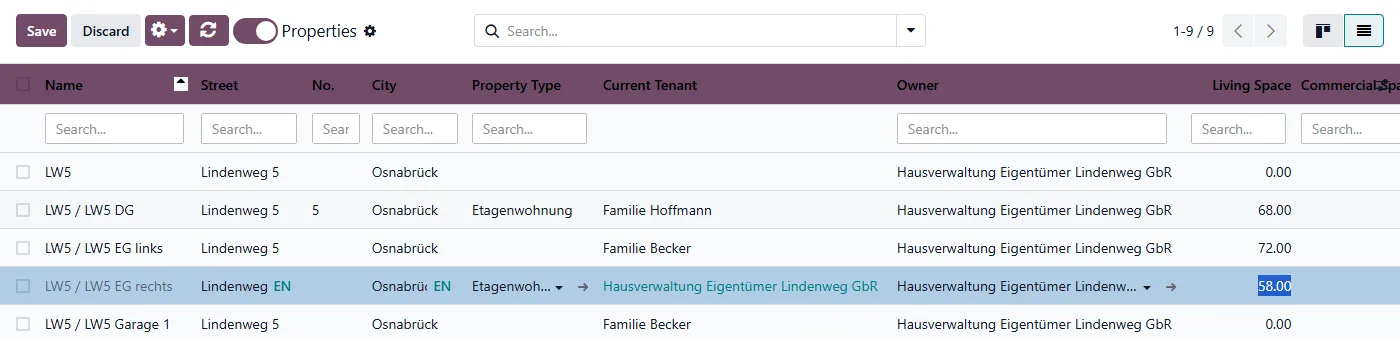
With the switch on, New adds an empty row at the top of the list instead of opening the form. With the switch off, a click on a row opens the form as usual. Turn it off when you are done so that no click changes anything by accident.
Duplicate records
Section titled “Duplicate records”- Select the rows you want to copy.
- Click Duplicate Records.
SMARTBRIX immediately creates a copy of each selected row, without asking. Check the copies afterwards and delete any you created by mistake.
Set colors and row numbers
Section titled “Set colors and row numbers”These settings apply to all users and require administrator rights.
- Open Settings › General Settings and scroll to the end of the page, below the About section.
- Under LVM Color Settings, choose the colors:
- Toggle Button Color: color of the switches in the column selection of the gear icon.
- LVM Header Color: background of the row with the column headings.
- Header Text Color: text color of the column headings.
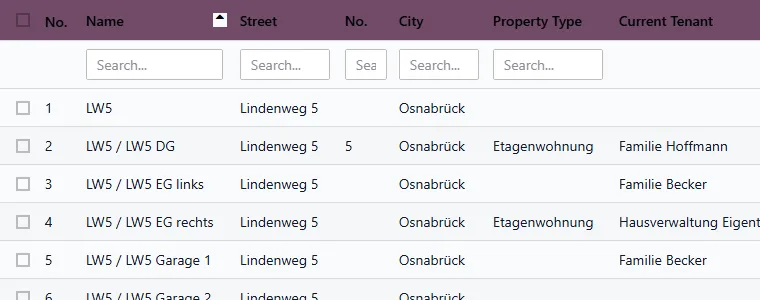
- Under Serial Number Settings, tick Serial Number if every list should show a running row number.
- Click Save.
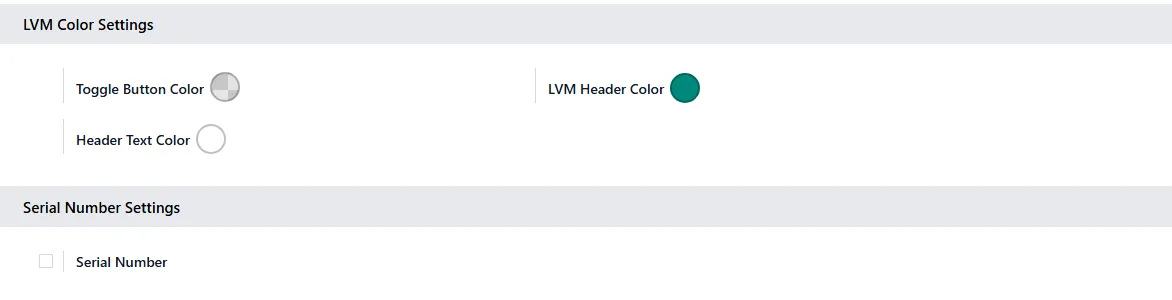
The colors apply only after you have saved the settings. The row number appears in a separate No. column on the left of the list.
Grant access rights
Section titled “Grant access rights”Four rights control who sees the extensions. The administrator grants them on the user:
- Under Settings › General Settings, at the very bottom, turn on developer mode with Activate the developer mode.
- Open Settings › Users & Companies › Users and the user.
- On the Access Rights tab, under Extra Rights, tick the boxes.
- Save the user.

- LVM Dynamic List: the gear icon for the column selection.
- LVM Advanced Search: the search fields below the column headings.
- LVM Read/Edit Mode: the switch for edit mode.
- LVM Duplicate: the Duplicate Records button.
Users who already existed when the add-on module was set up have the first three rights. At first only the administrator can duplicate. New users do not get any of the four rights automatically, so tick the boxes when you create them.
Frequently asked questions
Section titled “Frequently asked questions”A colleague sees no gear icon and no search fields below the columns. They lack the rights. This mainly affects users created after the add-on module was set up.
My column search has disappeared. It applies only while the list is open. For a search you need often, use the filters of the search bar and save them as a favorite.
The search fields are missing in a list inside a form. The extensions apply only to lists you open from a menu.
Didn't find an answer? Contact support