

EBICS
Question about the manual? Ask Claude · Ask ChatGPT
EBICS is a standard that companies use to exchange files directly with their bank. SMARTBRIX uses it in two directions: it fetches bank statements from the bank and reads them into the bank journal as bank statements. And it transfers payment files, such as transfers from a batch payment, to the bank. How you then match the imported transactions to the invoices is shown on the Bank matching page.
Requirements
Section titled “Requirements”- EBICS contract with the bank. The bank gives you the access data: host ID, address of the bank server, partner ID and one user ID per person.
- License for the EBICS library. SMARTBRIX talks to the bank through a licensed library. You order the license through SMARTBRIX, and it is entered on the server. Without a license the library runs in demo mode: bank statements only come for the last three days, an upload may contain at most five payments, and the electronic signature through the distributed electronic signature (VEU) does not work.
- Bank account with bank. The bank journal needs an IBAN, and the bank must be entered on the bank account. See Journals and bank accounts.
- “EBICS Manager” access right. Only users in this group see the Configuration › EBICS menu. For fetching and uploading, the usual accounting rights are enough, provided your user is entered on the EBICS user.
- Invoicing › EBICS Processing: EBICS Download, EBICS Upload, EBICS Files › Download and Upload, EBICS Batch Import Logs
- Invoicing › Configuration › EBICS: EBICS Configuration, EBICS File Formats, EBICS Administrative Orders, Mark files as Downloaded
- Accounting › EBICS Processing: EBICS Download, EBICS Upload, EBICS Files › Download and Upload, EBICS Batch Import Logs
- Accounting › Configuration › EBICS: EBICS Configuration, EBICS File Formats, EBICS Administrative Orders, Mark files as Downloaded
The steps below name the menus without the app name.
Set up
Section titled “Set up”Setup has two parts: one configuration per EBICS contract, and within it one EBICS user per person who fetches or uploads.
Create a configuration
Section titled “Create a configuration”- Open Configuration › EBICS › EBICS Configuration and click New.
- Fill in the fields:
- Name: any name, for example the name of the bank.
- Bank Accounts: the bank journals whose statements SMARTBRIX takes over. SMARTBRIX discards statements of other accounts. If the field is empty, all accounts apply.
- EBICS HostID, EBICS URL and EBICS PartnerID: from the bank’s letter.
- EBICS protocol version: the default is H004 (2.5). Change it only if the bank requires a different one.
- Fetch Period: what a fetch without a date retrieves. Previous day (default) fetches yesterday’s statements. All not yet fetched fetches everything the bank has not yet marked as fetched; this can include months that are already imported.
- EBICS key version and EBICS key bitlength: keep the defaults unless the bank requires something else.
- On the File Formats tab, enter the formats your contract covers, for example camt.053 for daily statements.
- On the EBICS Users tab, create the EBICS users (next section).
- Once all EBICS users are set up, click Confirm. Only a confirmed configuration can be selected when fetching and uploading.
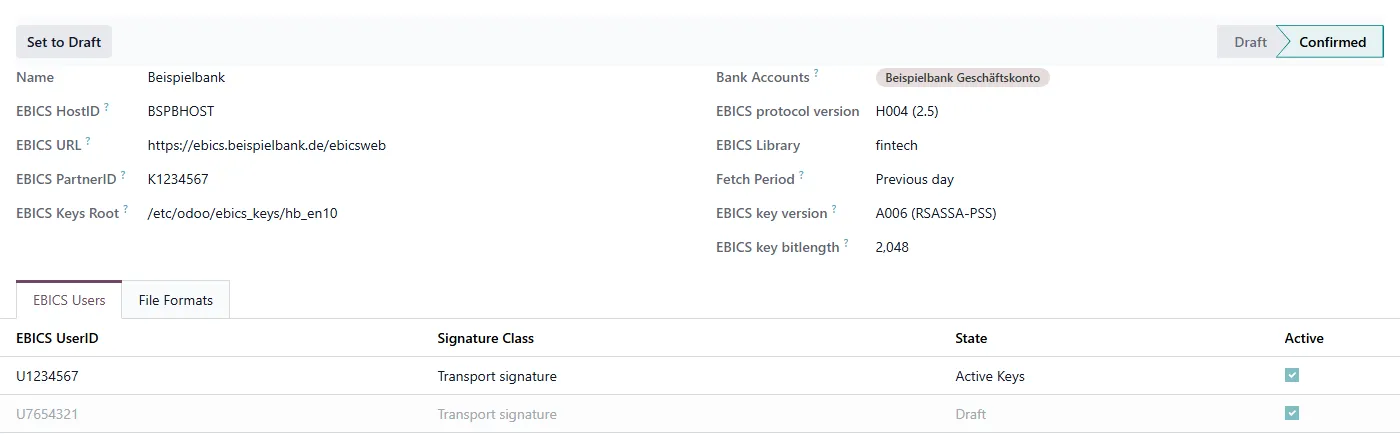
To make changes, reset the configuration with Set to Draft and confirm it again afterwards.
Create EBICS users
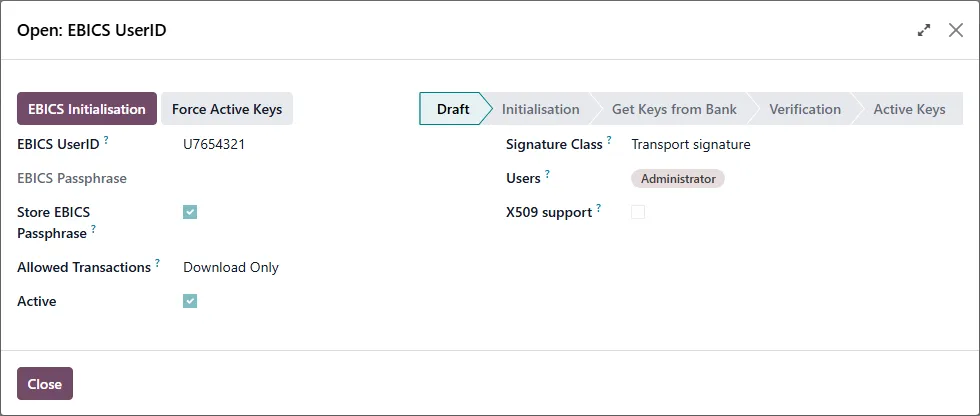
Section titled “Create EBICS users”On the EBICS Users tab, add one line per person:
- EBICS UserID: the user ID from the bank’s letter.
- EBICS Passphrase: protects the user’s keys, at least eight characters.
- Store EBICS Passphrase: set by default. Without a stored passphrase, SMARTBRIX asks for it on every fetch, and automatic fetching does not work.
- Allowed Transactions: Download and Upload, Download Only or Upload Only, as covered by the contract.
- Signature Class: usually Transport signature. The bank then only executes payments after they are approved in the VEU.
- Users: the SMARTBRIX users who work with this EBICS user. Anyone missing here will not find the EBICS user when fetching.
Activate the EBICS user at the bank
Section titled “Activate the EBICS user at the bank”The status bar shows where the EBICS user stands: Draft, Initialisation, Get Keys from Bank, Verification, Active Keys.
- On the EBICS user, click EBICS Initialisation. SMARTBRIX creates the keys, sends them to the bank and stores the EBICS INI Letter as a PDF.
- Download the INI letter, sign it and send it to the bank.
- Once the bank has activated the access, click Account activated.
- Click Get Bank Keys. SMARTBRIX fetches the bank’s keys and stores them as a file.
- Compare the hash values in this file with the values the bank sent you in writing. If they match, click Bank Keys Verified.
The EBICS user is then in Active Keys status. Finally, confirm the configuration.
If SMARTBRIX reports “No bank defined for the financial journal of the EBICS Configuration” during initialization, the bank is missing on the bank account of the first bank journal.
On an active EBICS user, Change Passphrase and Renew Bank Keys are also available for when the bank announces new keys.
Fetch bank statements
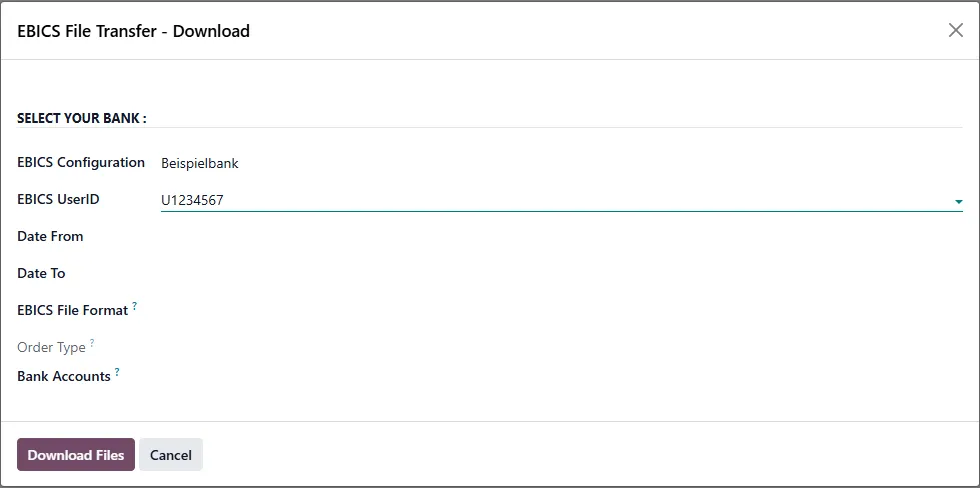
Section titled “Fetch bank statements”- Open EBICS Processing › EBICS Download.
- Check EBICS Configuration and EBICS UserID. If there is only one option, it is preselected. Without a stored passphrase, enter it under EBICS Passphrase.
- Leave Date From and Date To empty to use the Fetch Period of the configuration. With dates, SMARTBRIX fetches exactly that period.
- Leave EBICS File Format empty to fetch all formats, or select one.
- Click Download Files.
Under Results, the wizard shows what the bank delivered. View EBICS File(s) opens the new files.
If the fetch period is Previous day and the previous day has already been fetched, the wizard reports “File Format … has already been fetched for this period.” A previous day only counts as fetched if the fetch ran after midnight at the end of that day. A fetch with dates always retrieves.
Fetch missing statements for single bank accounts
Section titled “Fetch missing statements for single bank accounts”If statements are missing for one account, fetch only that account:
- Open EBICS Processing › EBICS Download.
- Enter Date From and Date To. Without a period, SMARTBRIX reports “Enter a period to download selected bank accounts.”
- Under Bank Accounts, select the accounts concerned.
- Click Download Files.
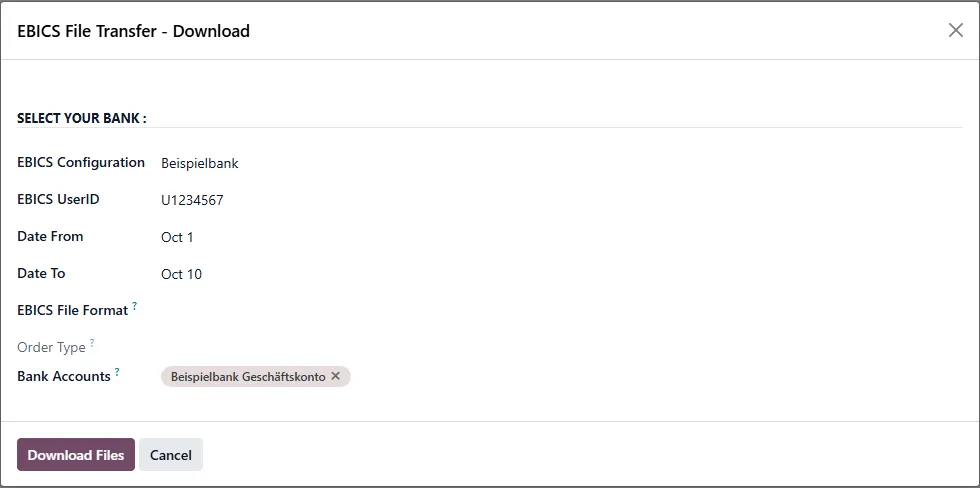
This way SMARTBRIX fetches only bank statements, no other formats. The bank keeps treating the data as not fetched, so the other accounts can still be fetched. The file carries the note Selected Bank Accounts Only and does not count as the fetch of the previous day. If the bank delivers nothing, the result reads: “The bank sent no statements of the selected bank accounts for this period.”
What happens next
Section titled “What happens next”For each bank account, an EBICS file in Draft status is created. A scheduled action processes new files every two minutes, five files per run, and creates bank statements from them in the bank journal. It skips statements without transactions. In the Business plan, SMARTBRIX then matches the transactions automatically where it finds matching open items. You match the rest in Bank matching.
You find the files under EBICS Processing › EBICS Files › Download. A processed file is in Done status.
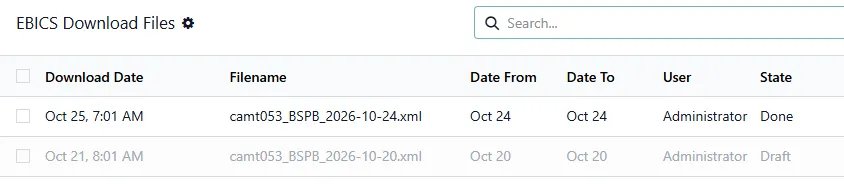
EBICS fetches do not appear in the Bank Statement Import History. That history only covers fetching by SFTP.
Fetch automatically every day
Section titled “Fetch automatically every day”The scheduled action EBICS Batch Import fetches the files of all confirmed configurations once a day and processes them. It is turned off by default. An administrator turns it on in developer mode under Settings › Technical › Automation › Scheduled Actions. Set the run time to after midnight so that the previous day is complete.
The batch import needs a stored passphrase. Each run writes a log under EBICS Processing › EBICS Batch Import Logs with the status Draft, Error or Done.
Process notes and duplicates
Section titled “Process notes and duplicates”Every EBICS file has a Process Notes tab. After processing, it shows which bank statements were created. The Bank Statements tab opens the statements themselves.

If SMARTBRIX cannot process a file, the reason is in the note. The scheduled action no longer touches files with a note; they wait for you. This also applies to files downloaded more than one day ago, for example after a longer outage.

- Open EBICS Processing › EBICS Files › Download.
- In the filter, select Waiting for manual processing.
- Open the file and read the note. Check whether the statements have already been imported.
- Click Process. To process several files from the list, use Process selection.
Set to Draft clears the note. The file then goes back to the scheduled action, provided it is not older than one day.
Duplicates: SMARTBRIX checks every imported statement. If there is already an older statement with the same name and format, or one in the same bank journal with the same date, the same starting and ending balance and the same transaction amounts, SMARTBRIX deletes the new one again. The note then reports “Statement … dated … has already been imported.” If the bank delivers a file with a name that already exists, SMARTBRIX reports “EBICS File with name … has already been downloaded.”
Submit payments
Section titled “Submit payments”You submit payments through a payment order.
- In the payment mode, enter under EBICS File Format the format the bank expects for transfers, for example pain.001.
- In the payment order, create the file with Generate Payment File.
- Click EBICS Upload and confirm in the wizard with Upload File.
SMARTBRIX reports “File Uploaded” and records the upload in the payment order’s history. If the format is missing in the payment mode, SMARTBRIX reports “Missing EBICS File Format setting on your Payment Mode.”
You submit payments through a batch payment.
- Create the batch payment with its export file so that it is in Sent status.
- Click EBICS Upload and confirm in the wizard with Upload File.
The EBICS upload info tab of the batch payment shows the status. After the upload, the button is called EBICS Upload Again. Use it only if the bank did not execute the first file, otherwise the bank pays twice.
The EBICS Upload button only appears if the bank journal of the batch payment belongs to an EBICS configuration and the batch payment is in Sent status.
You can also upload a single file without a payment order or batch payment: open EBICS Processing › EBICS Upload, select the file under File to Upload, check the EBICS File Format and click Upload File. The file appears under EBICS Files › Upload with the bank’s EBICS OrderID.
With a transport signature, the bank only executes a payment once it is approved in the VEU. You give this approval outside SMARTBRIX, for example in online banking or in the bank’s app.
Frequently asked questions
Section titled “Frequently asked questions”The Configuration › EBICS menu is missing. Your user does not belong to the EBICS Manager group. An administrator assigns it in the user settings.
My EBICS user is missing in the download wizard. Your user is not listed under Users on the EBICS user, the EBICS user may only upload, or the configuration is not confirmed.
The fetch retrieves nothing, although the bank has statements. With Previous day, SMARTBRIX only fetches yesterday, and only once. For older days, enter a period.
A fetch brought statements that are months old. The configuration is set to All not yet fetched. The bank then delivers everything it has not yet marked as fetched. SMARTBRIX deletes real duplicates, but check the list of bank statements anyway.
SMARTBRIX reports “The EBICS library of the EBICS configuration … is not installed.” The library or its license is missing on the server. Contact SMARTBRIX.
The bank did not execute the payment. Check whether the order has been approved in the VEU.
Didn't find an answer? Contact support