

Set up CRM
Question about the manual? Ask Claude · Ask ChatGPT
Before the first inquiries come in, decide which team handles them, which stages they go through and how inquiries from your website arrive. Only users with administrator rights in CRM see the menus under CRM › Configuration.
Sales teams
Section titled “Sales teams”A sales team groups the employees who handle inquiries together, for example “Letting” for prospective tenants and “Sales” for prospective buyers.
- Open CRM › Configuration › Sales Teams and click New.
- Enter the name and select the Team Leader.
- Select the Team Type. For letting, select Administration.
- If needed, enter an Email Alias, for example “letting”. Emails to this address become opportunities of the team. Under Accept Emails From you decide whose emails get through.
- Add the employees on the Members tab.
- Save.
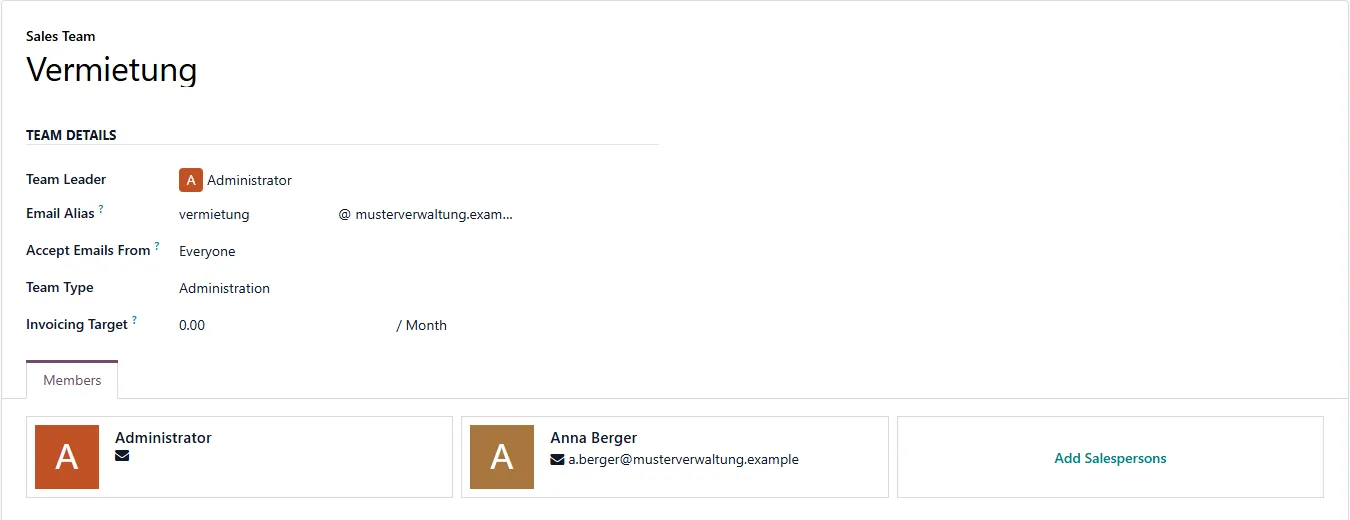
Team Type: Only opportunities of a team with the team type Administration show the Convert to Tenancy button. The other values, Sales, Acquisition and Development, are for classification only and change no behavior.
More on teams, members and automatic assignment: Odoo documentation: Manage sales teams and Leads by email.
Stages
Section titled “Stages”The stages are the columns of the pipeline. You change their names and order directly in the pipeline: the gear icon of a column edits it, + at the end adds a column, and you change the order by dragging.
You reach the further settings of a stage under CRM › Configuration › Pipeline › Stages. This menu item only appears in developer mode. Turn it on at the very bottom of Settings with Activate the developer mode.
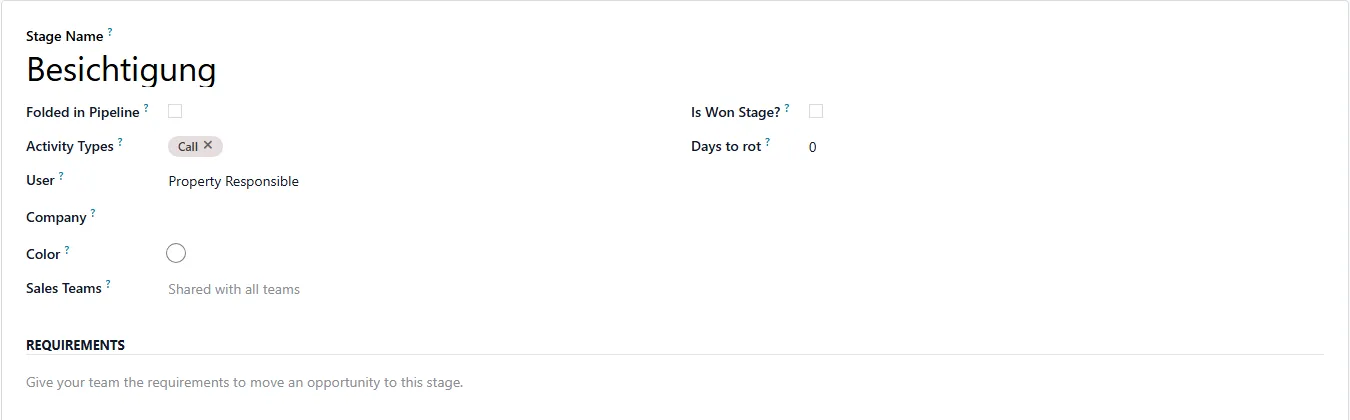
- Stage Name: the name of the column.
- Is Won Stage?: opportunities in this stage count as won.
- Folded in Pipeline: the column appears folded.
- Sales Teams: if empty, the stage applies to all teams. If you select teams, it appears only in their pipelines.
SMARTBRIX adds Automatic activities:
- Activity Types: when an opportunity moves to this stage, SMARTBRIX creates one activity for each selected type. Due date and note come from the activity type.
- User: who gets the activity. Property Responsible is the person responsible for the property of the opportunity, Opportunity Salesperson the salesperson of the opportunity, Activity Default User the user set on the activity type.
Always select both: activity types and user. SMARTBRIX sends no emails when the stage changes.
You maintain the activity types themselves under CRM › Configuration › Activities › Activity Types, see Odoo documentation: Activities.
Lost reasons
Section titled “Lost reasons”Under CRM › Configuration › Pipeline › Lost Reasons you maintain the reasons offered when someone clicks Lost. Odoo comes with general reasons from selling goods, such as “Not enough stock”. Archive what does not fit and create your own, for example “Documents incomplete”. SMARTBRIX brings two reasons: Object awarded elsewhere and Chose another object. The dialog sets them after an award when it closes opportunities. More: Odoo documentation: Lost opportunities.
Inquiries from the website
Section titled “Inquiries from the website”The property pages of your website have a contact form. Where inquiries from it go is set under Settings › Website, in the Property Management section:
- Sales Team: the team that new opportunities belong to, for example “Vermietung”.
- CRM Stage: the stage they start in, for example Interest in Property.
- Contact Form Fields: additional fields on the form, for example phone, street or city. Required? makes a field mandatory. The form always asks for name, email, subject and message.
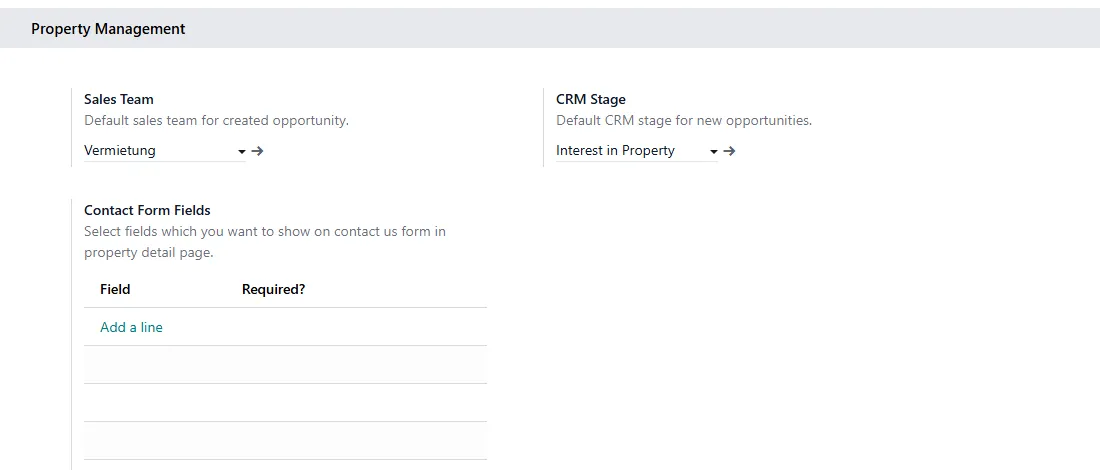
The settings apply per website. The person responsible for the property becomes responsible for a new opportunity.
Leads before opportunities
Section titled “Leads before opportunities”Odoo can first collect inquiries as a Lead and only turn them into opportunities after a review. SMARTBRIX always creates inquiries from the website and from property portals directly as opportunities. If you turn on leads under CRM › Configuration › Settings, emails to a team’s alias become leads. In that case, you cannot create a tenancy from a lead. Convert it to an opportunity first, see Odoo documentation: Convert leads.
Didn't find an answer? Contact support