

Deposit
Question about the manual? Ask Claude · Ask ChatGPT
The deposit is agreed, charged and received. You agreed it when you created the tenancy. Now you invoice it and track its receipt.
Charge the deposit
Section titled “Charge the deposit”- Open the tenancy and switch to the “Rental Deposit” tab.
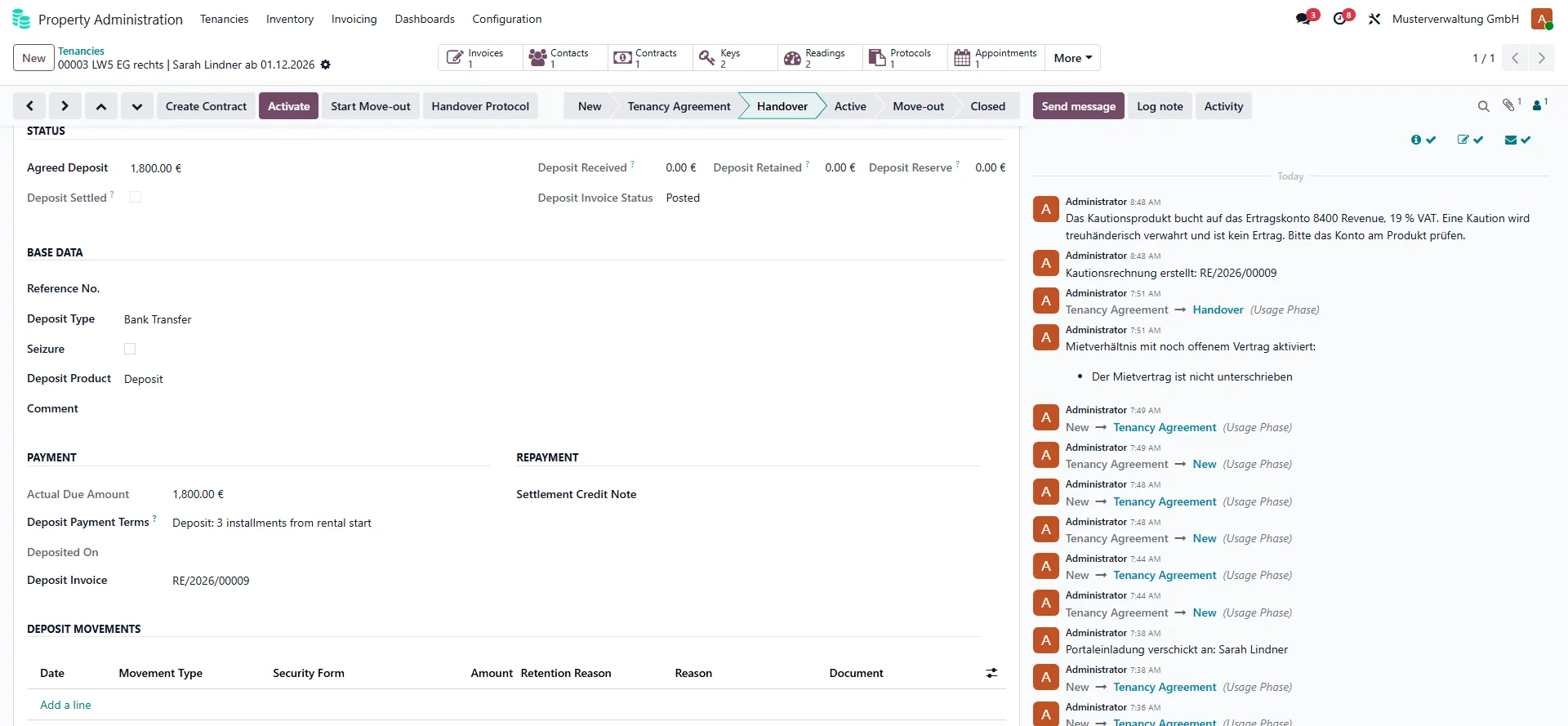
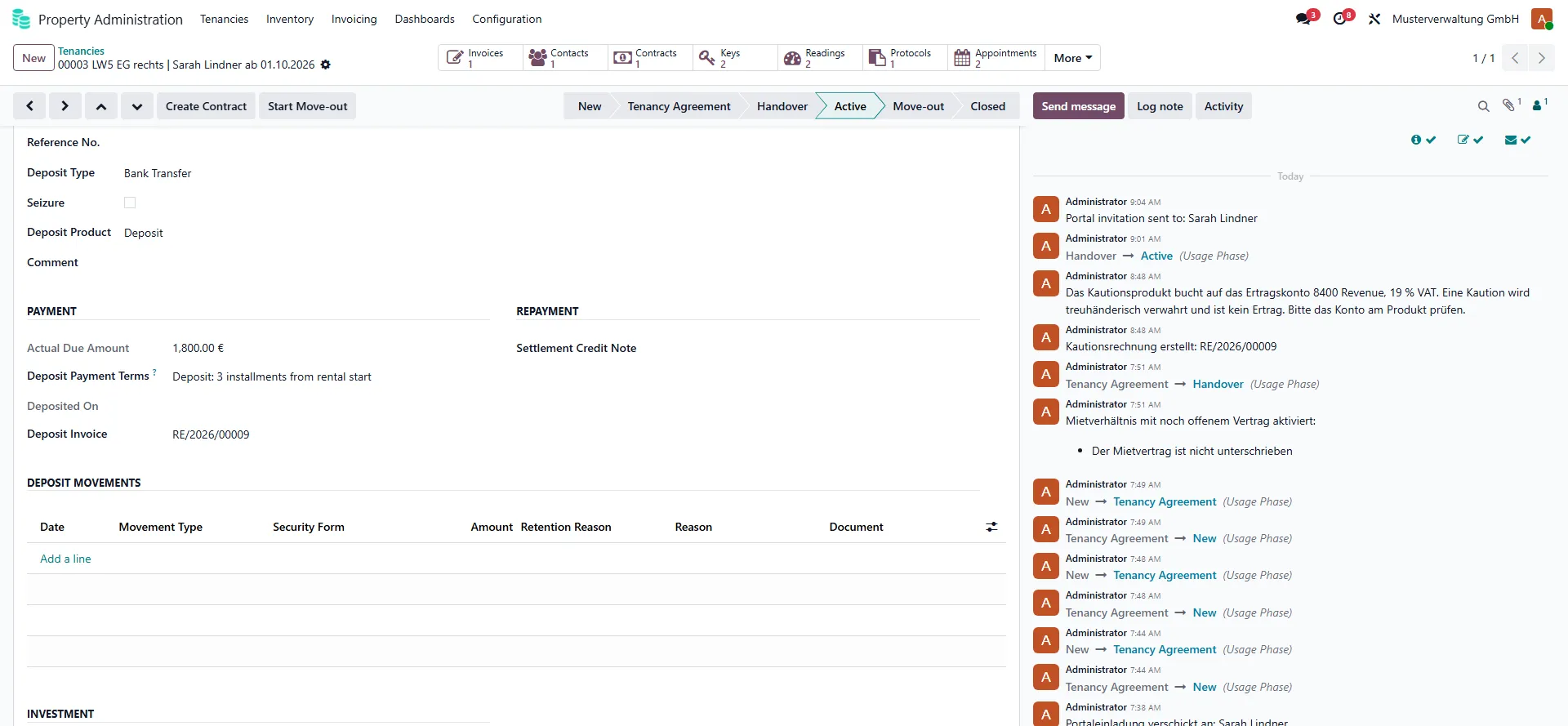
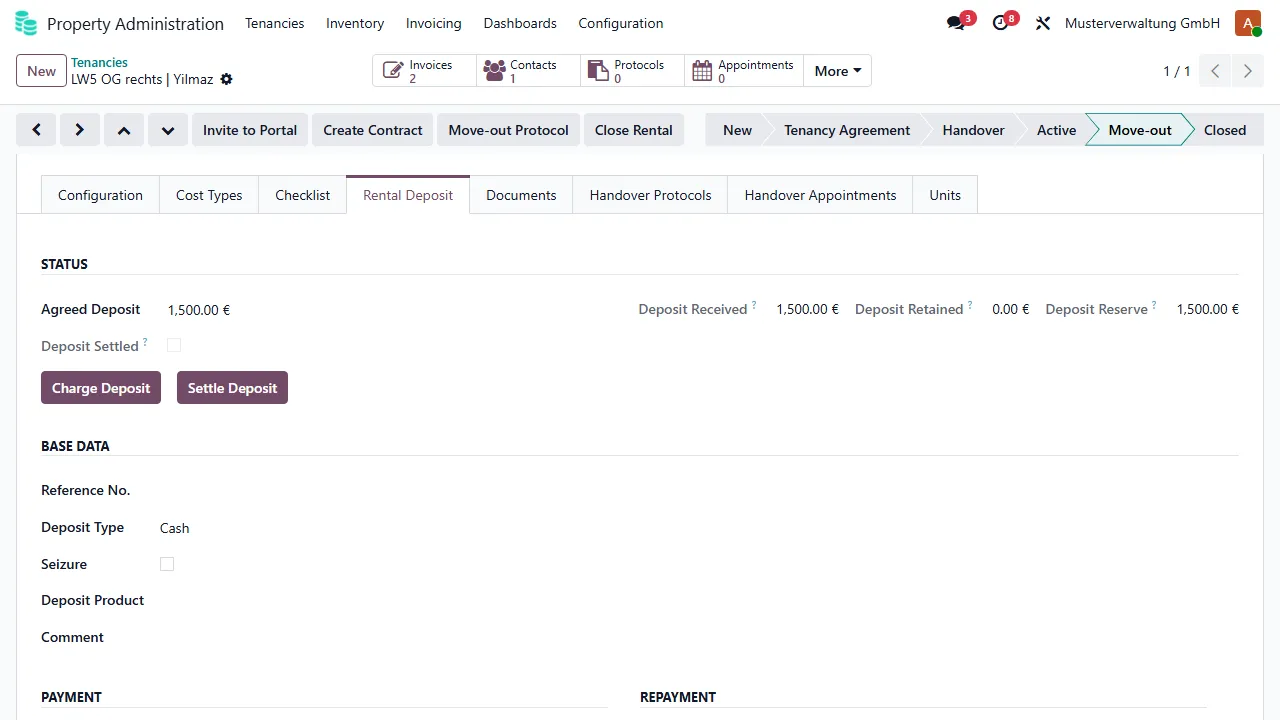
- In the “Status” group, check the amount in the “Agreed Deposit” field and, below it under “Base Data”, the “Deposit Type”.
- Under “Payment”, enter the “Deposit Payment Terms” if the tenant may pay in installments. The software comes with “Deposit: 3 installments from rental start” for this, with three equal installments at the start of the tenancy, one month later and two months later.
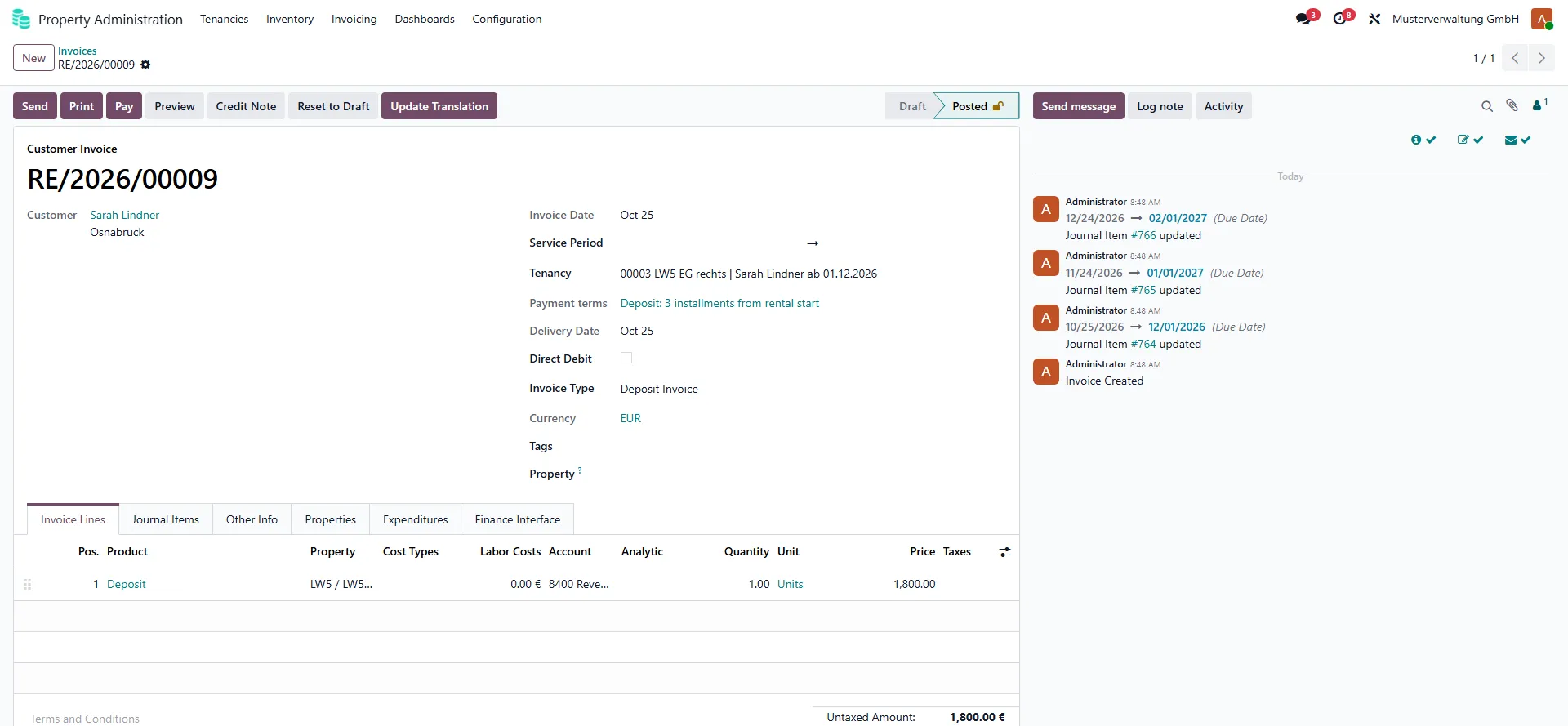
- Click “Charge Deposit”. There is no intermediate dialog: the system creates the deposit invoice right away, posts it and opens it.
- Check the invoice and send it the way you send invoices.
Track the receipt
Section titled “Track the receipt”- Track the receipt on the “Rental Deposit” tab. In the “Status” group, “Deposit Received” grows. Under “Payment”, “Actual Due Amount” shows the claim still open. To see what the invoice itself says, use the link to the deposit invoice.
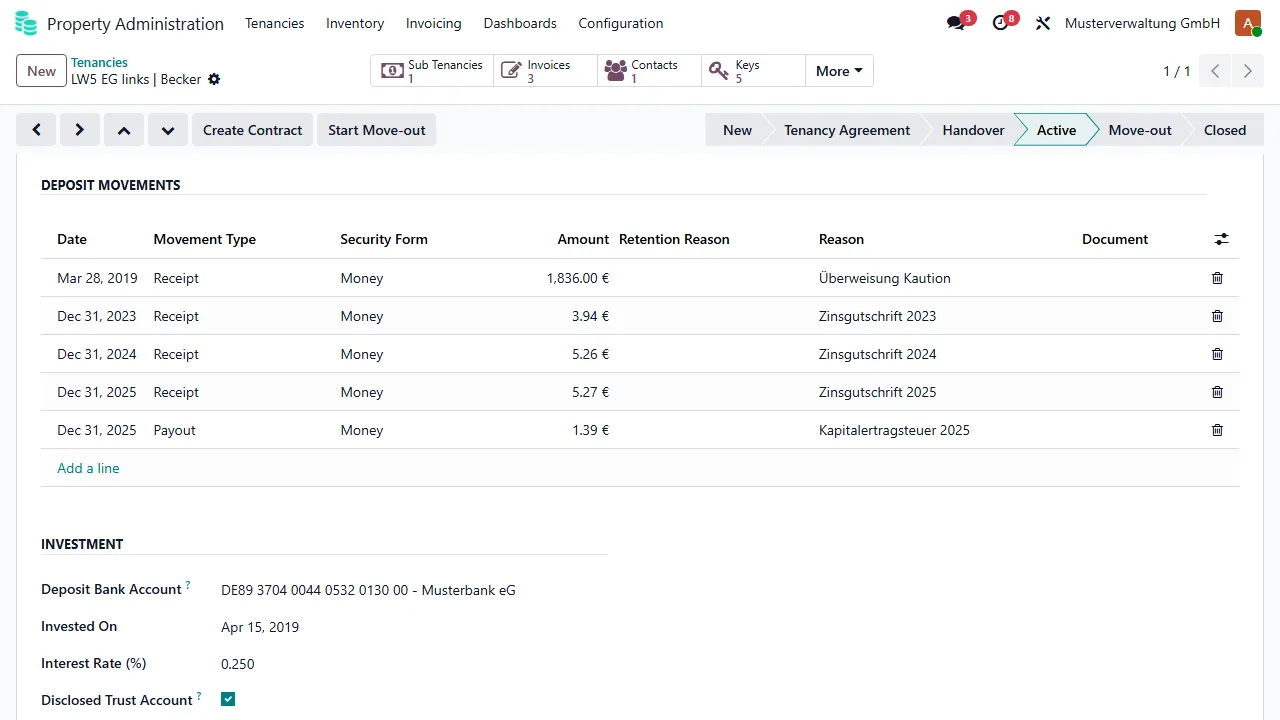
- Look at the individual transactions under “Deposit Movements”. For each payment there is a line with “Date”, “Movement Type”, “Security Form”, “Amount” and “Document”.
- Record by hand what happens without a document: a cash payment as “Receipt”, and a certificate you received also as “Receipt” with the security form “Certificate”.
- For a certificate, also fill in the “Certificate” group with issuer, number and validity.
- Collect the deposit before the key handover. The status of this is tracked by the handover checklist in the “Deposit received” checkpoint. It is done as soon as the first installment has arrived. You are not held up.
Other forms of security such as a guarantee or insurance, the investment of the deposit and interest are also handled on this tab, see Deposit management.
What happens automatically
Section titled “What happens automatically”- “Charge Deposit” creates a posted invoice with the invoice type “Deposit Invoice”, without tax, in your company’s deposit journal. The history shows “Deposit invoice created:”.
- If the start of the tenancy is still in the future, the due dates of the installments are calculated from the start of the tenancy. If it is in the past, they count from today.
- The installments of the payment terms that come with the software fall due in whole months from this day. If the day does not exist in the target month, the installment moves to the last day of the month.
- A second charge is refused: “The deposit of this rental has already been charged.”
- Every payment reconciled against the deposit invoice creates exactly one deposit movement of the type “Receipt”. If you undo the reconciliation, the movement disappears again.
- “Deposit Reserve” is the balance of all movements: receipts minus payouts minus retentions. As long as it is positive, the deposit counts as not settled.
- If the deposit requested exceeds three times the net base rent, the tab shows a warning. For residential space, this is above the legal limit. You are not held up.
- If the deposit product posts to an income account, the tab points this out. A deposit is a liability.
- For residential space, a retention before the confirmed end of the agreement requires a reason. Without a reason, the line is not saved.
- In the checklist of the “New” phase, the “Deposit agreed” checkpoint counts as done as soon as an amount is entered. Only the handover checklist asks about receipt.
- When a certificate expires, the system reminds you with a task.
You post payments like any other incoming payment, see Incoming payments and reminders.
with customer portal What the tenant sees in the portal
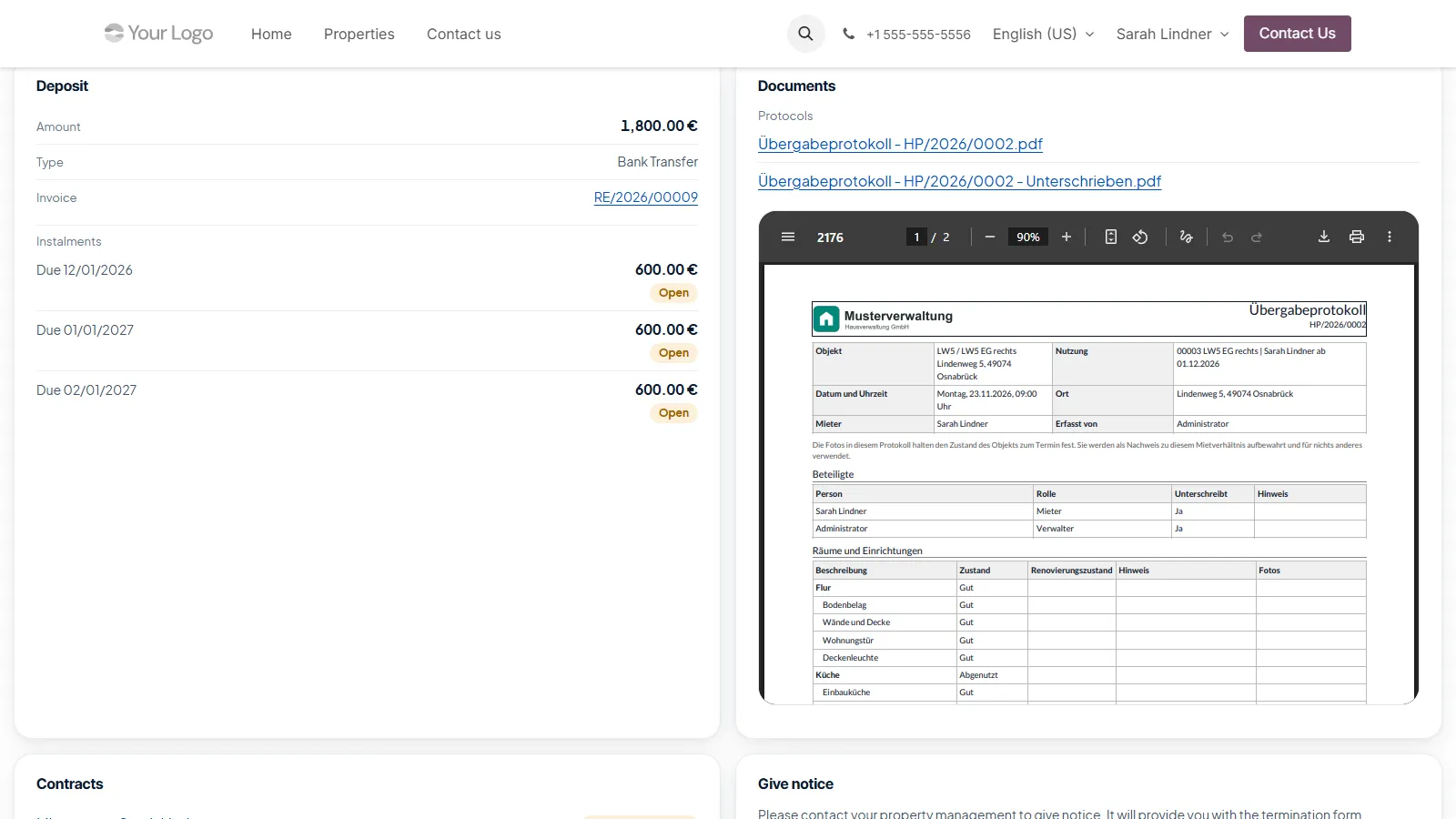
- On the page of their tenancy, the tenant finds the “Deposit” card. It shows “Amount”, “Type” and, once deposited, “Deposited on”.
- Under “Invoice”, the deposit invoice appears as a link. It opens the invoice like any other.
- If an installment plan is stored, the “Instalments” section follows, with one line per due date: date, amount and the label “Paid” or “Open”.
- What has already been paid appears under “Received so far”. Certificates deliberately do not count there.
- The portal does not show movements or reasons for retentions.
Didn't find an answer? Contact support