

Assets
Question about the manual? Ask Claude · Ask ChatGPT
An asset always belongs to a property. If you create it from an asset template, components, features and duties are created in one step. Without an asset template you create a single asset and enter the duties by hand.
All assets are listed under Property Maintenance › Assets › Assets, grouped by main property and cost group.
Create an asset from a template
Section titled “Create an asset from a template”- Open Property Maintenance › Assets › Assets and click New.
- Enter the Name, for example “Heizungsanlage”.
- Select the Asset Template. SMARTBRIX takes the Sub Group from the asset template.
- If the asset template has components, the Create assets from template window appears with the number of components. Click Ok. Cancel clears the asset template and the sub group again.
- Select the Property and, if needed, the Responsible User and the Maintenance Team.
- Save.
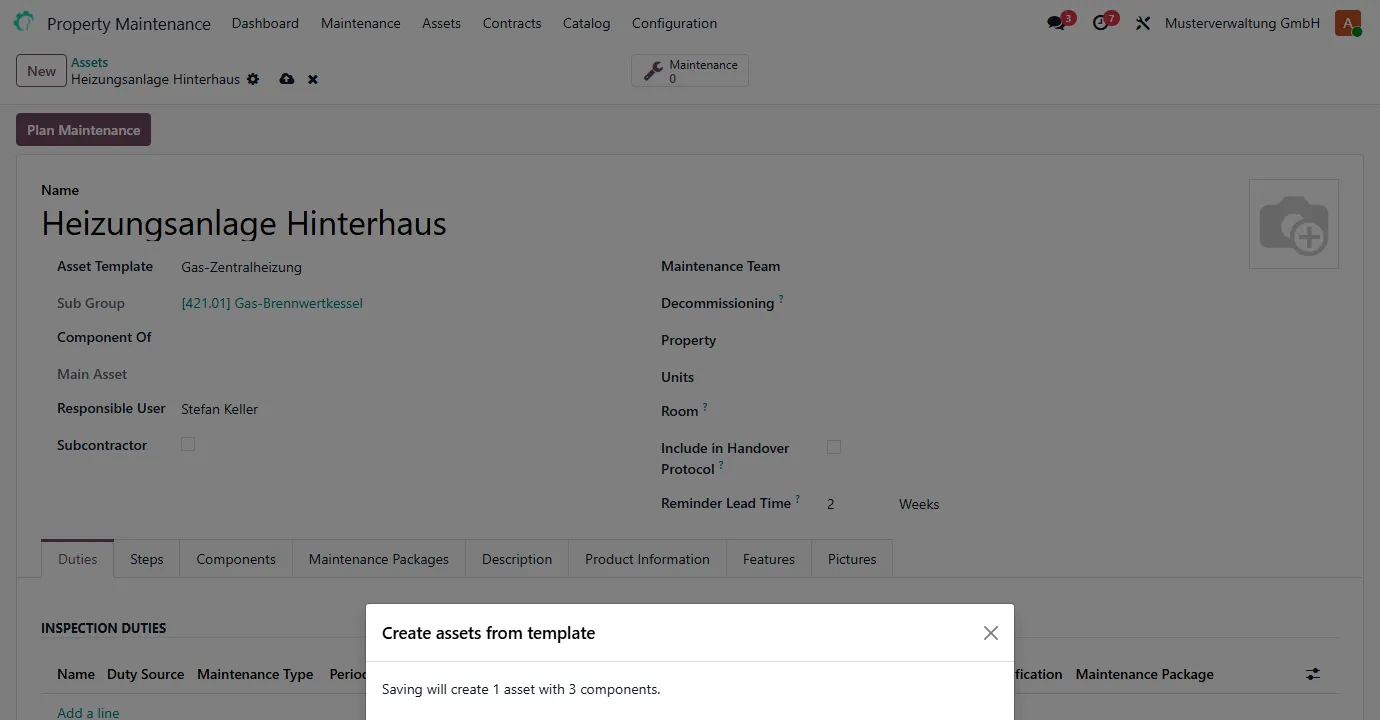
When you save, SMARTBRIX creates the components as assets of their own and copies features, lead time and duties including their maintenance steps. The duties are not started yet. How to start them is described under Inspection duties and routine tasks.
Without an asset template, a single asset is created. The sub group then only supplies the technician and the lead time.
Equip several properties at once
Section titled “Equip several properties at once”For many identical assets, such as the outdoor facilities of several residential buildings:
- Open the properties in the list view and select them.
- In the Actions menu, choose Add Assets from Catalog.
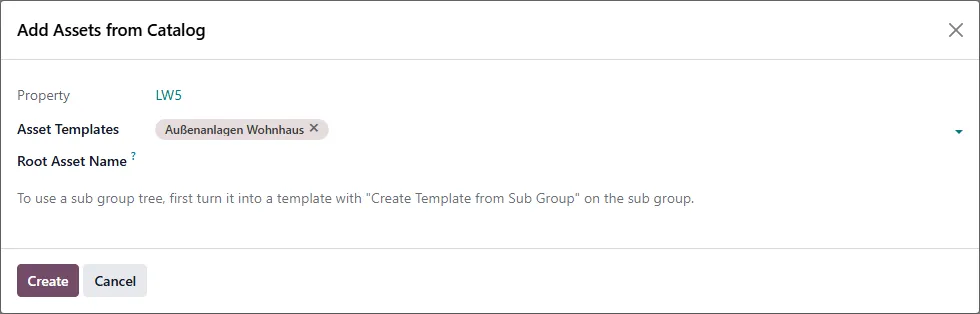
- Under Asset Templates, select one or more asset templates. With exactly one asset template, you can set the name in the Root Asset Name field.
- Click Create.
SMARTBRIX creates one asset with all its components per property and asset template, then shows the assets it created. Each run is limited to 200 assets. On a single property you find the same wizard under More › Add from Catalog.
The asset at a glance
Section titled “The asset at a glance”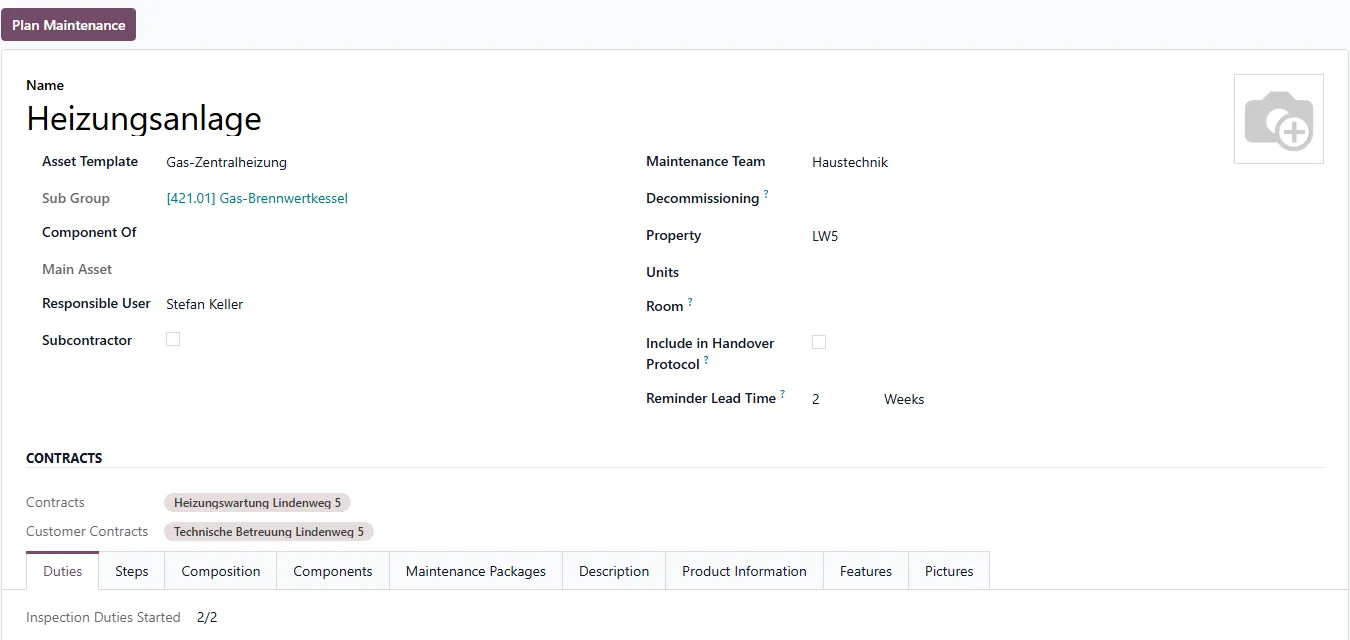
- Asset Template and Sub Group: what the asset was created from and how it is classified.
- Component Of and Root Asset: for components, the parent asset and the top asset of the tree.
- Responsible User: the technician SMARTBRIX assigns maintenance and reminders to unless something else applies.
- Maintenance Team: the team for maintenance on this asset.
- Decommissioning: see below.
- Property and Units: where the asset is located and which units it supplies.
- Room and Include in Handover Protocol: see below.
- Reminder Lead Time: how long before the deadline of an inspection duty the responsible user is reminded. Empty means no reminder.
- Contracts section: the maintenance and customer contracts that cover this asset.
The tabs:
- Duties: inspection duties, routine tasks and the duties of the components.
- Steps: all maintenance steps of all duties in one list.
- Composition: the structure as a tree. Click a component to open it.
- Components: the components with position number and number of duties.
- Maintenance Packages: the commercial assignment, see Contracts and maintenance packages.
- Product Information: vendor, serial number, year of construction and Commissioning Date.
- Features: the values of the asset features, for example “Erdgas” for the feature “Brennstoff”.
- Pictures: photos of the asset.

The buttons at the top open the open maintenance, the components, the maintenance demand and the contracts of the asset. All Duties appears on the top asset of a tree and shows the duties of all components.
Asset structure
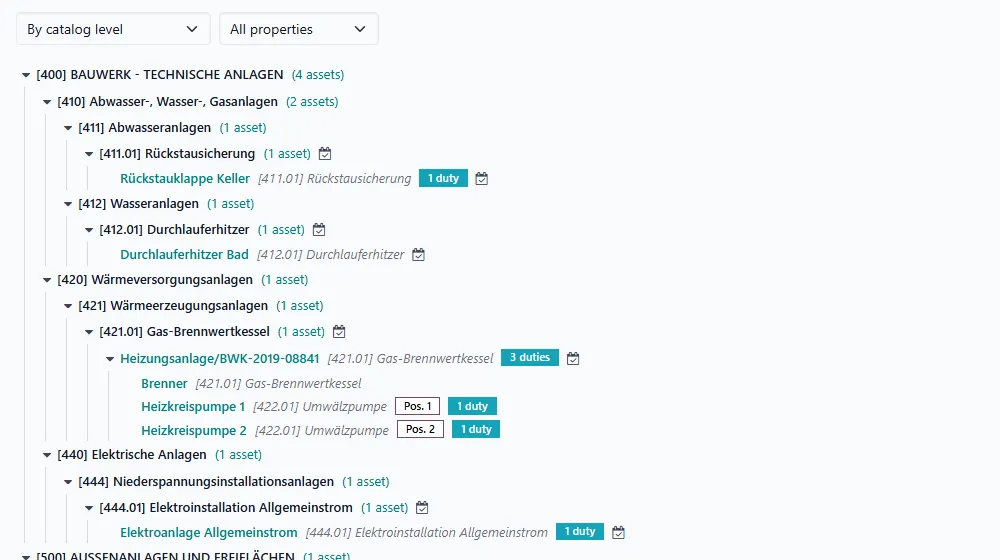
Section titled “Asset structure”Property Maintenance › Assets › Asset Structure shows your inventory as a tree:
- By catalog level: cost group, main group, side group, sub group, and below them the assets with their components. Only branches that contain assets are shown.
- By customer contract and By maintenance contract: the contracts at the top, below them the assets they cover. Assets without a contract are listed under Without Customer Contract or Without Maintenance Contract.
Use All properties to narrow the view to one property. The number in parentheses opens the list of assets, the name of an asset opens its form. The calendar icon opens the maintenance demand for that branch.
Assets in the handover protocol
Section titled “Assets in the handover protocol”If an asset is to be checked at the handover and move-out of an apartment, for example the instantaneous water heater in the bathroom:
- Create the asset on the apartment, not on the building.
- Select the Room. You can choose from the rooms of this property.
- Check Include in Handover Protocol.
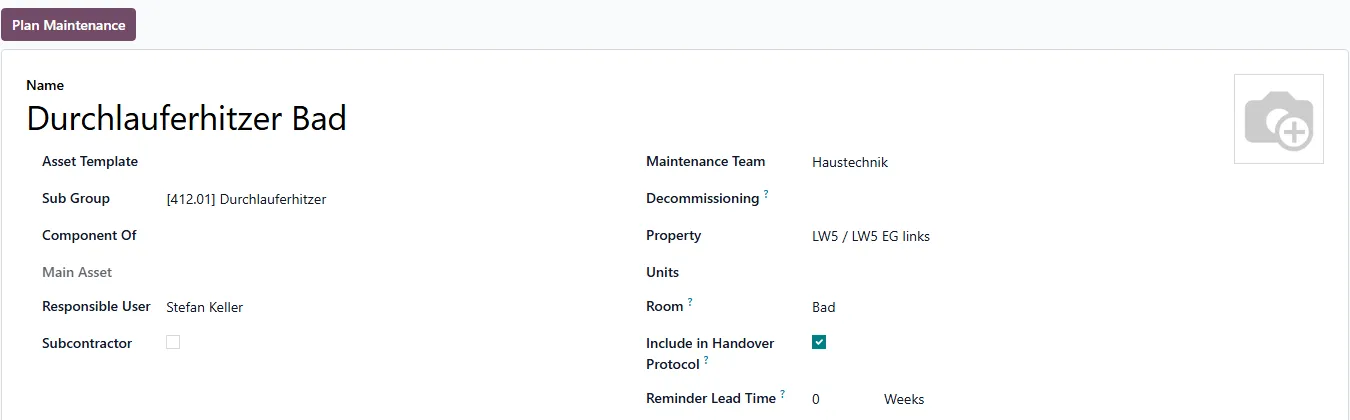
When a handover protocol is prefilled, the asset then appears as an item under its room. The process is described in Handover.
Decommission an asset
Section titled “Decommission an asset”Enter the date under Decommissioning on the asset. Once the date is reached, SMARTBRIX archives the asset in the next daily run, deactivates its duties and notes this in the asset’s history. From then on, neither maintenance demand nor new maintenance is created for this asset. Maintenance that is already scheduled remains.
Frequently asked questions
Section titled “Frequently asked questions”Why can’t I select the room? The room and the asset must belong to the same property. If the asset is on the building, the rooms of the apartment are not available.
Can I change the sub group of an asset? Only as long as no asset template is set. With an asset template, the asset template determines the sub group.
Didn't find an answer? Contact support