

Email templates
Question about the manual? Ask Claude · Ask ChatGPT
An email template is a text with placeholders. When you use it, SMARTBRIX puts the value from the record in place of each placeholder: the tenant’s name, the start date, the deposit. Templates serve three purposes:
- Emails: SMARTBRIX sends index-linked rent increases, handover appointment proposals, exposés, portal invitations and much more with templates that come with the software. You choose your own templates in the message window under Load template.
- Letters: SMARTBRIX offers templates with the Suitable as a letter box ticked when you write a letter. See Letters.
- Tenancy agreements: The contract text of a tenancy agreement comes from a template that applies to tenancy agreements. See Tenancy agreement.
Where to find templates
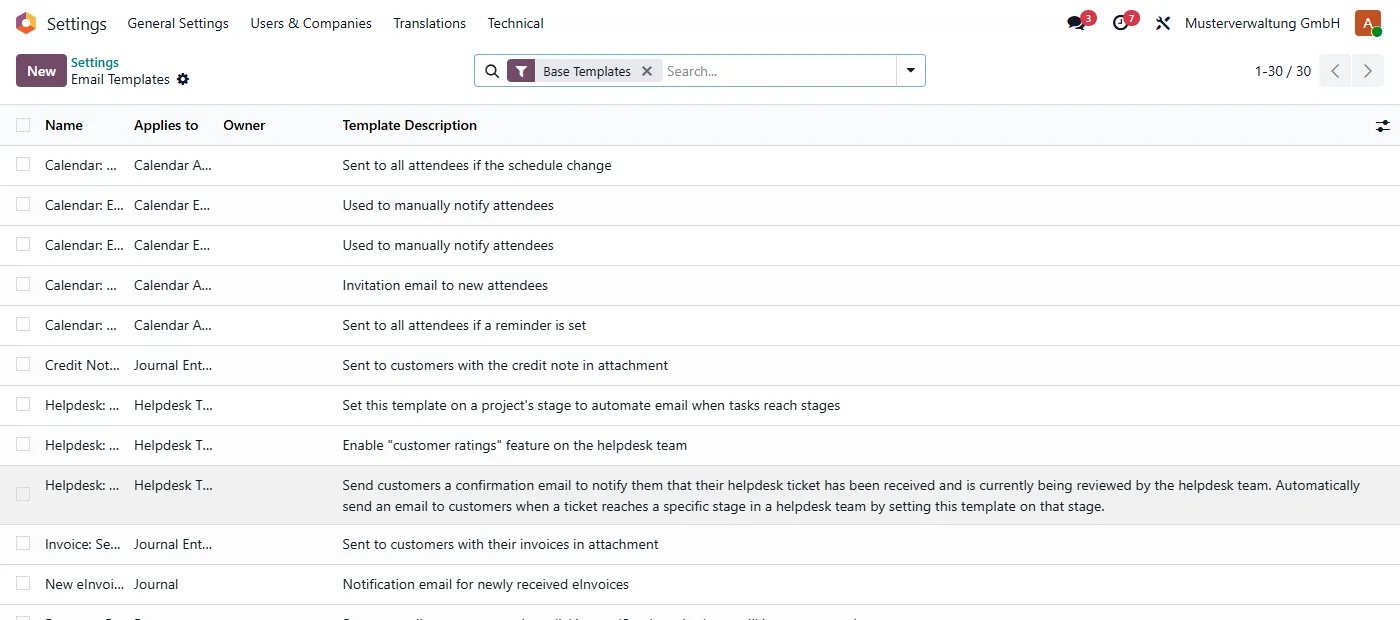
Section titled “Where to find templates”- Open Settings and go to the Companies block.
- Under Email Templates, click Review All Templates.
- At first the list shows only the Base Templates. Remove the filter in the search field to see all templates, including your own.
In developer mode you reach the same list under Settings › Technical › Email › Email Templates.
Key users find the texts SMARTBRIX sends under Property Management › Configuration › Property Management › Email Templates. See Maintain email templates.
Create a template
Section titled “Create a template”- Click New in the list.
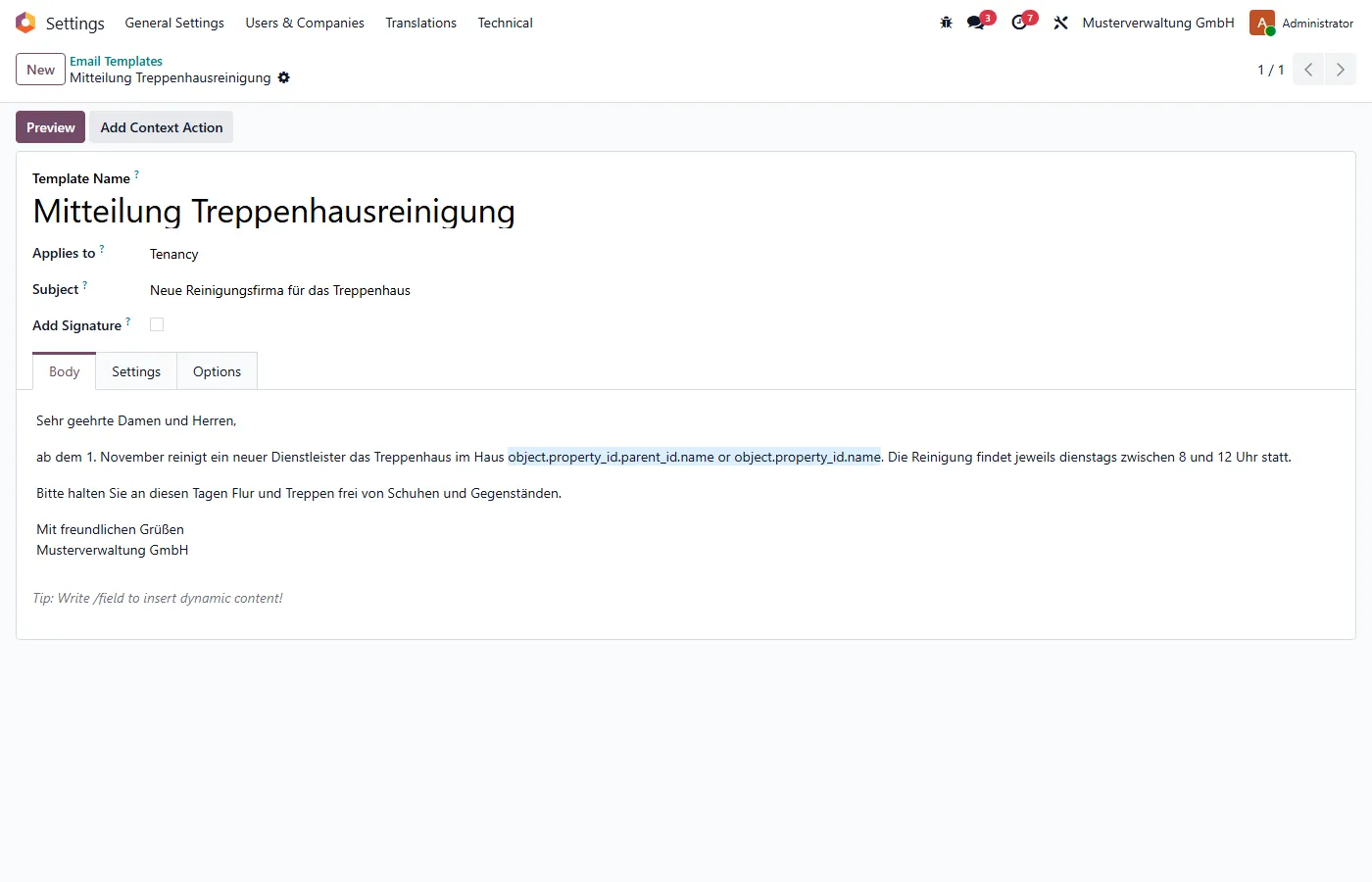
- Enter the Template Name, for example “Mitteilung Treppenhausreinigung”.
- Under Applies to, choose which records the template belongs to. This determines which placeholders you can use:
- Tenancy for emails and letters about the tenancy.
- Tenancy Agreement for contract texts.
- Contact, Opportunity and others for the remaining areas.
- Write the Subject. Below it, tick Add Signature if SMARTBRIX should add the sending user’s signature to the text. When you send to several recipients from the message window, the signature is left out.
- On the Body tab, write the text and insert placeholders as described below.
- Check the Options tab:
- Attachments: files added to every email.
- Dynamic Reports: a PDF that is created for the record when sending and attached.
- Template Description: what the template is meant for.
- Suitable as a letter: offers the template when you write letters. Leave the box empty for texts that only work on screen, for example texts with buttons.
- Save and check the result with Preview.

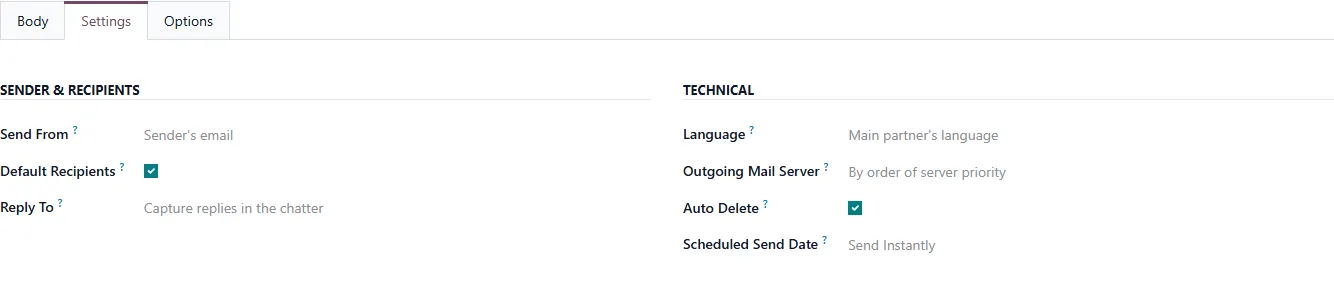
In developer mode the template also shows the Settings tab: Send From, Default Recipients, Reply To, Language and Outgoing Mail Server. By default SMARTBRIX writes to the contact of the record, in that contact’s language.
Insert a placeholder
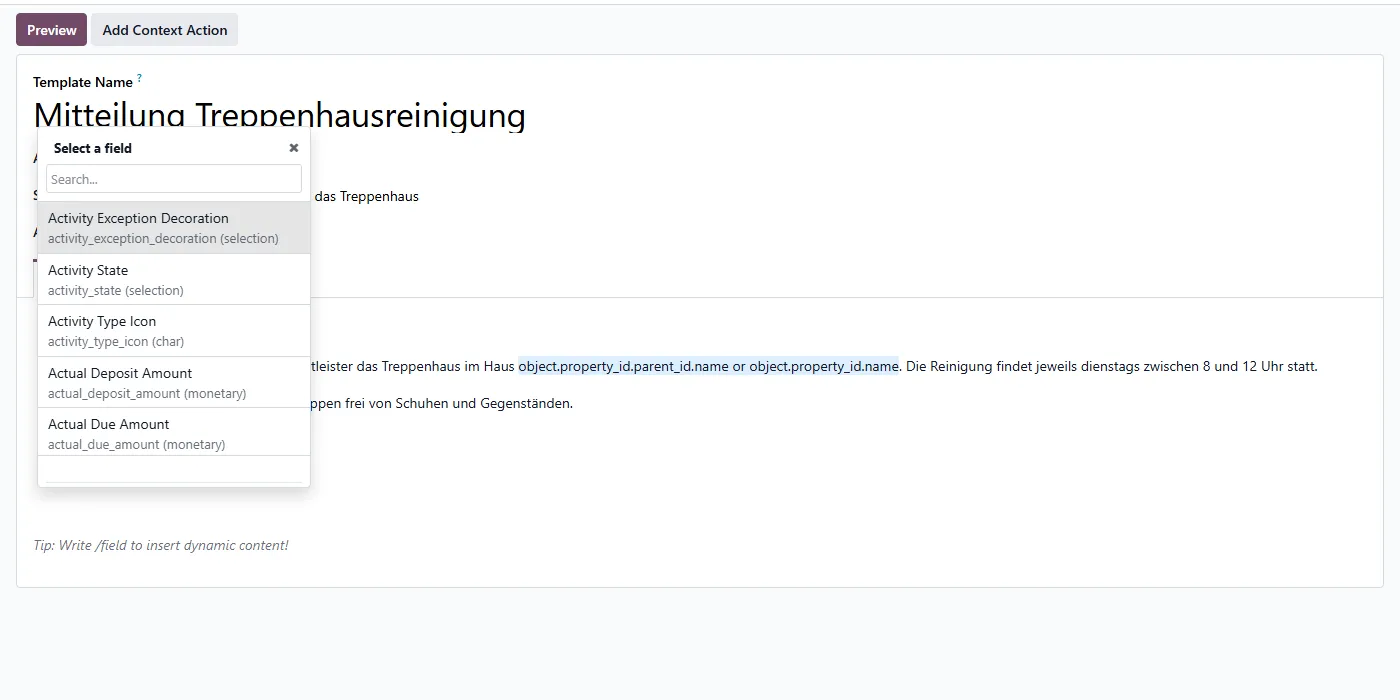
Section titled “Insert a placeholder”- In the Body, place the cursor where the value should go.
- Type “/field” and press Enter.
- In the Select a field window, choose the field. The arrow after a field takes you to linked data, for example from the tenancy to the property and on to its street.
The placeholder appears in the text as a highlighted expression, for example “object.property_id.street”. The email later shows the value.
How placeholders are built
Section titled “How placeholders are built”A placeholder always starts with object. This is the record the template is being filled for. In a template for the Tenancy, it is the tenancy; in a template for the Tenancy Agreement, it is the tenancy agreement. Dots take you on to linked data: “object.property_id.street” means “from the tenancy to the property, and from there the street”.
In the Subject, a placeholder goes in double curly braces:
Ihr Mietverhältnis ab {{ format_date(object.date_start) }}In the Body, it goes in an element with t-out. This is what the text looks like when you edit it in the editor’s code view:
<p>Guten Tag <t t-out="object.partner_id.name"/>,</p><p>Ihre Wohnung in der <t t-out="object.property_id.street"/> ...</p>If a field can be empty, give a fallback with or. Without a fallback, the spot stays empty:
<t t-out="object.partner_id.phone or 'keine Telefonnummer hinterlegt'"/>Format dates and amounts
Section titled “Format dates and amounts”A date field output directly appears in technical form. Use the formatting functions instead. They follow the recipient’s language.
Date: format_date outputs the date in the usual format. With a format of your own you set the form yourself. format_datetime formats date and time.
<t t-out="format_date(object.date_start)"/><t t-out="format_date(object.date_start, date_format='d. MMMM yyyy')"/><t t-out="format_datetime(object.create_date, dt_format='dd.MM.yyyy HH:mm')"/>Result for a German recipient: “01.04.2019”, “1. April 2019” and “29.09.2026 06:20”.
Building blocks for your own formats:
| Code | Meaning | Example |
|---|---|---|
| d / dd | Day without / with leading zero | 1 / 01 |
| M / MM | Month as a number without / with leading zero | 4 / 04 |
| MMMM | Month written out | April |
| yyyy | Four-digit year | 2019 |
| HH:mm | Time | 06:20 |
Amount: format_amount outputs an amount with thousands separator, two decimal places and currency symbol. As the second value it needs the currency of the record.
<t t-out="format_amount(object.rent, object.currency_id)"/><t t-out="format_amount(object.deposit_amount, object.currency_id)"/>Result for a German recipient: “640,00 €” and “1.836,00 €”.
Conditions and lists
Section titled “Conditions and lists”With t-if and t-else you show a sentence only if a value is present:
<t t-if="object.deposit_amount"> Die Kaution beträgt <t t-out="format_amount(object.deposit_amount, object.currency_id)"/>.</t><t t-else=""> Eine Kaution ist nicht vereinbart.</t>With t-foreach you write several entries one after another, here all contract partners, separated by commas:
<t t-foreach="object.contractual_partner_ids" t-as="partner"> <t t-out="partner.name"/><t t-if="not partner_last">, </t></t>Example: contract text
Section titled “Example: contract text”A template that applies to the Tenancy Agreement starts from the tenancy agreement. You reach the data of the tenancy through object.tenancy_id:
<p>Zwischen <t t-out="object.tenancy_id.company_id.name"/> (Vermieter)und <t t-out="object.partner_id.name"/> (Mieter)wird folgender Mietvertrag geschlossen.</p><p>Mietgegenstand: <t t-out="object.tenancy_id.property_id.street"/>,<t t-out="object.tenancy_id.property_id.zip"/> <t t-out="object.tenancy_id.property_id.city"/></p><p>Mietbeginn: <t t-out="format_date(object.tenancy_id.date_start, date_format='d. MMMM yyyy')"/></p><p>Kaution: <t t-out="format_amount(object.tenancy_id.deposit_amount, object.tenancy_id.currency_id)"/></p>Result in the demo: “Zwischen Musterverwaltung GmbH (Vermieter) und Petra Schulz (Mieter) …”, “Mietgegenstand: Lindenweg 5, 49074 Osnabrück”, “Mietbeginn: 1. August 2021”, “Kaution: 1.470,00 €”.
The text is copied into the contract once, when you choose the template. Later changes to the template do not change existing contracts.
Example: service charge statement result
Section titled “Example: service charge statement result”The usage has three fields on the latest service charge statement: Latest Service Charge Statement, Latest Service Charge Statement Result Type and Latest Service Charge Statement Amount. Result type (“Additional payment”, “Refund” or “Neutral”) and amount come as finished text in the recipient’s language, the amount without sign and with currency. The latest statement is the one with the latest billing end, even if it is not finalized yet.
A template for the ticket reaches the fields through the usage of the ticket, object.tenancy_id:
<p>Ihre Betriebskostenabrechnung ergab eine<t t-out="object.tenancy_id.latest_utility_bill_result_type"/>in Höhe von <t t-out="object.tenancy_id.latest_utility_bill_amount_text"/>.</p>Result in German: “Ihre Betriebskostenabrechnung ergab eine Erstattung in Höhe von 120,00 €.” In a template for the usage, leave out tenancy_id.
Preview
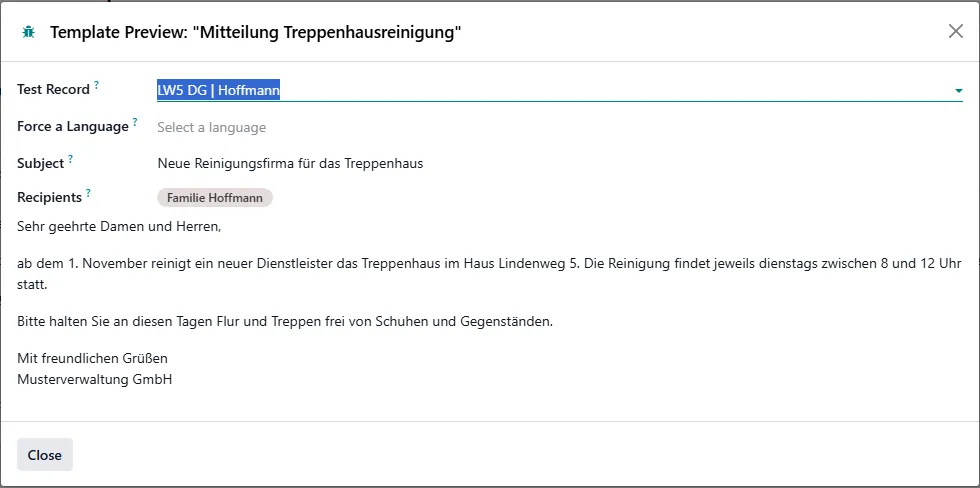
Section titled “Preview”In the header of the template, click Preview. Under Test Record, choose a record, for example a tenancy. The window shows subject, recipients and text as they would be sent. Use Force a Language to check other languages.
Frequently asked questions
Section titled “Frequently asked questions”I cannot save placeholders with format_date. In Settings, in the Emails block, Restrict Template Rendering is turned on. Then only users with the Mail Template Editor right may write more than simple field references. An administrator grants the right on the user.
The text shows the expression instead of a value. In the message window with several recipients, SMARTBRIX shows the placeholders as expressions. They are filled per recipient when sending. Check the result in the template’s Preview.
Part of the email is in another language. Templates that come with the software are output in the recipient’s language. If no language is set on the contact, the language of the logged-in user applies. You translate your own templates with the language code on the field.
Didn't find an answer? Contact support