

Every unit knows its co-ownership share, area, heated area and the number of units by itself. Some costs follow a different quantity, however, such as the outdoor parking spaces, the smoke detectors or the persons per apartment. For these, you create an object key on the building of the community, enter a value per unit and choose the key in the allocation key of the condominium cost type. SMARTBRIX then allocates by it in the annual budget and the annual settlement.
Prerequisites
Section titled “Prerequisites”- The community has a Booking Property on the Property tab (see Create a community).
Create an object key
Section titled “Create an object key”- Open Condominium › Communities › Object Keys and click New. Alternatively, open the community and click Object Keys at the top; the building is then filled in already.
- Enter a name, for example “Außenstellplätze” (outdoor parking spaces). It appears on the settlements in the Key column.
- Under Settlement Property, choose the booking property of the community, that is, the building.
- If needed, enter a Unit of Measure, for example “parking spaces”. It appears after the name in the Quantity Check printout.
- Under Target total, enter what the values must add up to according to the documents, for example “5” parking spaces according to the declaration of division. Leaving it empty means: not checked.
- Create one line per apartment: Unit, Valid from and Value. Save.
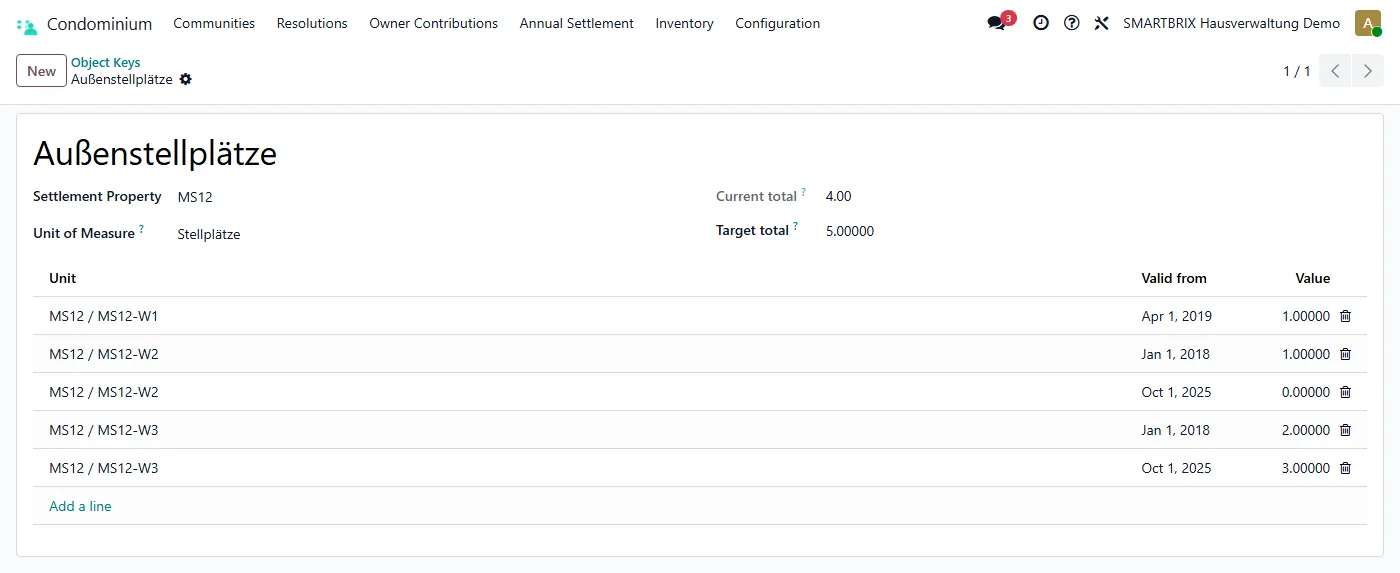
Current total shows the sum of the values that apply today. If a value changes, create a new line with a later Valid from date. The old value applies until the day before, and earlier years keep using it. If a unit should no longer take part from a certain day, give it the value 0 from then on. A unit that does not appear in the key at all bears nothing.
In the example, apartment 2 sells its parking space to apartment 3 as of 10/01/2025. From then on, apartment 2 has the value 0 and apartment 3 the value 3.
Choose it in the allocation key
Section titled “Choose it in the allocation key”- Open Condominium › Configuration › Allocation Keys and click New (see Setup).
- Choose the Community and Cost Type, and under From Fiscal Year enter the first year.
- Under Key, choose Object Key, and in the Object Key column choose the key. Only the keys on the building of this community are offered.
- Choose the Basis and save.
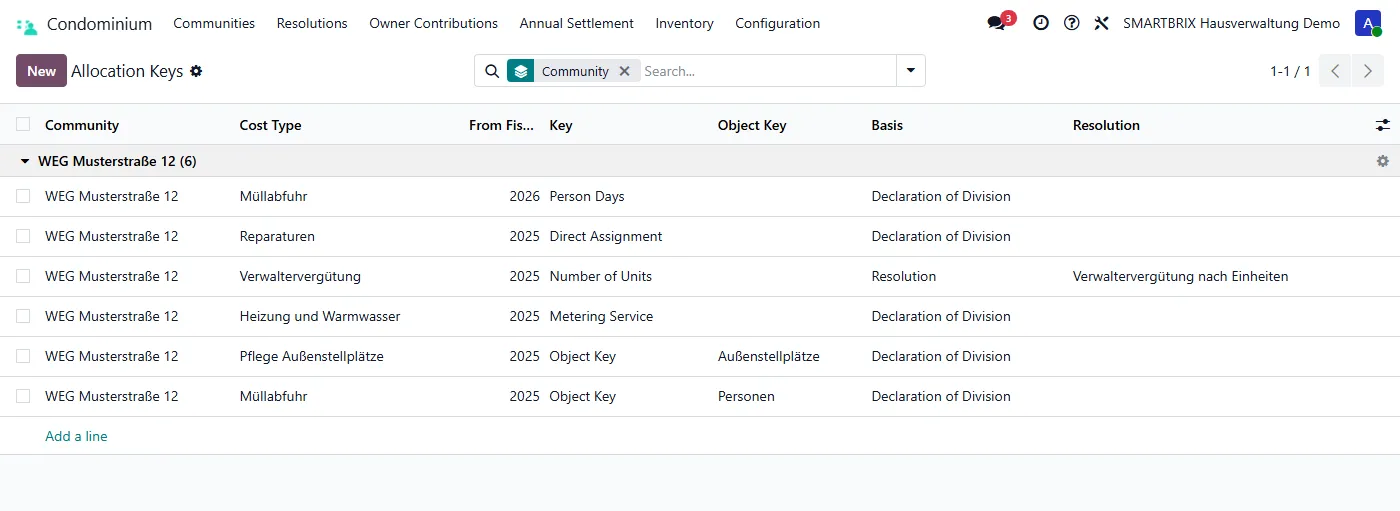
Like every allocation key, it applies from the chosen fiscal year until an entry for a later year replaces it. If the owners’ meeting changes the key, choose the basis Resolution and the resolution.
The annual budget takes the object key into the position of the cost type and plans by the values that apply in the budget year (see Calculate the annual budget).
How the costs are allocated
Section titled “How the costs are allocated”- Each unit bears its value in proportion to the sum of all values.
- If a value changes within the fiscal year, the unit counts with its value weighted by days. The sum of all values is weighted the same way, so the shares add up to 100%.
- Only days on which the unit has an owner count.
- Nothing is split. The individual settlement of a unit goes to the owner on the day of the resolution, even if the unit was sold during the year.
In the example, apartment 2 has 1 parking space on 273 days of 2025 and none on 92 days, weighted 0.74795. Apartment 3 comes to 2.25205, apartment 1 to 1. Together that makes 4 parking spaces.
Target total of the co-ownership shares
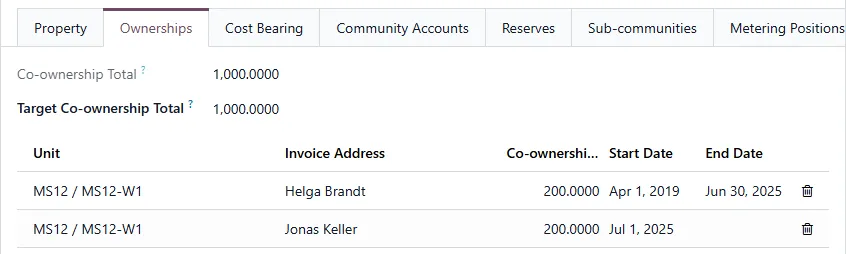
Section titled “Target total of the co-ownership shares”For the co-ownership shares, you enter the target total on the community: open the community, switch to the Ownerships tab and enter the total according to the declaration of division under Target Co-ownership Total, for example “1,000”. Next to it, Co-ownership Total shows what the shares that apply today add up to.
Notices when computing
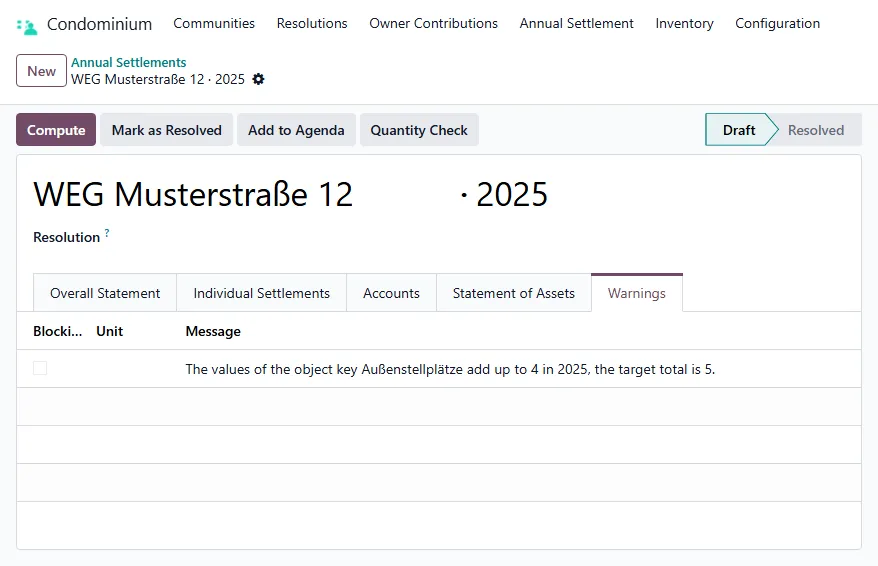
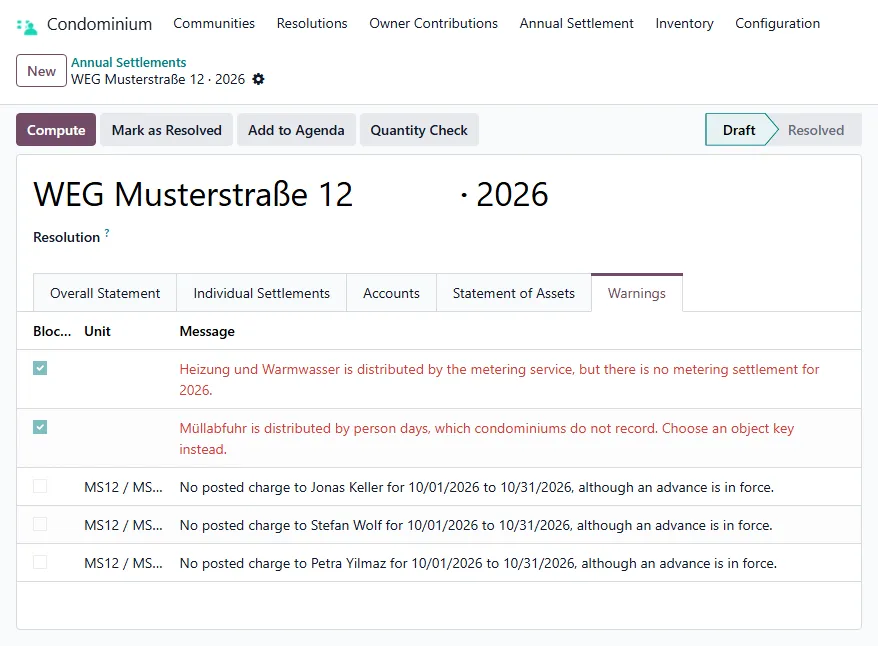
Section titled “Notices when computing”When you Compute the annual settlement, SMARTBRIX checks the totals and reports differences on the Warnings tab:
- Object key differs from its target total (notice): “The values of the object key Außenstellplätze add up to 4 in 2025, the target total is 5.” Usually a unit is missing or a value was entered wrongly. Only keys by which a cost type is allocated in the year are checked.
- Co-ownership shares differ (notice): “The co-ownership shares add up to … in 2025, the declaration of division states ….” Check the shares in the ownerships.
- Person days (blocking): “Müllabfuhr is distributed by person days, which condominiums do not record. Choose an object key instead.” An older allocation key is still set to Person Days. Create an object key with the persons per unit and enter it for the year in the allocation key.
The total is weighted by days, as in the allocation. The notices about the target total block nothing; the settlement can still be resolved. Without a target total there is no notice.
Quantity check
Section titled “Quantity check”The printout shows, per key, which values the annual settlement was computed with. It helps when an owner disputes their share.
- Open the annual settlement and click Compute if you have changed values.
- Click Quantity Check at the top. The button appears once the settlement has been computed.
Each key by which a cost type is allocated in the year gets a section with its cost types and, per unit, Value, Valid from, Valid until, Days and Weighted value. Below follow Key total, Target total and Difference. Co-ownership shares, area, heated area and number of units appear the same way. For consumption, metering service and direct assignment, the printout only names the amount allocated and where the values per unit are listed.
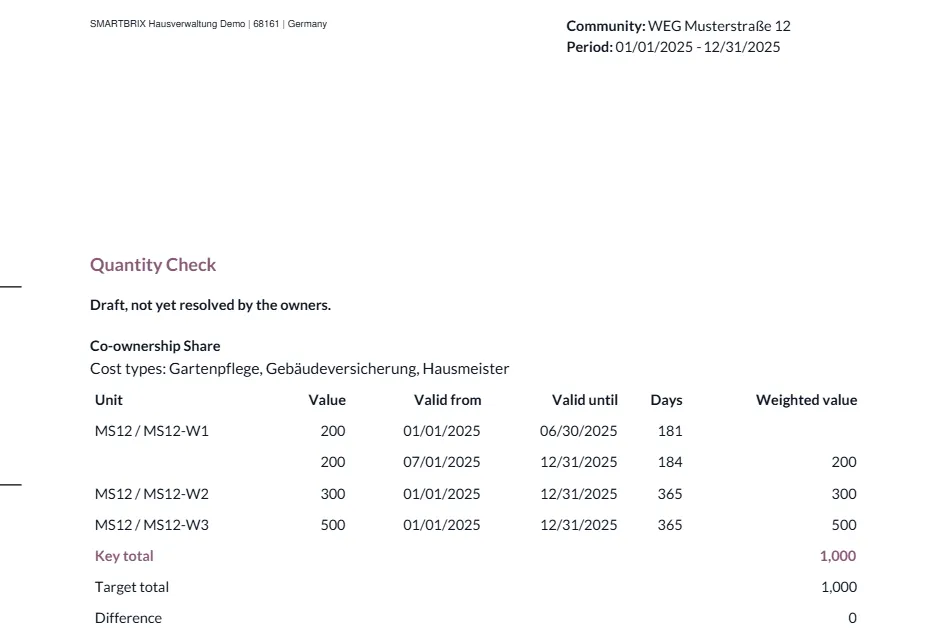
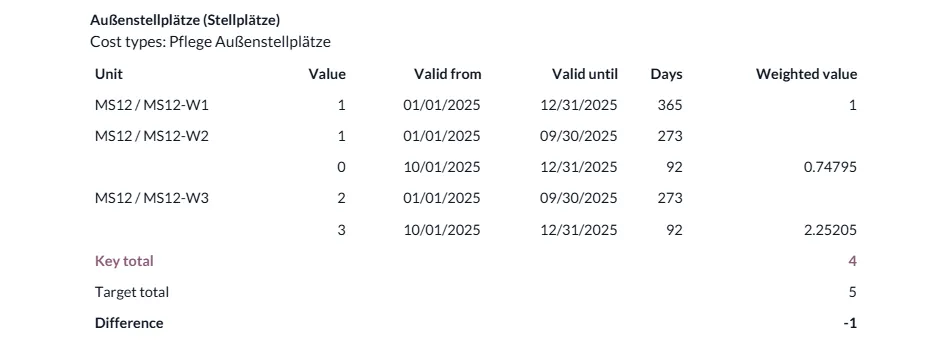
The printout shows the state of the last Compute. If you change a value afterwards, compute again before you print. After the resolution, the state of the resolution is kept, even if values in the object key change later. Before the resolution, the printout carries the note “Draft, not yet resolved by the owners.” It is printed in the company’s language.
Common errors
Section titled “Common errors”| Problem | Cause | Solution |
|---|---|---|
| The object key is not offered in the Object Key column. | The key belongs to a property other than the booking property of the community, for example a unit. | In the object key, choose the building of the community as Settlement Property. |
| When computing: “… could not be distributed: the key … has no values for 2025.” | No unit has a value above 0 in the year. | Enter values with a Valid from date in the fiscal year at the latest. |
| The printout shows old values. | The settlement was not computed again after the change. | Click Compute and print again. |
What is not included
Section titled “What is not included”- Condominium management does not take person counts from other sources, such as registration data or rent lines. Maintain them in the object key.
- Area and heated area have no target total and no Valid from. If you need a history, create an object key for it.
- The printout is a record only. It approves nothing and locks nothing.
Didn't find an answer? Contact support