

Previous dunning process
Question about the manual? Ask Claude · Ask ChatGPT
If an invoice is still open after its due date, you send the contact reminders in levels. Each level defines how many days after the due date it applies and what happens: an email, a letter or a task for a user. The reminder goes to the contact of the invoice, so for rent invoices to the invoice recipient of the tenancy.
Match all bank transactions before every dunning run. See Bank matching.
The menus and options differ by plan. Dunning fees and tasks for responsible users per level are only available in the Business plan.
Set up follow-up levels
Section titled “Set up follow-up levels”- Open Invoicing › Configuration › Follow-up › Follow-up Levels.
- Open the entry for your company or create it with New.
- Add one line per level:
- Follow-Up Action: the name of the level, for example “1st reminder”.
- Due Days: the number of days after the due date from which the level applies.
- Send an Email: sends an email with the selected Email Template.
- Send a Letter: creates a reminder letter with the text from Printed Message.
- Manual Action: creates a task. Assign a Responsible and Action To Do state who should do what.
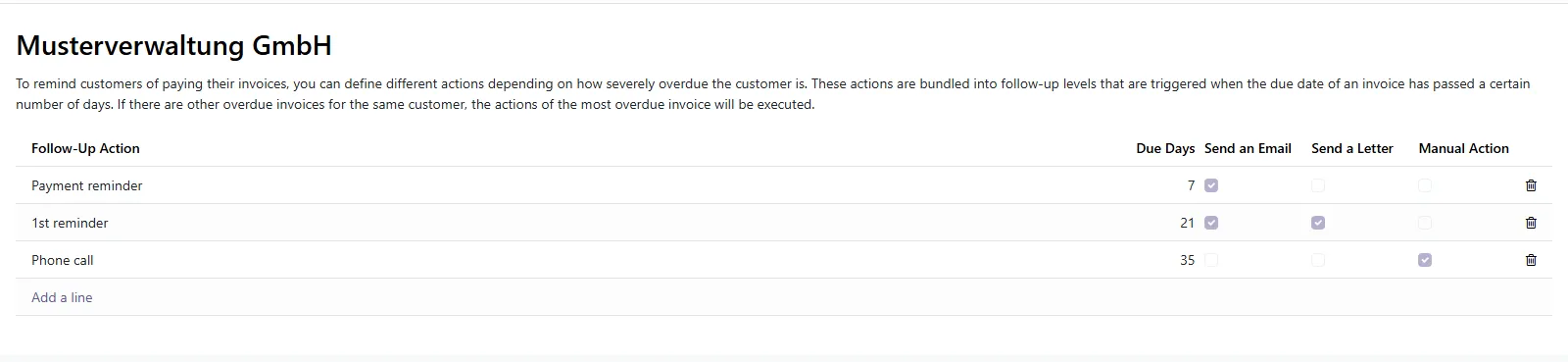
If there are several overdue invoices, the level is based on the oldest one.
Send reminders to all contacts
Section titled “Send reminders to all contacts”- Open Invoicing › Follow-Ups › Send Letters and Emails. The Send Follow-Ups window opens.
- Click Send emails and generate letters.
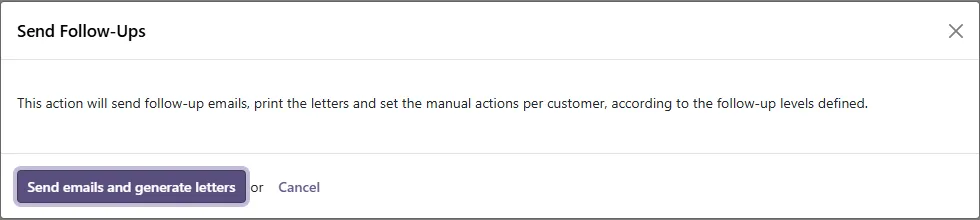
For every contact with overdue items, SMARTBRIX determines the level, sends the emails and creates the tasks. The summary afterwards shows how many emails, letters and tasks were created. Click Download Letters to get the reminder letters as a PDF for sending by post.
Send a reminder to a single contact
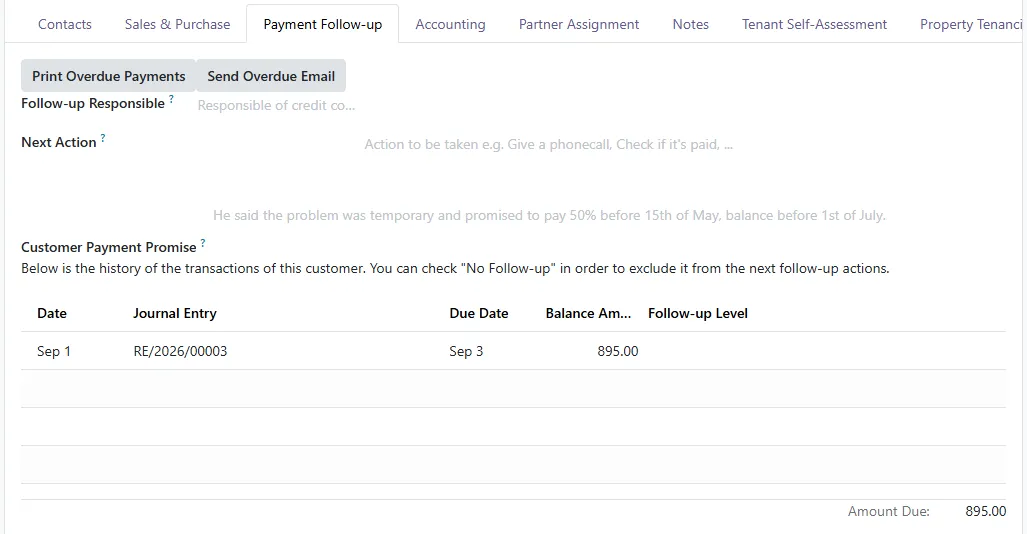
Section titled “Send a reminder to a single contact”- Open Invoicing › Follow-Ups › Do Manual Follow-Ups. The Partners with Overdue Credits filter shows all contacts with overdue amounts.
- Open the contact and go to the Payment Follow-up tab.
- Print Overdue Payments creates a reminder letter, Send Overdue Email sends it by email.
- Under Next Action, note what happens next, for example a phone call. Under Customer Payment Promise, record what the contact has promised.
Set up follow-up levels
Section titled “Set up follow-up levels”- Open Accounting › Configuration › Invoicing › Follow-up Levels.
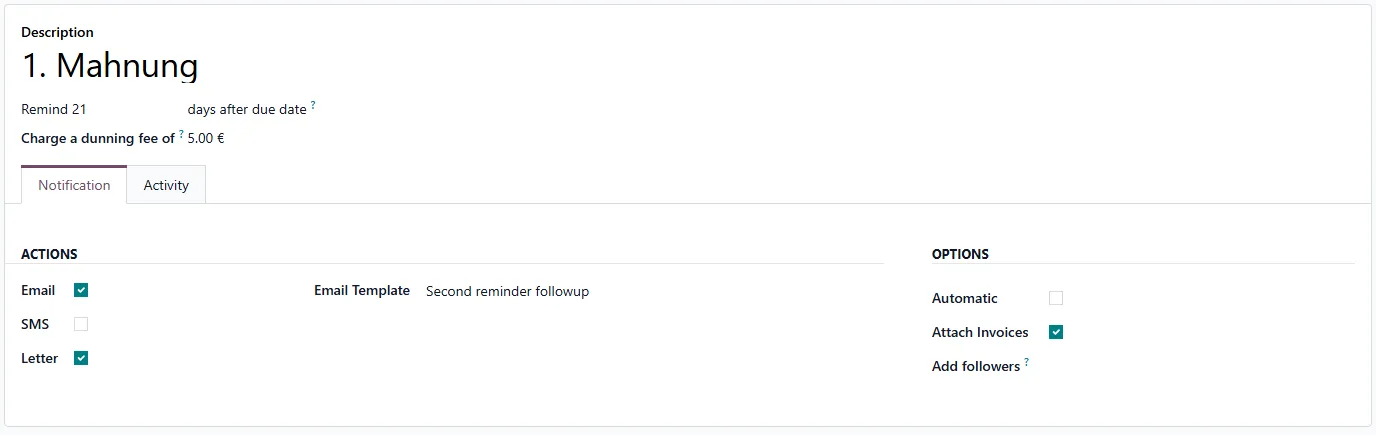
- Open a level or create one with New.
- Under Description, enter the name, for example “1st reminder”, and next to it how many days after due date the level applies.
- Under Charge a dunning fee of, enter the fee for this level. Empty or zero means no fee.
- On the Notification tab, select what is sent: Email with Email Template, SMS or Letter. With Attach Invoices, the open invoices are attached.
Dunning fee
Section titled “Dunning fee”- The fee of a level is the total amount for the contact, not an amount per invoice.
- SMARTBRIX keeps one fee invoice per contact for this. When the contact reaches a higher level, SMARTBRIX adjusts this invoice instead of creating a second one.
- If the fee invoice is already locked, it stays unchanged. A new fee invoice then only contains the difference to the amount of the new level.
- The product used for the fee invoice is set under Accounting › Configuration › Settings in the Dunning Fee Product field. The product supplied with SMARTBRIX has no VAT.

Task for responsible users
Section titled “Task for responsible users”On the level’s Activity tab, under Follow-up Level Settings, select in Assign Activity To the users who get an activity when the level is reached, for example your dunning team. Under Activity Content, set the Activity Type, Summary and Note.
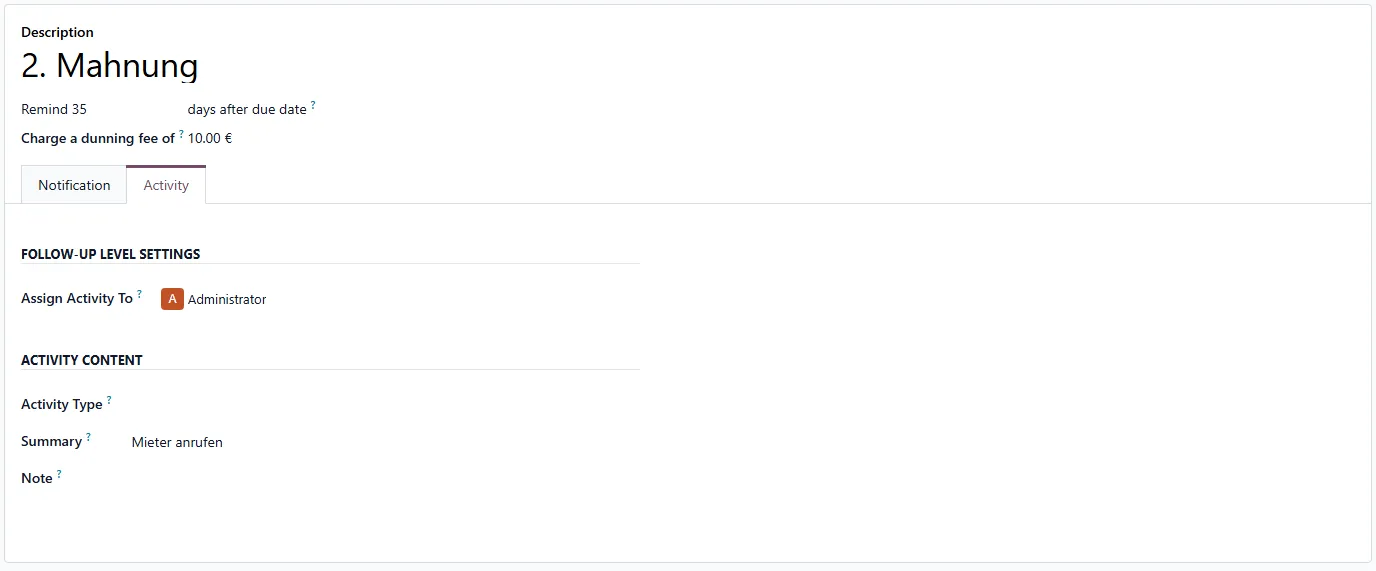
The activity of the next level is only created once the reminder of the previous level has been sent and the days of the level have passed. This way nobody gets a task before the tenant has even received a reminder.
Send reminders
Section titled “Send reminders”- Open Accounting › Customers › Customers and the contact.
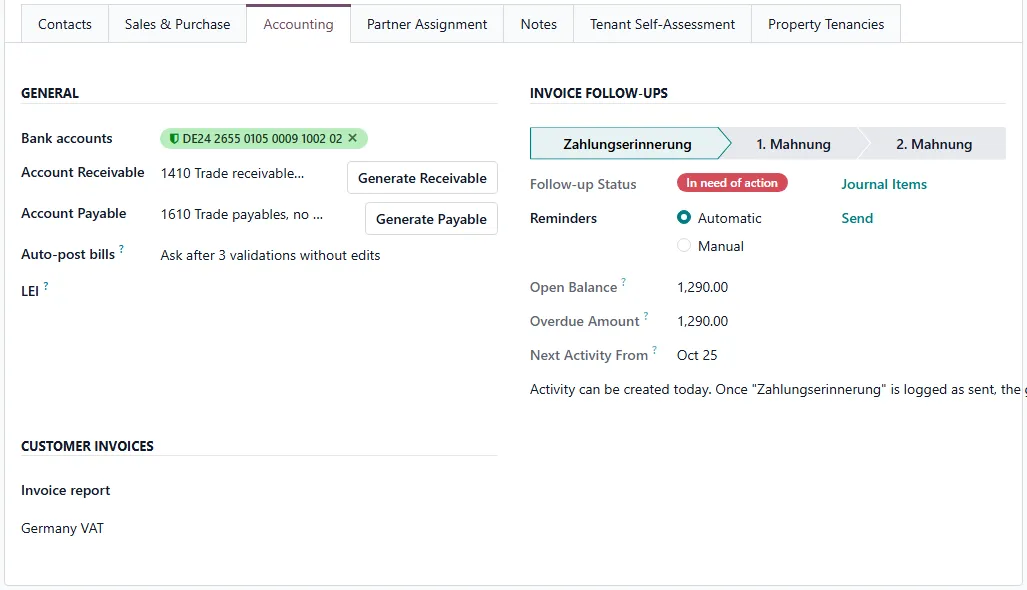
- Go to the Accounting tab. In the Invoice Follow-ups section, you see the current level, the Follow-up Status, the Open Balance and the Overdue Amount. Next Activity From shows from when the task for the responsible users is created.
- Next to Reminders, click Send.
- In the Send and Print dialog, select how the reminder goes out: Print, Email, SMS or By post. Check the text.
- Click Preview (PDF) to look at the reminder letter first. Click Send to send it.
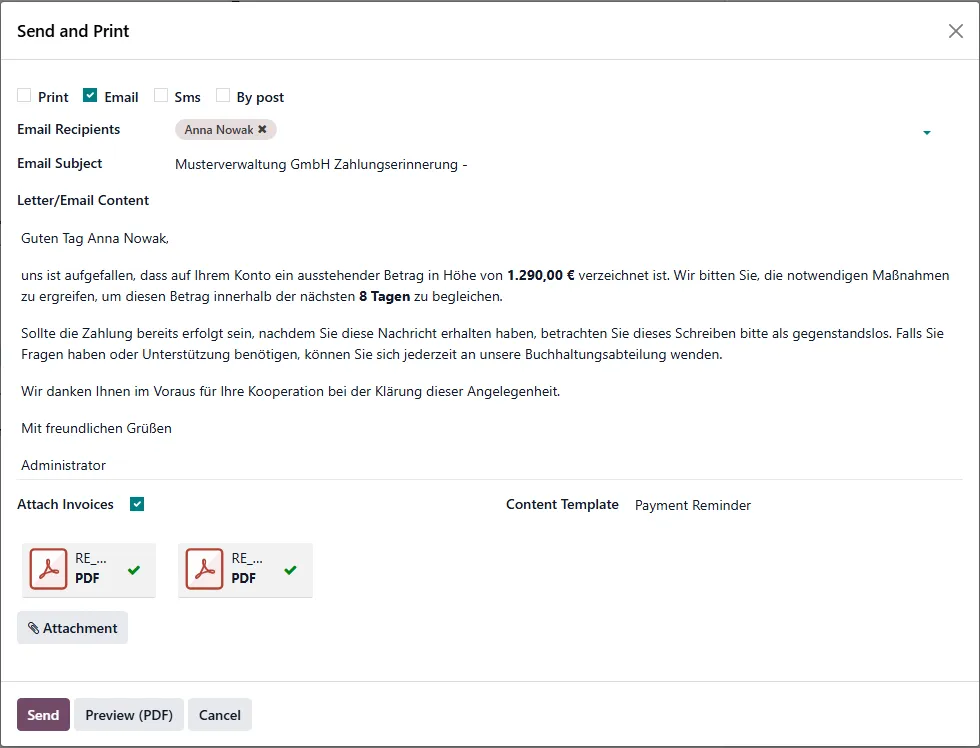
The reminder letter consists of a cover letter, a statement of account with the open items and the invoices concerned, in your company’s layout. SMARTBRIX does not attach fee invoices.
More on dunning: Follow-ups in the Odoo documentation.
Didn't find an answer? Contact support