

Recurring invoices
Question about the manual? Ask Claude · Ask ChatGPT
Invoices with the same content at a fixed interval, such as a monthly maintenance contract or the installments to a utility, are created once and marked as recurring. A daily run creates every follow-up invoice from it on the invoice day you set and, if you choose, posts it right away. This works for customer invoices and vendor bills. Rent invoices from tenancies are created by the rent debits instead.
Set up a series
Section titled “Set up a series”- Create the first invoice, either as a vendor bill under Accounting › Vendors › Bills or as a customer invoice under Accounting › Customers › Invoices. In the Light / Pro plan, the app is called Invoicing. How to fill in the invoice is described under Vendor bills and Customer invoices.
- In the invoice header, tick Recurring. The fields of the series appear below it.
- Fill in the fields (see below) and click Confirm.
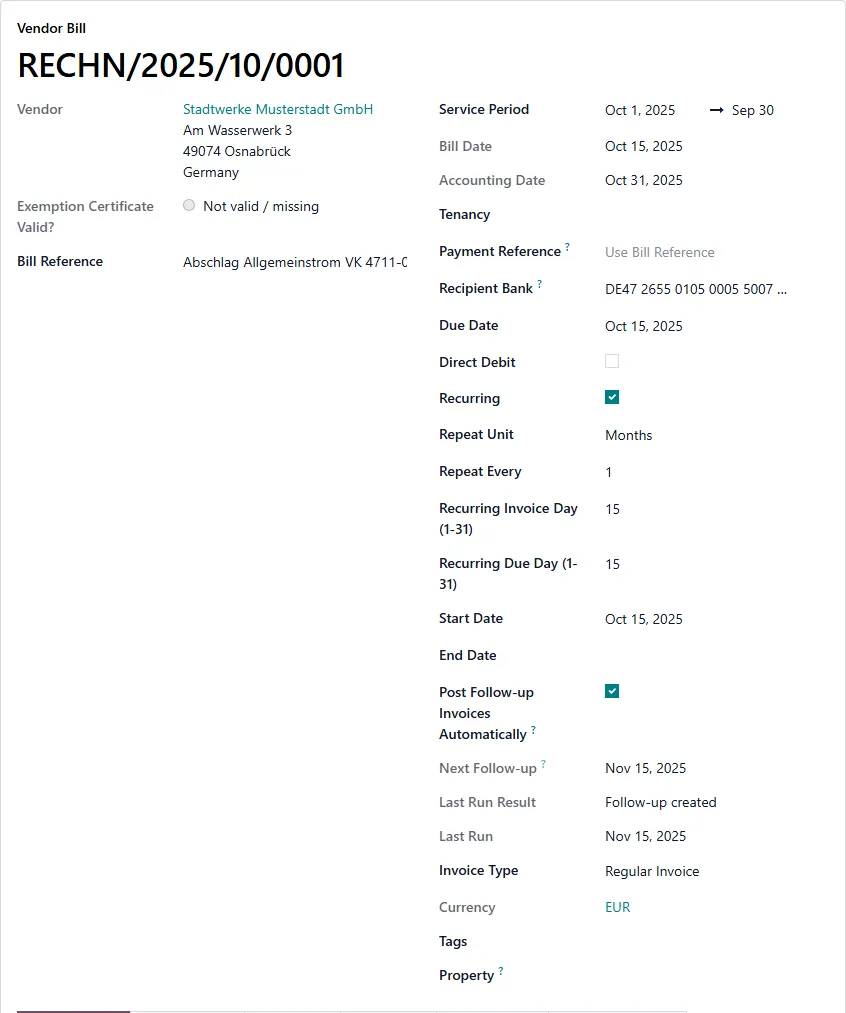
- Repeat Unit: “Weeks”, “Months” or “Years”.
- Repeat Every: the number of these units, for example “1” for every month or “3” for every quarter. The number must be at least 1.
- Recurring Invoice Day (1-31): only with “Months”. The day of the month each follow-up invoice is dated. If empty, SMARTBRIX uses the day of the invoice date. If the month is shorter, for example the 31st in February, its last day applies.
- Recurring Due Day (1-31): only with “Months”. The day of the month on which the follow-up invoice is due. If empty, SMARTBRIX uses the day of the due date. With “Weeks” and “Years”, each follow-up invoice is due on its invoice date.
- Start Date: no follow-up invoice is created before this date. Defaults to today.
- End Date: the last follow-up invoice falls on or before this date. If empty, the series runs without end.
- Post Follow-up Invoices Automatically: if ticked, the run posts each follow-up invoice immediately. If not, it creates the invoice as a draft and you post it yourself.
The series only continues as long as its most recent invoice is posted. If you leave Post Follow-up Invoices Automatically unticked, post each follow-up invoice before its next invoice day if you can. If you post it later, the run catches up on the missed day as long as it is no more than 35 days in the past.
What the run does
Section titled “What the run does”The run works once a day, for all companies.
- Follow-up invoice: It looks for the posted recurring invoices whose next invoice day is today and creates a copy of each with a new invoice date and due date. The copy carries the same settings. It is therefore the template for the next follow-up invoice: the series is a chain.
- Missed days: If the run did not work on some days, it catches up on them next time, up to 35 days back. It does not create a second follow-up invoice for a date that already has one.
- Service period: If the first invoice has a Service Period, the run shifts it by the same interval as the invoice date. If it ends on the last day of a month, it also ends on the last day of a month in the follow-up invoice. A period of several whole months, such as a contract year, stays as it is. It only moves on with the first follow-up invoice dated in the next period. An example is in Utility installments.
- Expenditures: When the run posts a vendor bill whose lines carry a property and a cost type, SMARTBRIX creates the expenditures for the service charge statement as for any vendor bill, with the service period of the follow-up invoice.
- Usage not yet billable: If a customer invoice belongs to a usage that may not be billed yet, the run holds back the follow-up invoice.
The document shows what the run did last:
- Next Follow-up: the date on which the next follow-up invoice from this invoice is due.
- Last Run Result: “Follow-up created”, “Held back”, “Series stopped” or “Error”, together with Last Run and, where needed, Last Run Detail with the reason.
- Created From: on each follow-up invoice, the invoice it was created from.
“Series stopped” means that the most recent invoice of the series is still a draft, but its next invoice day has already been reached. Post it. If the missed invoice day is no more than 35 days in the past, the next run creates the missing follow-up invoice by itself. For older days, use the wizard.
When a follow-up invoice is missing
Section titled “When a follow-up invoice is missing”In the list of vendor bills or customer invoices, the filters Recurring, Series stopped and Last run failed show the invoices concerned.
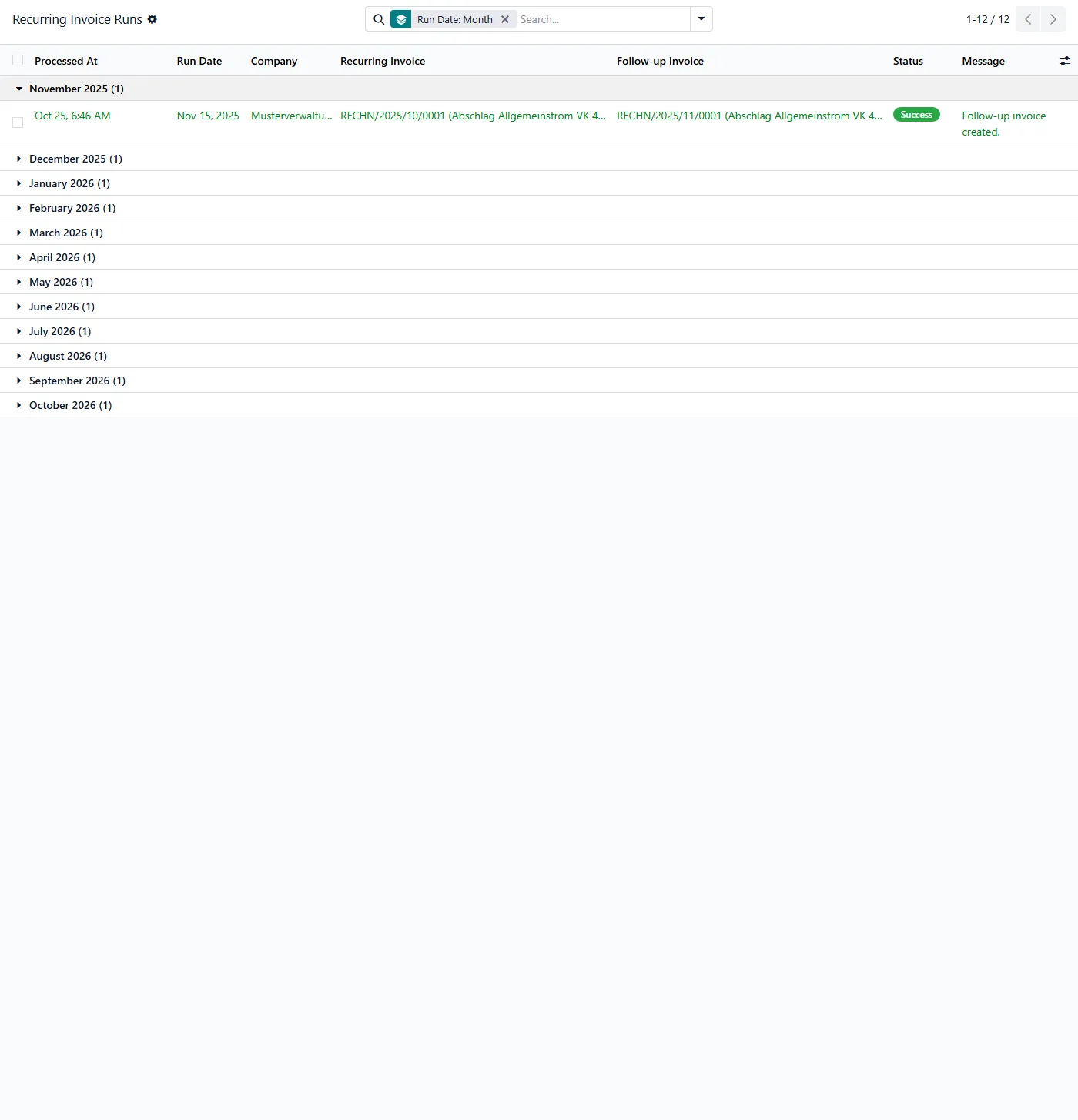
The log of all runs is under Accounting › Accounting › Recurring Invoice Runs, grouped by run date. Each line names the recurring invoice, the follow-up invoice and the status “Success”, “Held back” or “Error” with the message. Days on which nothing was due do not appear.
So that a failure does not only end up in the log, go to Accounting › Configuration › Settings and, in the Failed recurring invoices section, enter a user under Responsible for Failed Recurring Invoices. If the run cannot create a follow-up invoice, this user gets the activity “Recurring invoice could not be created” with the reason on the invoice. As long as that activity is open, no second one is added.
Change the amount or a setting
Section titled “Change the amount or a setting”Each follow-up invoice is created from the most recent invoice of the series, not from the first one. A change to the first invoice therefore has no effect once a follow-up invoice exists. Always change the newest invoice of the series.
To change the amount:
- Open the newest invoice of the series.
- Click Reset to Draft.
- Change the amount in the invoice line.
- Click Confirm.
The new amount applies from the next follow-up invoice. Post the invoice again before its next invoice day if you can. If you post it later, the run catches up on the missed day as long as it is no more than 35 days in the past. For a vendor bill, SMARTBRIX recreates its expenditures when you post it again. If one of them is already part of a service charge statement, resetting is blocked. Resetting to draft also removes the match with the bank transaction, so match the invoice again after posting.
An invoice that was posted once can no longer be deleted or archived, not even as a draft. If you no longer need it, take it out of the accounts with Cancel.
You can change the fields of the series, such as End Date or Repeat Every, directly on a posted invoice. Save afterwards.
End a series
Section titled “End a series”On the newest invoice of the series, enter an End Date or untick Recurring. Save. Follow-up invoices created so far stay unchanged.
Catch up on missed follow-up invoices
Section titled “Catch up on missed follow-up invoices”If follow-up invoices are missing for a whole period, for example because a series had stopped, the wizard creates them afterwards.
- Open Accounting › Configuration › Accounting › Journals.
- Select the journal of the invoices, for example “Purchase” for vendor bills.
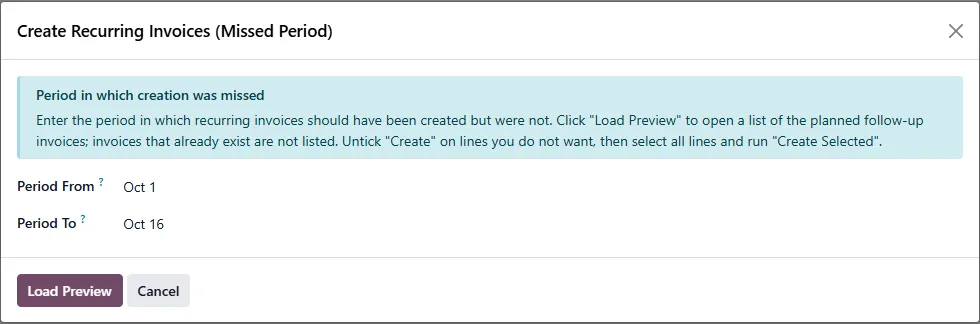
- In the Actions menu (gear icon), choose Create Recurring Invoices (Missed Period).
- Enter Period From and Period To, that is, the days on which the follow-up invoices should have been created.
- Click Load Preview. The list shows the planned follow-up invoices with amount, invoice date and due date. Follow-up invoices that already exist are not listed.
- For lines that should not be created, untick Create.
- Select all lines and choose Create Selected in the Actions menu.
A message states how many invoices were created. For invoices with Post Follow-up Invoices Automatically ticked, the wizard also posts right away. You can run the wizard several times for the same period; it only offers what is still missing.
Frequently asked questions
Section titled “Frequently asked questions”The first invoice has the new amount, but the follow-up invoice still has the old one. The follow-up invoice was created from the newest invoice of the series. Change the amount there, see Change the amount or a setting.
The series no longer creates anything. Check Last Run Result on the newest invoice. If it says “Series stopped”, the invoice is still a draft. If the End Date has been reached, the series has ended as planned.
There are two follow-up invoices for the same month. Check the Auto-post field in the Other Info tab. If it is not set to No, the accounting software also creates copies of its own.
Didn't find an answer? Contact support