

The integration runs between SMARTBRIX and Getmomo. The deposit account itself is held by Getmomo’s partner bank, in the name of your property management company. The deposits are therefore kept separate from your own assets and meet all legal requirements for the proper safekeeping of rental deposits. Should anything happen to your property management company, each tenant’s balance is protected up to €100,000. In SMARTBRIX this account is called the Getmomo main account.
Below it, each tenancy gets a virtual deposit account with its own IBAN, to which the tenant transfers the deposit. You create the account directly from the tenancy in SMARTBRIX, send the tenant the deposit letter and, after the deposit settlement, request the payout.
SMARTBRIX takes care of the rest: it keeps the details at Getmomo up to date, turns every balance increase into a deposit movement and records the payout as soon as Getmomo reports it. You never enter anything twice and always see the current deposit balance in SMARTBRIX. The Getmomo platform and the underlying deposit account are free of charge for you.
Set up
Section titled “Set up”You set up the access per company. Only users with administrator rights see this section.
- Open Settings › General Settings and go to the Integrations block, Getmomo Deposit Management section. If you manage several companies, select the company you are setting up at the top right.
- Enter the API Key. You generate it in the Getmomo Manager App under Integrationen › Offene Schnittstelle (API) (integrations, open interface).
- Leave the API Base URL at Getmomo’s prefilled address. Only for Getmomo’s test system do you enter the staging address shown below it. An API key only works for the system it was generated for.
- Copy the Webhook URL with the icon on the right of the field. In the Getmomo Manager App, create a webhook with this address under Integrationen › Offene Schnittstelle (API) › Webhooks.
- Enter the secret that Getmomo assigns there as Webhook Secret.
- Select the Retention Product. SMARTBRIX uses it to invoice the tenant for retentions from the move-out protocol, see Settle the deposit.
- Click Save.
- Click Test Connection. If the connection works, SMARTBRIX reports “Connection successful.” and the number of virtual deposit accounts found.
- Click Import Main Accounts. SMARTBRIX creates the main accounts stored in Getmomo for this API key and updates the name, IBAN and BIC of accounts already imported.
- Check the Default Main Account. On the first import, SMARTBRIX sets the account marked as default in Getmomo.
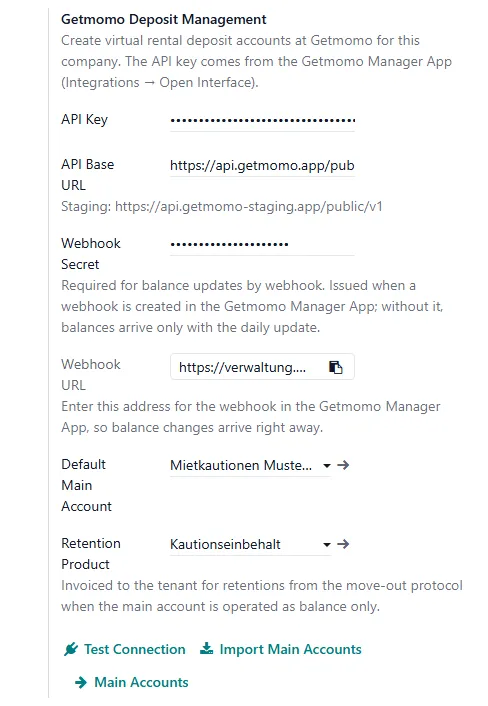
Through the webhook, Getmomo reports every balance change immediately. SMARTBRIX accepts a report only if it is signed with the Webhook Secret you entered. Without a secret, balance changes only arrive through the daily sync and the Fetch Balance button.
Main accounts
Section titled “Main accounts”The Main Accounts link below the buttons opens the list of Getmomo main accounts with Name, IBAN, Operation Mode and Bank Journal.

This page describes the Balance only operation mode: the main account is not a bank account in your accounting, and SMARTBRIX learns the balance of each virtual deposit account from Getmomo. For this, the Bank Journal field on the main account stays empty. If you enter a bank journal there, the operation mode changes to Booked. Balance changes then no longer create deposit movements.
If a main account already belongs to another company in SMARTBRIX, SMARTBRIX does not import it and names that company in the message.
Create a virtual deposit account
Section titled “Create a virtual deposit account”Before you create the account, check these details:
- Property: the property of the tenancy is in Germany. Street, house number, a five-digit postal code and the federal state are entered. If the house number is not in its own field, SMARTBRIX separates it from the end of the street, for example in “Lindenweg 5”, “Hauptstr. 12a” or “Am Hang 3-5”.
- Deposit: the Agreed Deposit is greater than zero.
- Tenants: SMARTBRIX reports the contract partners who are persons, at most five. If none are entered, it reports the invoice recipient. Each one needs a first and last name. If a date of birth is entered on the contact, it is sent as well.
- Company as tenant: if the invoice recipient is a company, SMARTBRIX reports the company with its contact persons of type Contact, at most three, each with first and last name.
The contract number, start date and end date of the tenancy are also sent to Getmomo.
- Open the tenancy under Property Administration › Tenancies › Tenancies and switch to the Deposit tab.
- Under Base Data, choose the Deposit Type Bank Transfer. Below it, the Getmomo Main Account field appears, prefilled with your company’s default main account.
- Save.
- Click Create Virtual Deposit Account at the top of the tab.
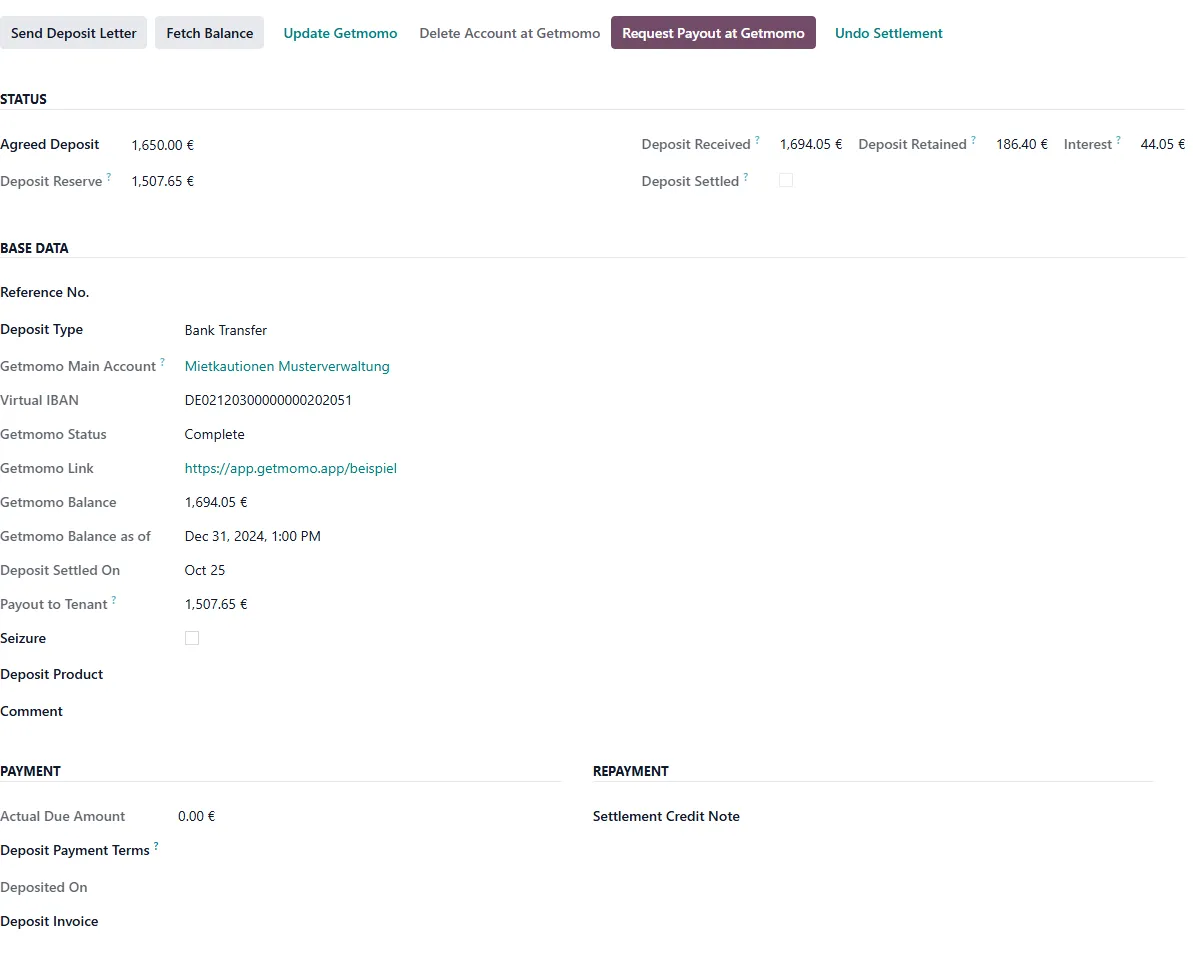
SMARTBRIX reports “Virtual deposit account created.” with the new IBAN. Under Base Data you then see:
- Virtual IBAN: the IBAN to which the tenant transfers the deposit.
- Getmomo Status: Incomplete, Complete, Partially Paid Out or Closed. SMARTBRIX updates the status in the daily sync and with Fetch Balance.
- Getmomo Link: opens the account at Getmomo.
- Getmomo Balance and Getmomo Balance as of: the last balance reported and its time at Getmomo.
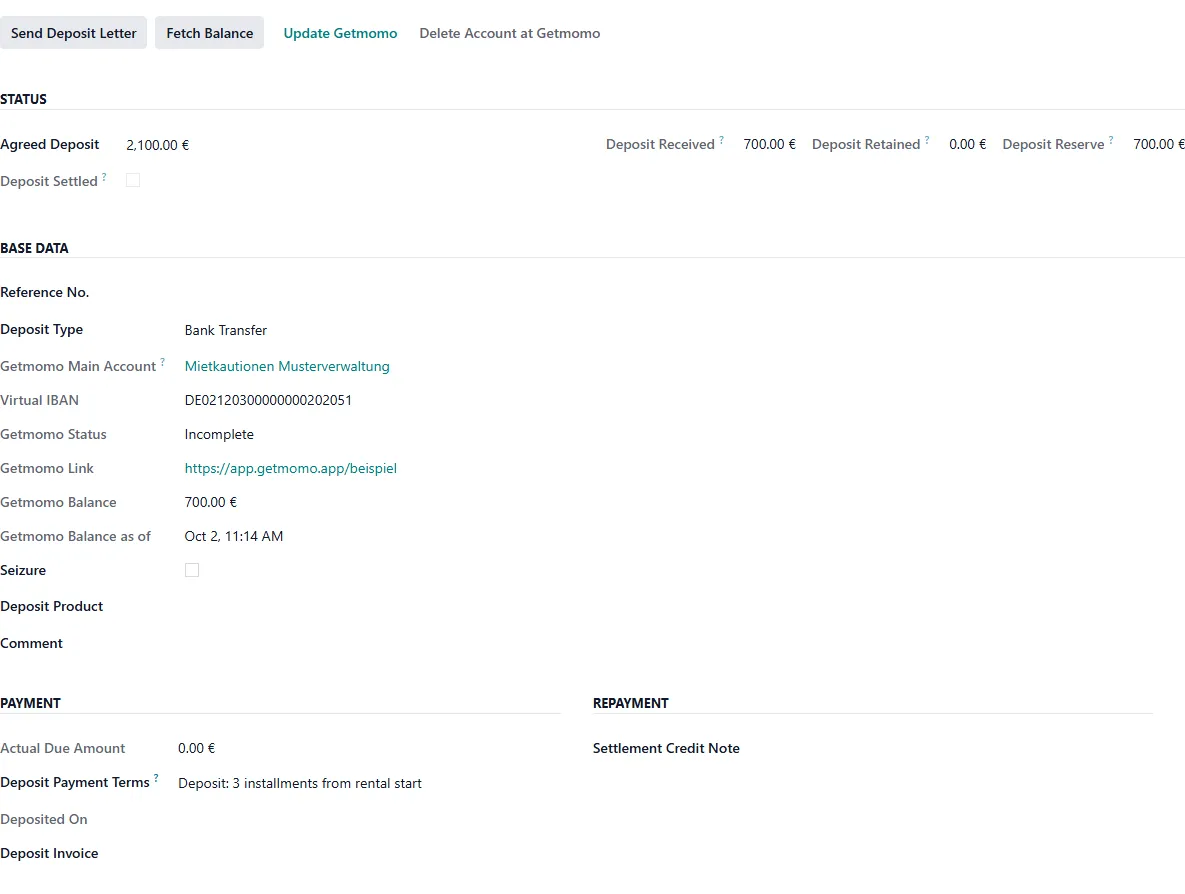
After that, the Getmomo main account can no longer be changed. Each tenancy has one virtual deposit account.
Send the deposit letter
Section titled “Send the deposit letter”Instead of a deposit invoice, the tenant receives a letter with the virtual IBAN. SMARTBRIX hides the Charge Deposit button in the Balance only operation mode.
- Under Payment, enter the Deposit Payment Terms if the tenant may pay in installments.
- Click Send Deposit Letter.
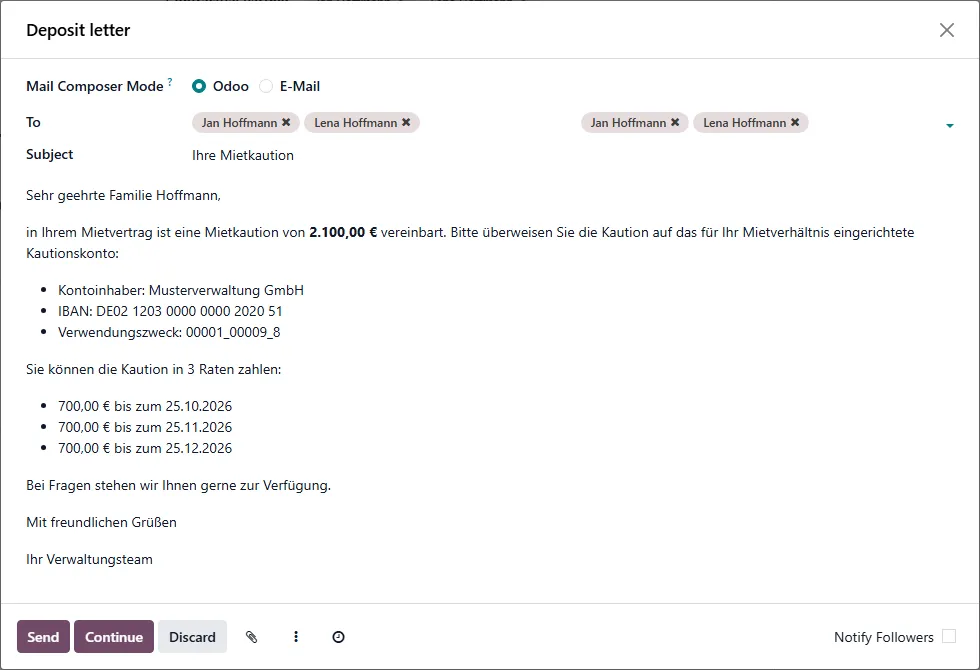
- Check the recipients and the text. The contract partners are prefilled, or the invoice recipient if there are no contract partners.
- Click Send to send the letter by email, or Continue to turn it into a letter.
The letter states the agreed deposit, your company as account holder, the virtual IBAN and the contract number as payment reference. Below that are the installments with their due dates, the same ones a deposit invoice would have. Without payment terms, it gives one deadline for the whole deposit.
Keep Getmomo up to date
Section titled “Keep Getmomo up to date”If you change any of these details after the account is created, SMARTBRIX sends the change to Getmomo after saving:
- on the tenancy: Agreed Deposit, invoice recipient, contract partners, start date, end date, property, contract number,
- on a tenant’s contact: name, first and last name, date of birth,
- on the property: street, house number, postal code, federal state, country.
Saving does not wait for Getmomo and never fails because of it. If you change more than 20 tenancies at once, for example by import, SMARTBRIX transfers the changes in the next daily sync.
If Getmomo rejects a change or cannot be reached, the task “Getmomo not updated” is created with the reason. It goes to the responsible user of the property, or to the user who saved if no one is responsible. Fix the cause and click Transfer to Getmomo Again. If the transfer works, SMARTBRIX marks the task as done. The daily sync also tries again.
With Update Getmomo you send the current state by hand at any time. SMARTBRIX reports “Getmomo updated.” or “Getmomo is already up to date.”.
Incoming deposit payments
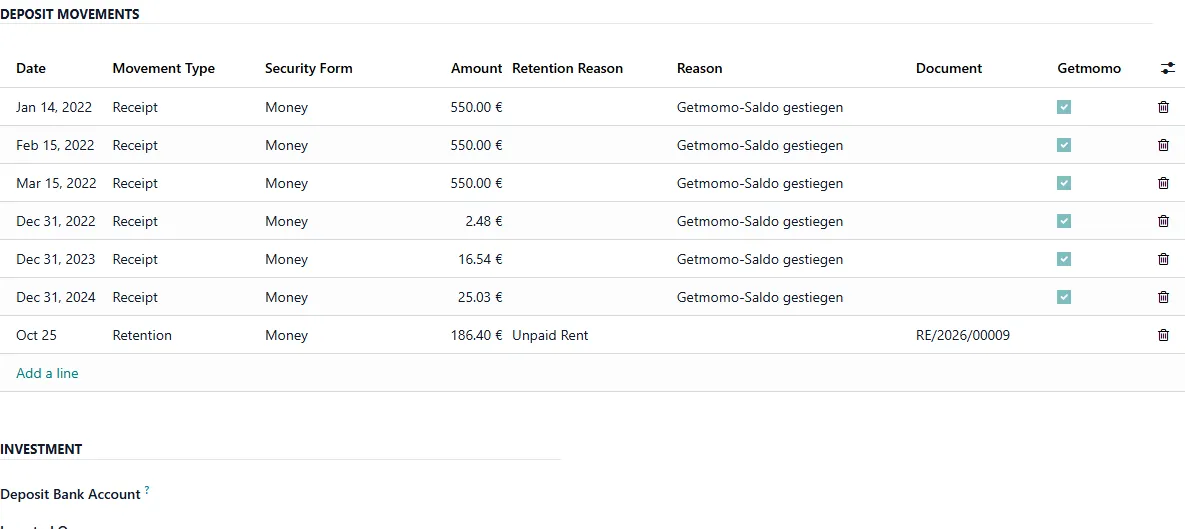
Section titled “Incoming deposit payments”When the balance at Getmomo increases, SMARTBRIX creates a deposit movement Receipt with the Security Form Money and the reason “Getmomo balance increase”. The date is the day of the balance change at Getmomo. The Getmomo column under Deposit Movements is ticked for these movements.
- Up to the Agreed Deposit, the receipt is a Payment.
- Anything above that is an Interest Credit. A receipt that exceeds the agreed deposit is split into two movements.
- After the deposit settlement, every increase is an interest credit.
SMARTBRIX learns the balance in three ways:
- Webhook: Getmomo reports the change immediately.
- Daily sync: every night, SMARTBRIX queries the balance and status of all accounts that are not closed.
- Fetch Balance: the button queries right away and reports “Balance updated:” with the amount.
If the same change arrives in two ways, SMARTBRIX counts it once.
The handover checklist ticks Deposit received as soon as the first installment under the payment terms has arrived. Only payments count, not interest credits.
If the balance decreases without you having requested a payout, no movement is created. SMARTBRIX creates the task “Getmomo balance decreased, please check” with the old and new balance. Clarify the reason with Getmomo and record the matching movement yourself.
Settle the deposit
Section titled “Settle the deposit”You settle the deposit with Settle Deposit, as described under Move-out and closing. The dialog points out that the deposit is held in an escrow account arranged through Getmomo. With Getmomo the settlement works differently:
- No credit note: SMARTBRIX does not post a settlement credit note. The money flows later through the payout prepared in Getmomo.
- Netted invoices: the retentions are created with the invoice as document. The invoices stay open until the transfer from the deposit account arrives in the property’s account and you reconcile them with it. Until then they are excluded from dunning.
- Retentions from the move-out protocol: for these, SMARTBRIX posts a retention invoice to the invoice recipient, without tax, with one line per retention and the Retention Product from the settings. It is also excluded from dunning until the transfer arrives. If the product is missing in the settings, SMARTBRIX refuses a settlement with retentions from the protocol.
After the settlement, Base Data shows Deposit Settled On and Payout to Tenant. The Settle Deposit button disappears, and a second run is blocked. Deposit Settled under Status stays empty until the payout is recorded at Getmomo.
Request the payout
Section titled “Request the payout”Only users with invoicing rights may request, retry and close payouts.
- Check that the Recipient Bank is entered on the property of the tenancy and that the invoice recipient or a contract partner has a bank account.
- On the Deposit tab, click Request Payout at Getmomo.
- In the dialog, check the transfers with Recipient, IBAN, Amount and Payment Reference.
- Click Confirm. Before that, SMARTBRIX sends nothing to Getmomo.
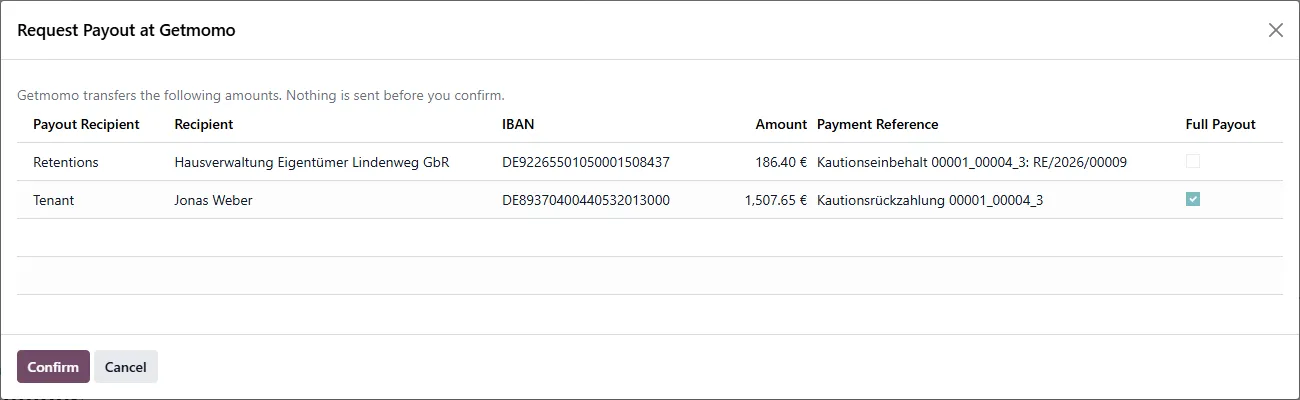
The dialog plans up to two transfers, in this order:
- Retentions: all retentions in one transfer to the property’s recipient bank, payment reference “Deposit retention” with the contract number and invoice numbers.
- Tenant: the Payout to Tenant amount to the first bank account of the invoice recipient or the contract partners, payment reference “Deposit refund” with the contract number.
If no deposit reserve remains after the payout, the transfer to the tenant is a Full Payout: Getmomo pays out the entire remaining balance including later interest and closes the virtual account. The amount in the dialog is then the known balance minus the retentions. If a reserve remains, both transfers are partial payouts.
If nothing is to be paid to the tenant, Getmomo transfers only the retentions and the account stays open. If more money arrives later, such as interest, the button offers this remainder as a payout to the tenant.
The requested transfers appear on the tab under Getmomo Payouts with the Status Not confirmed, Requested, Executed or Failed. As long as a payout is open, you cannot request a new one.
What happens after you confirm
Section titled “What happens after you confirm”The payout to the tenant becomes a deposit movement Payout with the reason “Getmomo payout” as soon as Getmomo reports the decreased balance. For a full payout, SMARTBRIX takes the amount actually paid out. The transfer of the retentions creates no further movement, because the retentions are already in the list. Both transfers are then Executed.
- Getmomo does not answer: SMARTBRIX reports that it is unknown whether Getmomo accepted the payout. Click Retry Payout at Getmomo. Getmomo does not pay twice.
- Getmomo rejects: SMARTBRIX reports the reason and sets the transfer to Failed. It does not send a following transfer. Fix the cause and request the payout again.
- Payout is stuck: if your bank shows the transfer, click Mark as Executed in the row and enter Amount Paid and Date. If the transfer was not executed, click Mark as Failed. SMARTBRIX notes both in the history.
Undo the settlement
Section titled “Undo the settlement”As long as no payout has been requested, you can undo the settlement with Undo Settlement. Failed payouts do not count here. SMARTBRIX cancels the retention invoice, deletes the retentions from the settlement and releases the invoices for dunning again. The history shows “Deposit settlement undone.”. Then settle the deposit again.
Delete the account
Section titled “Delete the account”With Delete Account at Getmomo you delete the virtual deposit account, for example if the tenancy agreement does not come about. Getmomo deletes only accounts without bookings. After deleting, SMARTBRIX clears the Getmomo fields, notes the deletion in the history, and you can create a new account.
A tenancy with a virtual deposit account cannot be deleted. Delete the account at Getmomo first.
Frequently asked questions
Section titled “Frequently asked questions”When creating the account, “Getmomo only supports German rental properties (country must be DE).” appears. A different country is entered on the property of the tenancy.
When creating the account, “Please complete the address of property …” appears. The message names what is missing: street, house number, postal code or federal state. Add it on the property of the tenancy.
When creating the account, “… needs a first and last name.” appears. A part of the name is missing on the contact named. A contact such as “Familie Becker” or “Eheleute Becker” has no first name. Enter the tenants individually with first and last name as contract partners.
When creating the account, “Getmomo accepts at most … tenants” appears. Getmomo accepts at most five tenants per tenancy and at most three contact persons per company. Reduce the contract partners or the contacts of the company.
“Getmomo API: unauthorized. Check your API key.” appears. The key is wrong, has expired or belongs to a different Getmomo system than the API Base URL.
I do not see the Getmomo Main Account field. The field appears only with the Deposit Type Bank Transfer. It is prefilled only when the type changes and only if your company has an API key and a default main account. Otherwise, select the main account yourself.
The tenant changes from a person to a company. Getmomo cannot handle this. Delete the account at Getmomo and create it again.
When deleting, “Getmomo keeps accounts with bookings …” appears. Money has already been received on the account. Settle the deposit and pay it out through Getmomo.
When requesting the payout, “Property … has no recipient bank account for the retentions.” appears. Enter the Recipient Bank on the property of the tenancy. If the tenant’s bank account is missing, SMARTBRIX reports that as well.
Getmomo shows a different balance than SMARTBRIX. Click Fetch Balance. If webhook reports do not arrive, check the Webhook URL and Webhook Secret.
Didn't find an answer? Contact support