

Viewing
Question about the manual? Ask Claude · Ask ChatGPT
A viewing is optional. You schedule an appointment at the property and invite prospects to it. Several attendees at one appointment make a group viewing.
Schedule an appointment
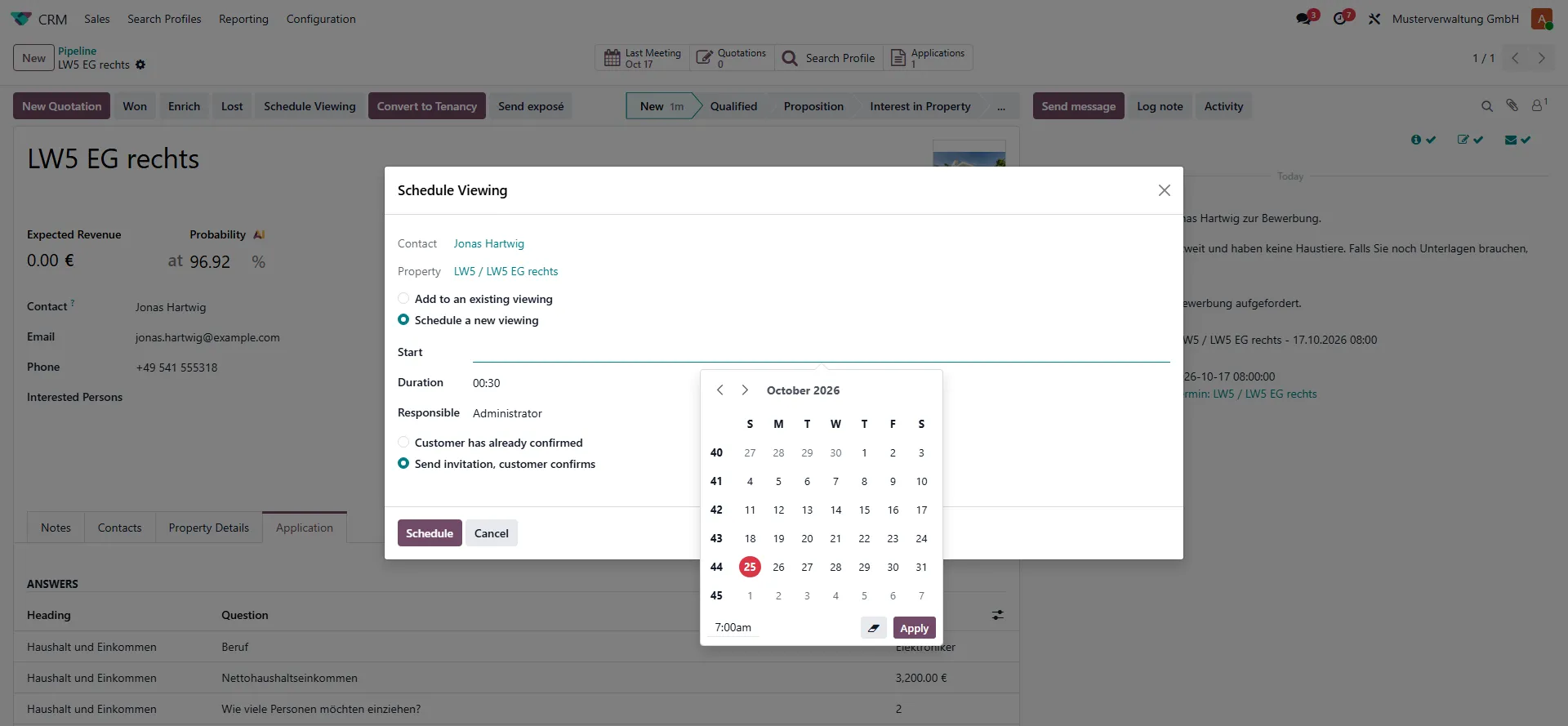
Section titled “Schedule an appointment”- Open the opportunity and click “Schedule Viewing” in the header. The button only appears once customer and property are set.
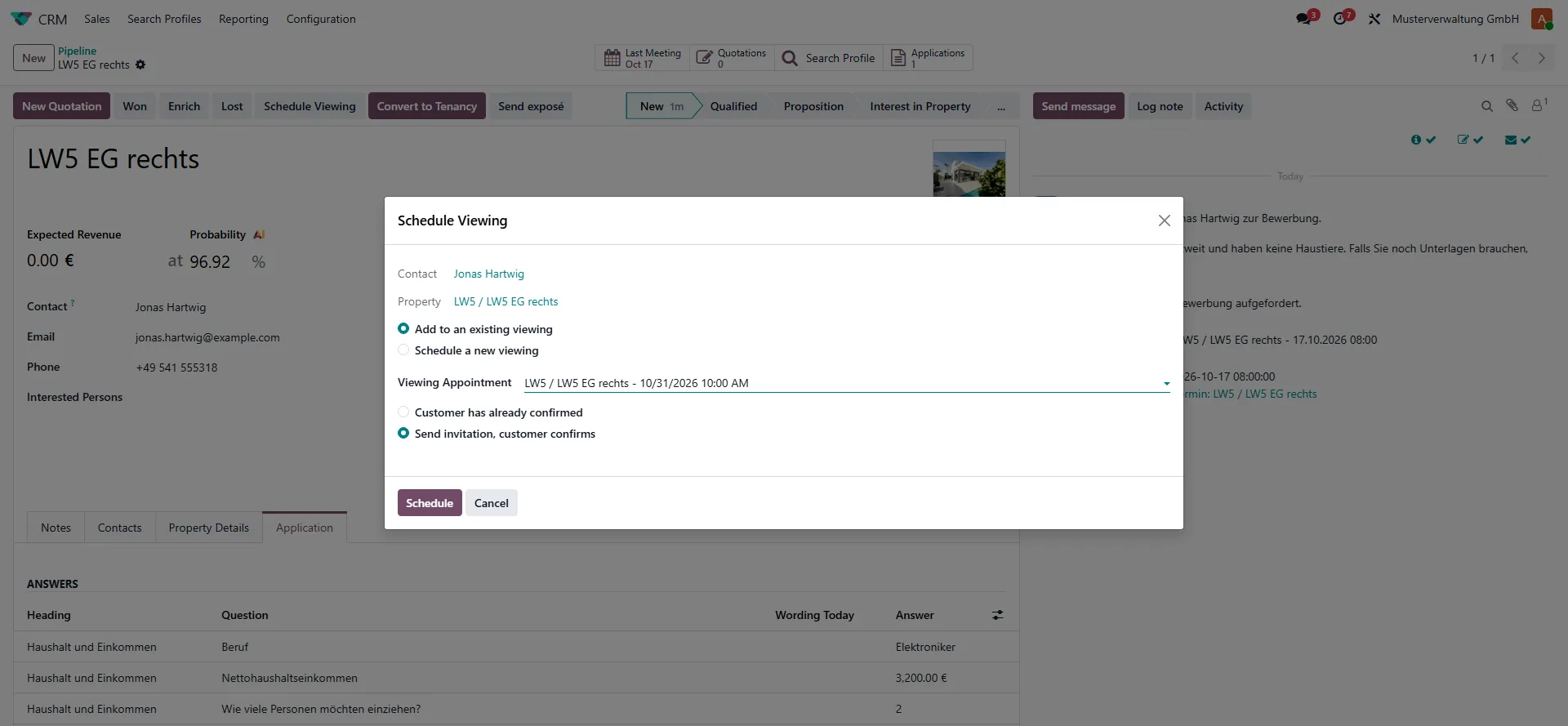
- In the dialog, choose under “Mode” whether to “Add to an existing viewing” or “Schedule a new viewing”. If there are open appointments at the property, the first option is preset.
- For a new appointment, enter “Start”, “Duration” and “Responsible”. For an existing one, select it under “Viewing Appointment”.
- Under “Confirmation”, decide whether the “Customer has already confirmed” or whether you “Send invitation, customer confirms”. The invitation is preset.
- Click “Schedule”. The dialog closes, and the customer is listed as an attendee of the appointment.
Track the answers
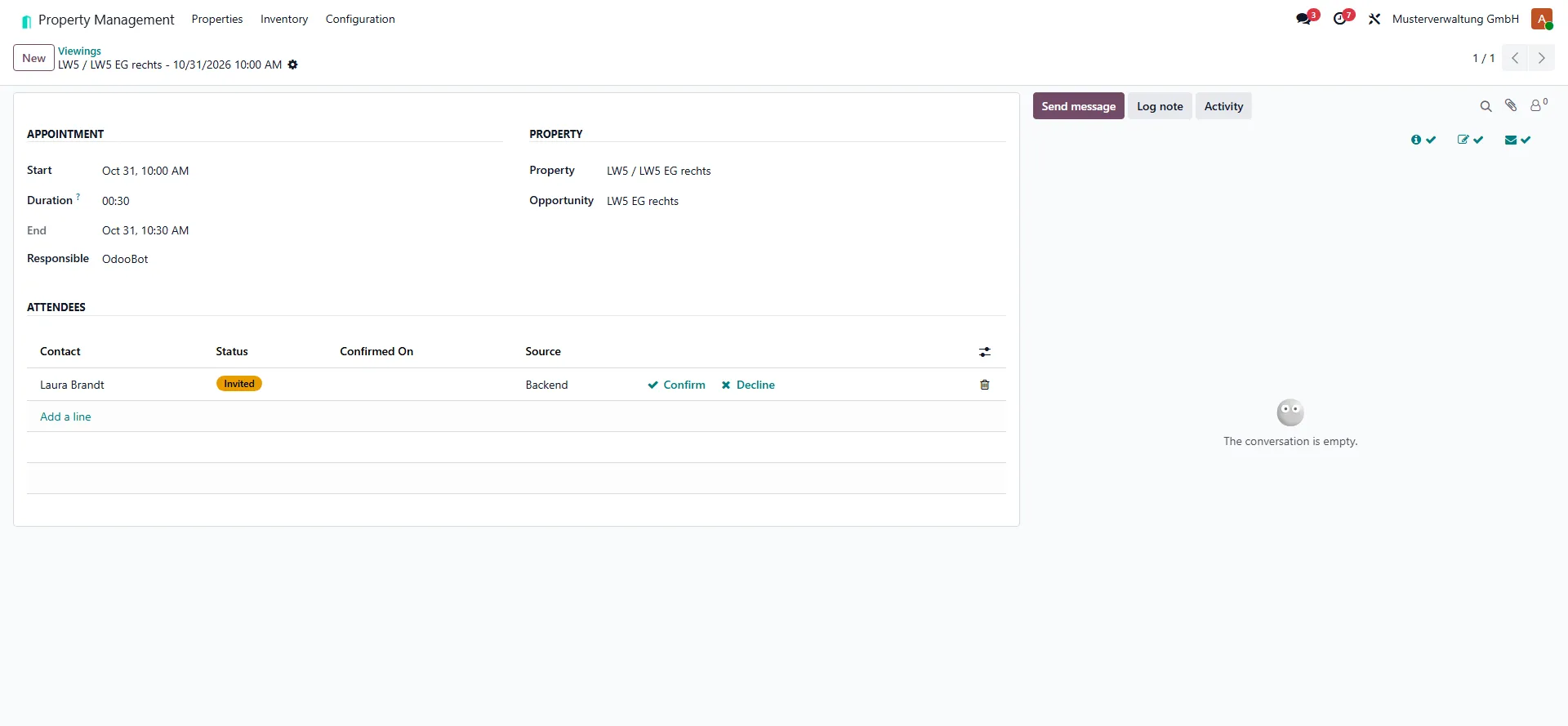
Section titled “Track the answers”Without the customer portal, you take the answer by phone or email. Open the appointment under Property Management › Viewings and, in the attendee list, click the check mark “Confirm” or the cross “Decline” in the attendee’s line. The declined line stays in place, so you can see the decline on the appointment.
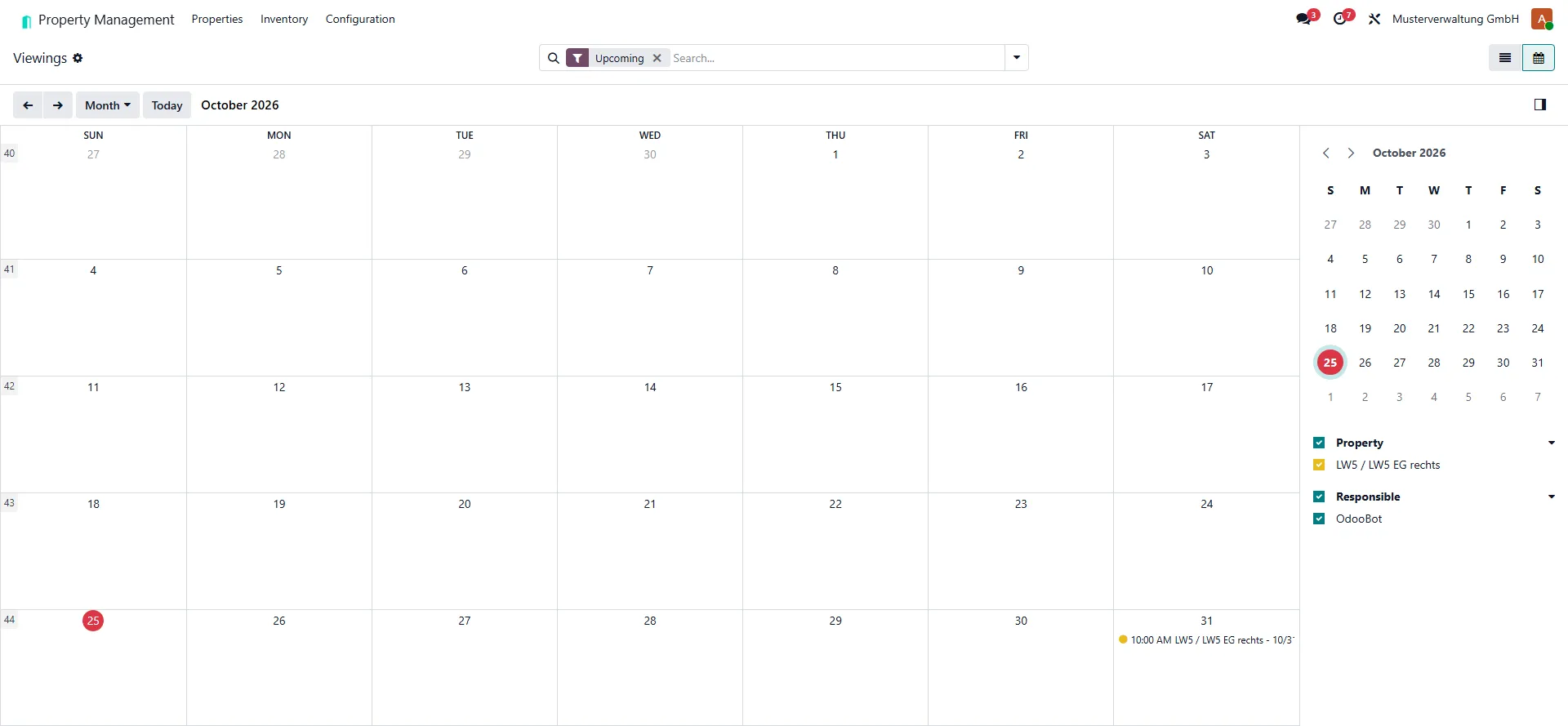
The same works in the calendar: open the provisional appointment, click “Confirm” and choose how the prospect accepted. See Confirm an appointment. If your calendar is connected to Outlook and the prospect answers the invitation there, the acceptance or refusal reaches the viewing as well. See Outlook calendar.
with customer portal Answer through the appointment page
The invitation takes the customer to an appointment page of their own. If they have an application, they can just as well answer on their application page. Wait for their answer and check the status in the attendee list of the appointment. There you can “Confirm” or “Decline” by hand at any time if they answered you some other way. If they decline themselves, you get a task automatically.
What happens automatically
Section titled “What happens automatically”- With “Send invitation, customer confirms”, the customer receives the email “Invitation to a viewing appointment”. It contains property, appointment and duration, but deliberately no calendar file. Without the customer portal, it contains no confirmation link and asks for an answer by phone or email instead.
- With “Customer has already confirmed”, the customer directly receives the email “Your viewing appointment” with a calendar file attached.
- With the first invitation, a calendar entry is created for the responsible user. It lists the responsible user, the confirmed and the invited contacts. As long as an invited contact has not answered, the entry is provisional: striped and labeled “Provisional”. If the setting “Provisional viewings in the calendar” under Settings › Properties is off, the entry is created with the first confirmation and lists only the confirmed contacts.
- Declined contacts are not in the calendar entry. If the last attendee declines, the entry disappears.
- If an invited contact has not answered after a few days, the responsible user gets the activity “Follow up on viewing”. See Follow up.
- If you move the appointment, the email “Your viewing appointment was moved” goes to everyone expecting it. If you archive or delete it, “Your viewing appointment was cancelled” goes out.
- 24 hours before the start, only the confirmed attendees receive the email “Reminder: your viewing appointment”.
- If an attendee declines themselves, they receive no email. You see the decline on the attendee line and in the history of the appointment, and the person responsible for the appointment gets the task “Attendee declined:” with the name, due today. If you remove the line yourself, no task is created.
- Every confirmation and every decline leaves a note in the history of the opportunity.
- On the opportunity, the “Viewing Appointment” field shows the customer’s earliest future confirmed appointment.
with customer portal What the prospect sees in the portal
- The invitation carries a personal link to their own appointment page for each invitee, including those who never applied. Only the invitation carries this link. Confirmation, rescheduling, cancellation and reminder lead to the application page. Anyone without an application still reaches their appointment through the invitation email.
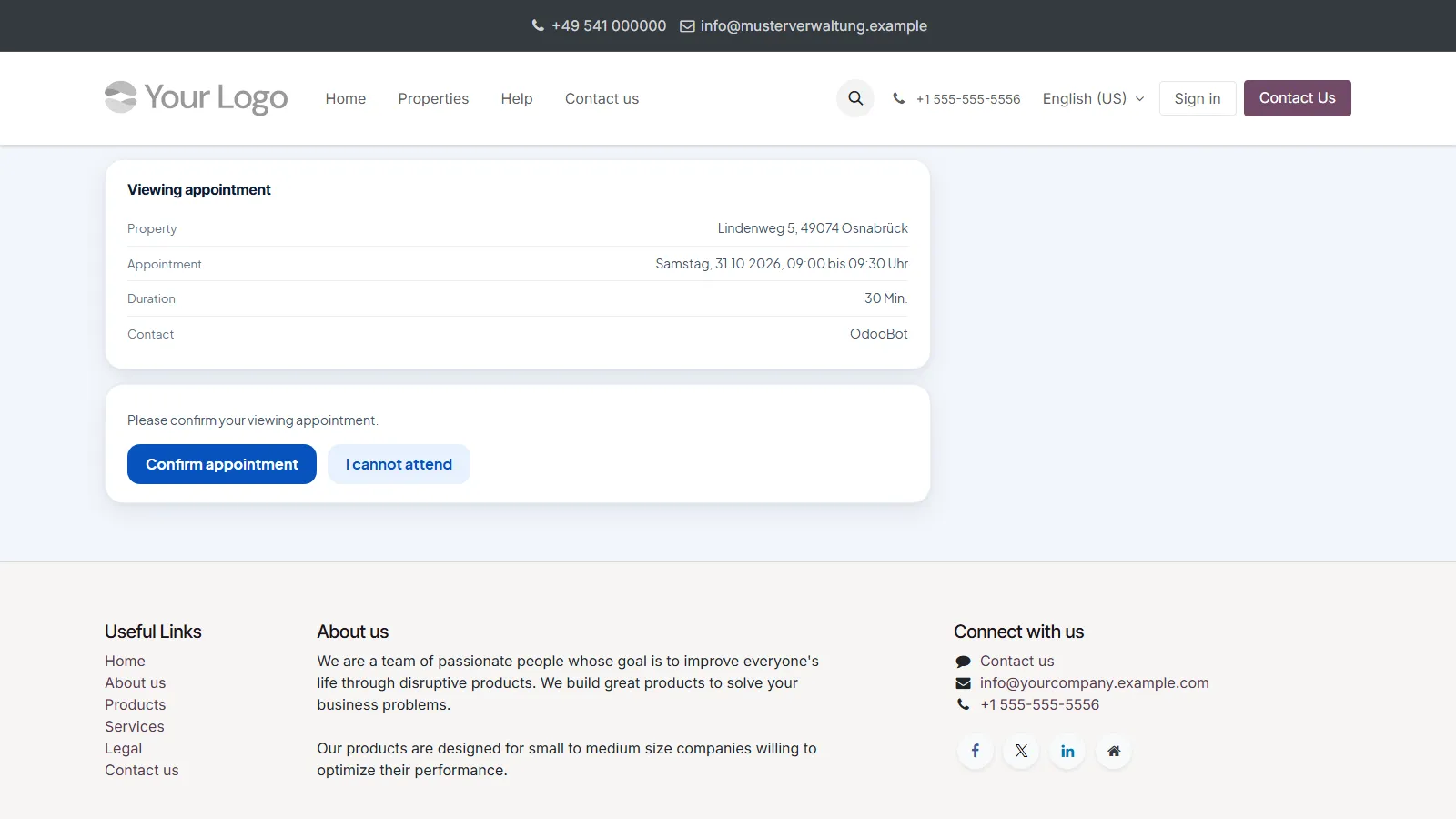
- The appointment page shows “Property”, “Appointment” with weekday and time span, “Duration” and “Contact”, with the answer below.
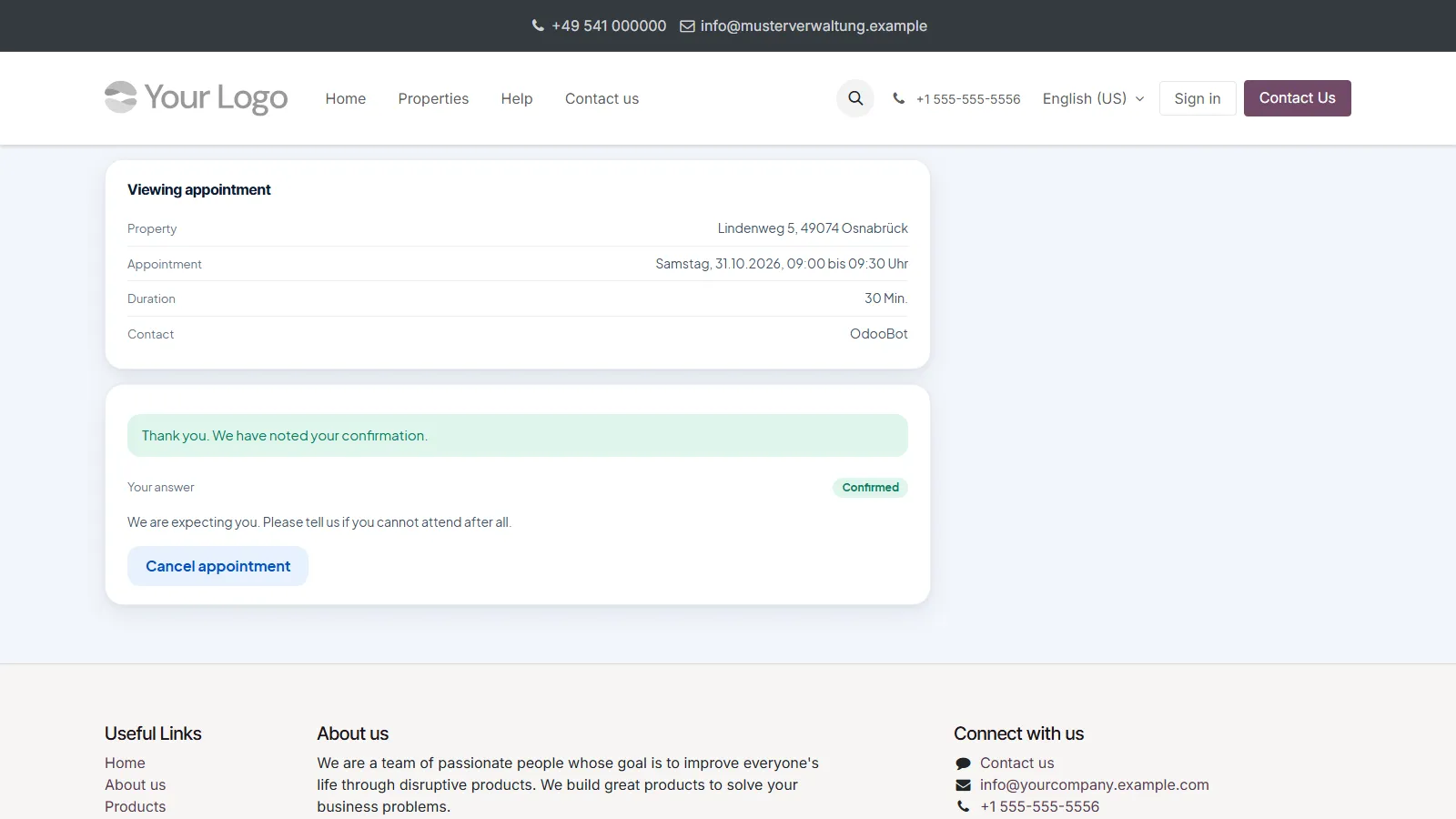
- There the prospect reads “Please confirm your viewing appointment.” and decides with “Confirm appointment” or “I cannot attend”. If they have already confirmed, “Your answer” shows the label “Confirmed”, and they can withdraw with “Cancel appointment”. If they declined, they can still confirm.
- The appointment page carries exactly one appointment, with no choice and no counterproposal. If the appointment is over or withdrawn, the page only shows “This appointment is no longer open. Please contact your property management.”
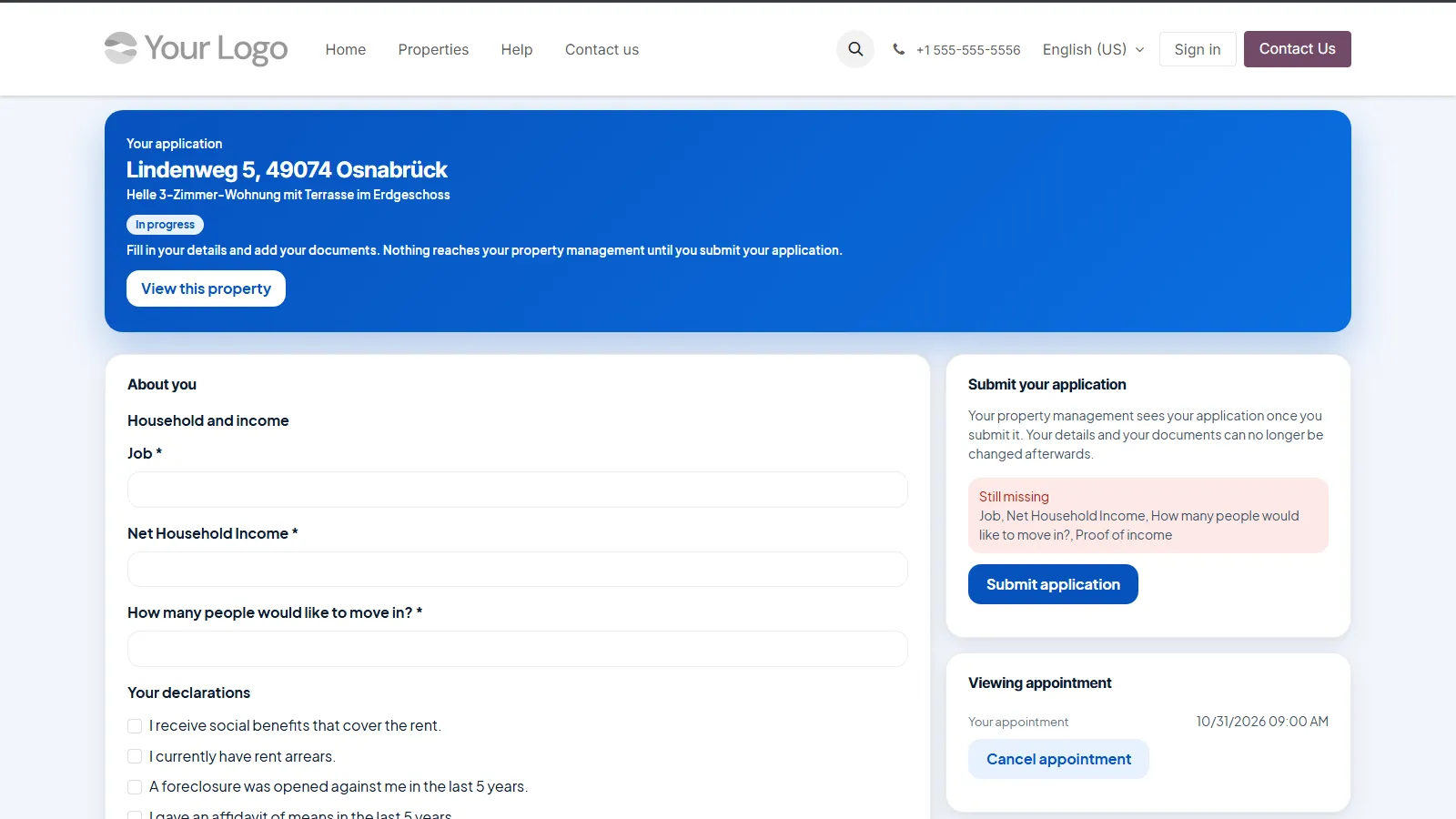
- If the prospect has an application, they also find the same question on their application page in the “Viewing appointment” card. Both routes take the same answer.
- Once an appointment is confirmed, it appears on the application page under “Your appointment”. Further offered appointments appear below, each with a “Choose” button.
- If the prospect chooses another appointment, the new choice replaces the old one. The old confirmation is canceled, without two steps for the prospect and without creating a task for you.
- If an appointment has since been taken or is over, the page reports “This appointment is no longer available. Please choose another one.”
Didn't find an answer? Contact support