

Rooms and features
Question about the manual? Ask Claude · Ask ChatGPT
On the property, you record its rooms and their furnishings: flooring, windows, radiators, fitted kitchen. This list is the basis for handover and move-out protocols. When you prepare a protocol, it takes over everything on the property, room by room. You record the condition in the protocol, not on the property. Rooms are optional: a property without rooms remains fully usable.
The “Rooms and Features” tab
Section titled “The “Rooms and Features” tab”Open Property Management › Properties, then the property, and switch to the Rooms and Features tab. At the bottom are two sections that start collapsed. Click the heading to open them:
- Rooms of the Property: for each room, Name, Room Type, Area (m²) and the number of Room Features. Change the order with the handle at the start of the row.
- Features without Room: furnishings that belong to the whole property, such as the mailbox or the doorbell system, with Name and Feature Type.
At the end of each room row there are two buttons: the magic wand for Features from Template (only when a room type is set) and an arrow that opens the room form.
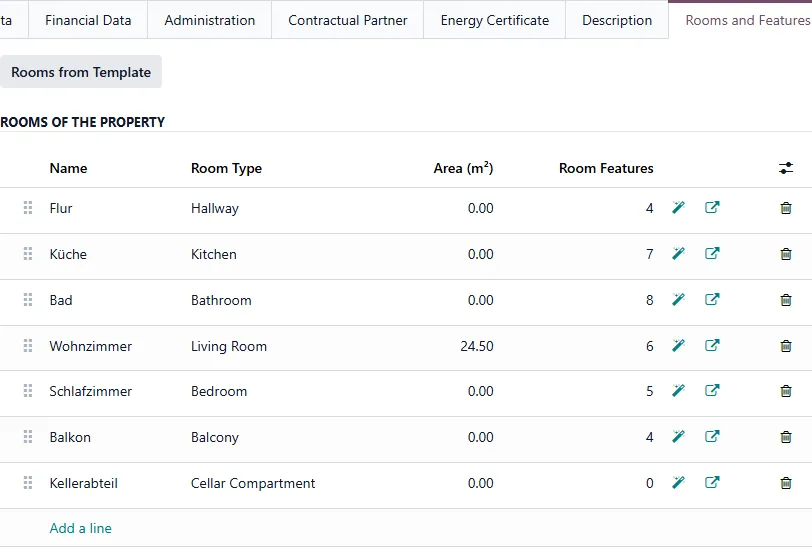
Every property can have rooms, including the building. Create the stairwell, laundry room and cellar on the main property. In the protocol of an apartment, you then include them with the Include Shared Rooms checkbox.
Create rooms from a template
Section titled “Create rooms from a template”- Save the property. Only then does the Rooms from Template button appear.
- On the Rooms and Features tab, click Rooms from Template.
- Check the Template. SMARTBRIX suggests the template whose Property Category matches the category of the property. If none matches but there is only one template, that one is filled in.
- Leave Add Features ticked. Each new room then gets the furnishings of its room type right away, and the property gets the furnishings without a room, such as mailbox and doorbell sign. SMARTBRIX does not create anything twice that already exists on the property.
- In the Create column, untick what should not be created. You can change the name and room type in the row, for example “Child’s Room” instead of “Bedroom”.
- Click Create Rooms.
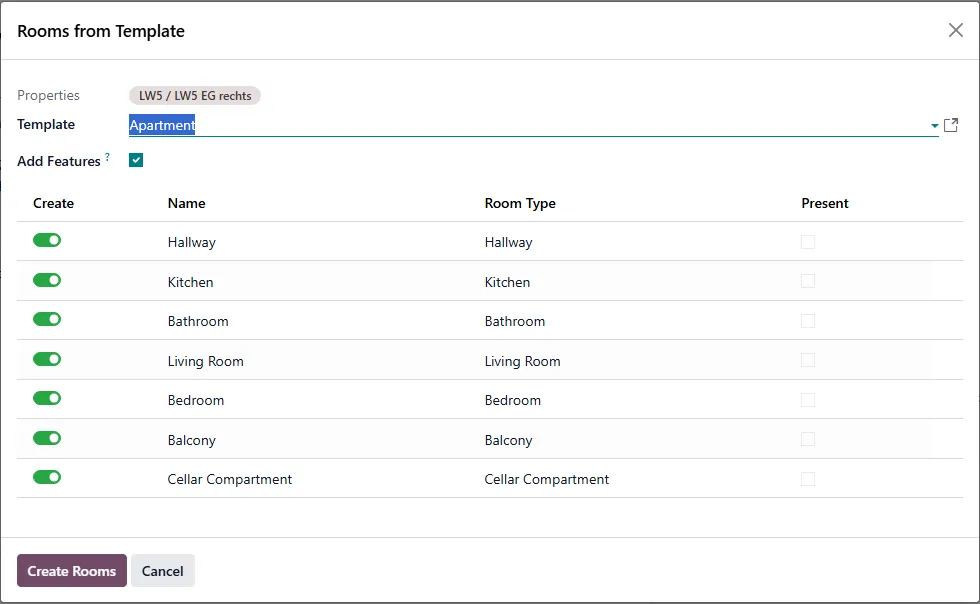
You can open the dialog again at any time. Rooms that already exist on the property then appear grayed out with a check mark in the Present column and are not created twice. SMARTBRIX compares the names and ignores upper and lower case.
Maintain rooms and furnishings by hand
Section titled “Maintain rooms and furnishings by hand”- Add a room: under Rooms of the Property, click Add a line and enter the name, room type and, if needed, the area.
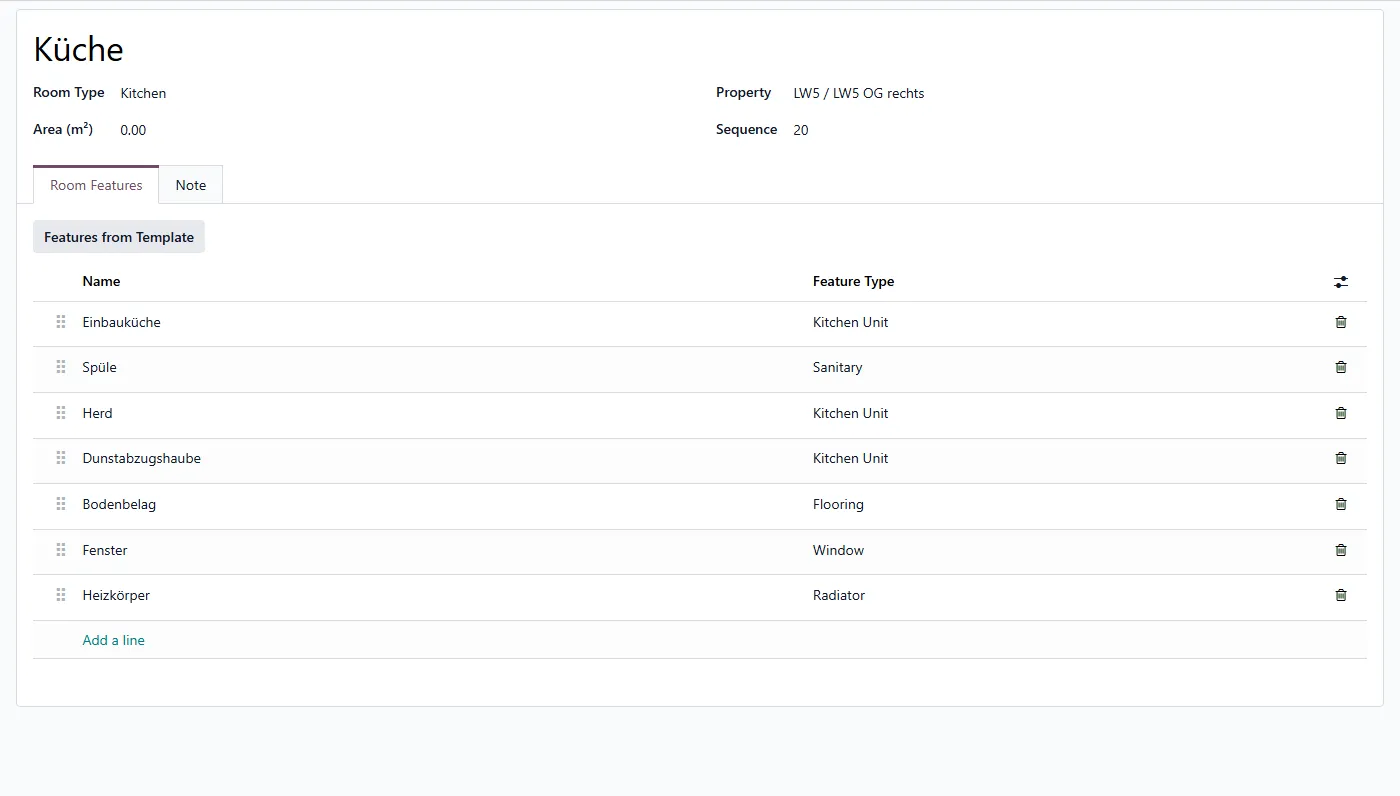
- Furnishings of a room: open the room with the arrow at the end of the row. On the Room Features tab, add rows by hand or with Features from Template. Use the Note tab for anything special.
- Furnishing without a room: under Features without Room, click Add a line.
Maintain templates
Section titled “Maintain templates”The templates and catalogs are under Property Management › Configuration › Properties:
- Room Types: for example hallway, kitchen, bathroom, living room, balcony, cellar compartment, office, stairwell.
- Feature Types: for example flooring, walls and ceiling, windows, door, radiator, sanitary, kitchen fittings, electrical.
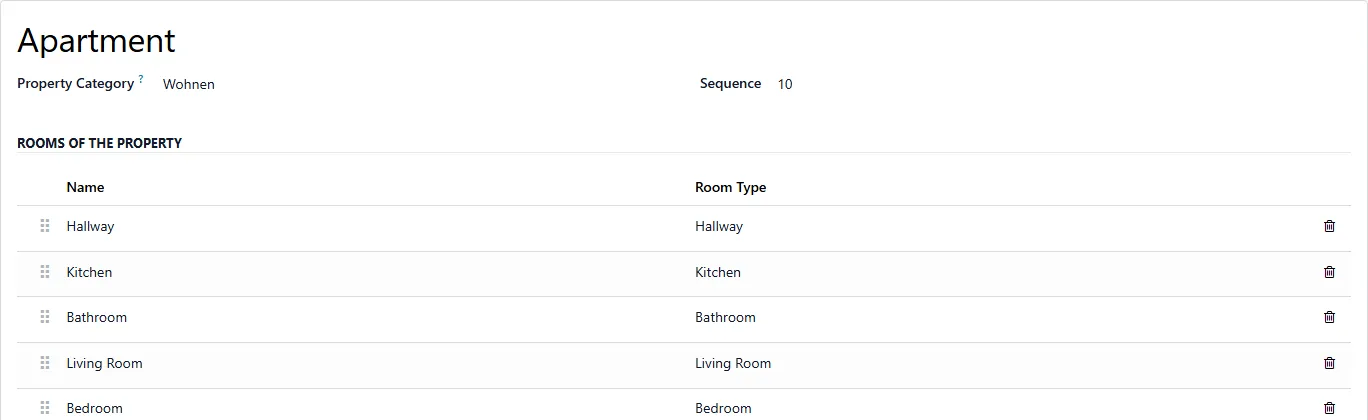
- Room Templates: which rooms a property of a category usually has. SMARTBRIX ships with “Apartment”, “Office” and “House Common Areas”.
- Feature Templates: which furnishings a room of a certain room type usually has, grouped by room type. Templates without a room type apply to the whole property and become furnishings without a room.
For the dialog to suggest a template, enter the Property Category on the room template. The category of a property follows from its Property Type. If your system already had a property category “Wohnen” or “Wohnung”, SMARTBRIX assigned it to the “Apartment” template during the update, and “Gewerbe” or “Büro” to the “Office” template. If the assignment is missing, enter the category by hand. Without a property category, the dialog suggests no template.
If the Company field on the room template stays empty, the template applies to all companies.
Where else the rooms are used
Section titled “Where else the rooms are used”- Handover and move-out protocol: Prepare takes over the rooms, their furnishings and the furnishings without a room. Preparing a second time adds only what is missing. The rooms of the building are also available in the protocol rows. If a room is missing in the protocol, create it on the property directly with the button in the row. See Handover.
- Building maintenance assets: assets can be assigned to a room and then appear in the protocol under that room. See Assets.
- Smoke detectors: they also have a room. See Smoke detectors.
Frequently asked questions
Section titled “Frequently asked questions”Does the area of the rooms count toward the living space? No. The area of a room is a separate detail. You maintain the living space of the property separately.
Where do I record the condition of a room? In the handover or move-out protocol, with Condition, Renovation State and photos. The property has no field for it.
I duplicated a property and the rooms are missing. SMARTBRIX does not copy rooms when duplicating. Create them again with Rooms from Template.
Is there a list of all rooms across all properties? No. Rooms are always on the property they belong to.
Didn't find an answer? Contact support