

Resolution procedures and register of resolutions
Add-on module
Question about the manual? Ask Claude · Ask ChatGPT
A resolution procedure is how the apartment owners make decisions: an owners’ meeting or a circular procedure. You compile the agenda, run the owners’ meeting in SMARTBRIX or record the votes afterward, and announce the result of each agenda item. The announcement creates the resolution, and SMARTBRIX enters it under the next number in the community’s register of resolutions.
You can also hold hybrid and online owners’ meetings and circular procedures through Vulcavo. See Meetings via Vulcavo.
Set up the community
Section titled “Set up the community”- Open Condominium › Communities › Communities and then the community.
- In the Resolutions group, choose under Voting Principle how votes are counted:
- Per Owner (head principle): one vote per apartment owner. This is the statutory default. Co-owners of a unit, such as a married couple, share one vote; an owner of several units still has only one.
- Per Unit (unit principle): one vote per unit.
- Per Co-ownership Share (value principle): votes by co-ownership shares.
- Under First Resolution No., enter the number the register of resolutions starts with. For a new community, leave it at “1”. If you take over a community, enter the number after the previous manager’s last resolution.
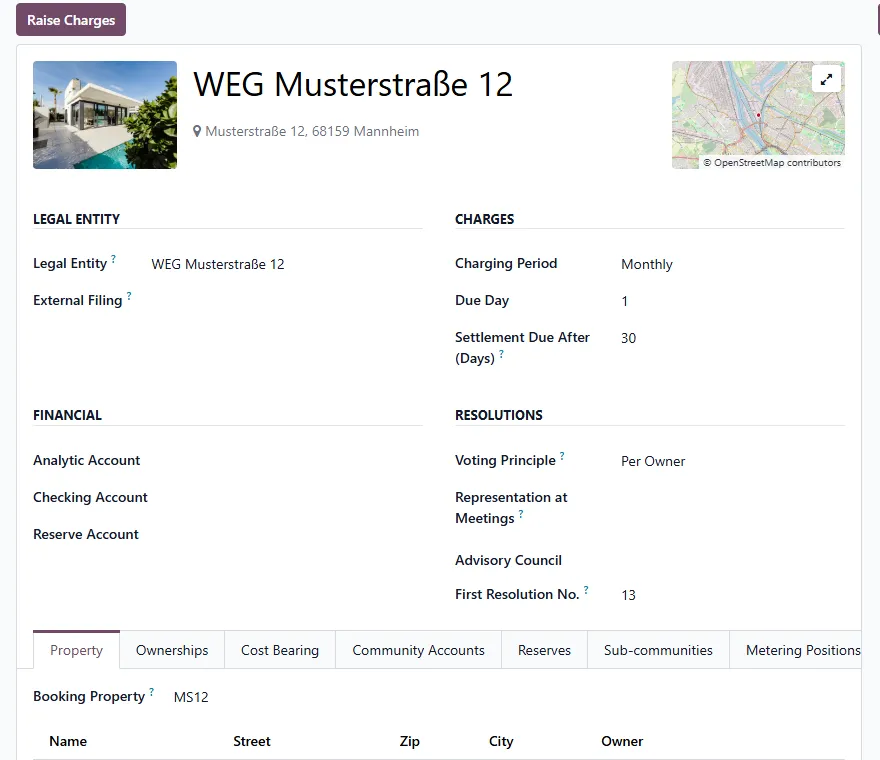
The community’s voting principle is only the default. If the community regulations require a different count for a matter, change it on the individual agenda item.
Sub-communities
Section titled “Sub-communities”A sub-community is a group of units whose apartment owners vote alone on matters that only concern them, typically one house of a multi-house complex.
- In the community, open the Sub-communities tab and click Add a line.
- Enter the name, for example “Haus A”.
- In each row, choose a Unit of the community. Fill in Own Voting Share only if the community regulations give the unit a different weight in this sub-community; if left empty, its co-ownership share counts.
The sub-community only governs who votes. It does not affect who bears which costs. Record what the declaration of division says about this for each building part on the community’s Cost Bearing tab (see Create a community).
Create a resolution procedure
Section titled “Create a resolution procedure”- Open Condominium › Resolutions › Resolution Procedures and click New.
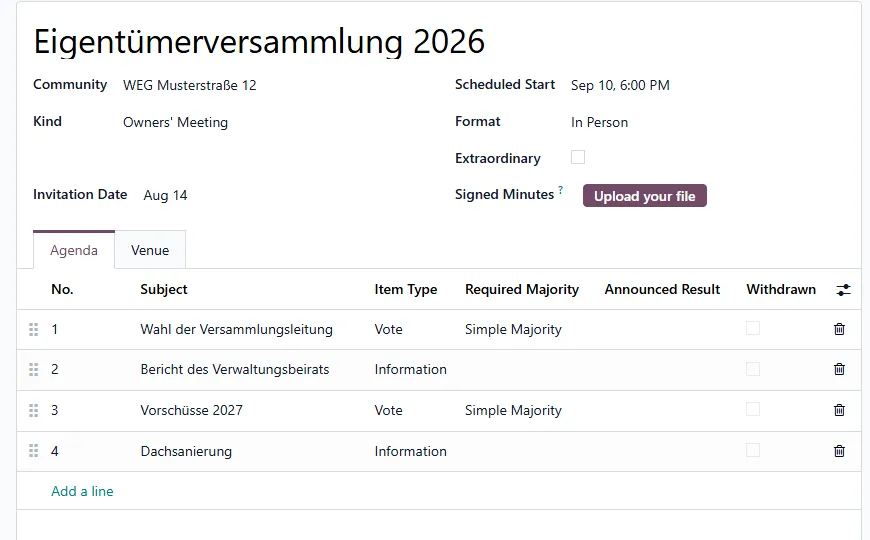
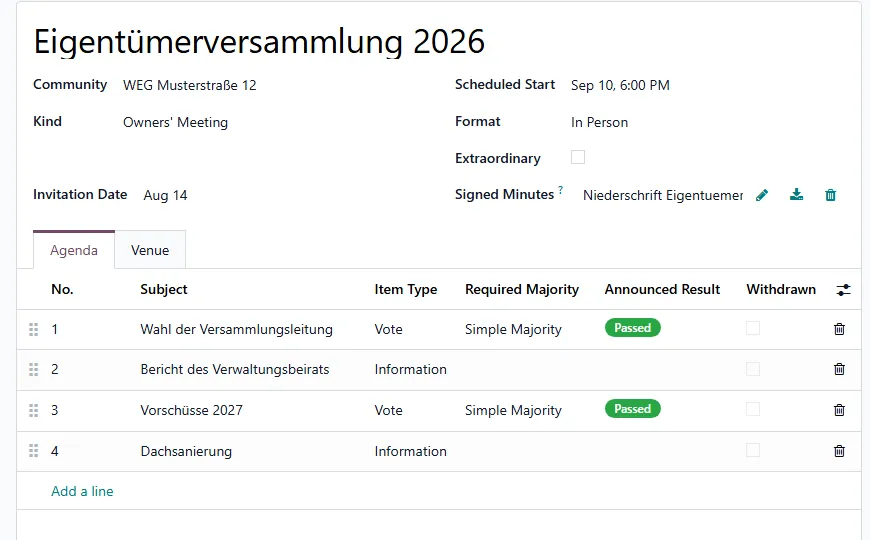
- Enter the name, for example “Owners’ meeting 2026”, and choose the Community.
- Under Kind, choose Owners’ Meeting or Circular Procedure.
- For an owners’ meeting: enter the Scheduled Start, choose the Format (In Person, Hybrid or Online) and tick Extraordinary if it is not an ordinary meeting. The Venue tab is prefilled with the address of the building; enter the place where the meeting actually takes place.
- For a circular procedure: enter the Voting Deadline, the last day for casting votes.

The Procedures button at the top of the community lists all resolution procedures of this community.
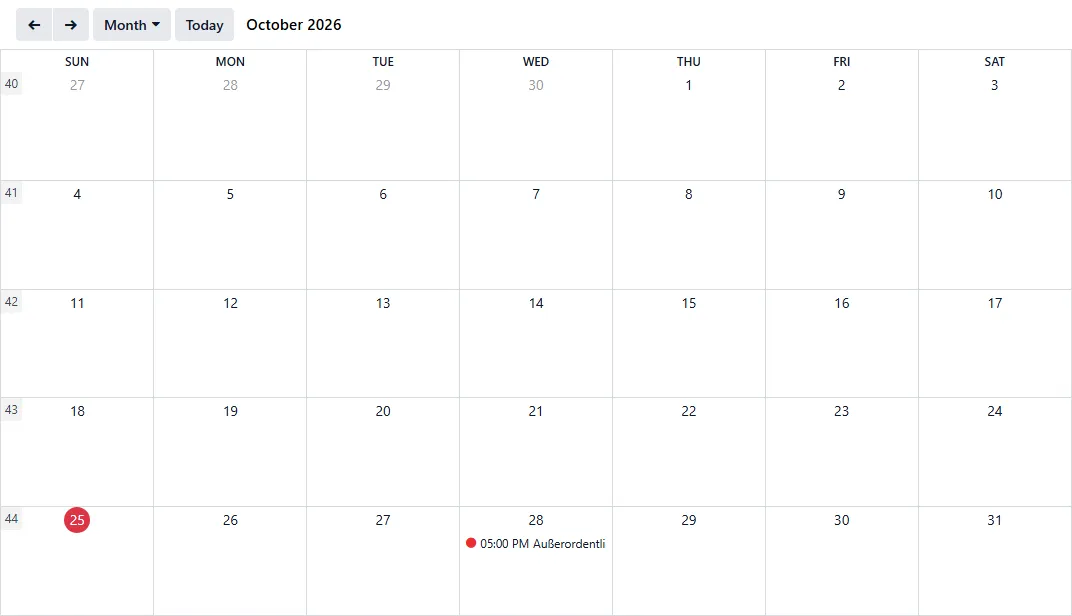
With the Calendar view at the top right of the list, you see the meetings by date, colored by community. Clicking an entry opens the resolution procedure. Create new resolution procedures with New, not by clicking a day in the calendar.
Compile the agenda
Section titled “Compile the agenda”- On the Agenda tab, click Add a line and enter the matter as the Subject.
- Under Item Type, choose Vote or Information. There is no vote on an information item, for example the report of the advisory council.
- For a voting item: on the Motion tab, enter the wording to be voted on under Motion. If the motion is passed, this is the wording of the resolution. Under Explanation, write what the apartment owners need to know to decide; the Internal Note is for the management only.
- Under Resolution Type, choose what the resolution does: Advances, Additional Contributions / Adjustment, Special Levy, Allocation Key, Due Dates or Other.
- Tick Procedural Matter if the item only concerns how the meeting runs, for example electing the chair. Such a resolution appears in the minutes but not in the register of resolutions.
- Drag the rows by their handle into the order of the agenda. SMARTBRIX assigns the numbers 1, 2, 3 in this order.
From a resolution template
Section titled “From a resolution template”For recurring matters such as appointing the administrator or a maintenance measure, there are resolution templates.
- Open the agenda item and choose a resolution template under Template.
- In the subject, explanation and motion, replace the placeholders in square brackets, such as “[measure]” or “[amount]”, with the details of this community. SMARTBRIX does not fill them in.
The template fills Subject, Explanation, Motion, Item Type, Resolution Type and Procedural Matter and overwrites what is already there. In an owners’ meeting, the item also takes the Required Majority of the template; in a circular procedure it stays at Unanimity. What you change on the item afterward does not change the template, and a later change to the template does not reach the item.
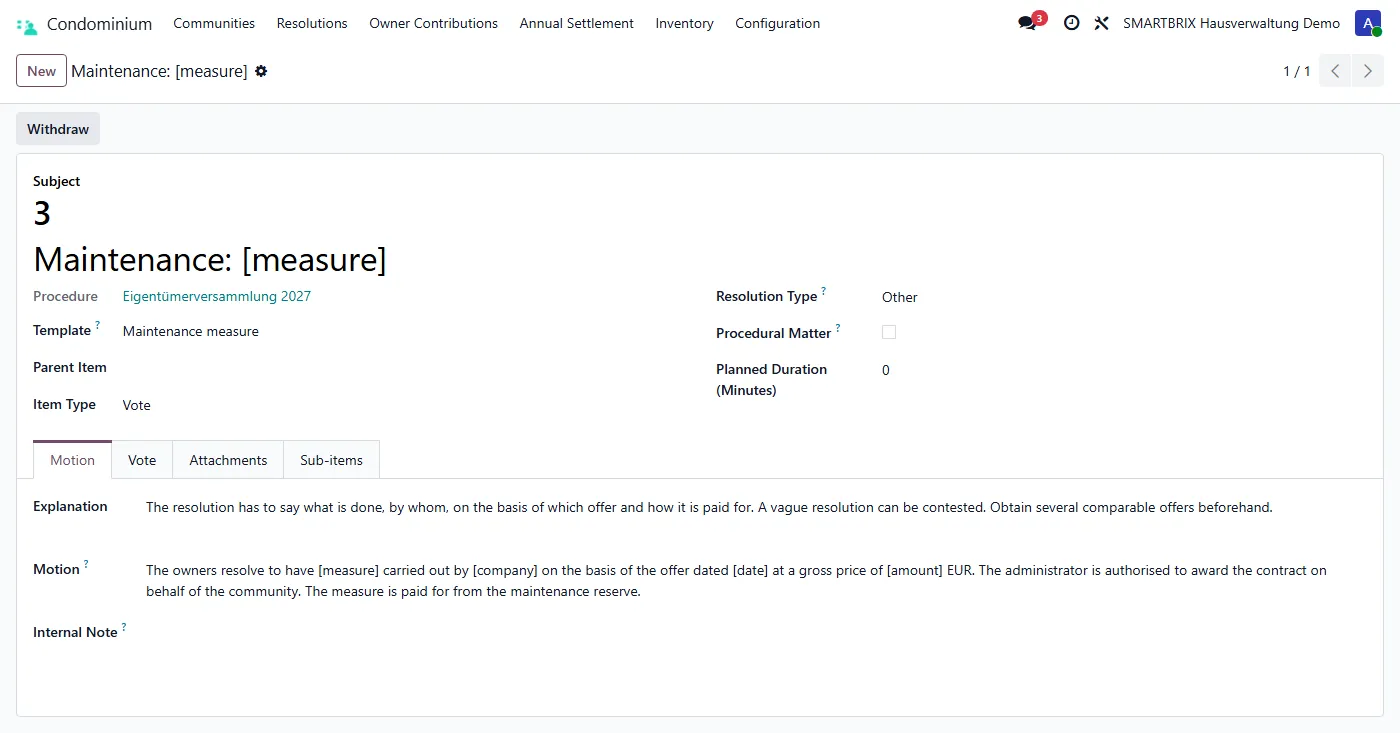
The Template field is available only while the resolution procedure is in preparation or invited and the item has not been announced. Which templates exist and how to adapt them is described under Setup.
Sub-items
Section titled “Sub-items”If several votes belong to one matter, add more rows on the Sub-items tab of the agenda item. They get the number of the parent item with a letter, in the example “4a” for commissioning the roof renovation and “4b” for financing it through a special levy.
Voting principle and required majority
Section titled “Voting principle and required majority”On the Vote tab of a voting item, you set how votes are counted and which majority is needed.
- Voting Principle: taken from the community, can be changed for this item.
- Required Majority:
- Simple Majority: more yes than no votes. Abstentions do not count.
- Double Qualified Majority: more than two thirds of the votes cast and more than half of all co-ownership shares.
- Unanimity: all apartment owners entitled to vote agree, whether present or not.
- Community Rules: up to two conditions of your own.
- Sub-communities: if you choose sub-communities, only their apartment owners vote. If left empty, the whole community votes.
Below the group there is one row per condition with Voting Principle, the threshold (More Than and “/”, for example “2” / “3” for more than two thirds) and Counted Votes. For the statutory majorities, SMARTBRIX creates these rows itself and they cannot be changed. Only with Community Rules do you enter the count, threshold and basis yourself. Votes Cast counts yes and no, All Votes counts everyone entitled to vote.
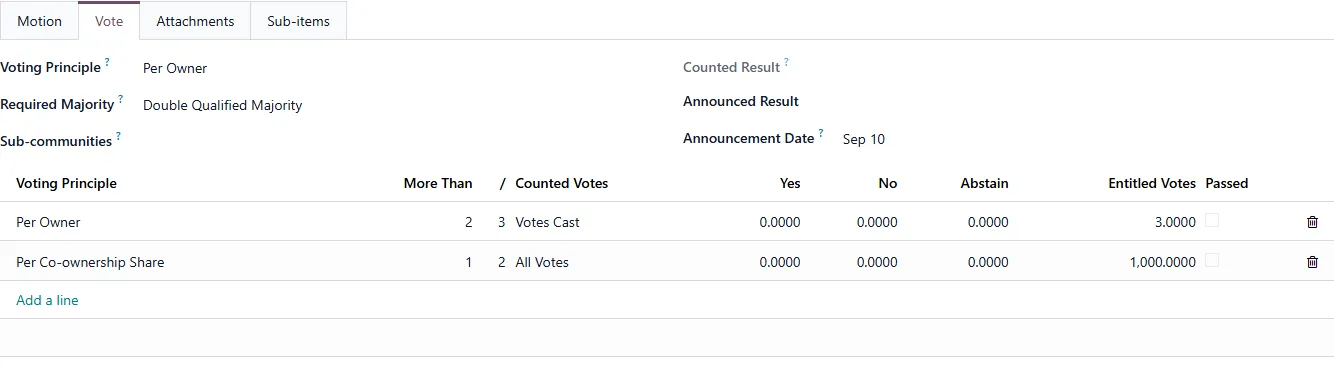
SMARTBRIX calculates the Entitled Votes column from the condominium ownerships on the day of the meeting, or for a circular procedure on the day of the voting deadline. In the example, per owner there are three votes for three units with two married couples.
Add the annual budget or annual settlement to the agenda
Section titled “Add the annual budget or annual settlement to the agenda”- Open the draft annual budget and click Add to Agenda.
- Choose the Procedure and click Add. You can choose resolution procedures of the community that are in Preparation or Invited.
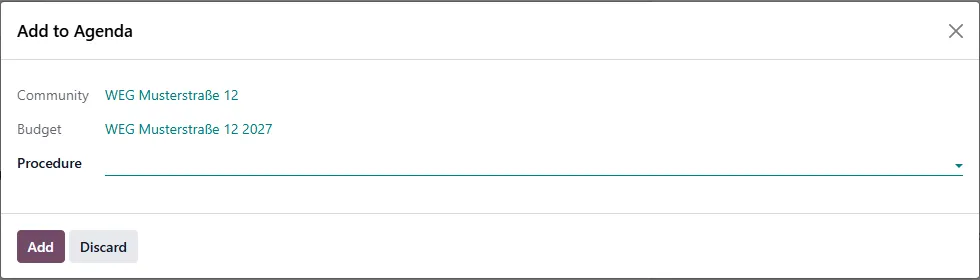
SMARTBRIX creates a voting item “Advances 2027” with the resolution type Advances and a motion that refers to the individual budgets. For an annual settlement, the item is called “Additional contributions and adjustment of the advances 2025”. You can adjust the wording afterward.
Circular procedure
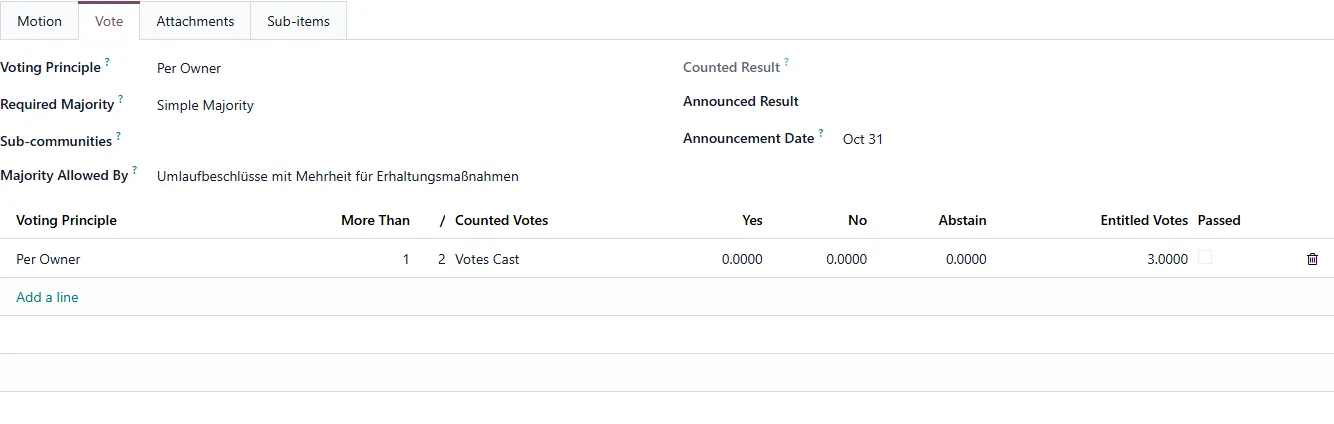
Section titled “Circular procedure”A circular resolution needs the consent of all apartment owners. Every new voting item of a circular procedure is therefore set to Unanimity. SMARTBRIX accepts a different majority in a circular procedure only if you choose, under Majority Allowed By, the resolution under which a majority is sufficient for this matter. Only passed resolutions of the same community that no court has declared invalid are offered.
Process
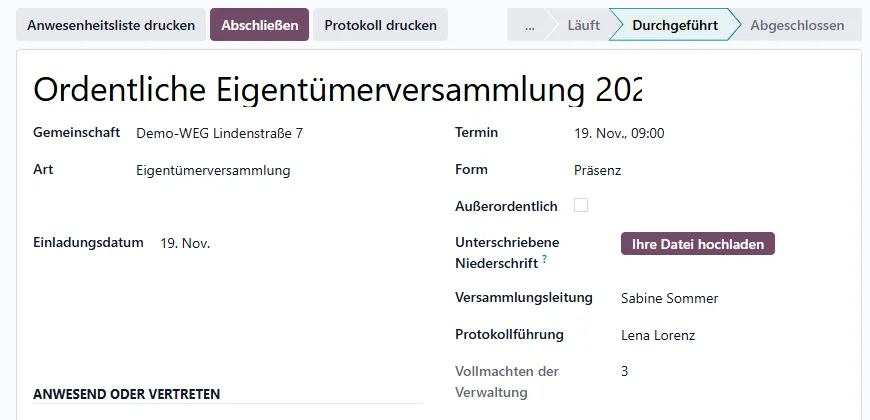
Section titled “Process”The status bar shows Preparation, Invited, In Progress, Held and Closed. Only an owners’ meeting that you run in SMARTBRIX is In Progress.
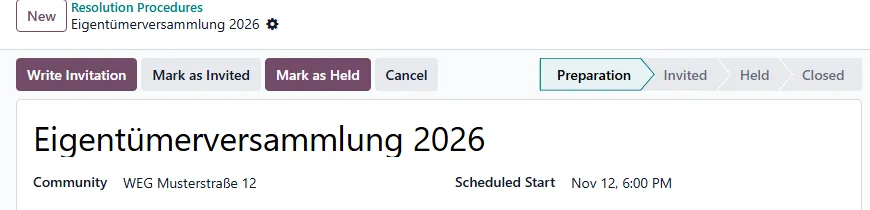
- Click Write Invitation and create the invitation letters as described under Write the invitation.
- Click Mark as Invited once the invitation has gone out. SMARTBRIX enters the Invitation Date if it is still empty. If less than three weeks remain until the owners’ meeting, a notice appears in the chatter.
- If you change the agenda after that, SMARTBRIX notes it in the chatter: a new item needs its own notice period.
- Run the owners’ meeting in SMARTBRIX, start it with Start Meeting and end it with End Meeting, see Run the owners’ meeting in SMARTBRIX. Otherwise, click Mark as Held after the owners’ meeting or once the voting deadline has passed.
From In Progress or Held on, the agenda is fixed: you can no longer add or delete items, and the item type, voting principle, required majority, sub-communities and procedural matter stay as they are. The subject, motion and votes remain open until the announcement, because motions are often still changed during the meeting.
Attachments
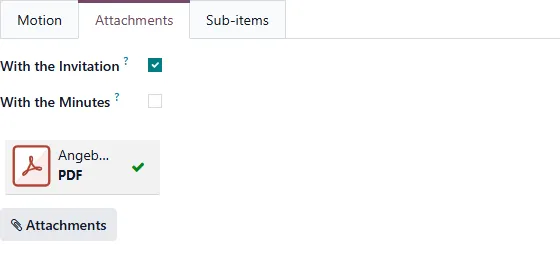
Section titled “Attachments”Upload documents for an item, for example quotes, on the Attachments tab of the agenda item with the Attachments button. With the Invitation is ticked by default: the files are enclosed with every invitation letter and stay on the agenda item. With the Minutes marks them as part of the minutes.
Write the invitation
Section titled “Write the invitation”- Click Write Invitation. The Invitation window shows the text of the letter for this resolution procedure and below it the attachments of the agenda. You can still adjust the text here.
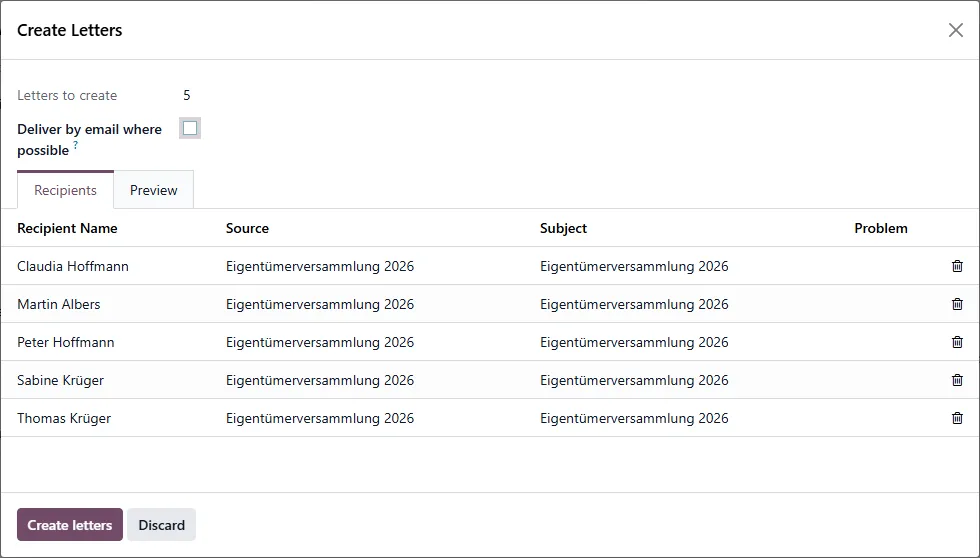
- Click Continue. In the Create Letters window, the Recipients tab has one row per apartment owner. Everyone who is an apartment owner on the Invitation Date is invited, or on today’s date if there is no invitation date. Co-owners of a unit each get a letter of their own. Remove a row with the trash can. The Preview tab shows the first letter.
- Tick Deliver by email where possible if apartment owners with an email address should get the letter as a PDF by email. Contacts with Contact by Letter set in their contact record still get it by post. Without the tick, every letter goes by post.
- Click Create letters. SMARTBRIX creates one letter per recipient and notes it in the chatter of the resolution procedure. For up to three letters, SMARTBRIX downloads the letters for posting right away as one PDF. For more recipients, the letters are created in the background, and you download the stack afterward, see Download the print stack.
To find letters again later or resend them individually, see Letters.
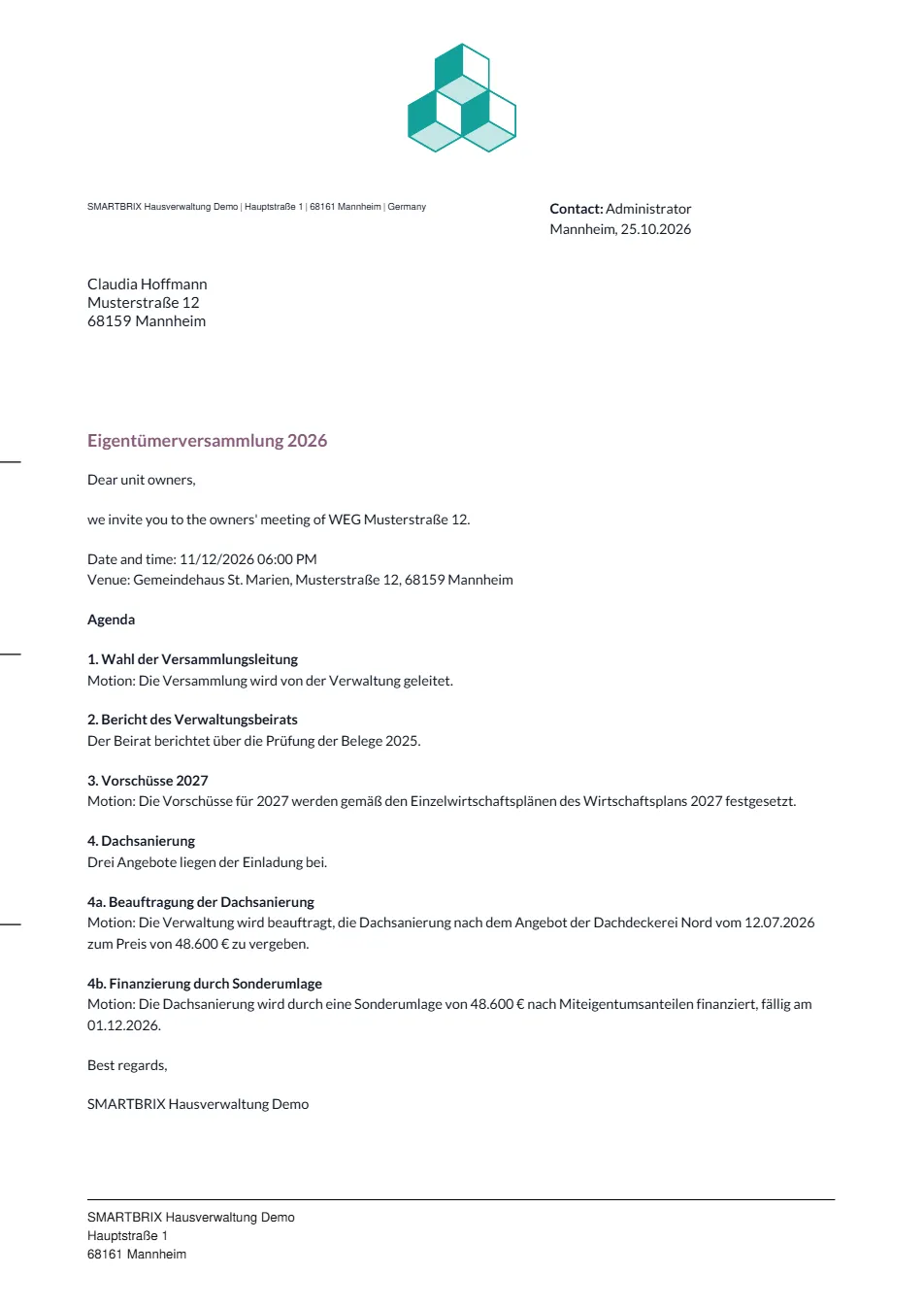
The subject of the invitation letter is the name of the resolution procedure. The salutation addresses all apartment owners, even in a letter to a single one. Then come the invitation to the community’s owners’ meeting (to the extraordinary one if Extraordinary is ticked), the date and time in the company’s time zone, and the place from the Venue tab. The agenda lists each item with its number and subject, for example “TOP 4a: Beauftragung der Dachsanierung” in a German letter, below it the explanation and, for a voting item, the motion. The internal note does not appear in the letter. For a circular procedure, the letter asks the owners to vote in writing by the voting deadline instead of inviting them.
Change of owner after the invitation
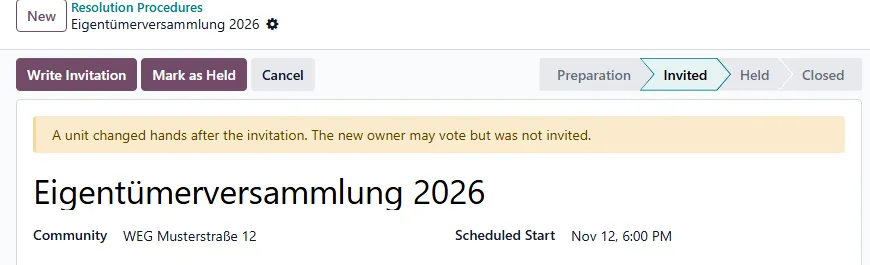
Section titled “Change of owner after the invitation”If a unit changes owner between the invitation date and the day of the meeting, the resolution procedure shows a yellow notice: the new apartment owner is entitled to vote but was not invited.
Run the owners’ meeting in SMARTBRIX
Section titled “Run the owners’ meeting in SMARTBRIX”You can run the owners’ meeting directly in SMARTBRIX: keep attendance and proxies, vote item by item and announce the result right away. The vote totals then follow from the individual votes cast. If you prefer to enter the totals after the meeting, proceed as described under Record and announce votes.
Voters and proxies
Section titled “Voters and proxies”- Open the invited resolution procedure and click List Voters. SMARTBRIX creates one voter per set of owners: everyone who jointly owns the same units on the day of the meeting, with these units and their co-ownership shares. A married couple with one joint apartment is one voter.
- Click the Voters button at the top. The attendance list opens. At first, everyone is on Absent.
- In each row, choose Present, Represented or Absent under Attendance. For Represented, enter under Represented By who holds the proxy: another apartment owner, the administration or a third party. Upload the proxy as a file under Proxy.
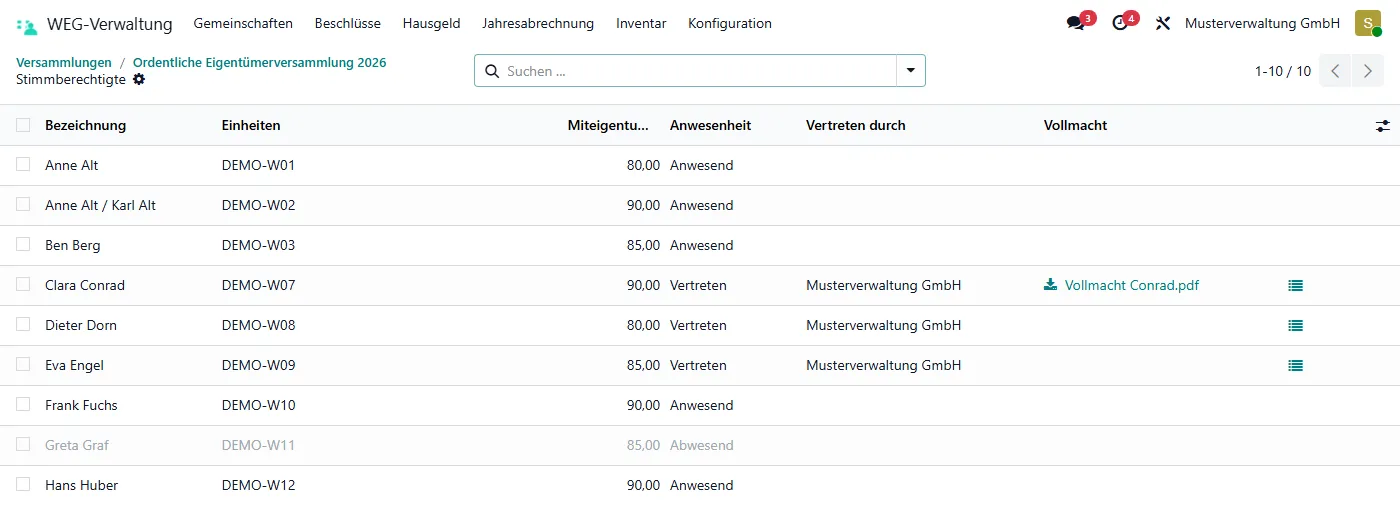
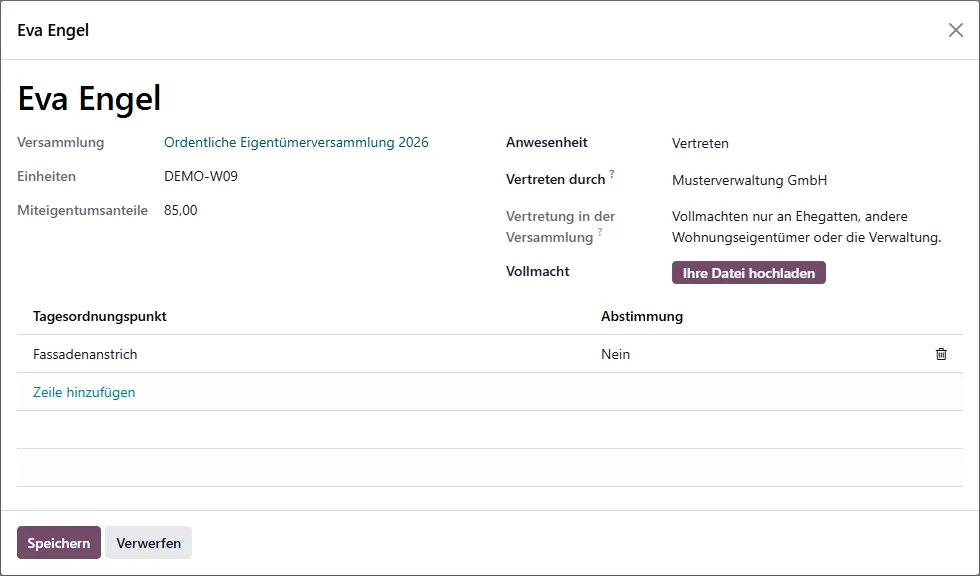
If a proxy contains instructions, click the list icon in the row. In the voter’s window, enter under Instructions for each agenda item how the representative has to vote: Yes, No or Abstain. For a represented voter, the window shows under Representation at Meetings the proxy rule you entered on the community in the Resolutions group. SMARTBRIX does not check the rule. Whether a proxy is valid is for the chair to decide.
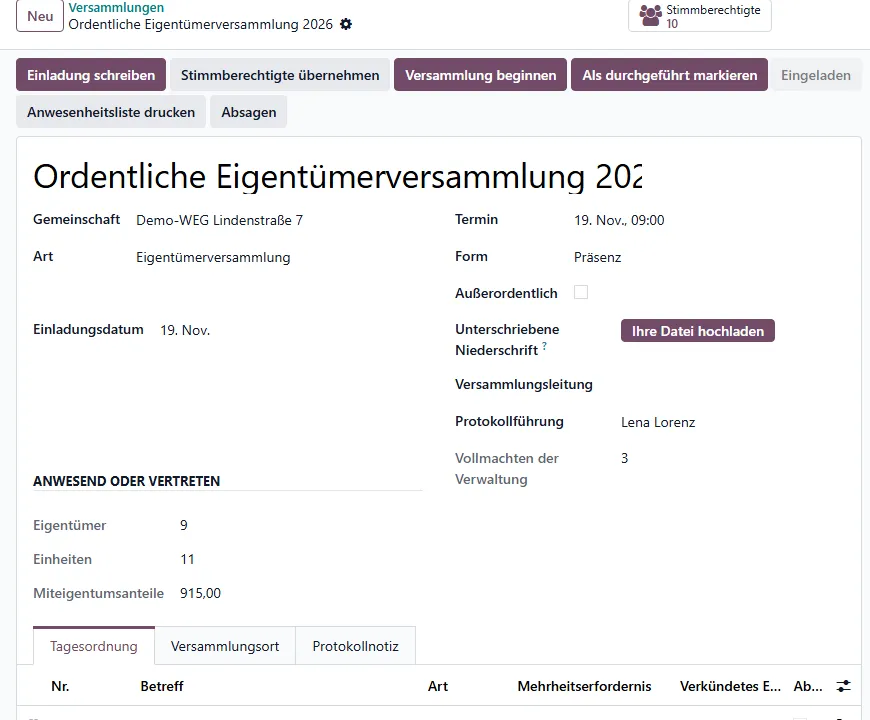
The resolution procedure shows in the Present or Represented group how many owners, units and co-ownership shares are present or represented, and next to it the number of Proxies Held by the Administration.
If a unit changes owner after you listed the voters, click List Voters again. SMARTBRIX brings the list in line with the owners on the day of the meeting: new voters are added as Absent, owners who left drop out, and everyone else keeps their proxy and instructions.
Start the meeting
Section titled “Start the meeting”- At the start of the meeting, click Start Meeting. If you have not listed the voters yet, SMARTBRIX does it now.
- SMARTBRIX sets the resolution procedure to In Progress, enters the time as Actual Start and you as Chair if the field is still empty. Enter under Minute Taker who writes the minutes.
- The agenda opens in the order of the invitation, with sub-items below their item.
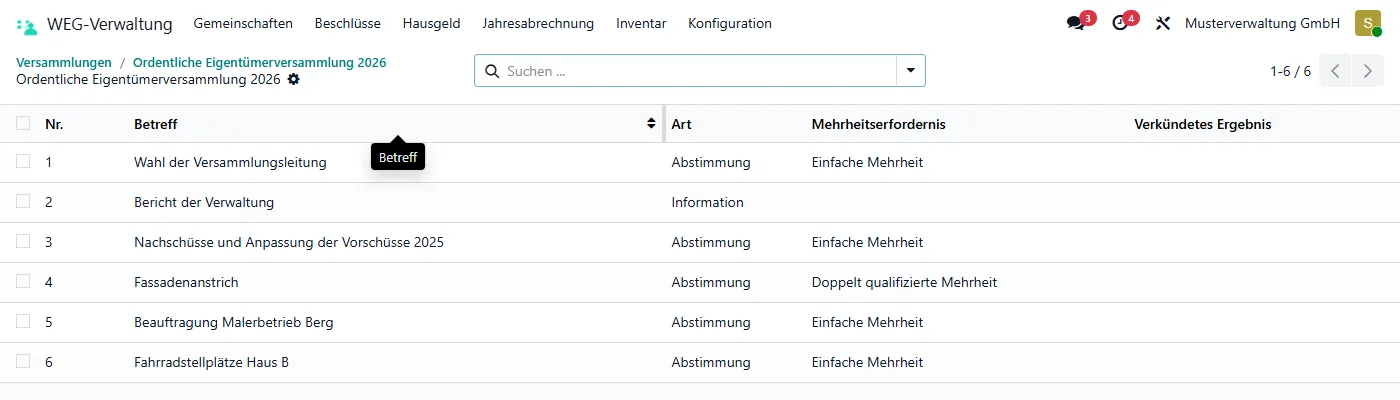
From In Progress on, the agenda and the voting rules are fixed, as after Mark as Held. New items cannot be added during the meeting: the meeting cannot validly decide on a matter that was not announced with the invitation (§ 23 (2) WEG, the German Condominium Act). If you left the agenda, Run Meeting opens it again.

Work through the agenda and vote
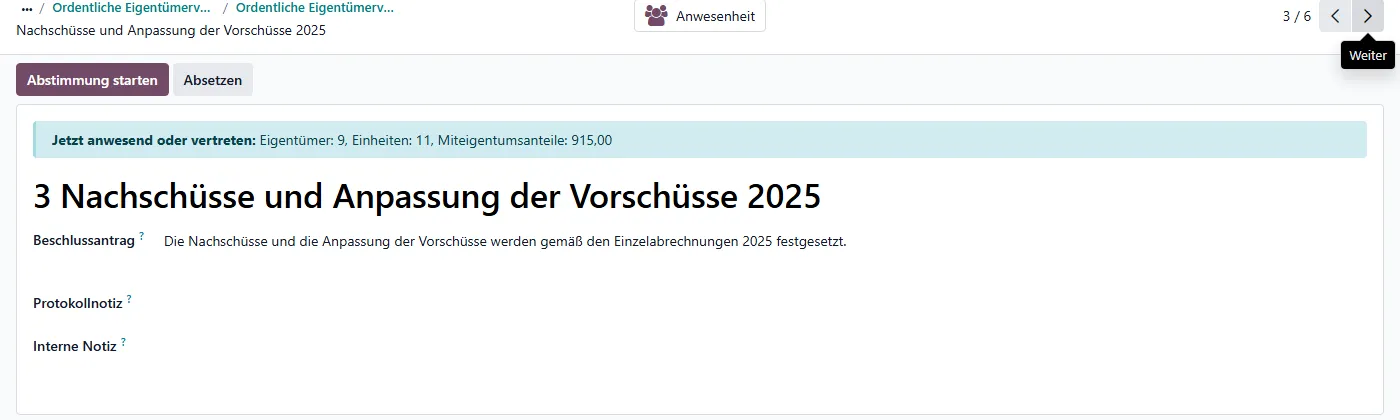
Section titled “Work through the agenda and vote”- Click an item in the agenda. At the top, Present or represented now shows the number of owners, units and co-ownership shares. Use the arrows at the top right to move to the next item.
- If the motion is changed in the meeting, adjust it under Motion.
- Click Start Vote. SMARTBRIX adds a row for every voter who is present or represented now and sets it to Yes, or to the instruction for a represented voter with an instruction.
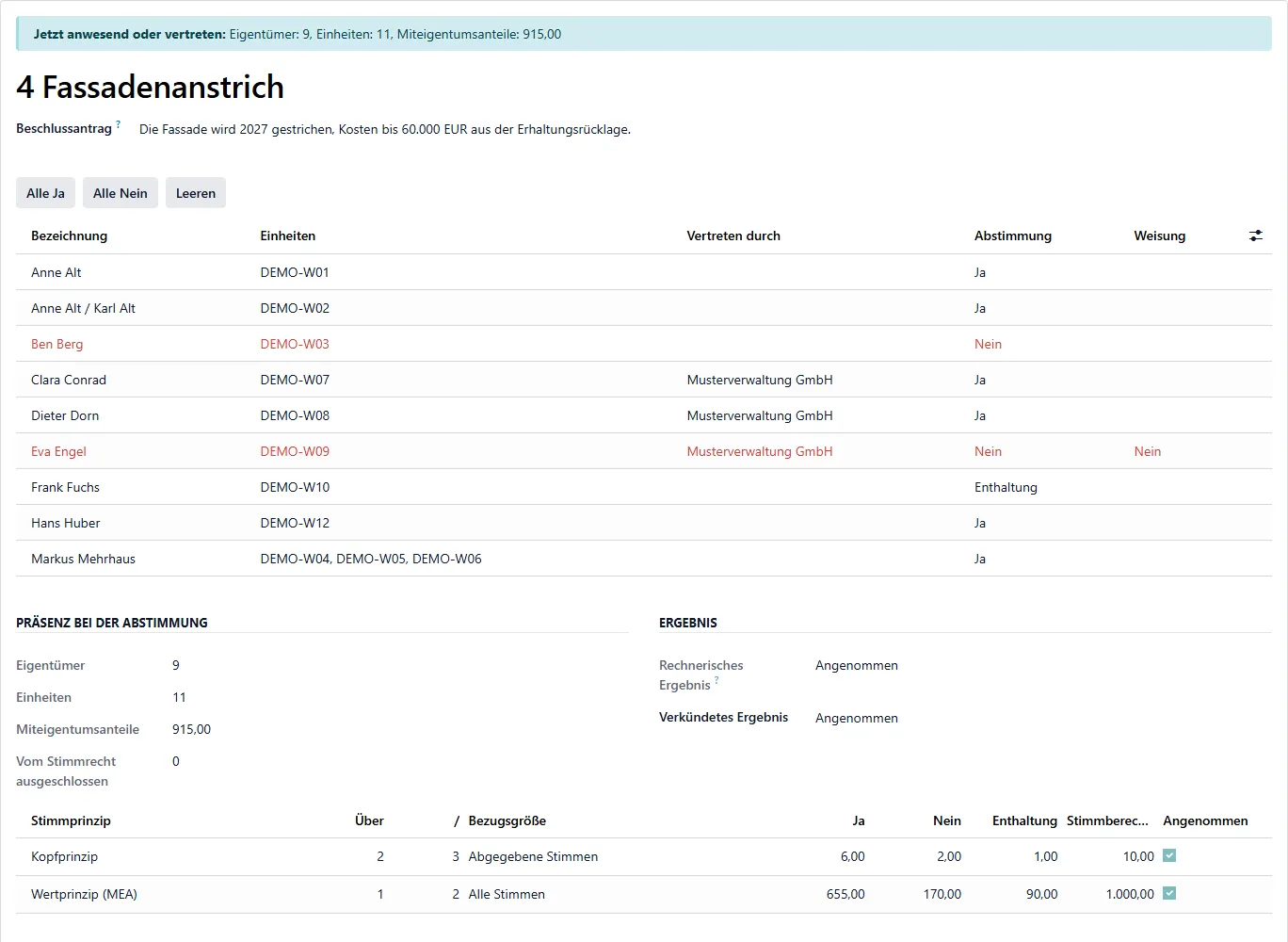
- Ask for votes against and abstentions and change only these rows: No, Abstain or Not Voting. All Yes and All No set all rows at once, Clear sets them to Open. Rows with an instruction, Excluded or Not Voting stay as they are.
- Check the Counted Result under Result and click Announce.
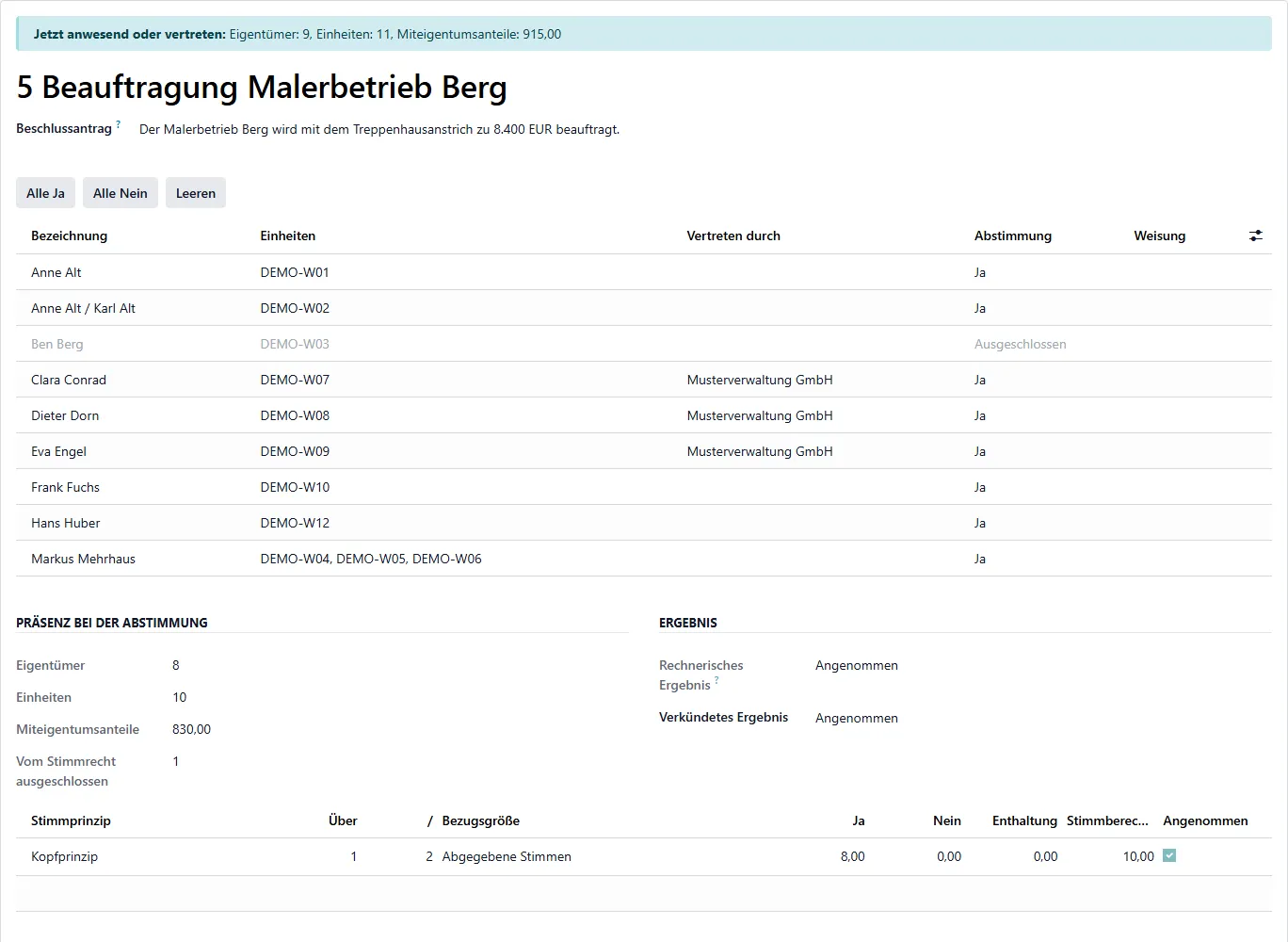
The result updates while you change the rows. Presence at the Vote shows the owners, units and co-ownership shares of those voting on this item, and below it each condition is counted as on the Vote tab. A vote that differs from the instruction is highlighted. No votes appear in red.
The announcement creates the resolution as described under Record and announce votes. An item of type Information has no vote; move on to the next item. You take an item off the agenda without a vote with Withdraw.
Exclusion from voting
Section titled “Exclusion from voting”If a voter is excluded from voting on an item, for example because the vote is about an order for their company (§ 25 (4) WEG), set their row to Excluded after Start Vote. Whether an exclusion applies is for the chair to decide. SMARTBRIX does not detect it. The excluded voter counts neither among the votes cast nor in the presence for this item. Excluded from Voting shows how many there are.
Attendance during the meeting
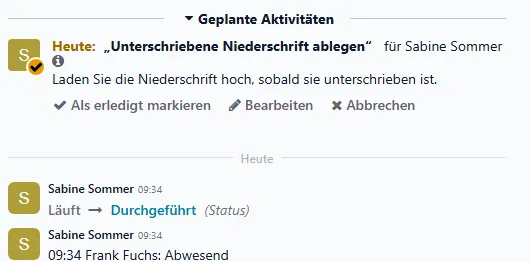
Section titled “Attendance during the meeting”If someone arrives late or leaves early, change their row in the attendance list. You open it from an item with the Attendance button, from the resolution procedure with Voters. SMARTBRIX writes every change with the time into the chatter of the resolution procedure.
The presence of an item is fixed with Start Vote. A later change does not alter it. If you started the vote too early, click Take Over Attendance Again: SMARTBRIX adds who has arrived since and removes who has left. If you already changed the vote of someone who left, their row stays.
Minutes notes
Section titled “Minutes notes”Enter what is said on an item, such as a request to the administration, under Minutes Note. Opening and formalities go on the Minutes Note tab of the resolution procedure. Both appear in the minutes. The Internal Note is never printed.
End the meeting
Section titled “End the meeting”Click End Meeting in the resolution procedure. SMARTBRIX enters the time as Actual End, sets the resolution procedure to Held and schedules the activity “File the signed minutes”. You can still enter and announce items that are not announced yet.
If the community runs the meeting through Vulcavo, there is no Start Meeting. The results then come from Vulcavo, see Meetings via Vulcavo.
Record and announce votes
Section titled “Record and announce votes”- Open the agenda item and switch to the Vote tab.
- In each row, enter the votes under Yes, No and Abstain. Per co-ownership share, these are co-ownership shares, in the example “1,000” for all three units. Counted Result shows what the votes add up to, and Announced Result takes it over.
- Check the Announcement Date. For an owners’ meeting it is prefilled with the day of the meeting, for a circular procedure with the day after the voting deadline.
- Click Announce at the top.
SMARTBRIX creates the resolution and gives it the next number in the register of resolutions. The Resolution field on the tab links to it. A rejected motion also gets a number, because the register of resolutions lists all resolutions. A procedural matter is announced but gets no resolution and no number. An announced item can no longer be changed.
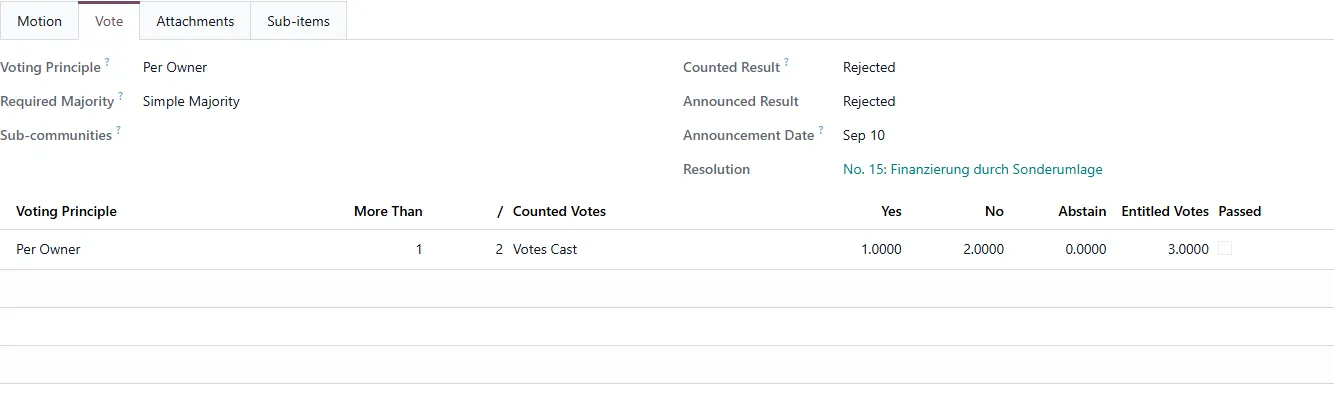
What counts is the announced result, not the count. If the chair announced a result other than what the votes give, choose it under Announced Result before clicking Announce. The item then shows a yellow notice, and the chatter of the resolution procedure records the deviation. If no votes were recorded, choose the announced result directly.
If an item has votes cast, from the meeting or from the replies of a circular procedure, SMARTBRIX counts Yes, No and Abstain from them. The totals can then no longer be changed by hand.
Replies in a circular procedure
Section titled “Replies in a circular procedure”- In the invited circular procedure, click List Voters. Each voting item gets one row per voter on the Vote tab, set to Open.
- Enter each answer as it comes in: Yes, No or Abstain.
- Replies counts the answers received, No reply yet names who is missing.
- After the voting deadline, click Mark as Held and announce the items.
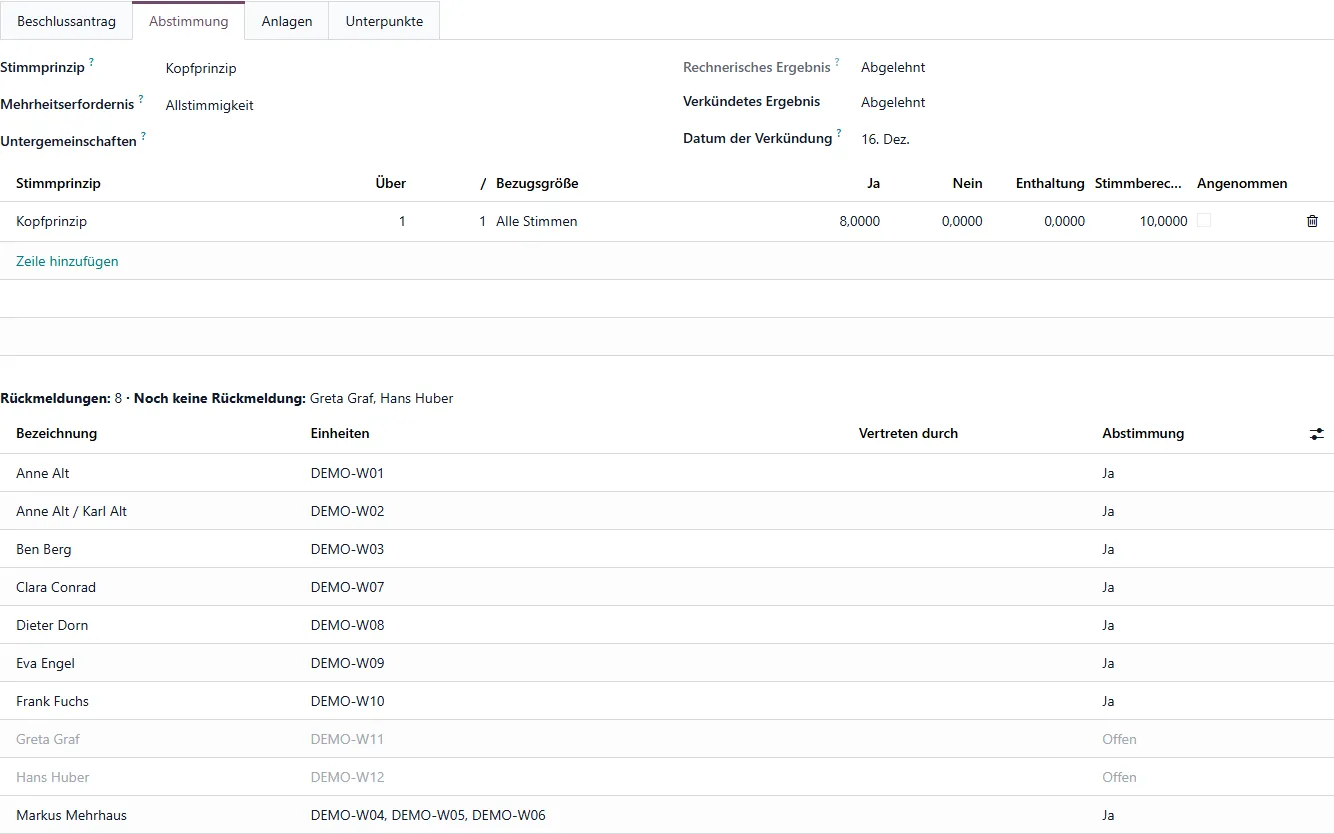
Open does not count as yes. With unanimity, the motion is rejected as long as a reply is missing.
Minutes and closing
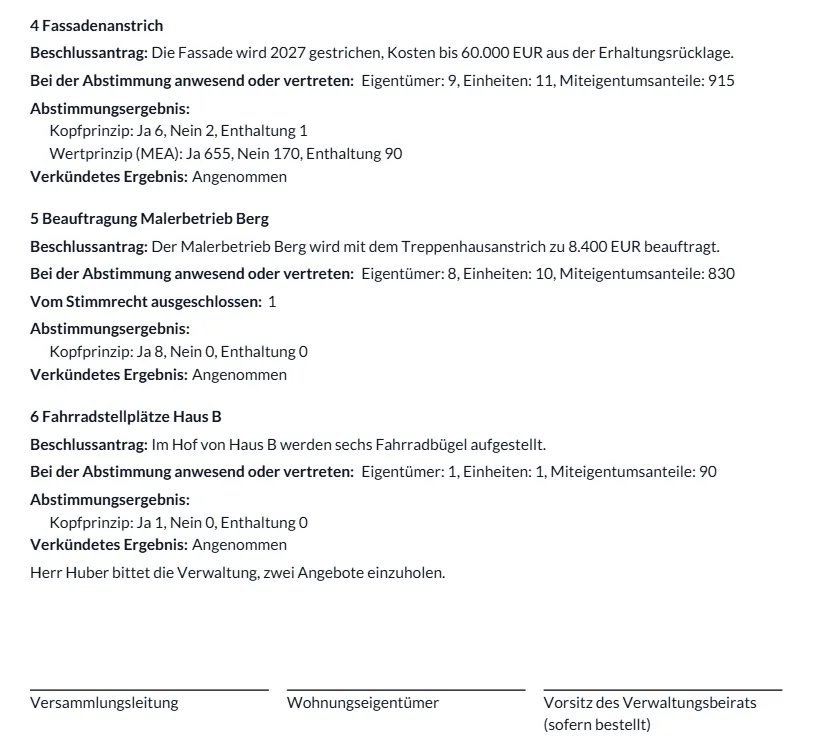
Section titled “Minutes and closing”Print Minutes creates the minutes of a held owners’ meeting as a draft for signing. They list the venue, start and end, chair and minute taker, the minutes notes and, for each voting item, the motion, votes and result. For items voted on in SMARTBRIX, they also show the presence at the vote and the number of voters excluded from voting. How an individual voted never appears in the minutes. Record a roll-call vote in the minutes note.
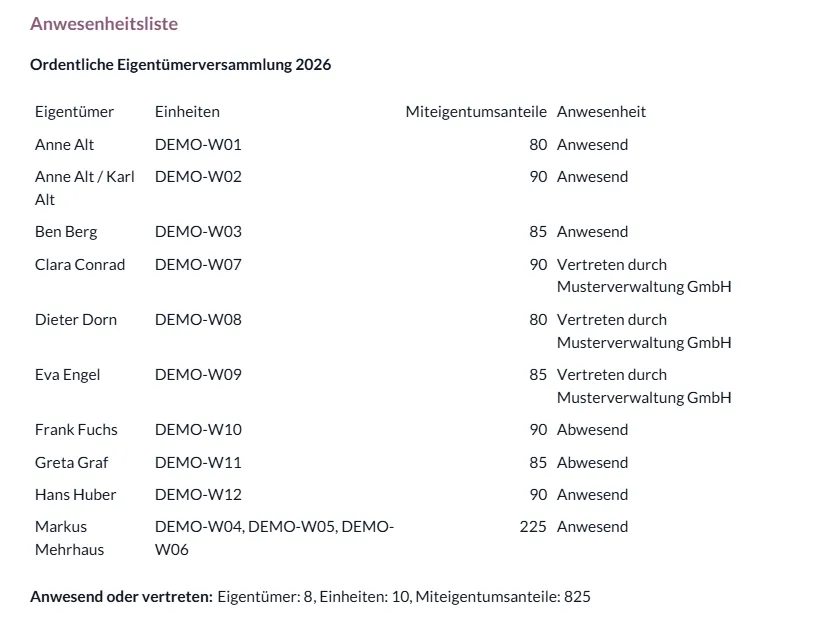
Print Attendance List prints each voter with units, co-ownership shares and attendance, for represented voters with the name of the representative, followed by the total of those present and represented. It shows the attendance at the moment of printing. The attendance list is a separate document and not part of the minutes.
When you click Mark as Held or End Meeting for an owners’ meeting, SMARTBRIX schedules the activity “File the signed minutes”. Upload the minutes signed by the chair, an apartment owner and, if applicable, the chair of the advisory council under Signed Minutes. This completes the activity.
If a voting item is withdrawn in the meeting, open it and click Withdraw. It gets no resolution and does not appear in the register of resolutions. Put Back on the Agenda reverses this as long as the resolution procedure is not closed.
Once all voting items are announced or withdrawn, click Close Procedure. The resolution procedure is then Closed, and its agenda can no longer be changed. If an announcement is still missing, SMARTBRIX names the open items. The Resolutions button lists the resolutions of this resolution procedure.
If a resolution procedure does not take place, click Cancel. Once resolutions have been announced, this button is gone. Back to Preparation brings it back.
Afterward: mark the annual budget and annual settlement as resolved
Section titled “Afterward: mark the annual budget and annual settlement as resolved”If a motion on Advances or Additional Contributions / Adjustment is passed, SMARTBRIX enters the resolution in the linked annual budget or annual settlement. It also schedules an activity on the resolution to follow it up, titled with the resolution number, for the Responsible user of the building; if no one is entered there, for the user who announces. The same activity is created for a passed special levy.
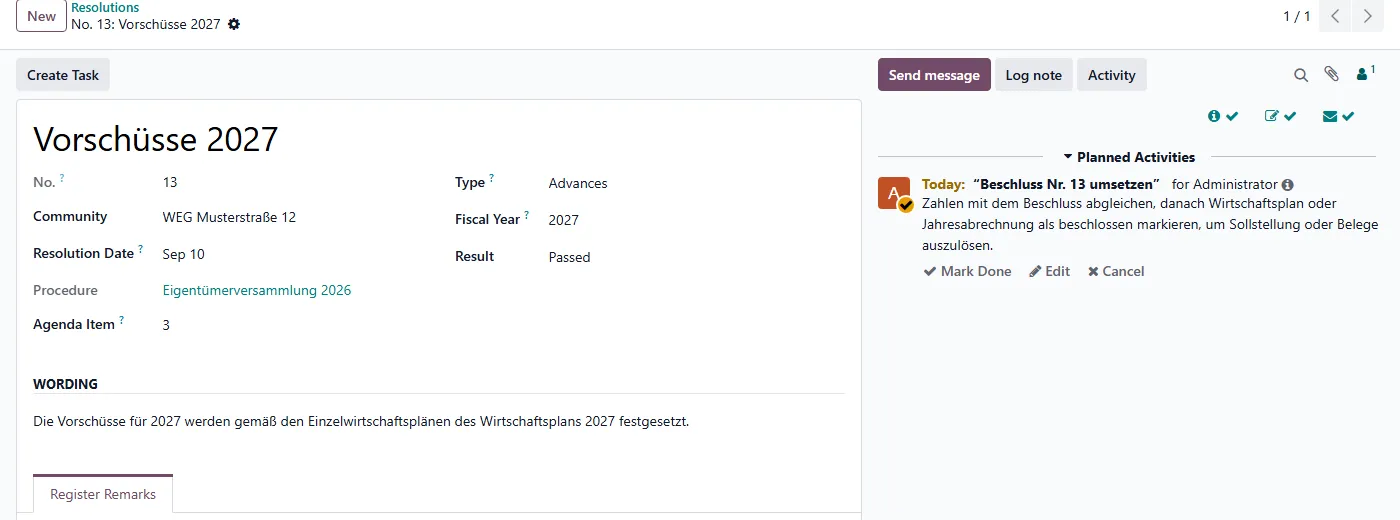
No entries or charges are created at this point. A meeting often changes the figures before it decides. First align the annual budget or the annual settlement with the resolution, then click Mark as Resolved there.
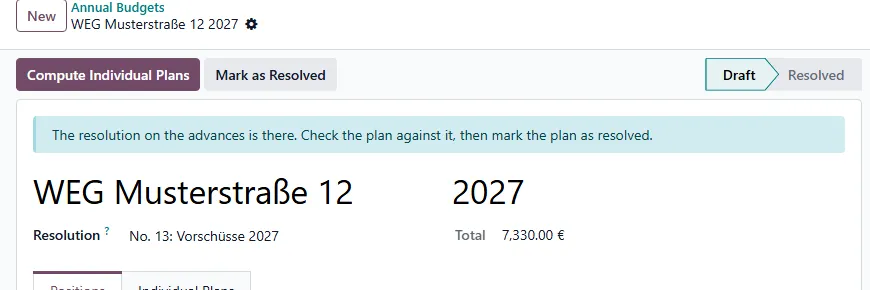
For the next steps, see Annual budget and resolutions (advance lines) and Annual settlement (entries for the settlement balance).
Create a task from a resolution
Section titled “Create a task from a resolution”From a passed resolution, you create a task in a project, for example to carry out a roof renovation the owners decided on. Only users with access to the Project app see the button.
- Open the resolution under Condominium › Resolutions › Register of Resolutions.
- Click Create Task at the top. The button only appears on a resolution with the result Passed.
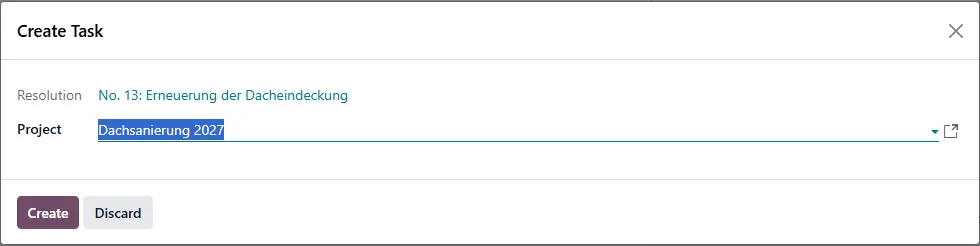
- In the Create Task window, choose the Project. If there is exactly one project for the community’s building and its units together, it is already filled in.
- Click Create.
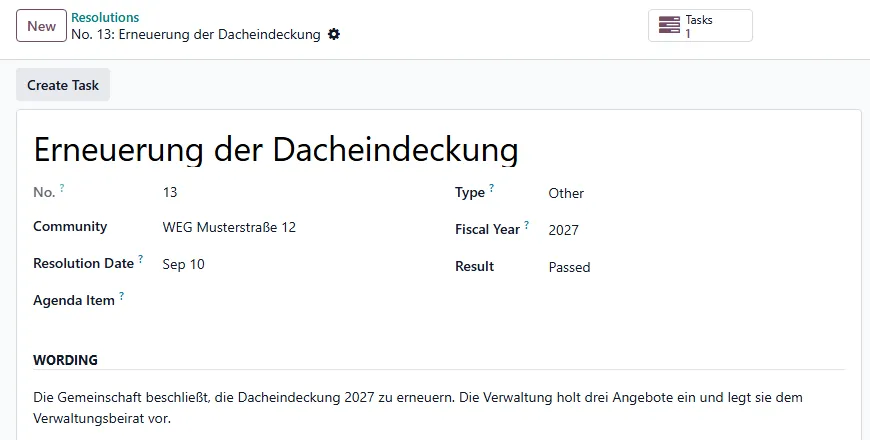
SMARTBRIX opens the new task. Its title is the number with the subject, for example “Nr. 13: Erneuerung der Dacheindeckung”, and its description is the wording of the resolution. The Resolution field of the task leads back to the resolution. On the resolution, the Tasks button at the top shows how many tasks were created from it and opens them.
The follow-up activity from the previous section remains alongside it as a reminder in the chatter of the resolution.
Register of resolutions
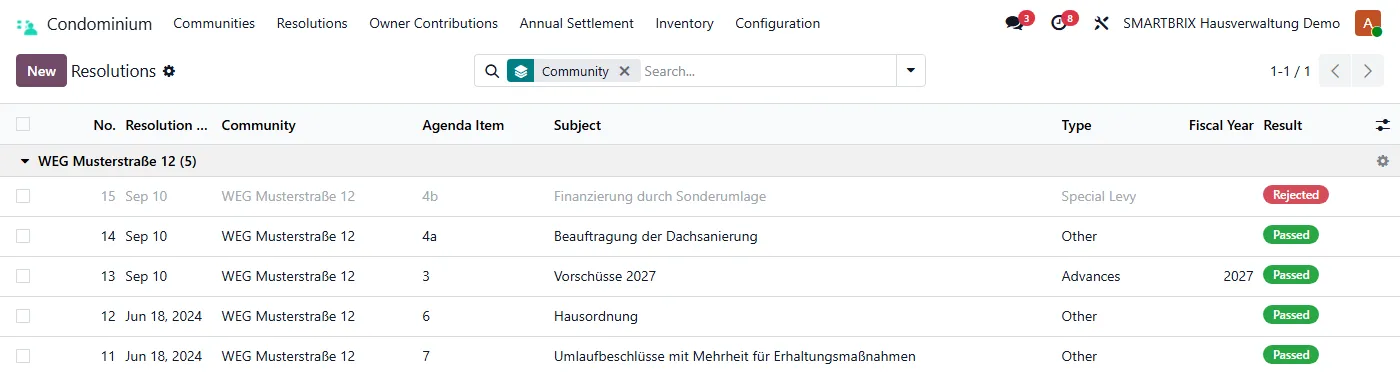
Section titled “Register of resolutions”Condominium › Resolutions › Register of Resolutions lists all resolutions, grouped by community. No. is the number in the register of resolutions. The In the Register filter shows only resolutions with a number.
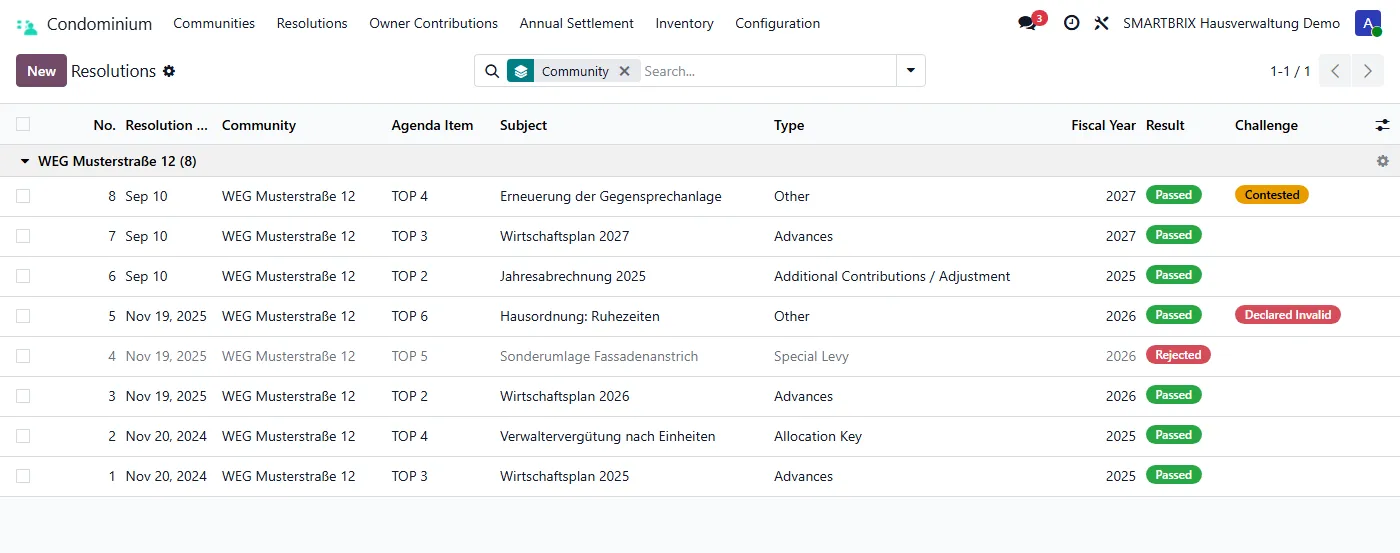
The Challenge column shows whether a resolution is contested and how the proceedings ended. The Contested filter shows all contested resolutions, Challenge Pending only those whose proceedings are still running.
Record a challenge
Section titled “Record a challenge”If an apartment owner sues to have a resolution declared invalid, record this in the Challenge group of the resolution. A rejected resolution can be contested as well.
- Open the resolution under Condominium › Resolutions › Register of Resolutions.
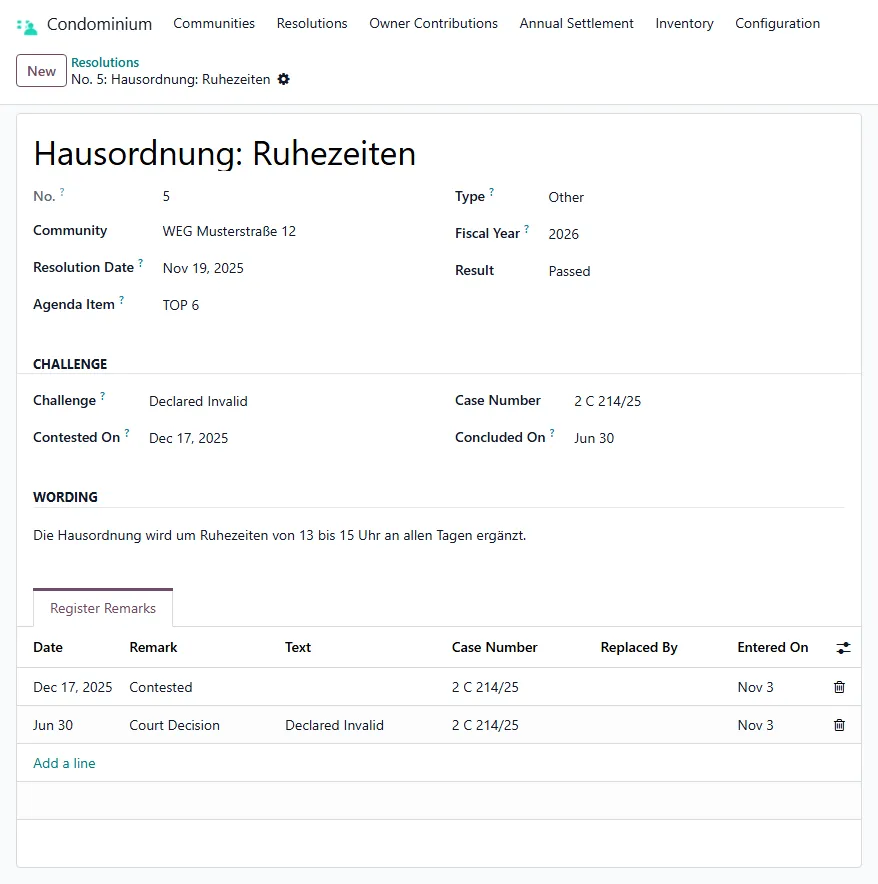
- In the Challenge group, choose Contested under Challenge and enter the day the claim was filed under Contested On. One field can only be saved together with the other.
- Enter the Case Number as soon as the court provides it.
- When the proceedings have ended, choose the outcome under Challenge: Declared Invalid, Partly Declared Invalid, Challenge Dismissed, Challenge Withdrawn or Settled by Agreement.
- Under Concluded On, enter the day the judgment became final, the claim was withdrawn or the settlement was reached. An outcome cannot be saved without this date.
The Result of the resolution stays as it was announced. A contested resolution applies until a court declares it invalid by a final judgment (§ 23 (4) WEG).
SMARTBRIX enters the challenge in the register of resolutions itself:
- With Contested On, the remark Contested with this date appears on the Register Remarks tab.
- With the outcome, a second remark appears with the date from Concluded On and the outcome as its text, in the company language. After a judgment it is a Court Decision, after a withdrawal or a settlement Other.
- A case number you enter later is added to the remarks that still lack it.
Each of these remarks is created once. If you later correct a date in the Challenge group, adjust the remark yourself.
Declared Invalid: the resolution no longer obliges anyone to pay. It can no longer be chosen as the resolution of an annual budget, an annual settlement or an allocation key, nor under Majority Allowed By. An annual budget or annual settlement that still refers to it cannot be marked as resolved. If allocation keys rest on it, detach them from the resolution first; otherwise the outcome cannot be saved. Advance lines and documents already created from the resolution stay in place. Whether and how you correct them is your decision.
Partly Declared Invalid: SMARTBRIX does not change the effect of the resolution. Check yourself which part still applies.
Register remarks
Section titled “Register remarks”Record what later happens to a resolution as a remark. The resolution itself stays unchanged. SMARTBRIX creates the remarks on a challenge from the Challenge group; you enter everything else by hand.
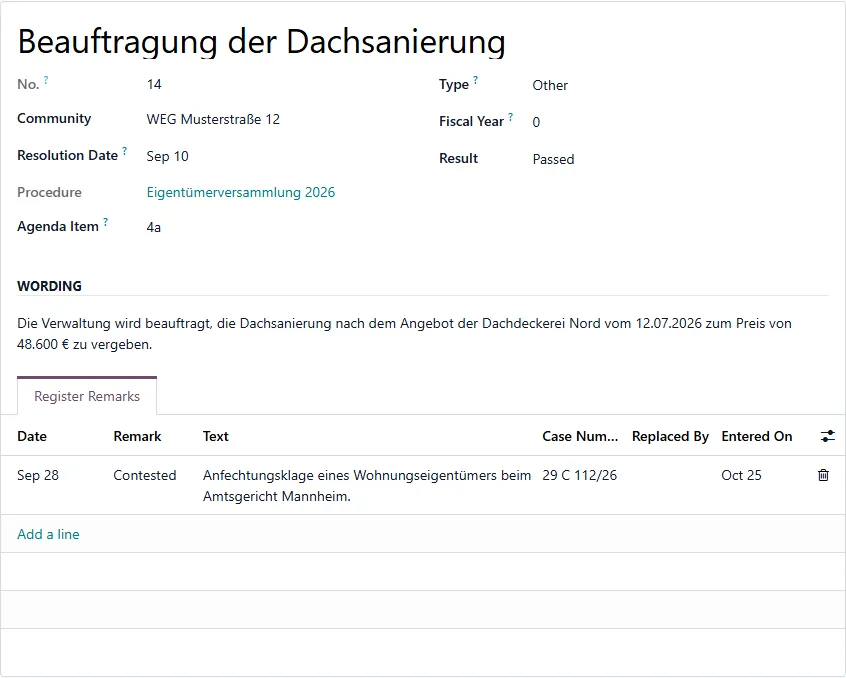
- Open the resolution and click Add a line on the Register Remarks tab.
- Under Date, enter the day of the event.
- Under Remark, choose Contested, Court Decision, Revoked, Replaced or Other.
- Under Text, enter what is needed (for a court decision, the operative part of the judgment) and under Case Number the case number. For Replaced, choose the new resolution under Replaced By.
SMARTBRIX sets Entered On to the day of the entry.
Add earlier resolutions
Section titled “Add earlier resolutions”Create resolutions from before SMARTBRIX, or a resolution that a court has replaced, under Condominium › Resolutions › Register of Resolutions with New. Without a number, such a resolution is not in the register of resolutions. To place it there, enter its number under No.. After that, the number cannot be changed. Each number exists only once per community.
The next announcement takes the number after the highest one assigned, at least the community’s First Resolution No..
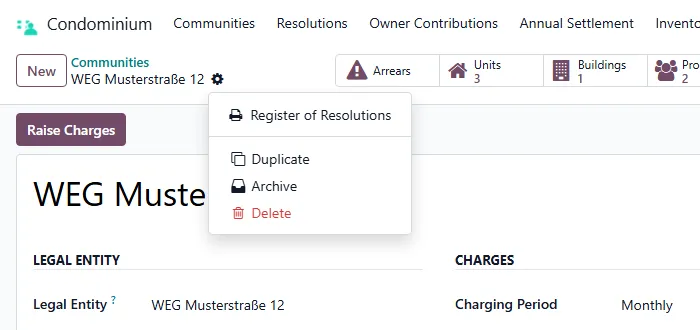
Open the community and choose Register of Resolutions from the Actions gear menu next to the title.
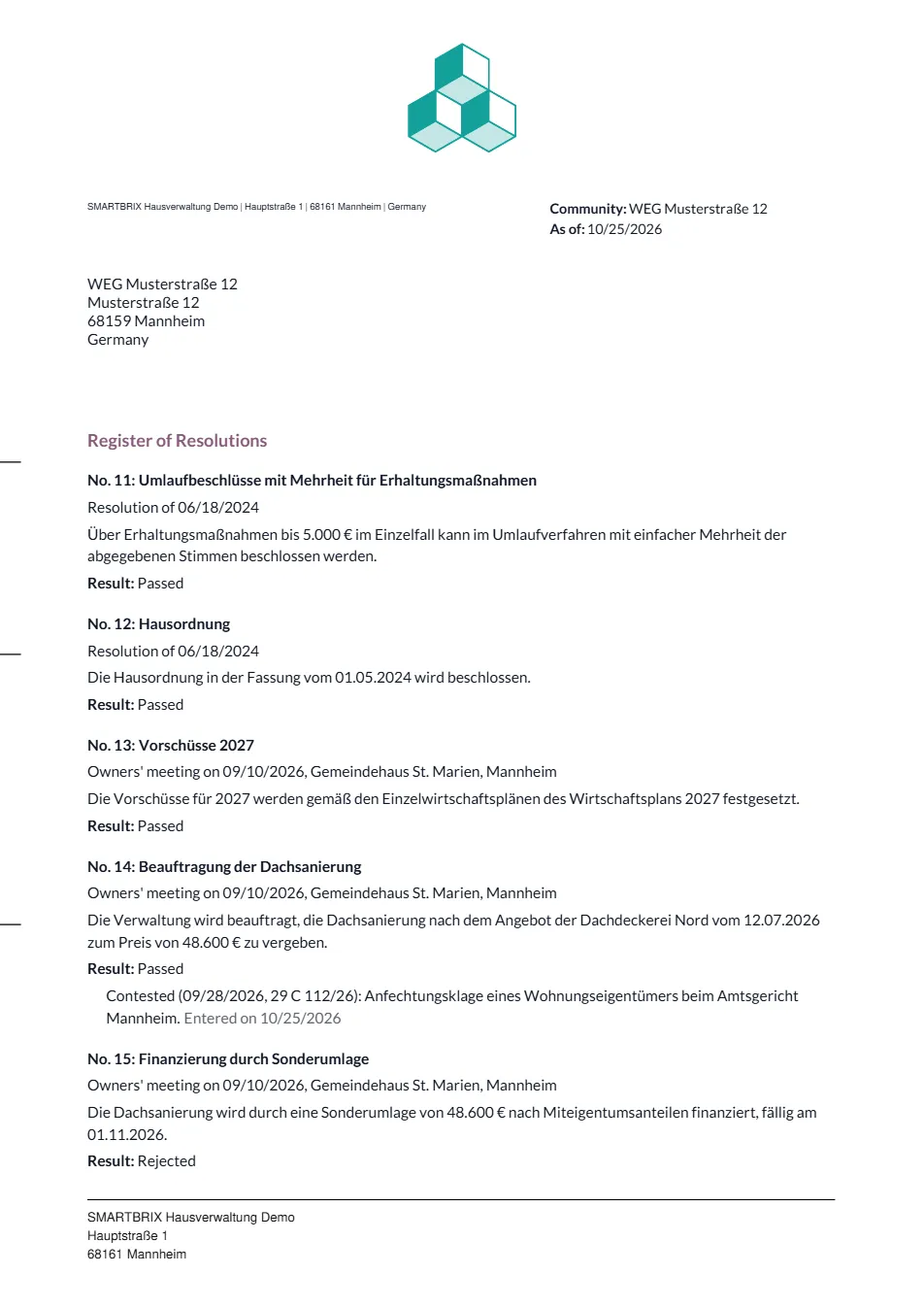
The register of resolutions lists every resolution with a number: subject, origin (owners’ meeting with date and place, circular procedure with announcement date or resolution date), wording, result and remarks with their entry date. It is printed in the company language.
Frequently asked questions
Section titled “Frequently asked questions”I have the votes of the apartment owners individually. Where do I enter them? List the voters and enter the votes per voter: in the owners’ meeting after Start Vote, in a circular procedure as replies. SMARTBRIX counts the totals from them. Without voters, enter the totals yourself.
Why is “Announce” missing? You can announce while the meeting is in progress or after Mark as Held, and only an item of type Vote that has not been announced yet. When you run the meeting in SMARTBRIX, the button appears after Start Vote.
Why is “Start Meeting” missing? The button exists only for an invited owners’ meeting, not for a circular procedure and not when the meeting runs through Vulcavo.
Why can I no longer add an item? The resolution procedure is in progress or has been held. A matter that was not on the agenda needs a new invitation.
A resolution has been contested. Do I have to change the result? No. The result stays until a court decides with final effect. Record the challenge in the Challenge group, see Record a challenge.
The resolution on the advances is announced. Why is there no new owner contribution yet? The announcement does not create charges. Mark the annual budget as resolved and create the advance lines there.
Didn't find an answer? Contact support